Saltar al contenido principal
Holiday 2024 Holiday 2024
Location Device Language Time

Smart Rules for QR Codes

Let a single dynamic QR code show different content based on who scans it — tailored by location, device, browser language, or time of scan. No reprinting. No extra codes.

Dynamic QR codes · Enterprise & Full Suite · Up to 10 rules per code

Location

One printed QR, many personalized destinations by country, region, or radius.

Device & language

Rules based on device OS, browser language, hour, and more.

At scan time

Applied automatically at scan time, top to bottom.

One QR code. Content that adapts to every scan.

Static QR codes always open the same destination. Smart Rules change that. Instead of one fixed link, you define conditions so each scanner sees the most relevant website, text, or field values — automatically.

Smart Rules live in the QR code edit experience in your QRStuff dashboard. Choose which fields to override (for example a URL or email), then build rules that swap those values when scan data matches — such as country, device type, or time of day.

Rules run in order from top to bottom at the moment of scanning. Combine conditions with AND / OR logic, start from examples, and save — your printed code stays the same while the experience behind it stays flexible.

  • Show different content based on who scans and where they scan from
  • Override selected QR fields without creating separate codes
  • Match on location, device OS, browser language, hour, date/time, and radius
  • Use AND / OR logic across conditions and rules
  • Up to 10 rules per QR code, evaluated in order at scan time

Key features and benefits

Built for campaign teams, product owners, and enterprises that need one scannable asset with many intelligent outcomes.

Conditional content on a single QR

Smart Rules allow a single QR code to show different content based on who scans it. Display specific websites or info tailored to the user’s location, device, or time of scan.

Field-level overrides

Select which fields to make dynamic — URL, email, text, and other type-specific fields — then set what each rule should show when conditions match.

Location-aware rules

Target by country or region, or use center point + radius so nearby scanners get local content (store pages, event info, in-market offers).

Device and language targeting

Route iOS vs Android (or other device OS values) to the right app store or landing page. Match browser language codes (e.g. en, en-US, zh-Hant) for localized experiences.

Time-based delivery

Use hour-of-day (0–23) or date/time conditions for happy-hour menus, overnight support pages, launch windows, or scheduled campaign switches.

Ordered rule engine with AND / OR

Rules apply top to bottom at scan time. Stack multiple conditions per rule and connect them with AND or OR for precise targeting.

Guided setup with examples

Start empty or use built-in examples (country-based, device-based, multiple conditions) so teams can learn the pattern quickly.

What you can control with Smart Rules

Fields to override

Pick the QR content fields that should change when a rule matches — so only the parts you choose become dynamic.

Scan conditions

Build conditions from scan data such as country, region, device OS, browser language, hour, date/time, and geographic radius with lat/long center point.

Rule logic

Name each rule, combine conditions with AND / OR, set override values per selected field, and order rules so the first match wins as intended.

Limits & availability

  • Up to 10 rules per QR code
  • Available on Enterprise or Full Suite
  • Requires a dynamic QR code
  • Not supported for certain types (e.g. Tilez digital business card and DPP/GS1)

How to set up Smart Rules

Prerequisites

  1. A QRStuff account on Enterprise or Full Suite
  2. A dynamic QR code (Smart Rules are disabled on static codes)
  3. A supported QR type (not Tilez DBC or DPP/GS1)
  4. Clear destinations for each audience segment (URLs, text, or field values ready to paste)
1

Open Smart Rules on a QR code

Go to your QR codes list in the dashboard. Open the actions menu for a dynamic QR code. Choose Set Up Smart Rules.

2

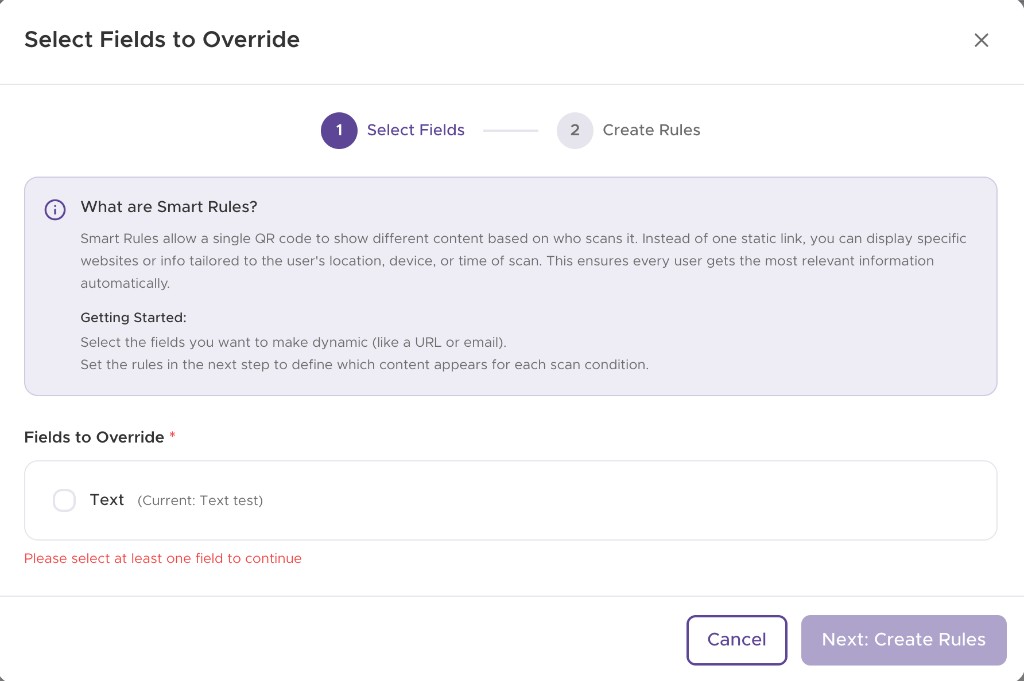
Select fields to override

Read What are Smart Rules? in the setup dialog. Select the fields you want to make dynamic (for example a URL or email). Confirm at least one field is selected. Click Next: Create Rules.

QRStuff dashboard dialog: Select Fields to Override, step 1 of Smart Rules setup
3

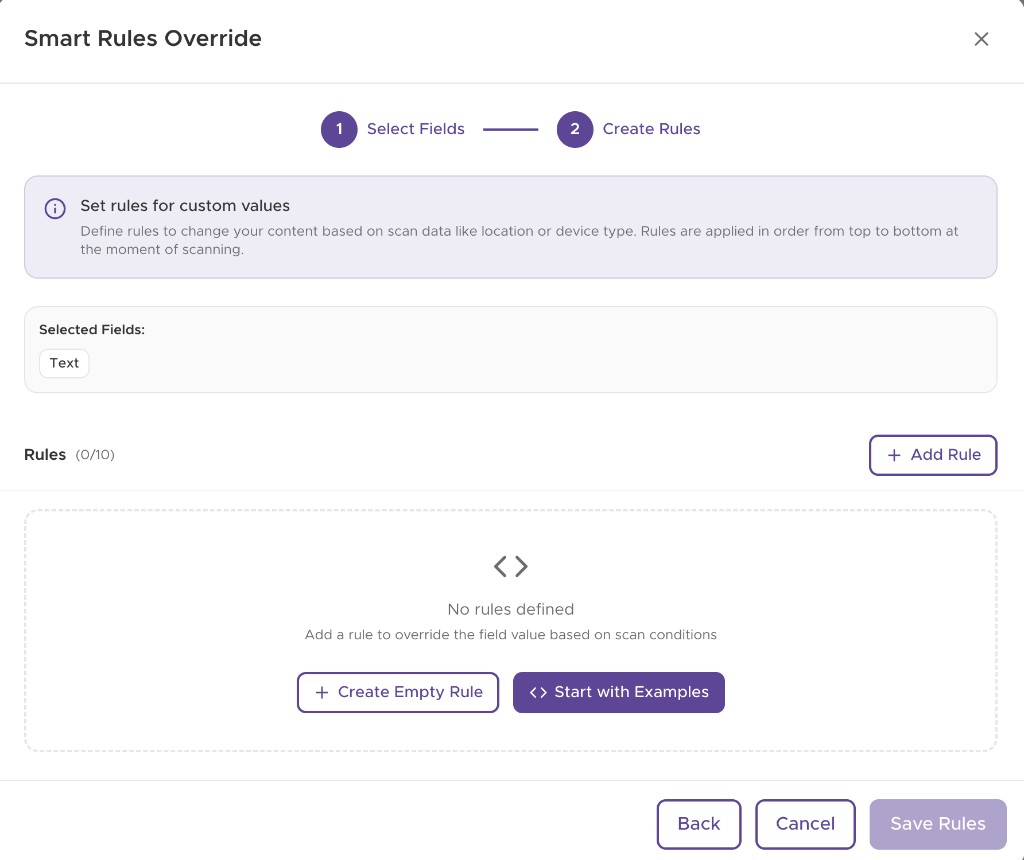
Create rules

Click Add Rule, Create Empty Rule, or Start with Examples. Name the rule (e.g. “UK visitors” or “iOS App Store”). Add conditions: field + operator + value (and value ranges where needed). Enter the override content for each selected field. Add more rules (up to 10). Use AND / OR between conditions and between rules as needed. Click Save Rules.

QRStuff dashboard dialog: Create Rules step with Create Empty Rule and Start with Examples options

Inside the rule builder

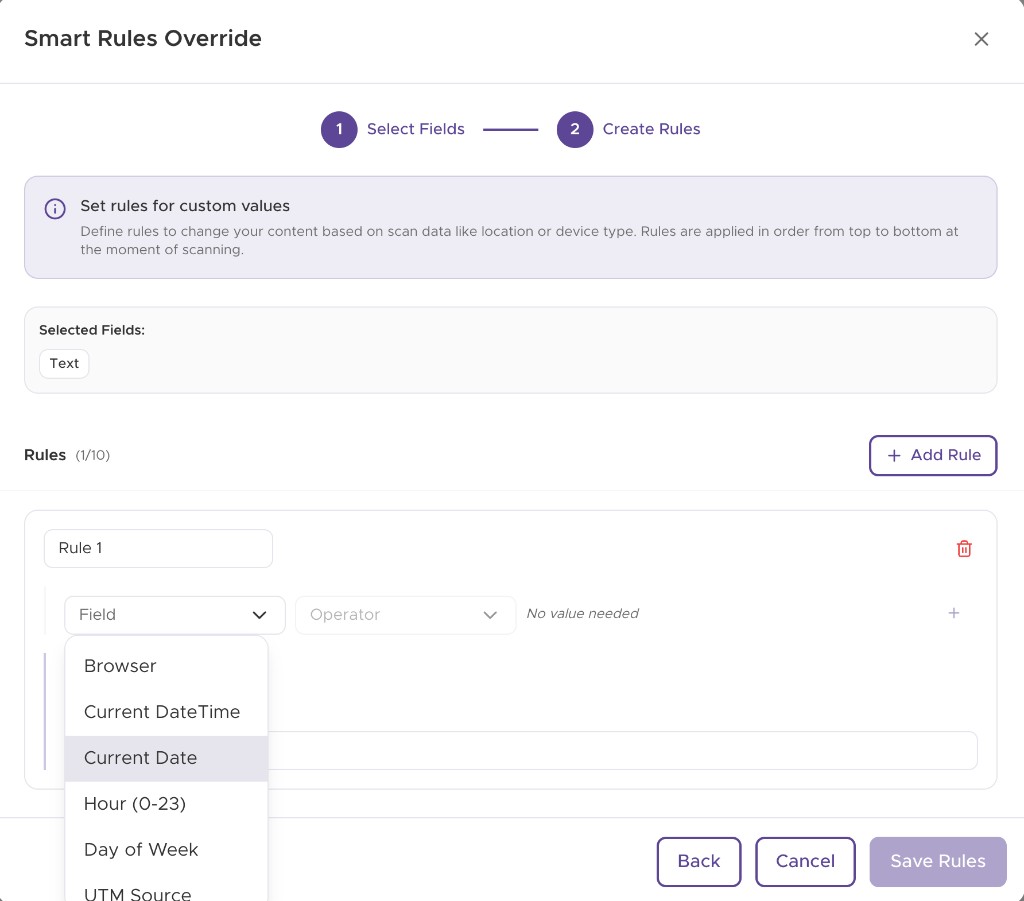
Every rule is a condition field, an operator, and a value — plus the content each matching scan should show.

Smart Rules condition field dropdown showing Browser, Current DateTime, Current Date, Hour, Day of Week and UTM Source

Choose the condition

Pick what the rule looks at: browser, current date/time, hour of day, day of week, UTM source, location, device and more.

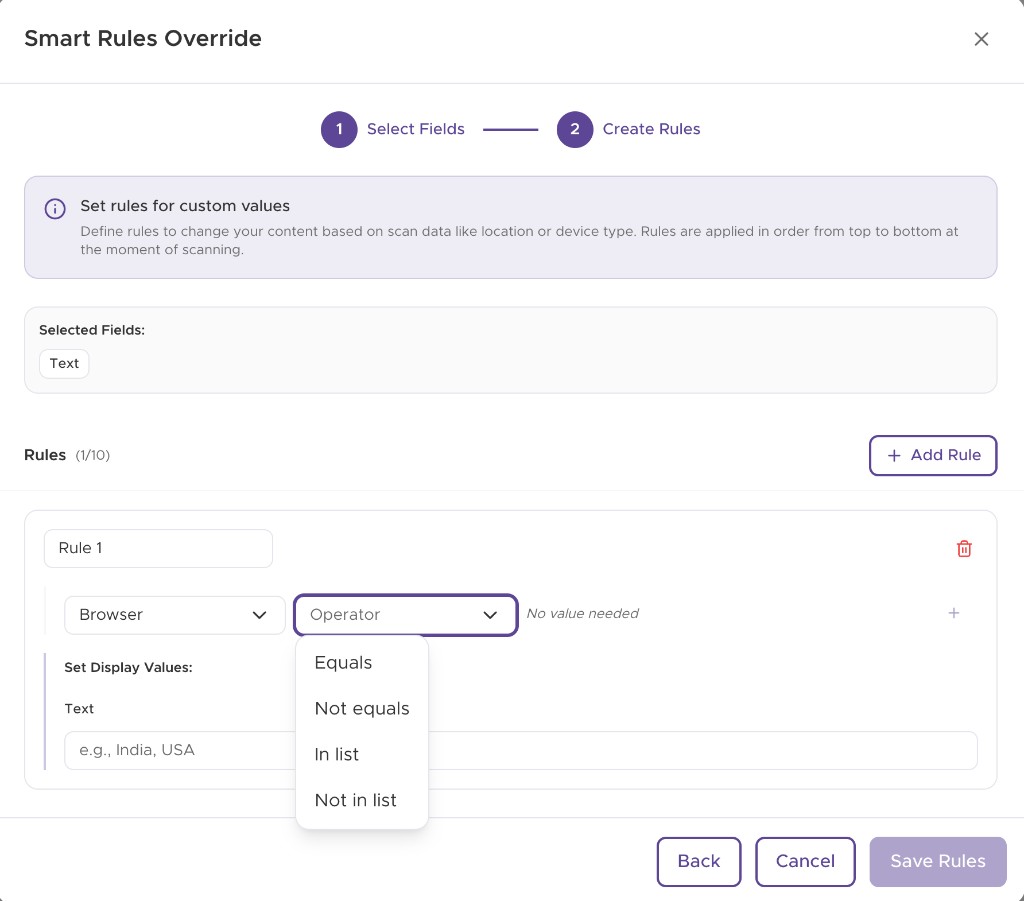
Smart Rules operator dropdown showing Equals, Not equals, In list and Not in list

Set how it matches

Choose an operator — equals, not equals, in list, or not in list — to control how strictly the condition is applied.

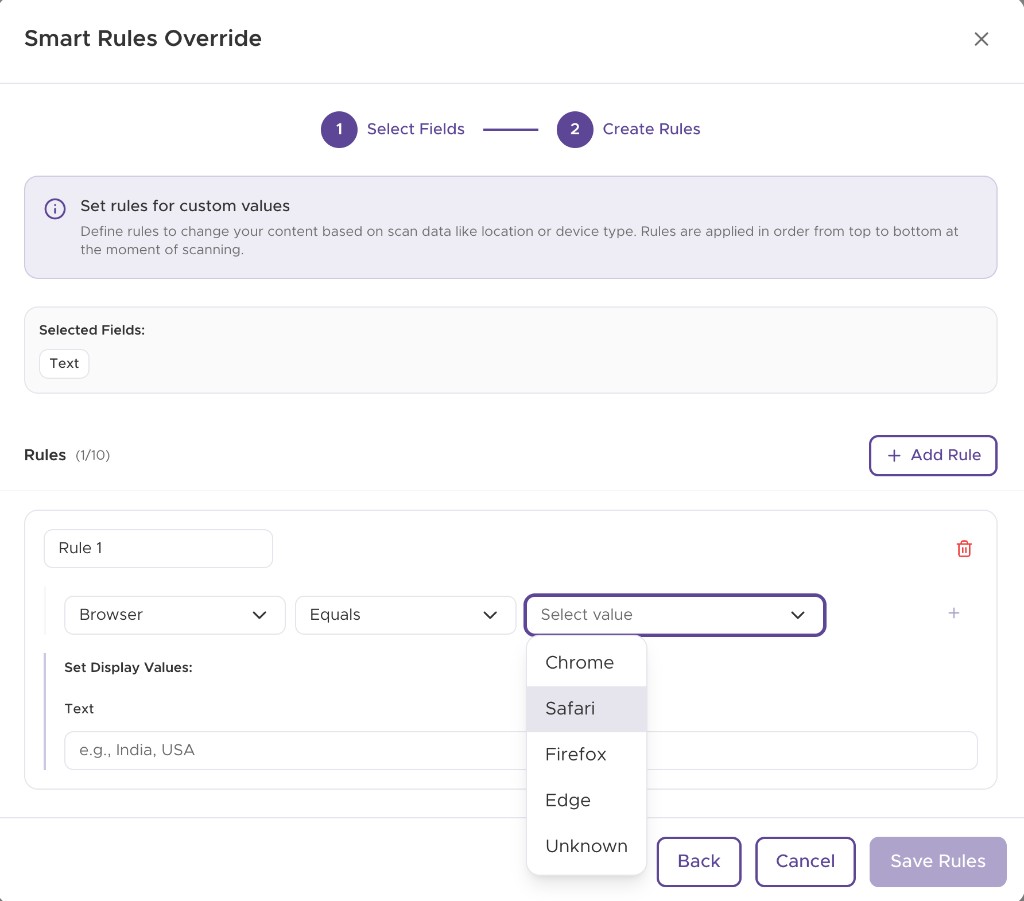
Smart Rules value dropdown showing Chrome, Safari, Firefox, Edge and Unknown

Pick the value and the content

Select the value to match, then set the display value for each field you chose to override. Save, and the rule is live on the next scan.

Getting started

Select the fields you want to make dynamic (like a URL or email). Set the rules in the next step to define which content appears for each scan condition.

Rule evaluation

Define rules to change your content based on scan data like location or device type. Rules are applied in order from top to bottom at the moment of scanning.

Ready to personalize every scan?

Set up Smart Rules on a dynamic QR code and deliver the right content by location, device, language, or time — without printing a new code.

Use cases and workflows

Multi-country campaigns

One poster worldwide; scanners in each country land on the local site, store, or language version.

App install QR codes

Send iOS users to the App Store and Android users to Google Play from the same printed code.

Local store / event radius

When someone scans near a venue (center point + radius), show that location’s menu, map, or check-in page.

Time-of-day experiences

Show breakfast menus before noon, dinner after, or route after-hours scans to a support or voicemail page.

Language-aware landing pages

Match browser language and open the correct localized page without separate codes per language.

Region-specific offers

Combine country and region conditions for state-, province-, or city-level promotions.

Best practices

Put the most specific rules at the top; keep a broad fallback last (or rely on default QR content).
Test each condition with real devices and locations before a large print run.
Prefer a dedicated subdomain or clear URLs for each override destination.
Don’t exceed what you can maintain — fewer clear rules beat many overlapping ones.
Remember the 10-rule limit; merge similar segments when possible.
Use examples first, then refine values (country codes, OS names, language tags).
Keep geo radius realistic for the venue; validate lat/long format (40.7128, -74.0060).
Smart Rules complement — they don’t replace — geo fencing and pixel tracking when you need those tools too.

Frequently asked questions

Smart Rules allow a single QR code to show different content based on who scans it. Instead of one static link, you can display specific websites or info tailored to the user’s location, device, or time of scan.

A dynamic QR code lets you change the destination later. Smart Rules go further: the destination (or other fields) can change automatically per scan based on conditions you define.

Open a dynamic QR code in the dashboard, choose Set Up Smart Rules, select fields to override, create rules with conditions and override values, then save. Rules apply at scan time from top to bottom.

Condition fields come from your account’s rule configuration and typically include location (country, region), device OS, browser language, hour of day, date/time, and geographic radius with a center point.

Up to 10 rules per QR code. Remove a rule if you hit the limit and need to add another.

Rules are applied in order from top to bottom at the moment of scanning. Arrange specific matches first.

Yes. Use AND or OR between conditions within a rule, and between rules, to build precise targeting (for example country AND region, or device OS equals iOS).

Smart Rules are available on Enterprise or Full Suite. The action is shown in the QR code menu when your account qualifies.

Yes. Smart Rules require a dynamic QR code. The setup action is disabled for static codes.

No. Some types are excluded (for example Tilez digital business cards and DPP/GS1). The dashboard shows when Smart Rules are not supported for a type.

Yes. Choose Start with Examples to add starter rules such as country-based or device-based patterns, then fill in values and override content.

The QR code’s default field values are used. Only matching rules override the fields you selected.

No. Geo Fencing attaches a virtual boundary for location-based restrictions and insights. Smart Rules define conditional content overrides (including optional radius/center conditions) for selected fields. You can use both where your plan allows.

Smart Rules are included with qualifying Enterprise / Full Suite access. Contact sales if you need to upgrade.