
Key Benefits of Using a WiFi QR Code
Faster Guest WiFi Access
Help customers, guests, and visitors connect in seconds without asking for the password or typing a long SSID manually. A simple scan removes friction and makes access feel instant.
Cleaner and More Secure Sharing
A WiFi QR code is ideal for sharing guest WiFi without displaying your password everywhere in plain text. For businesses, the safest setup is usually a dedicated guest network that keeps visitor access separate from internal systems.
Better Experience at Busy Locations
In hospitality, retail, healthcare, and events, staff should not have to repeat WiFi passwords all day. A QR code for guest WiFi reduces interruptions, saves time, and helps people get online right away.
Easy to Print and Display Anywhere
Place your WiFi QR code on menus, front desks, welcome cards, signs, tables, counters, room folders, or event booths. It is a flexible way to share internet access anywhere people expect to connect quickly.
How to Create a WiFi QR Code
Step 1
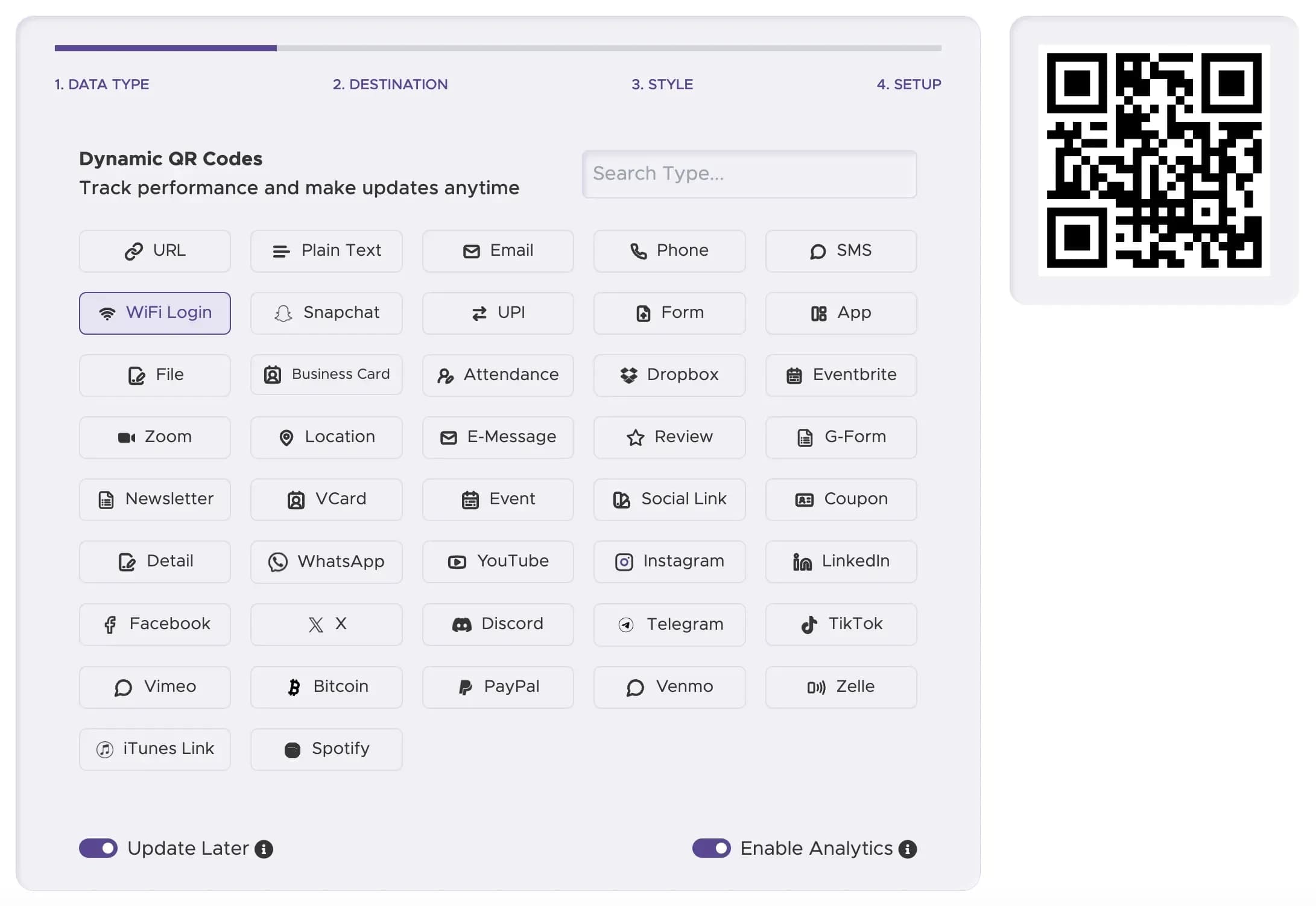
Select the WiFi QR Code Type
Open the QRStuff generator and choose the WiFi QR code option to start creating a code for your network.
Step 2
Enter Your Network Details
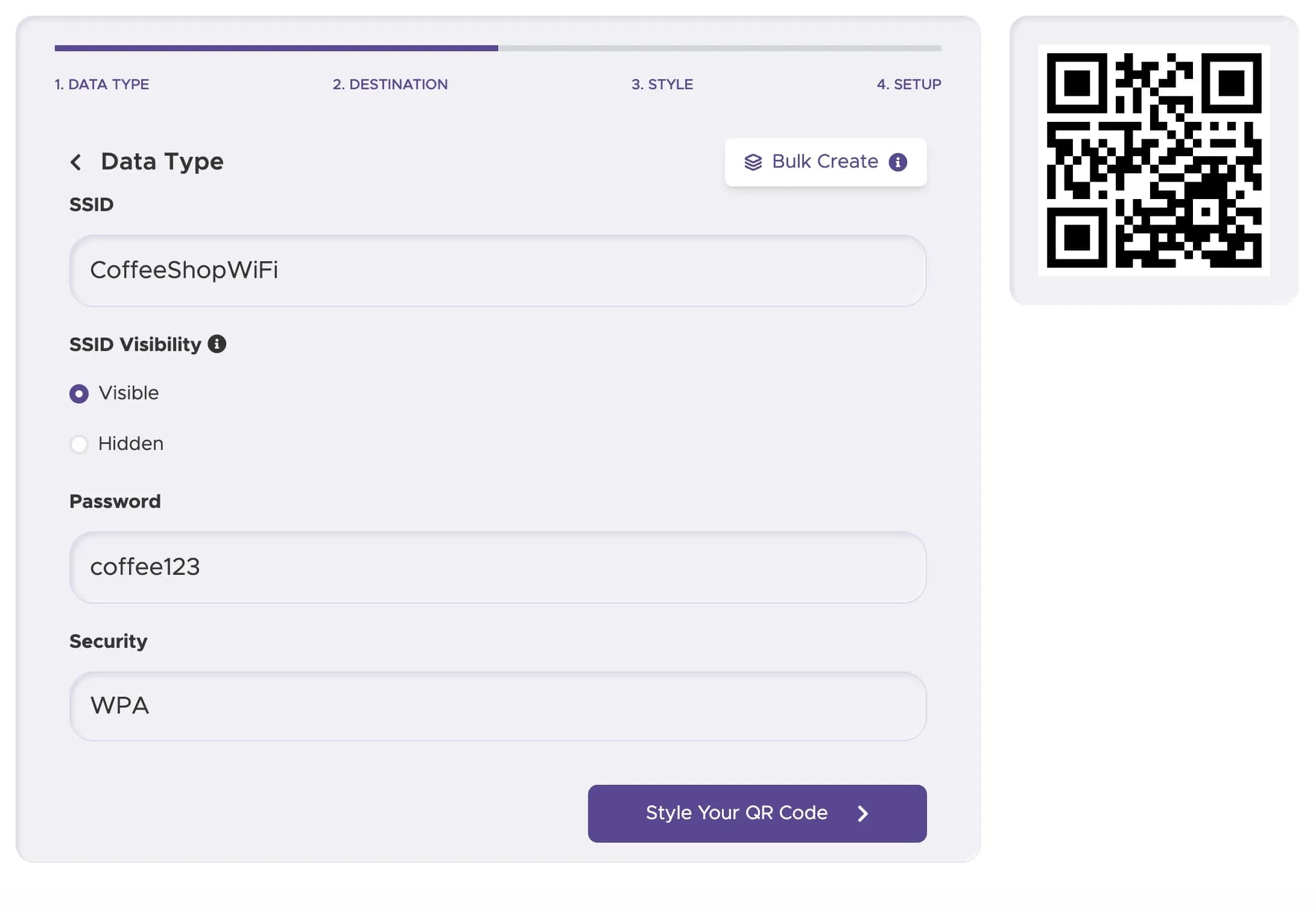
Add your WiFi network name, password, and security type. If your network is hidden, make sure that setting is included before generating the code.
Step 3
Customize the Design
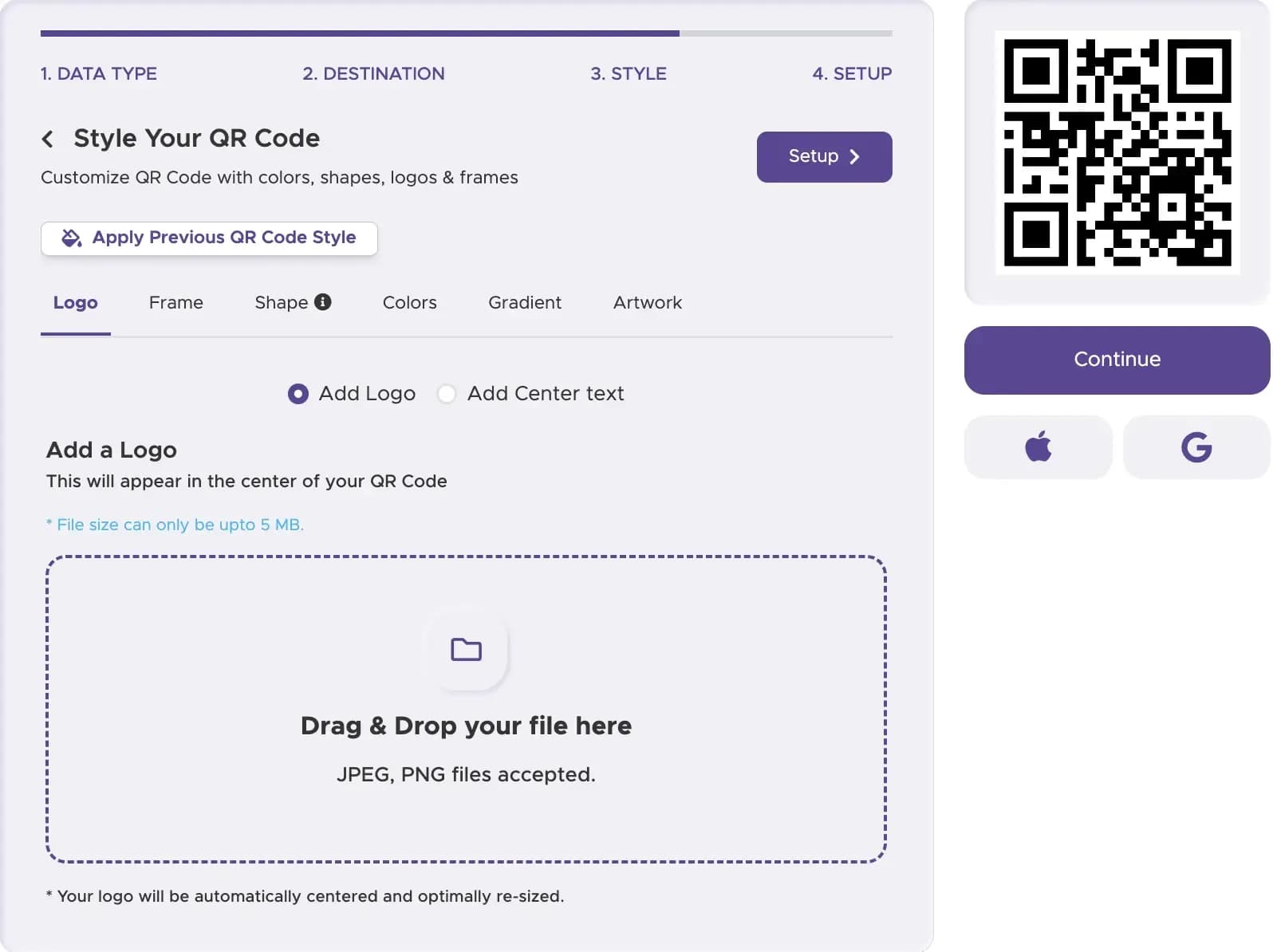
Customize your WiFi QR code to fit your brand or location, but keep strong contrast and a clean layout so the code stays easy to scan.
Step 4
Test the QR Code
Before printing or publishing it, scan the code on multiple devices to confirm that it connects properly and that the saved network settings are correct.
Step 5
Download and Display It
Download your WiFi QR code and place it where people naturally look for internet access, such as tables, counters, reception desks, room cards, or welcome signs.
Step 6
Track Your WiFi QR Code Performance
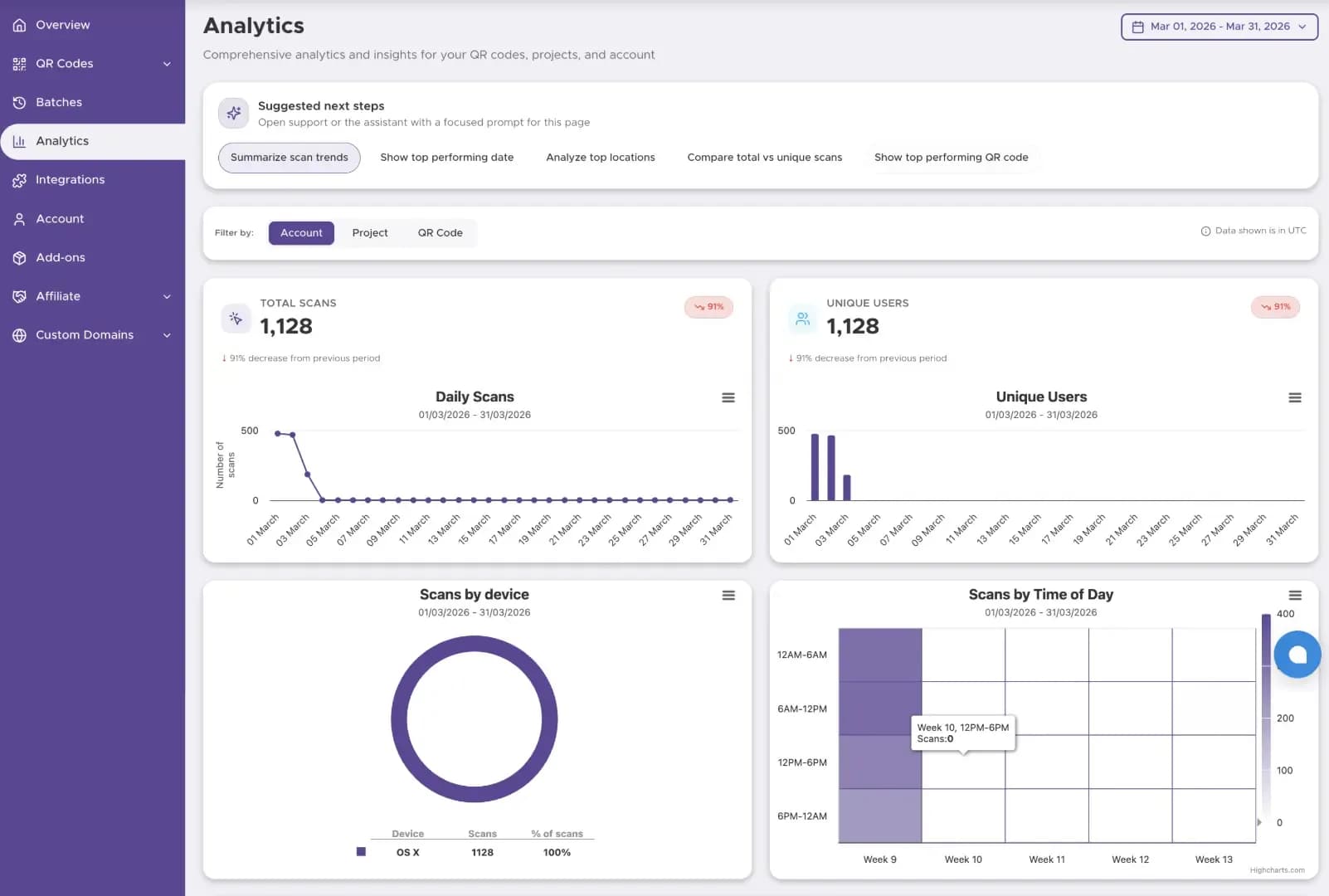
When choosing a dynamic QR code, you can access our tracking dashboard to view the performance of your WiFi QR code, such as how many guests scanned it and how they engaged with it.
Use Cases: Where a WiFi QR Code Works Best
Restaurants and Cafes
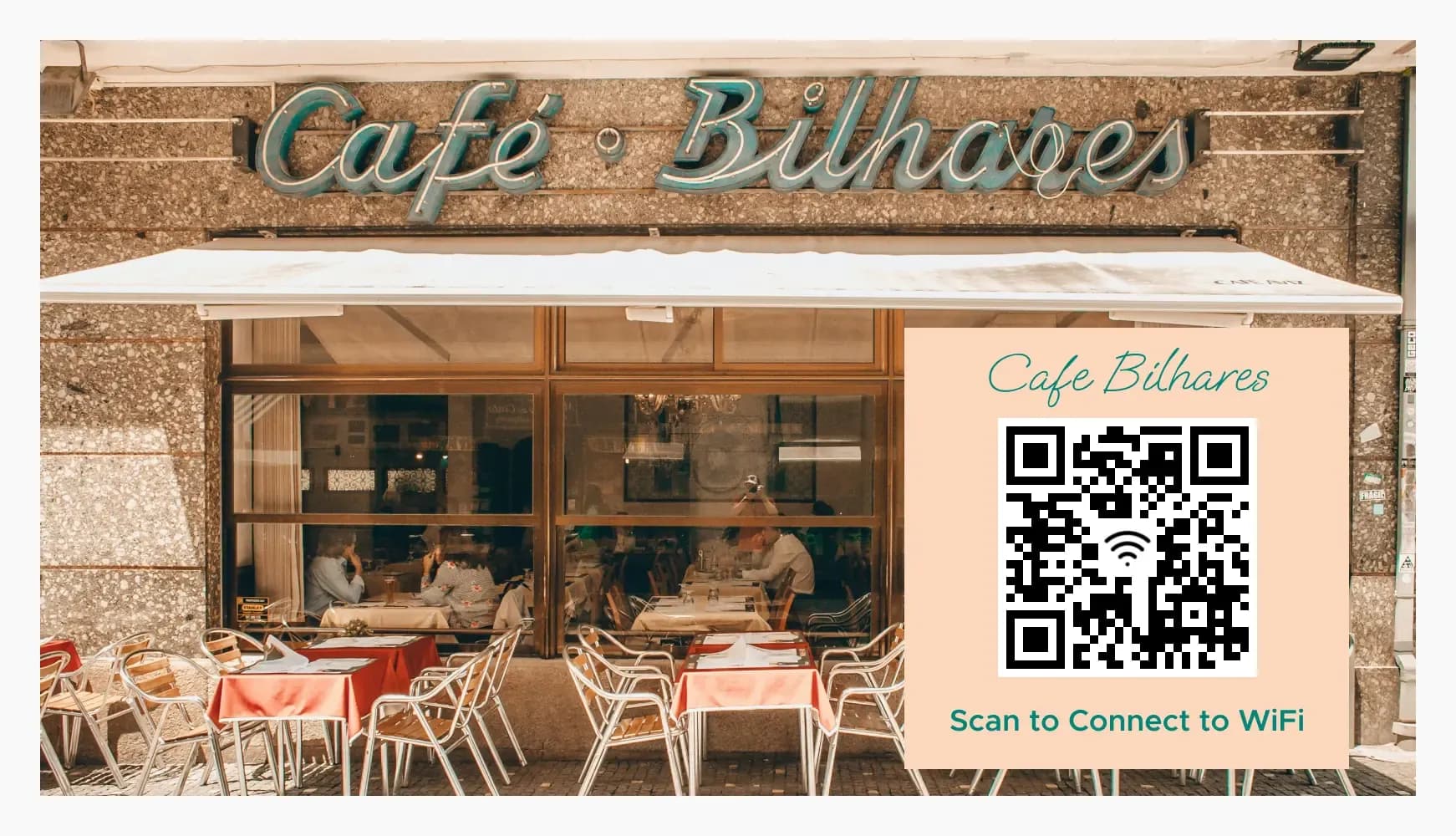
Place a WiFi QR code on menus, tables, receipts, or counter signs so guests can connect in seconds without asking staff for the password.
Retail Stores
Offer easy guest WiFi so shoppers can browse products, compare options, access promotions, and stay connected while they are in-store.

Healthcare Facilities
Improve the waiting-room experience by letting patients and visitors connect quickly without needing staff assistance or printed password sheets.
Offices and Coworking Spaces
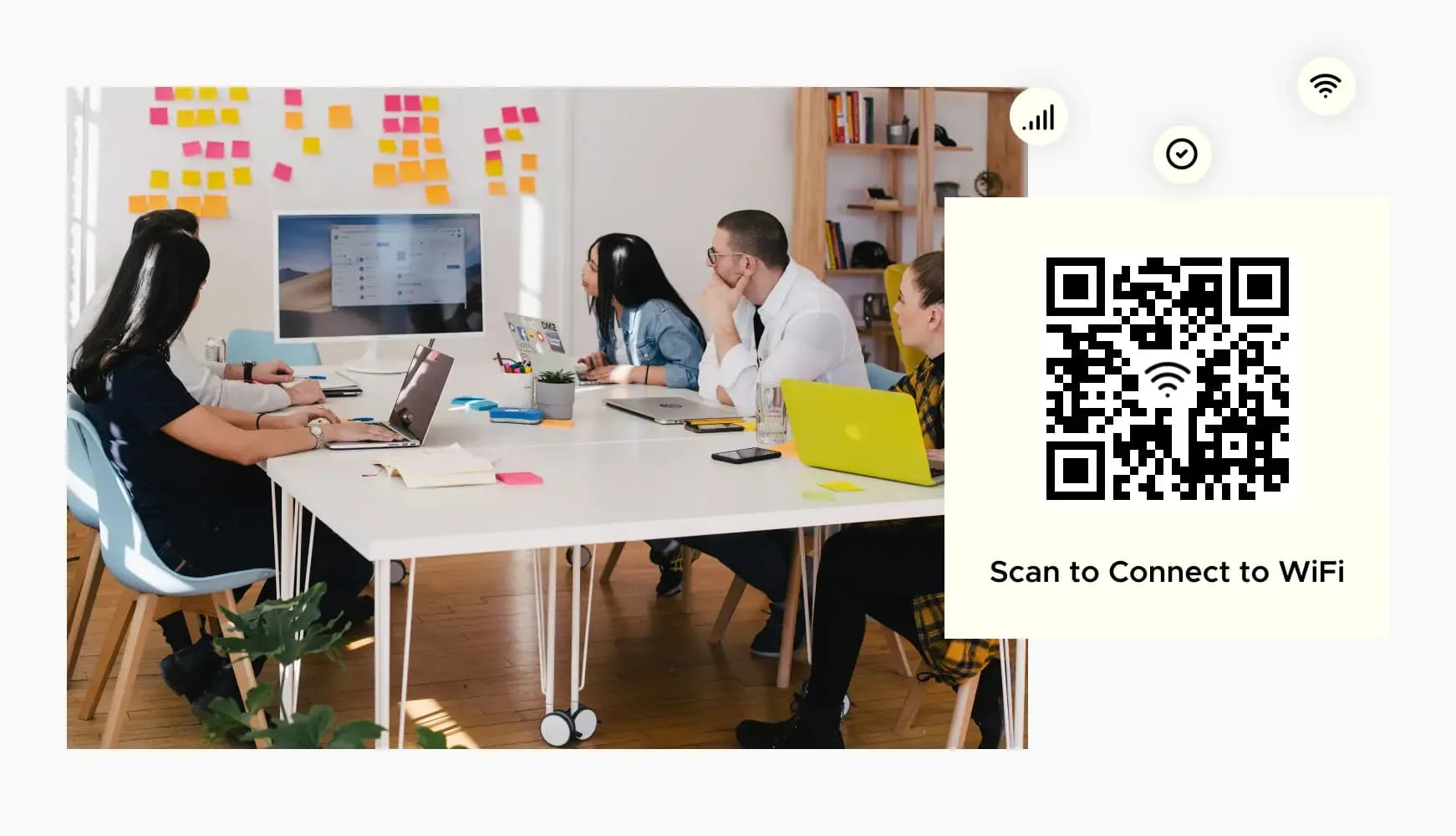
Make internet access easier for clients, candidates, contractors, and guests with a professional QR code for guest WiFi at reception, meeting rooms, or shared workspaces.
Hotels and Vacation Rentals
Add a WiFi QR code to room cards, welcome books, check-in materials, or lobby signs so guests can get online as soon as they arrive.
Events and Conferences
Display your guest WiFi QR code near registration desks, booths, agendas, or event signage to help attendees connect right away.
Best Practices for Your WiFi QR Code
For businesses and public locations, use a separate guest WiFi network whenever possible instead of exposing access to your main internal network.
Put your WiFi QR code on reception desks, menus, tables, room folders, waiting-room signage, counters, and other high-visibility spots where people naturally look for internet access.
Add simple wording near the code, such as "Scan to Join WiFi" or "Scan for Guest WiFi," so people know exactly what the QR code does.
Use strong contrast, preserve white space around the code, and avoid overly decorative styling that could reduce scan reliability.
What Is a WiFi QR Code?
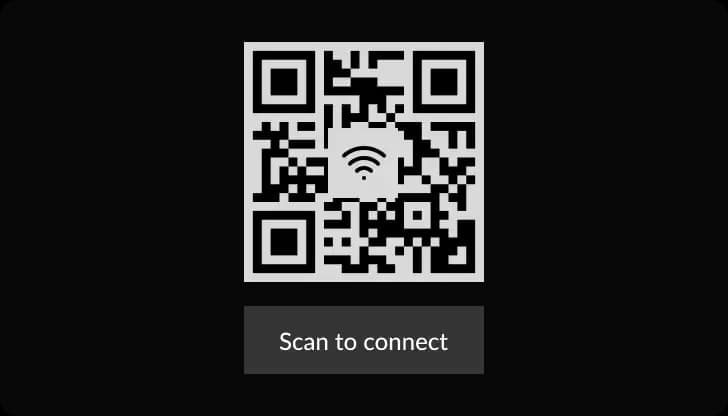
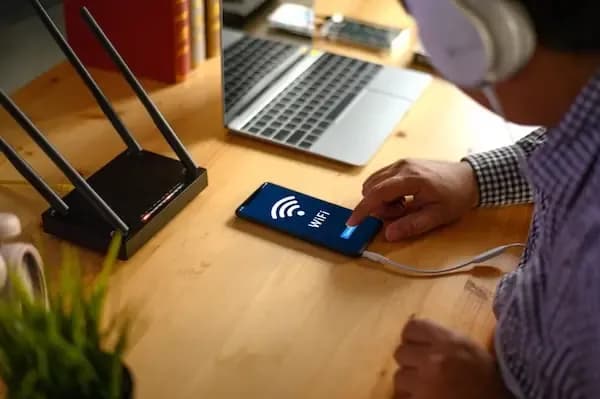
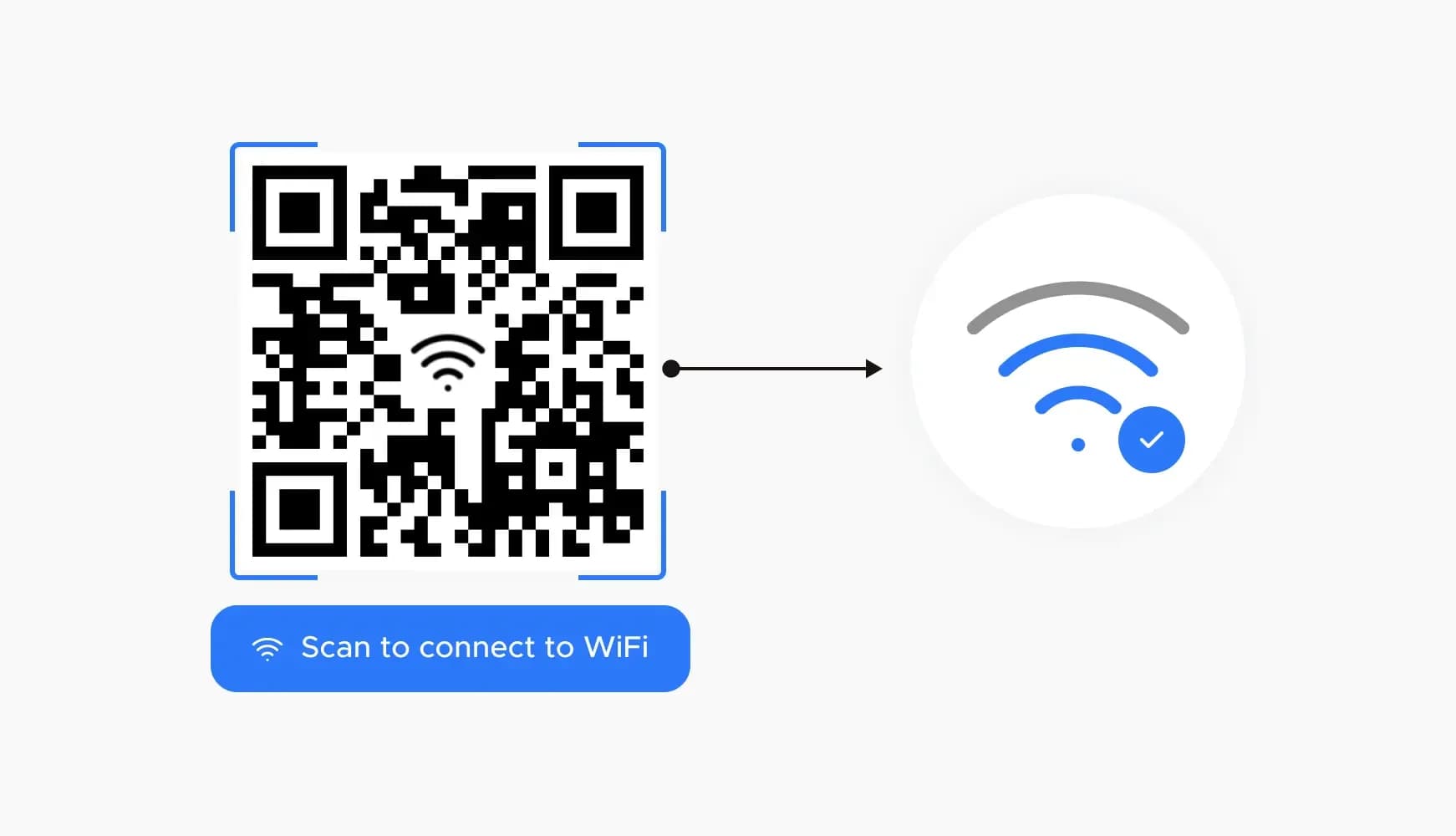
A WiFi QR code stores the information needed to join a wireless network, such as the network name, password, and security type. When scanned with a compatible phone, it can connect the user without manual typing.
Ready to Share Guest WiFi in One Scan?
Create a WiFi QR code for restaurants, hotels, offices, and events - guests connect without typing a password.