
Business Cards
Including a LinkedIn QR code on your business card provides a seamless way for contacts to connect with you, bridging the gap between offline interactions and your online professional presence.


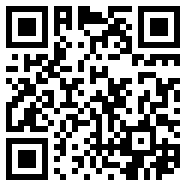
Link any printed material directly to your LinkedIn. Scan, connect, done.
A LinkedIn profile QR code is a modern and efficient tool to streamline your professional networking. Our QR code generator for LinkedIn helps you create a custom QR code that provides instant access to your profile with a simple scan. This guide will show you how to create a qr code for linkedin and enhance your networking, making it easier than ever to stay in touch with new connections.
Here's how to make a linkedin qr code that is customized and trackable.

Select a reliable qr code generator linkedin users trust, like QRStuff. Paste your profile URL into the dedicated "LinkedIn" data type field.

Paste your LinkedIn Profile or Post Link to generate the QR Code so other can view or connect with you.

Create a linkedin qr code with logo by adding your professional headshot or company logo. Adjust the colors to match your personal brand.

Download your QR code and add it to your materials. For networking, use a dynamic QR code to analyze and improve your strategy by tracking scans.

For business use, a dynamic QR code can show scan activity and engagement patterns, helping you understand where and when people use your QR code.
Including a LinkedIn QR code on your business card provides a seamless way for contacts to connect with you, bridging the gap between offline interactions and your online professional presence.

Using QR codes on conference badges facilitates quick networking. Attendees can scan your badge to access your LinkedIn profile and send connection requests on the spot.

Adding a QR code to your resume directs potential employers to your profile for more detailed information, endorsements, and recommendations, giving you an edge over other candidates.
Ready to discover how QR codes can transform your business?
Start by creating your custom QR Code today
From Wi-Fi access to PDF downloads, QRStuff supports dozens of code types so you can connect anything to anyone.


Based on your location, we think you may prefer the English (US).





 English (UK)
 Spanish (ES)
 French (FR)