
What to Paste
Ensure seamless access for all respondents without login obstacles.
Public Share / Send Link
In Google Forms, click 'Send', copy the public share link (e.g. forms.gle/… or docs.google.com/forms/…), and paste it here.
Test in Private Window
Test the link in an incognito window. If the form requires respondent login or is restricted to your organisation, confirm that matches your intent.
Static or Dynamic Option
Use a static code for permanent one-off surveys, or choose dynamic if you might swap the underlying form link next year.
How to create one
Step 1
Copy the Google Form Link
In Google Forms, click 'Send' in the top-right corner, select the link tab, and copy the URL.
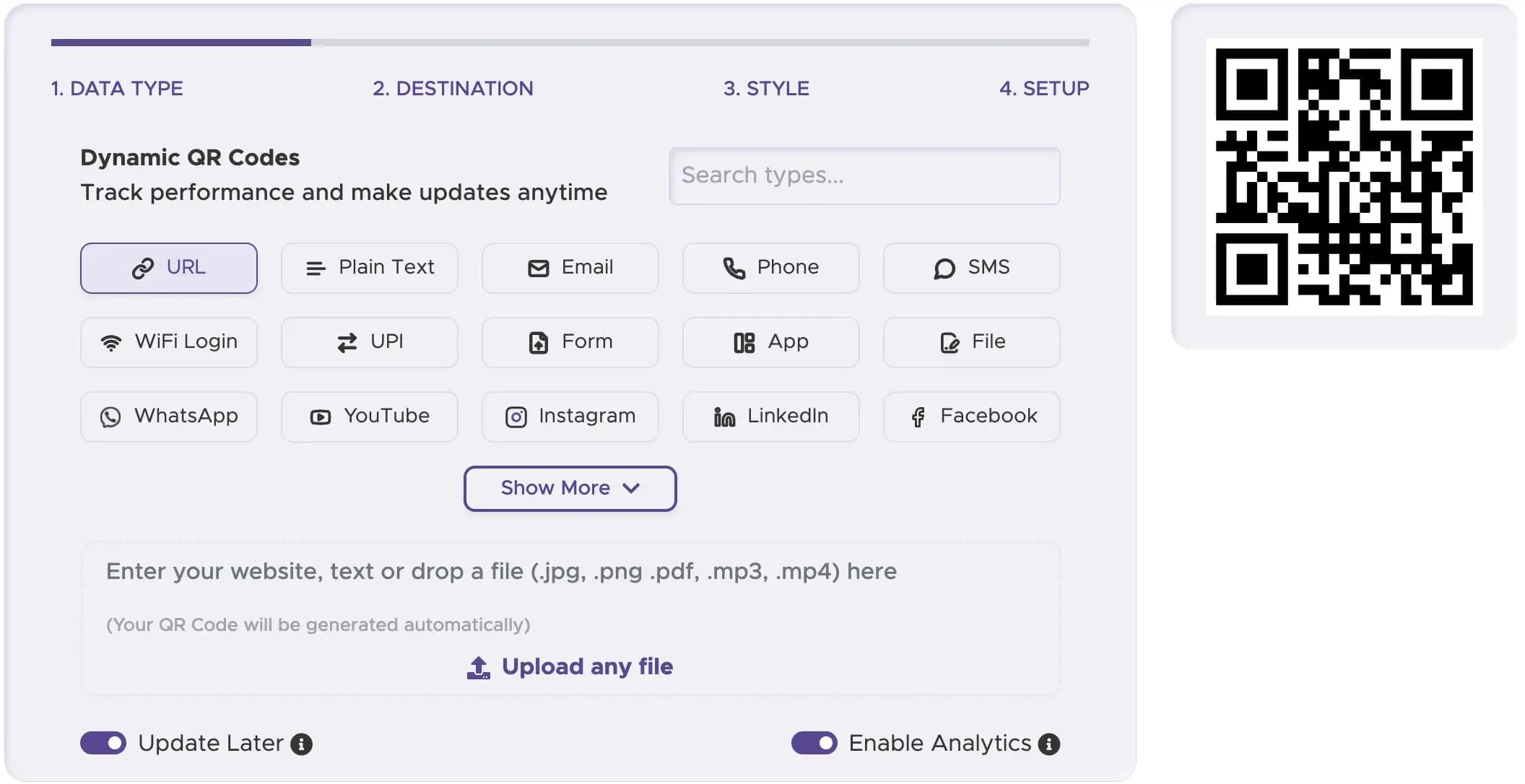
Step 2
Paste into QRStuff
Choose the Google Form data type in QRStuff and paste the copied link into the URL field.
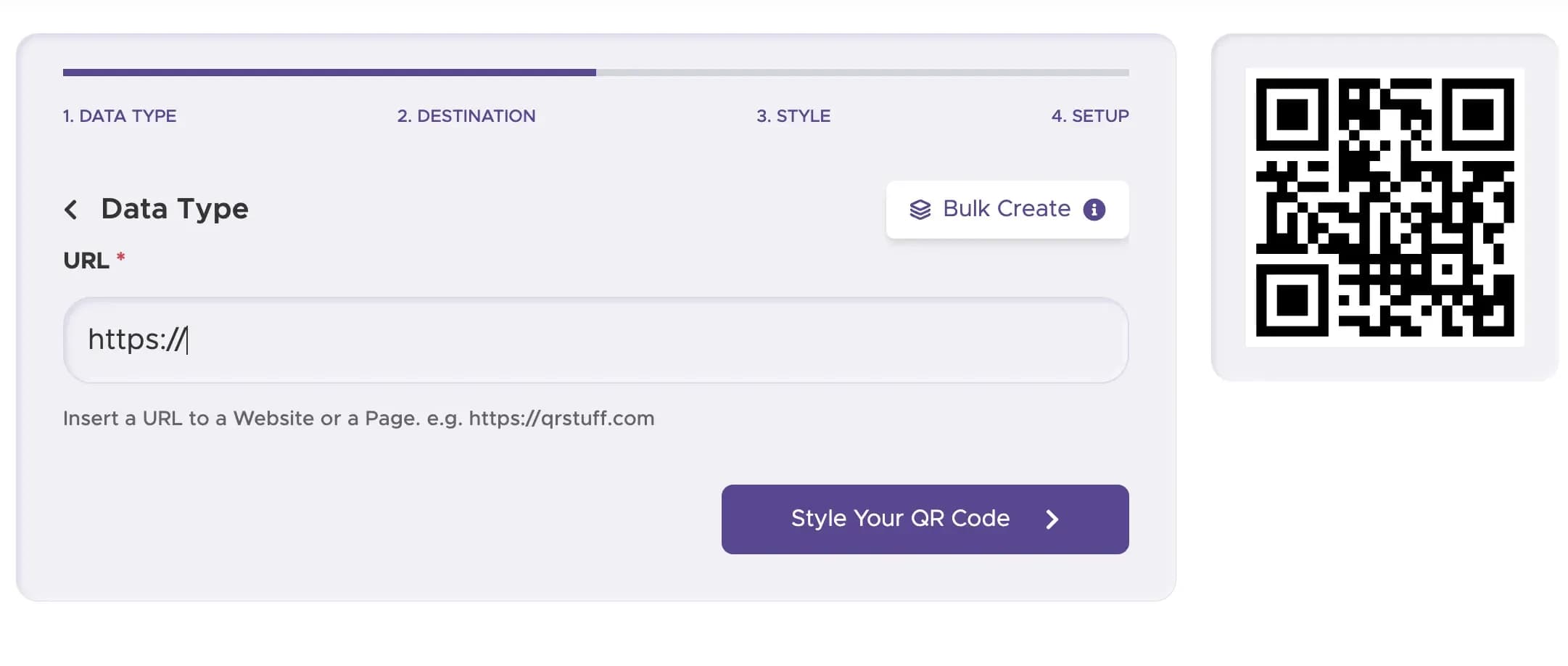
Step 3
Customise & Add Framing
Pick brand colours and add an actionable frame such as 'Scan to open form' or 'Leave feedback.'

Step 4
Download & Test Scan
Download SVG/EPS for printed handouts or PNG for presentation decks. Scan with a smartphone camera.

Google Form vs URL vs Survey Tools
Choose the exact generator built for your data collection workflow.
- Google Form: This page. Specifically optimised for forms hosted on forms.gle or docs.google.com.
- Any Other Website: Use our URL QR code generator.
- Google Reviews: Use our dedicated Google Review QR code generator.
- QRStuff Native Feedback / Surveys: Use our dedicated feedback tools, not this external form generator.
Collect Responses Faster with a Google Form QR Code
Generate clean vector QR codes for classroom desks, conference flyers, event signs, and reception desks.
Any other website: URL QR code generator. Google reviews: Google Review QR code.