
Print Rules for QR Codes on Flyers
Ensure instant, frustration-free scans across all flyer and brochure print runs.
Vector Output (SVG or EPS)
Never use low-res screenshots or tiny raster images. Scalable vector formats remain crystal-sharp at any commercial press resolution.
Respect Quiet Margin
Maintain at least a 4-module clean white border around the code so smartphone cameras detect the outer boundary immediately.
Print a Physical Proof
Always print a physical sample sheet and test scan under indoor, dim, and direct sunlight before releasing a print run of thousands.
How to create one
Step 1
Decide Your Destination
Pick your landing page, Google Form, event ticket, or menu. Confirm the destination loads quickly on mobile.
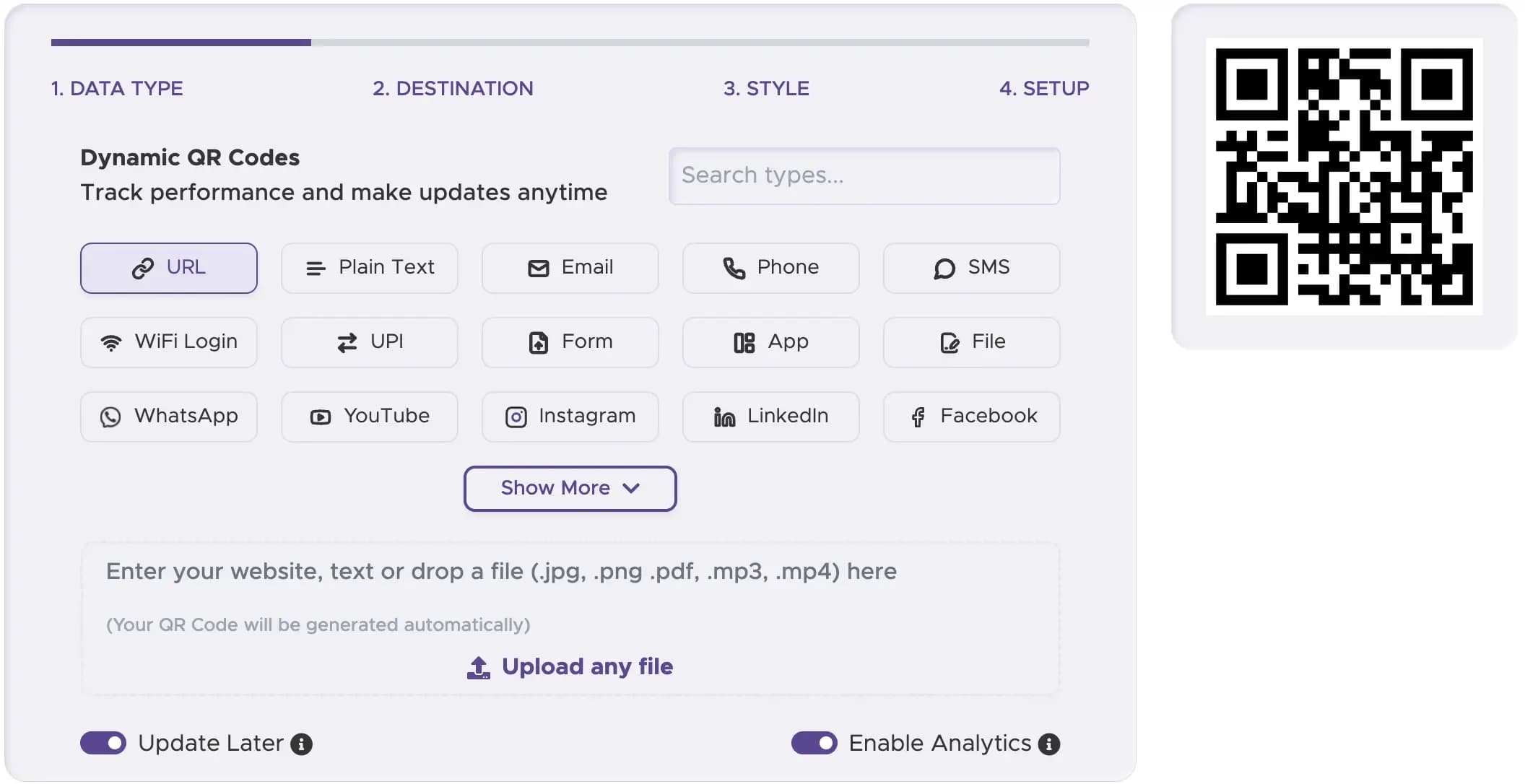
Step 2
Paste URL into QRStuff
Paste your destination link. For special destinations like Google Forms, you can also start on their dedicated generator.
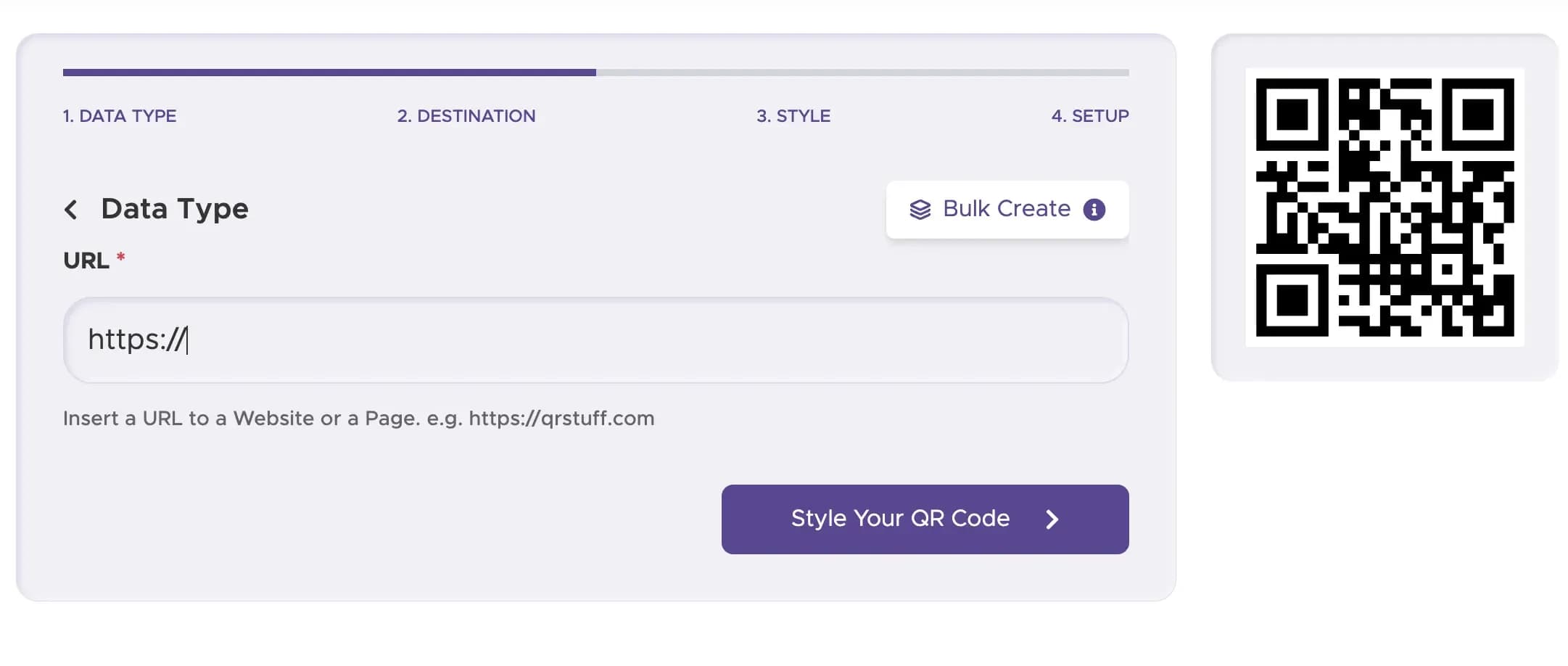
Step 3
Download Vector SVG or EPS
Select SVG or EPS format to ensure razor-sharp edges and zero pixelation on commercial printing presses.
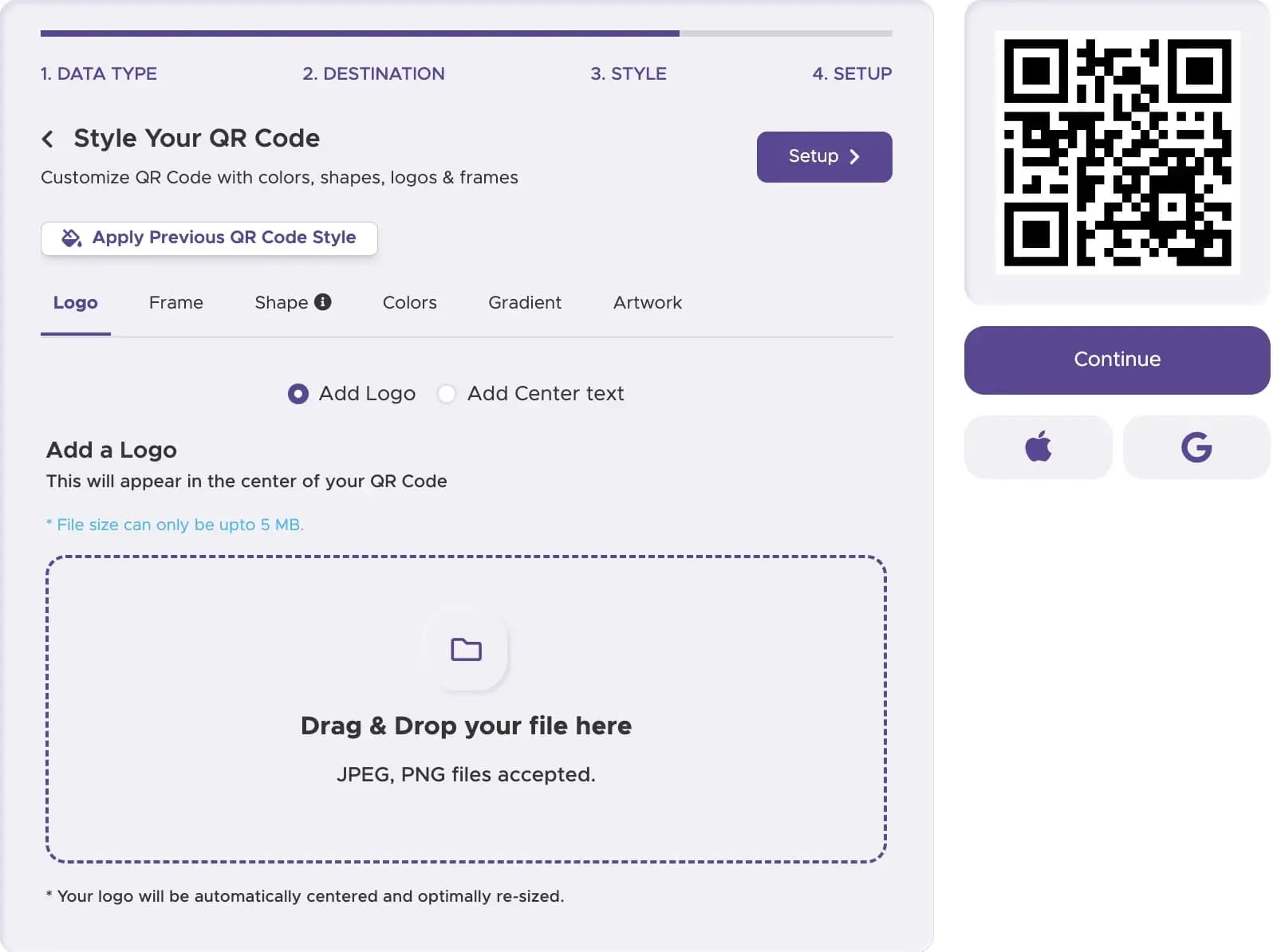
Step 4
Place on Flyer & Print a Proof
Incorporate the QR code into your layout with an explicit 'Scan to…' callout and test a physical proof.
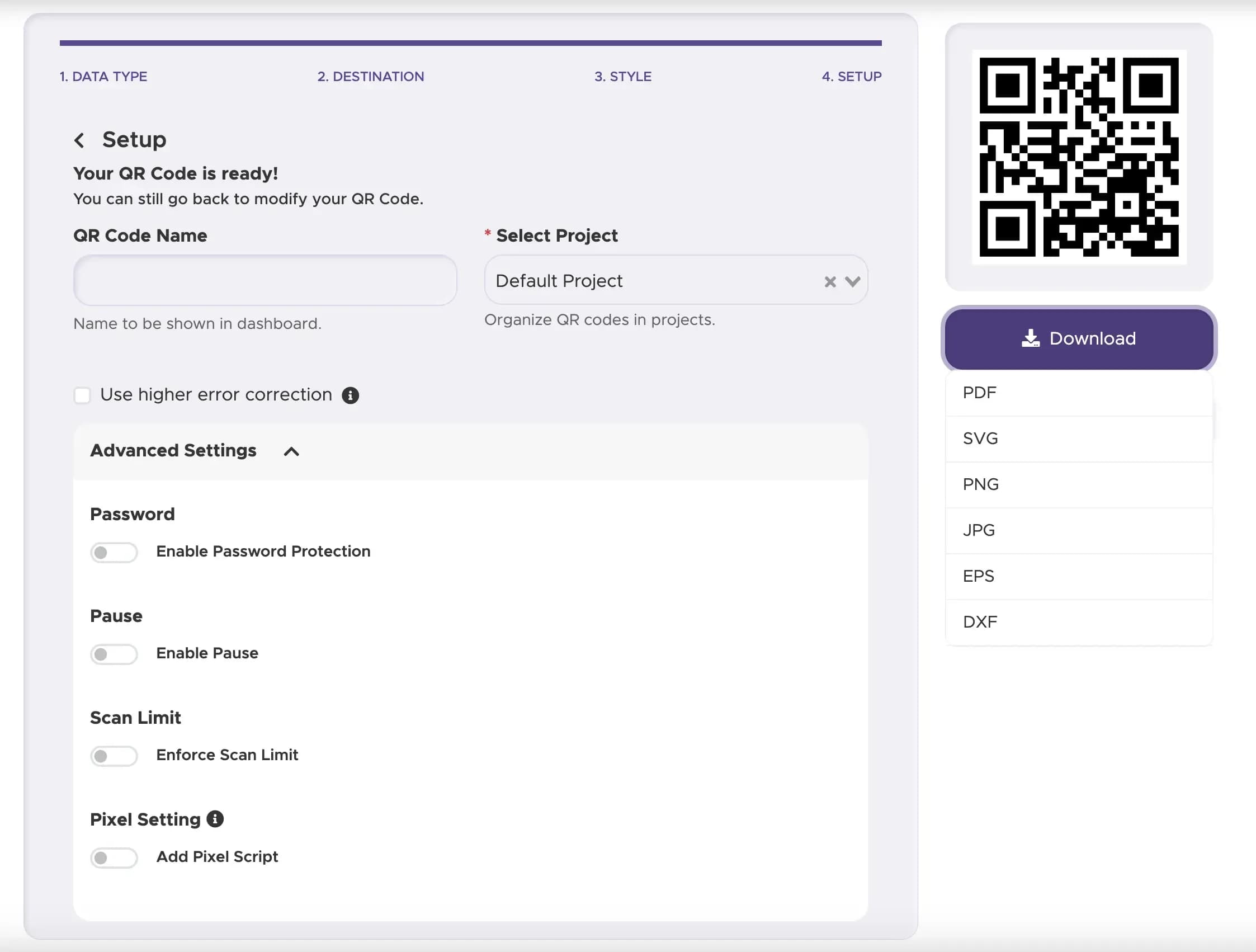
Flyer QR Code vs URL vs Homepage
Select the tool that matches your marketing workflow.
- Putting a code on a flyer: This page. Focused on print placement, sizing, and resolution guidelines.
- The URL type itself: Visit our URL QR code generator.
- Any QR code type: Visit our homepage generator for complete data types.
Print Crisp, Scannable QR Codes on Every Flyer
Generate vector-grade QR codes ready for trade show handouts, street team flyers, and direct mail brochures.
The destination tool is often the URL QR code generator. For a form on the flyer, use the Google Form QR code.