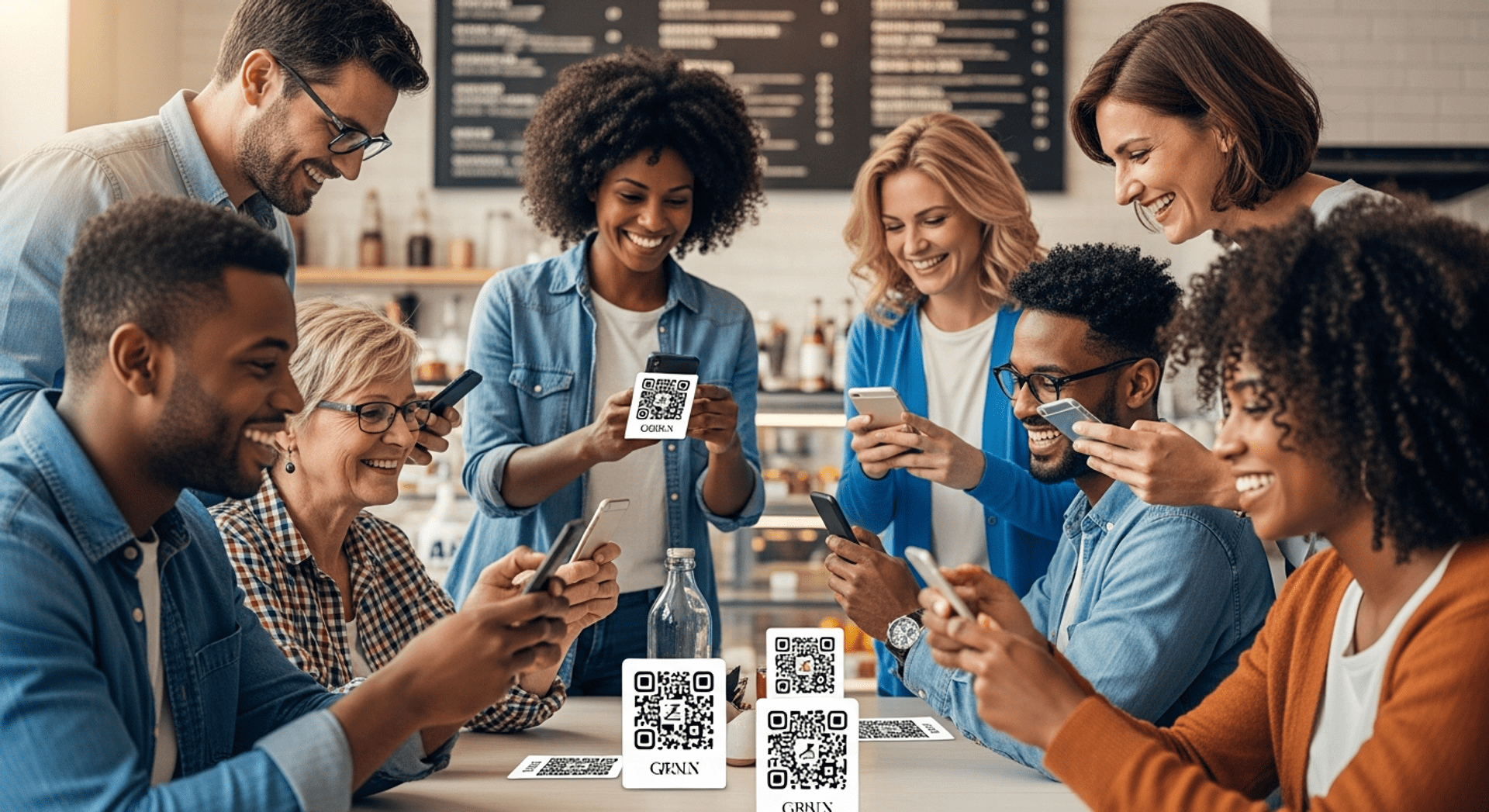

How to Use a QR Code Scanner to Read Different Types of QR Codes
QR codes are now part of everyday life. People scan them to open restaurant menus, join WiFi networks, download apps, access event tickets, make payments, view product information, leave reviews, and connect with businesses instantly. But many users still don’t fully understand how QR code scanners work, why some QR codes behave differently than others, or when they may need a dedicated scanning app instead of their phone’s built-in camera. Understanding how QR scanning works can help users scan more efficiently, avoid common problems, and interact safely with different types of QR codes across both personal and business environments.
What Is a QR Code Scanner?
At its core, a QR code scanner is a tool that allows you to read and interpret QR codes. This can be done through various methods, including built-in phone cameras, dedicated QR reader apps, or mobile scanning tools. Most modern smartphones come equipped with a camera-based QR recognition feature, allowing users to scan QR codes effortlessly. In fact, many devices can scan QR codes directly from the camera app without needing additional software.
When you use your phone’s camera to scan a QR code, it detects the pattern within the code, decodes it, and translates it into usable information. This process is known as “camera recognition.” Many smartphones also have a QR code reader integrated into their camera apps, which means you don’t need a separate app to scan QR codes. However, dedicated QR scanner apps can offer additional features, such as scan history and advanced scanning capabilities. If you’re looking to create dynamic QR codes, using a dedicated app can be particularly beneficial.
The mobile scanning workflow is typically straightforward. You point your camera at the QR code, and the scanner recognizes it, usually prompting you to take action based on the information encoded within, such as visiting a website or saving contact details. This scan-to-open behavior enhances user experience by providing immediate access to information. If you want to generate dynamic QR codes, there are tools available that can help you create dynamic QR codes easily.
How QR Code Scanning Works
Understanding how QR code scanning works can enhance your scanning experience. When you aim your camera at a QR code, the camera detects the code’s pattern, which consists of black squares arranged on a white grid. This pattern is then decoded by the scanner, which translates it into a link, text, or another action. The ability to scan QR codes effectively is essential for a smooth user experience.
Once the code is recognized, the scanner typically redirects you to a specific URL or prompts you to perform an action, such as saving a contact or connecting to a WiFi network. This mobile interaction flow is seamless, making it easy for users to engage with the content linked to the QR code. If you’re using dynamic QR codes, the redirection can be updated even after the code has been printed.
However, certain factors can affect the success of QR code scanning. For instance, if the QR code is blurry, damaged, or printed too small, it may not scan correctly. Additionally, lighting conditions play a crucial role—poor lighting can make it difficult for the camera to detect the QR code accurately. Ensuring that the camera lens is clean and that you are at an appropriate distance from the code can significantly improve the scanning experience. If you’re using a device that can scan QR codes, make sure to test it in various environments to understand its limitations.
Different Types of QR Codes You Can Scan
There are various types of QR codes designed for different applications. Here are some common types you might encounter:
- Website QR Codes: These QR codes link directly to a specific webpage.
- WiFi QR Codes: Scanning these codes allows users to connect to a WiFi network without entering a password.
- Contact/vCard QR Codes: These codes store contact information, making it easy to save new contacts directly to your phone. You can explore more about this with create a QR code for your Facebook page.
- Payment QR Codes: Commonly used in retail, these codes facilitate quick payment transactions.
- App Download QR Codes: Scanning these codes directs users to download a specific app. You can explore more about this with discover how to use a location QR code for attendance tracking.
- Event Ticket QR Codes: These codes are used for validating tickets at events. You can explore more about this with how to scan USPS QR codes.
- Menu QR Codes: Restaurants often use these codes to provide digital menus to customers. You can explore more about this with convert your URL into a static QR code.
- WhatsApp QR Codes: These codes allow users to start a chat with a specific contact on WhatsApp.
- Email QR Codes: Scanning these codes can pre-fill email addresses for quick communication.
- PDF QR Codes: These codes link directly to a PDF document online.
Understanding the different types of QR codes can help you utilize them effectively, whether you’re at a restaurant, attending an event, or making a purchase. If you want to create dynamic QR codes for different purposes, there are numerous online tools available.
How to Scan QR Codes on iPhone
Scanning QR codes on an iPhone is a straightforward process. Here’s how you can do it:
1. Using the Camera App: Open your camera and point it at the QR code. A notification should pop up at the top of the screen, prompting you to take action based on the QR code’s content. Tap the notification to proceed.
2. Control Center Scanner: You can also access the QR scanner from the Control Center. Swipe down from the top-right corner (or up from the bottom on older models) to access the Control Center, then tap the QR scanner icon.
3. Safari Behavior: If you scan a QR code that links to a webpage, Safari will automatically open the link once you tap the notification.
4. Permission Troubleshooting: If your iPhone isn’t scanning QR codes, ensure that camera permissions are enabled in your settings.
5. Older iPhone Limitations: Some older iPhone models may not support QR code scanning directly through the camera app, in which case a dedicated QR scanner app may be necessary.
If you find that your iPhone can scan QR codes effectively, you might also want to explore how to generate dynamic QR codes for various uses.
How to Scan QR Codes on Android
Scanning QR codes on Android devices can vary slightly depending on the manufacturer, but here’s a general guide:
1. Using the Camera App: Most Android phones now have QR code scanning capabilities built into the camera app. Open the camera and aim it at the QR code. A notification should appear, prompting you to take action.
2. Google Lens: If your camera app doesn’t support QR scanning, you can use Google Lens. Open the Google Lens app, point it at the QR code, and it will recognize the code and provide the necessary actions.
3. Manufacturer Differences: Some manufacturers may have different scanning methods. For example, Samsung devices often have a dedicated QR scanner in the settings menu.
4. Permission Settings: Ensure that your camera app has the necessary permissions enabled to access the camera.
5. Older Android Devices: If you’re using an older Android device that lacks built-in QR scanning, consider downloading a dedicated QR scanner app from the Google Play Store.
If you are using a device that can scan QR codes, remember that you can also create dynamic QR codes for various applications.
When You Need a Dedicated QR Scanner App
While most smartphones come with built-in QR scanning capabilities, there are scenarios where a dedicated QR scanner app might be beneficial:
– Older Devices: If you’re using an older smartphone that lacks built-in QR scanning, a dedicated app can provide the functionality you need.
– Advanced Features: Some apps offer features like scan history, bulk scanning, and offline scanning, which can be advantageous for businesses or frequent users.
– Business Scanning Workflows: In a professional setting, dedicated QR scanner apps can streamline workflows by allowing users to save and manage scanned data efficiently.
Investing in a QR scanner app may enhance your overall scanning experience, especially if you frequently interact with QR codes. Additionally, using a tool that can create dynamic QR codes may help you adapt to changing needs.
What Happens After You Scan a QR Code?
After successfully scanning a QR code, several actions may occur based on the type of QR code scanned:
– Redirects: Most commonly, scanning a QR code will redirect you to a specific URL in your web browser.
– Browser Opening: If the QR code links to a website, your default browser will launch automatically.
– App Launching: For QR codes linked to apps, the corresponding application may open directly.
– Contact Saving: If the QR code contains contact information, you may be prompted to save the contact to your phone.
– WiFi Connection Prompts: Scanning a WiFi QR code will prompt you to connect to the specified network without needing to enter a password.
– Payment Actions: For payment QR codes, you’ll be guided through the payment process, often integrated with mobile payment apps.
Being aware of these outcomes can help you navigate your post-scan experience more effectively. If you are using dynamic QR codes, remember that these can redirect you to updated content even after the initial scan.
How Businesses Use Different QR Code Types
Businesses across various industries leverage QR codes for different purposes. Here are some examples:
– Restaurants Using Digital Menus: Many restaurants have adopted QR codes to provide digital menus, enhancing customer experience while minimizing physical contact.
– Retailers Using Product Information Codes: Retailers utilize QR codes to offer detailed product information, promotions, or reviews directly to customers.
– Events Using Ticket Validation: Event organizers use QR codes for ticket validation, streamlining the entry process and reducing wait times.
– Clinics Using Appointment Check-ins: Medical facilities implement QR codes for appointment check-ins, allowing for a smoother patient experience.
– Marketing Campaigns Using Landing Pages: Marketers often use QR codes in promotional materials to direct customers to landing pages, driving engagement and conversions.
– Hotels Using WiFi QR Codes: Hotels provide QR codes for guests to connect to WiFi easily, enhancing their stay.
The versatility of QR codes enables businesses to improve customer engagement and streamline operations effectively. If you’re looking for the best dynamic QR codes for your business, consider using a reliable QR code generator.
Common QR Code Scanning Problems
While scanning QR codes is generally straightforward, users may encounter several common problems:
– Poor Lighting: Insufficient lighting can hinder the camera’s ability to detect the QR code. Ensure you are in a well-lit area when attempting to scan.
– Blurry Printing: If a QR code is printed poorly or is blurry, it may not scan correctly. Always check the clarity of the code before attempting to scan.
– Damaged QR Codes: Physical damage to the QR code, such as scratches or tears, can render it unreadable.
– Tiny QR Codes: Codes that are too small may be difficult for the camera to recognize, so ensure the code is adequately sized.
– Glare on Glossy Surfaces: If a QR code is printed on a glossy surface, glare may obstruct the camera’s view. Angle the camera to reduce glare.
– Weak Internet Connection: If the QR code requires an internet connection to function, ensure you have a stable connection for successful scanning.
– Unsupported QR Formats: Some QR codes may use formats that are not recognized by your device. In such cases, a dedicated QR scanner app may be necessary.
– Broken Links: If a QR code links to a website that is no longer active, scanning will yield an error.
Being aware of these potential issues can help you troubleshoot effectively and enhance your scanning experience. If you encounter problems, consider trying to generate dynamic QR codes that may offer better reliability.
How to Scan QR Codes Safely
While QR codes offer convenience, it’s essential to scan them safely to avoid potential risks:
– Avoiding Suspicious Links: Be cautious of scanning QR codes from unknown or untrusted sources, as they may lead to phishing sites.
– Checking URLs Before Opening: Always review the URL that appears after scanning before clicking to ensure it is legitimate.
– Phishing Awareness: Be wary of QR codes that ask for sensitive information or direct you to sites requesting personal data.
– Public WiFi Caution: Avoid scanning QR codes while connected to public WiFi, as this can expose you to security risks.
– Trusted QR Placements: Only scan codes from reputable businesses or locations you trust.
– Verifying Payment Requests: When scanning payment QR codes, double-check the amount and recipient before confirming any transactions.
By following these safety measures, you can enjoy the benefits of QR code scanning while minimizing potential risks. If you’re using dynamic QR codes, ensure that the links are secure and trustworthy.
Static vs Dynamic QR Codes
Understanding the difference between static and dynamic QR codes is crucial for effective usage:
– Static QR Codes: These codes contain direct embedded data. Once created, the information cannot be changed. If the URL or content needs to be updated, a new QR code must be generated.
– Dynamic QR Codes: In contrast, dynamic QR codes allow for editable destinations. You can change the URL or content associated with the code without needing to reprint it. This flexibility is beneficial for businesses that frequently update promotions or information. Additionally, dynamic QR codes often come with analytics tracking, enabling businesses to gather insights about user engagement.
For those looking to maintain flexibility in their QR code campaigns, using a dynamic QR code generator can be a game-changer. If you want to create dynamic QR codes, there are many online platforms available that can assist you.
Best Practices for QR Code Scanning
To ensure a smooth scanning experience, consider these best practices:
– Proper Scan Distance: Hold your device at a distance that allows the QR code to be fully visible within the camera frame.
– Steady Camera Positioning: Keep your camera steady to avoid blurry scans. If necessary, rest your hands on a stable surface while scanning.
– Adequate Lighting: Ensure there is sufficient light for the camera to detect the QR code clearly.
– Keeping Lenses Clean: Regularly clean your camera lens to avoid smudges that can interfere with scanning.
– Avoiding Zooming Excessively: Zooming in on the QR code can decrease scan reliability. Instead, move closer to the code.
– Testing Multiple Devices: If a QR code doesn’t scan on one device, try using another smartphone or tablet to verify the code’s functionality.
Implementing these best practices can enhance your QR code scanning experience and reduce frustration. If you are generating dynamic QR codes, ensure that they are tested under various conditions for optimal performance.
Frequently Asked Questions
Do I need an app to scan QR codes?
No, most modern smartphones come with built-in QR code scanning capabilities in their camera apps. However, if your device lacks this feature or you want advanced functionalities, you might consider downloading a dedicated QR scanner app.
Why won’t my phone scan a QR code?
Several reasons could prevent your phone from scanning a QR code, including poor lighting, a blurry or damaged code, or an unsupported QR format. Ensure the QR code is clear and well-lit, and try adjusting your distance from the code.
Can QR codes be dangerous?
Yes, QR codes can pose risks if scanned from untrusted sources. They may lead to phishing sites or prompt you to enter sensitive information. Always verify the source before scanning.
Why do some QR codes open websites while others connect to WiFi?
Different QR codes are designed for specific actions. Some codes are linked to URLs, while others are programmed to connect to WiFi networks. The type of code determines the action taken upon scanning.
What is the difference between static and dynamic QR codes?
Static QR codes contain fixed information that cannot be changed once created, while dynamic QR codes allow you to edit the linked content without needing to reprint the code. Dynamic codes also often include tracking features.
Why do some QR codes redirect through short links?
Some QR codes use short links to redirect users to their final destination. This can help with tracking engagement and allows businesses to change the destination without generating a new code.
Final Thoughts
Understanding how to effectively use a QR code scanner can enhance your interactions with QR codes, whether for personal use or business applications. With the right knowledge, you can navigate the scanning process efficiently and safely. For those looking to explore QR code solutions, consider using QRStuff’s QR code scanner and tools to create, track, and manage your QR codes effectively. You can scan QR codes, create dynamic QR codes, and even generate dynamic QR codes for your marketing needs.

Get started with QRStuff
Ready to discover how QR codes can transform your business?
Start by creating your custom QR Code today.