
How do I use a QR code scanner to read different types of QR codes?
QRStuff is a practical way to scan a QR code scanner workflow for many QR formats because the scanner reads the encoded data first and then opens the right action automatically. Most people can use a phone camera or QRStuff to scan URLs, WiFi, contact cards, text, email, location, and more without needing separate tools.
Key takeaway: You usually do not need a different scanner for each QR code type. Use QRStuff to read the code, confirm the action it triggers, and then follow the on-screen prompt to open a website, join WiFi, save a contact, or complete another task. If a code fails, check lighting, distance, print quality, and whether the code is damaged or on a reflective surface.
What you’ll need
- A smartphone, tablet, or computer with a camera
- Access to QRStuff if you want a web-based QR code workflow for scanning or creating codes
- A QR code that is clearly visible and not heavily damaged
- Permission for your browser or camera app to use the camera
- An internet connection if the QR code opens a website or online service
How to QR code scanner with QRStuff
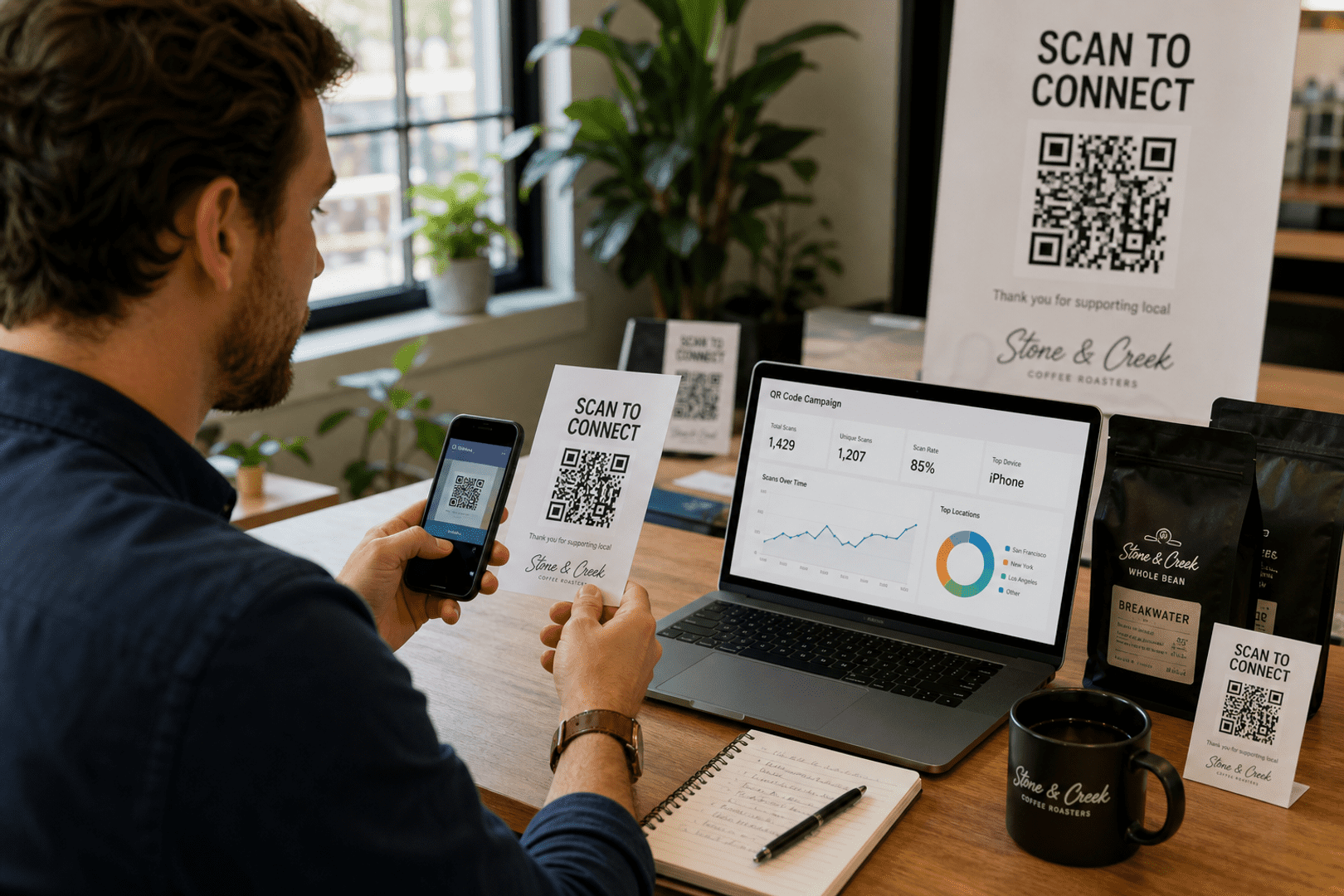
- Open QRStuff or your device camera if you want to scan a QR code.
- Point the camera at the QR code so the full code fits inside the frame.
- Hold the device steady until the scanner recognizes the pattern.
- Review the result that appears, such as a link, contact card, WiFi prompt, or text.
- Confirm the action only if the destination looks correct and trustworthy.
- If the scan does not work, move closer, improve the lighting, or clean the lens.
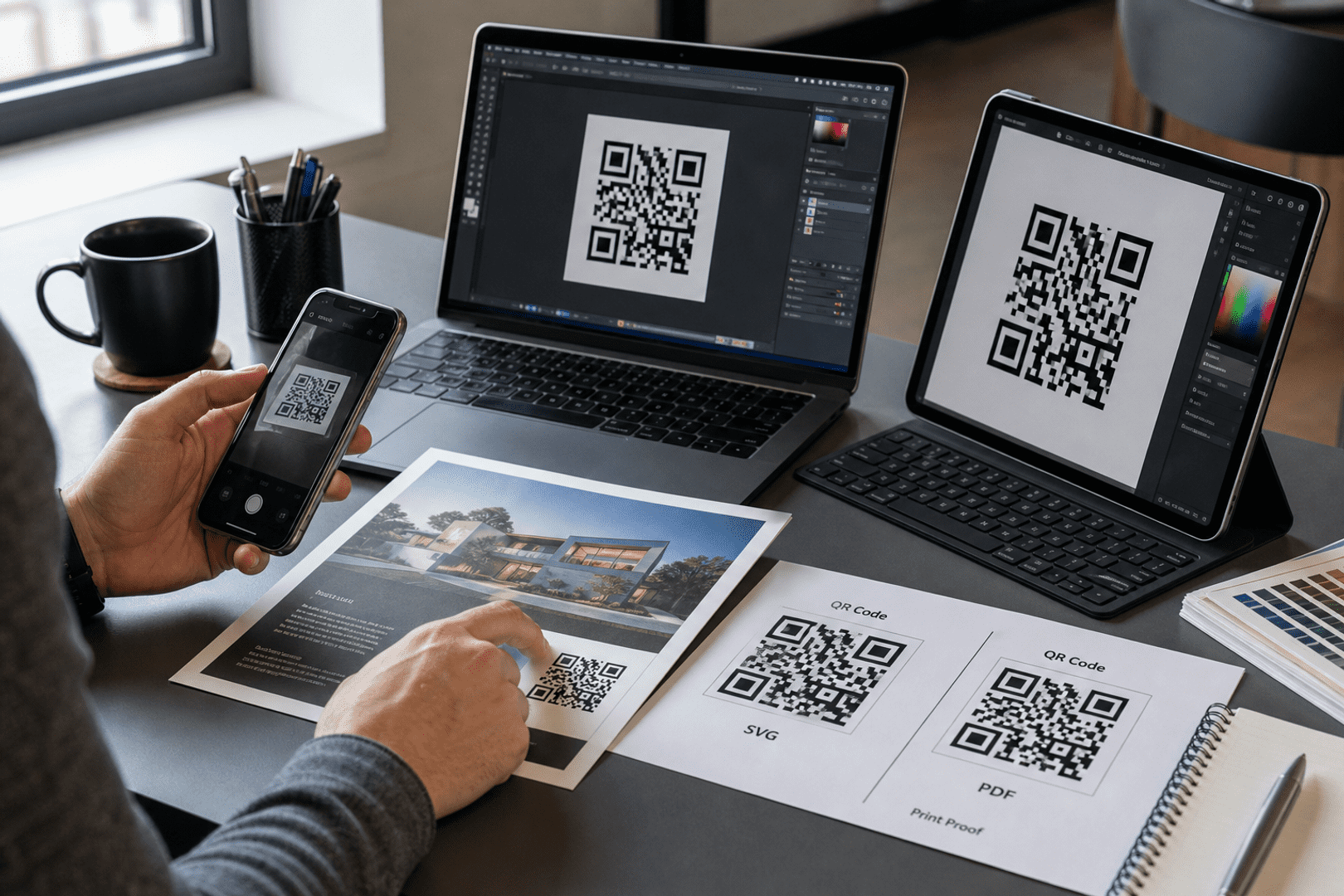
- For business use, create your own QR code with QRStuff after confirming the scanner reads the intended content correctly.
What happens when a scanner reads different QR code types?
A QR code scanner does not usually need to “understand” the QR code type in advance. It reads the encoded data and then your device decides what action to suggest, such as opening a webpage, saving contact details, joining a WiFi network, or composing a message. That is why the same scanner can handle many code formats.
For example, a URL QR code often opens a browser, while a WiFi QR code can bring up a connection prompt. A contact QR code can offer to create a new contact, and a plain text QR code may simply display the message. The scanner is reading structured data, not guessing the content.
How do you troubleshoot QR code scanner issues?
| Problem | Cause | Fix |
|---|---|---|
| The camera does not detect the code | The code is too small, too far away, or outside the frame | Move closer and keep the full QR code visible inside the camera view |
| The scan keeps failing | Blur, glare, or poor lighting is interfering with detection | Improve lighting, reduce reflections, and hold the device steady |
| The wrong page opens | The QR code was created with the wrong destination | Check the destination URL or contact details before sharing the code |
| The QR code does nothing | The code may be damaged or the linked content may no longer exist | Test the code again, reprint it if needed, or replace the destination |
| The scanner will not open on your device | Camera permissions may be blocked | Allow camera access in your phone or browser settings |
What are the most common mistakes when using a QR code scanner?
The most common mistakes are scanning from too far away, holding the phone at an angle, or trying to read a code with glare on it. Another frequent issue is assuming every QR code should do the same thing, when in reality the content inside the code controls the result. It also helps to check that the QR code was printed clearly and that your camera lens is clean.
Which QR code types can one scanner read?
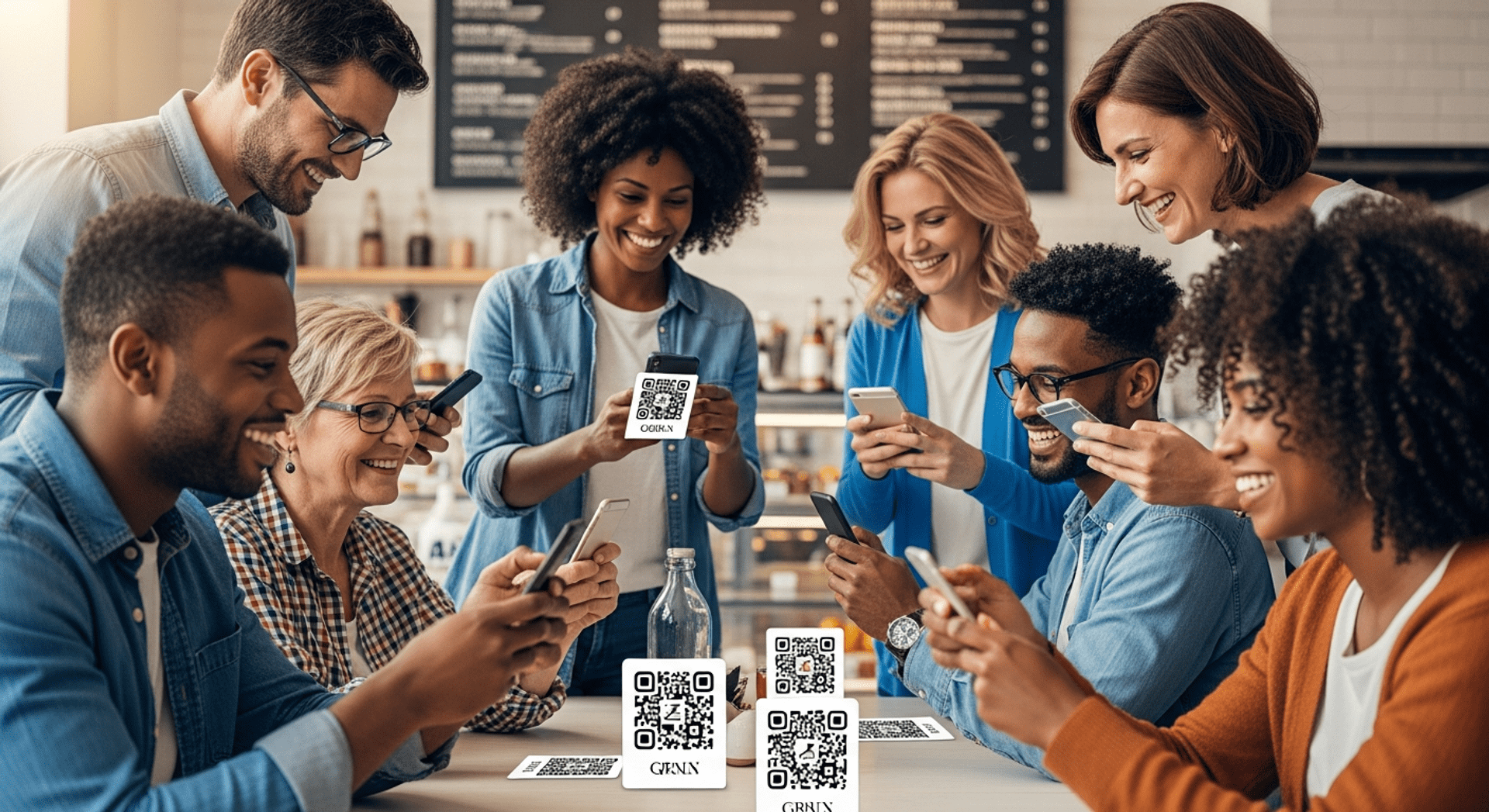
In most cases, one QR code scanner can read multiple QR code types because the scanner decodes the data format rather than relying on a special app for each category. Common examples include website links, WiFi credentials, contact cards, email prompts, SMS messages, location data, and plain text. If the content is encoded correctly, the same scanner can usually handle it.
How can businesses use QRStuff with a QR code scanner?
Businesses can use QRStuff to create QR codes that a scanner reads and converts into useful customer actions. A restaurant can send people to a menu, a retailer can route shoppers to product information, and an event organizer can use a code for check-in or ticket access. The scanner makes the interaction instant, while QRStuff helps businesses control the destination.
- Restaurant menus: A scanner can open a digital menu from a table tent or poster.
- Retail product pages: Customers can scan packaging to view specs, manuals, or promotions.
- Event check-in: Staff can scan ticket or registration codes to verify entry faster.
QRStuff also supports business workflows where the same scanner experience needs to be reliable across printed materials, packaging, signage, and digital screens. That makes it easier to create one code type that matches a clear action for customers and staff.
If you want to build and manage codes that are easy to scan, Explore Pricing Page
Frequently Asked Questions
Answer this exact user question: How do I use a QR code scanner to read different types of QR codes?
Use QRStuff or your phone camera to point at the QR code, let the scanner decode the data, and then follow the action it suggests. The same scanner can usually handle different QR types because it reads the stored information first and then opens the correct result, such as a website, WiFi prompt, contact card, or message.
Can I scan any type of QR code with my phone?
Most modern phones can scan many common QR code types with the built-in camera app. Some older devices or restricted camera settings may need a dedicated scanner or a web-based tool like QRStuff to make scanning easier.
Do I need a QR code scanner app to scan QR codes?
Not always. Many phones already include QR scanning in the camera, so no extra app is necessary for basic use. A separate scanner can still help if your phone is older, your camera app lacks scanning support, or you want a more guided workflow.
Can the same QR code scanner read WiFi, URL, and contact QR codes?
Yes. A single scanner can usually read all three because the QR code stores different kinds of data in a format the scanner can decode. After scanning, the phone may offer to open a webpage, join a network, or save a contact.
Why is my phone not reading a QR code?
Common causes include poor light, blur, glare, damaged printing, or the code being too small. It can also fail if camera permissions are blocked or if the code is displayed at an awkward angle. Moving closer and steadying the phone often helps.
Can I scan a QR code from a screenshot or photo?
Yes, many devices and scanning tools can read QR codes from an image if the code is clear and not cropped. If the built-in camera cannot do it directly, you may need to open the photo in a QR-aware app or use a scanner that supports image upload.
How do I scan a QR code that’s displayed on my own phone?
You usually need a second device to scan a code displayed on your screen. If you only have one phone, you can often save the image and scan it from your gallery, or open the QR code through a browser-based tool that supports image scanning.
Are QR code scanners safe to use?
QR code scanners are generally safe, but the destination behind the code may not be. Always check the URL or prompt before tapping through, especially on public posters, packaging, or messages from unknown sources.
What happens after I scan a QR code?
What happens depends on the data inside the code. The scan may open a website, show plain text, prompt a WiFi connection, create a contact, draft an email, or start another action on your device.
Do QR codes work on both iPhone and Android?
Yes, QR codes are designed to work across both major mobile platforms. The exact scan method can vary by device, but the same encoded content can usually be read by iPhone and Android cameras or scanner tools.
Can I tell what type of QR code it is before I scan it?
Sometimes you can guess from the context, such as a menu poster, WiFi sign, or business card. But in most cases you only know the exact type after scanning because the QR code data is not visible to the eye.