
How to Create a Google Reviews QR Code for Your Business
Creating a Google Reviews QR code for a business involves using QRStuff to streamline feedback collection. Start by obtaining your Google review link, then utilize the QR code generator. Follow easy steps to customize and download your code, enabling customers to share reviews effortlessly. A review qr code can significantly enhance your business’s ability to collect feedback.
- Access your Google Business Profile to find your review link.
- Visit QRStuff and choose the URL QR code type.
- Paste the review link into QRStuff, customize your code, and download it.
What is a Google Reviews QR Code?
A Google Reviews QR code is a specific type of QR code that directs customers to your business’s Google review page. By scanning this code with their smartphone, customers can easily access the platform where they can leave feedback and evaluations about their experiences. This ensures a seamless process that encourages more customers to share their thoughts on your service or product. Using a google review qr code can simplify this process even further.
How Do Google Reviews QR Codes Work?
The process is simple: customers scan the QR code, which links directly to your review page. This convenience reduces barriers for leaving feedback, encouraging quick and easy reviews. The QR code plays a crucial role in enhancing customer engagement, as it allows honesty and spontaneity in feedback, which can be positive for your brand’s reputation. By using a google business review, you can also enhance your online presence.
What Can You Encode in a Google Reviews QR Code?
Typically, the QR code will encode a single URL leading to your Google review page. However, you can customize it with branding options like colors or logos to make it more appealing. This not only draws attention but also aligns the code with your business’s visual identity, reinforcing brand recognition in customer interactions. A code for google reviews can help you stand out.
Why Use a Google Reviews QR Code?
Implementing a Google Reviews QR code can yield numerous advantages:
- Facilitates customer feedback: It simplifies the process, increasing the likelihood of receiving feedback.
- Boosts review quantity: The ease of access often leads to an increase in the number of reviews submitted.
- Enhances local SEO: More positive reviews can elevate your visibility in search results. You can explore more about this with create a Google Forms QR code.
- Builds customer trust: An array of reviews can establish credibility and attract new customers.
- Promotes customer engagement: Feedback opportunities show that you value customer opinions.
- Accelerates review collection: The streamlined process allows you to collect feedback effectively.
- Utilizes free google reviews: The QR code can help you tap into the potential of free reviews that can boost your reputation.
How Can You Find Your Google Review Link?
To create a Google Reviews QR code, your first step is finding your Google review link. Here’s how to do it:
- Access your Google Business Profile: Log in to manage your online presence.
- Find the “Get More Reviews” link: Navigate to the “Home” section in your profile. You can explore more about this with Google reviews QR code.
- Use Place ID if needed: For multiple locations, access the Google Place ID Finder.
How to Create a Google Reviews QR Code with QRStuff?

Create Your Google Review QR Code
Ready to discover how QR codes can transform your business?
Start by creating your custom QR Code today.
Now that you have your review link, follow these steps to create your Google Reviews QR code using QRStuff:
1. How Do You Select the QR Code Type?
Visit QRStuff and choose the URL QR code option, which is necessary for linking to your Google review page.
2. What Steps to Take After Pasting the Google Review Link?
Paste the copied URL into the QR code generator, ensuring it leads directly to your review page.
3. How Can You Customize Your QR Code?
You have the option to personalize your QR code by selecting colors that reflect your brand or incorporating your logo for a cohesive look. This customization can enhance the appeal of your google business qr code.
4. What Happens After Downloading Your QR Code?
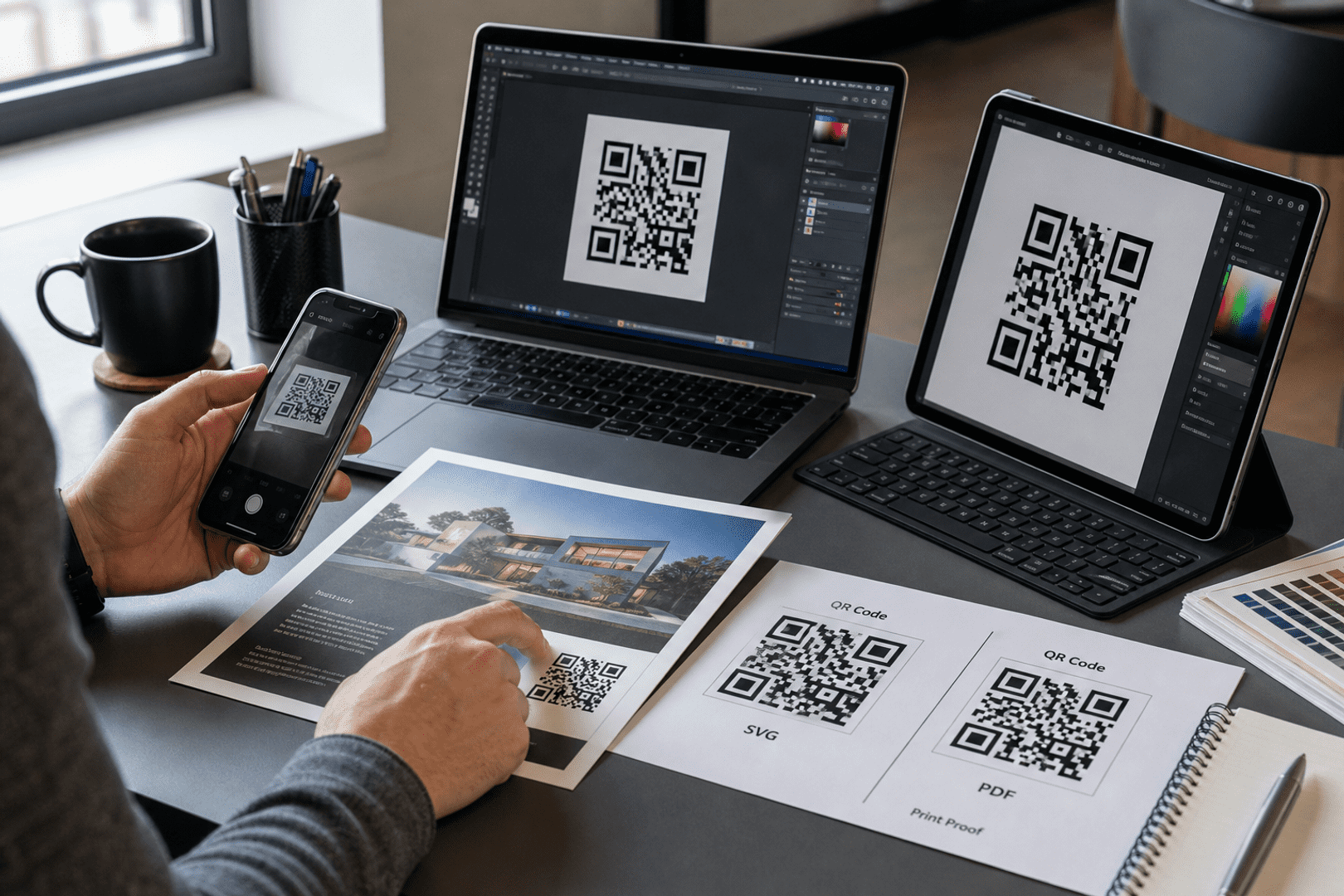
Once satisfied with the design, download your QR code in a high-resolution format suitable for both print and digital use.
5. Why Is Testing Important Before Printing?
Make sure to scan the QR code with a mobile device before distributing it. This step ensures the code directs customers to the intended review page. Testing helps ensure that your google business reviews are accessible.
What is the Difference Between Static and Dynamic QR Codes?
When creating a Google Reviews QR code, you should understand the distinctions between static and dynamic codes.
| Type | Description |
|---|---|
| Static QR Codes | These QR codes cannot be edited after creation, requiring a new code if the information changes. |
| Dynamic QR Codes | These offer flexibility, allowing you to change the destination URL without generating a new code. This feature is beneficial for tracking analytics as well. |
Where Should You Display Your Google Reviews QR Code?
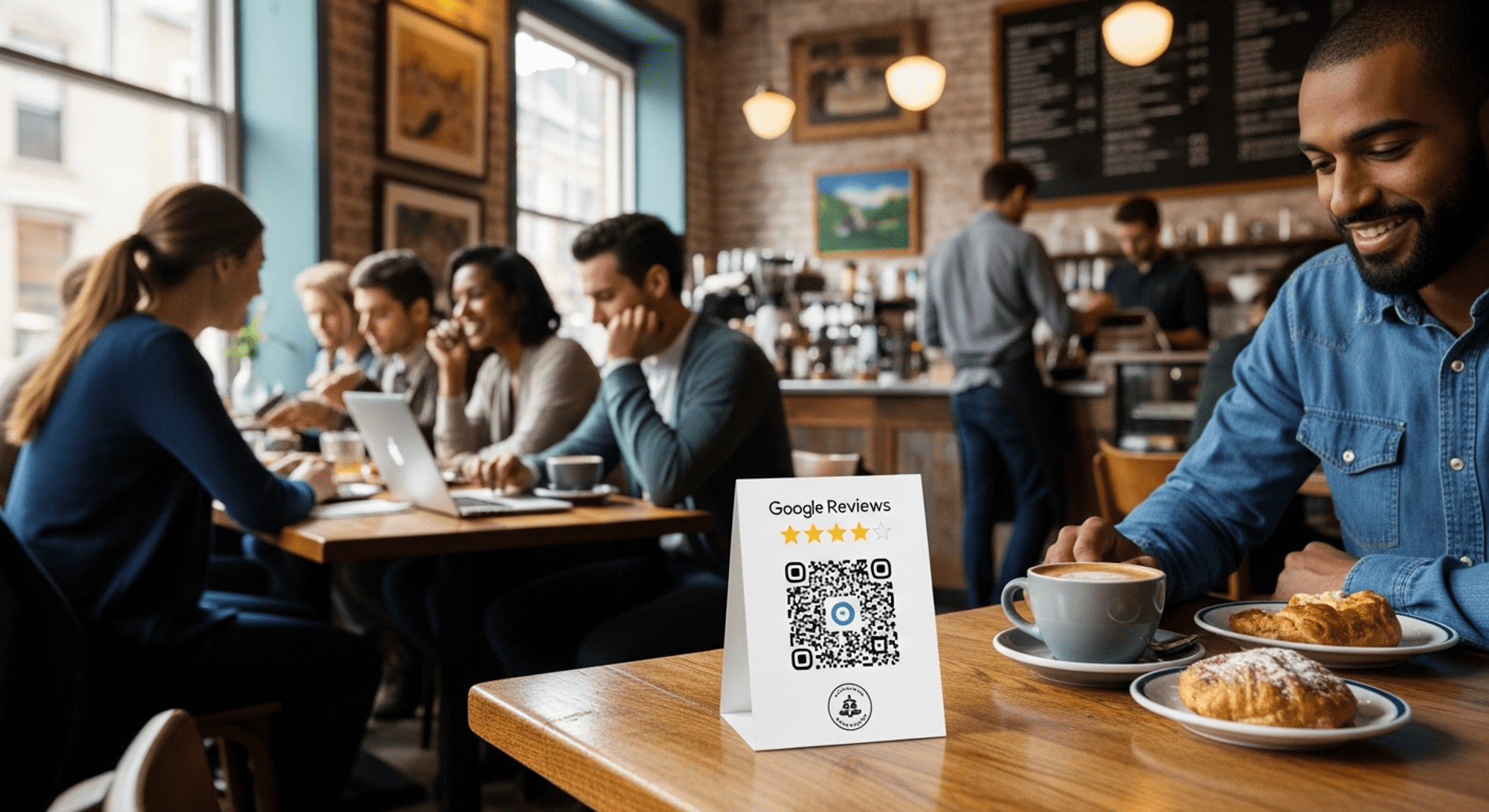
Maximize the visibility of your Google Reviews QR code by placing it in strategic locations:
- On receipts: A simple way to prompt customers to leave feedback.
- At restaurant tables or menus: This encourages diners to review their meal experience.
- On checkout counters: Easily accessible for customers right before they leave.
- In storefront signage: Capture attention from passersby.
- On invoices: A gentle reminder in business transactions. You can explore more about this with convert your company information into business QR codes.
- In packaging: Directs buyers to provide feedback.
- On flyers and business cards: Expand your feedback collection reach.
- In email signatures: Make every email an opportunity for feedback.
What Are the Best Practices for Using Google Reviews QR Codes?
To maximize the effectiveness of your QR code for reviews, consider these best practices:
- Test the QR code before printing for functionality.
- Maintain adequate white space around the code to enhance scanability.
- Size your QR code appropriately for easy scanning.
- Use high-resolution formats for print materials.
- Encourage customers to leave a quick google review after their experience.
Frequently Asked Questions
How to create a Google Reviews QR code for a business?
You can create a Google Reviews QR code by obtaining your Google review link from your Google Business Profile, then using QRStuff to generate a customized QR code that links directly to that page. This process makes it easier for customers to leave a google business review.
What is a Google Review?
A Google Review is customer feedback left on a business’s Google Business Profile, which helps other customers learn more about the service or product and enhances the business’s online presence. Utilizing a google business review can significantly impact your reputation.
How do Google Reviews work?
Customers leave reviews on your Google Business Profile after interacting with your business. These reviews are visible to others searching for your business, positively impacting perceptions and potentially driving new customer engagement. This is where a code for business can be beneficial.
How can I create a Google Review with QRStuff?
You can create a Google Review with QRStuff by first obtaining your Google review link and then using the QR code generator on QRStuff to create a scannable code that links directly to that review page.
Is a Google Reviews QR code free?
Yes, QRStuff offers free QR code generation for Google reviews, allowing you to create and share your QR code with no cost associated. This is an excellent way to get more google reviews without any investment.
Can I edit my QR code later?
With static QR codes, you cannot make changes once created. On the other hand, dynamic QR codes allow you to change the destination URL whenever it’s needed, making them a flexible option for businesses.