The challenge isn't creating a branded QR code — it's creating one that scans reliably and looks professional. Poor colour choices, oversized logos, and skipped margins are common enough mistakes that they've become the leading cause of expensive reprints and failed campaigns.
This guide covers exactly what you need, the step-by-step creation process, and the design variables that determine whether your branded code works at scale.
Key Takeaways
- Branded QR codes use custom colors, logos, and shapes — but visual changes must stay within specific technical limits to maintain scan reliability
- A paid business account is required for dynamic editing, logo embedding, vector downloads, and scan analytics
- Keep logo size under 30% of the code area, maintain strong color contrast, and preserve a 4-module quiet zone on all sides
- Dynamic codes let you update destination content after printing — no reprints needed
- Always test on multiple devices at actual deployment size before printing at scale
What You Need Before Creating Branded QR Codes
Preparation determines whether your finished code scans reliably and looks intentional. Skipping it leads to reprints, failed scans, and inconsistent brand presentation.
Account and Plan Requirements
Free QR code generators support basic static codes, but branded customization — logo embedding, custom color palettes, dynamic editing, and scan analytics — requires a paid business account.
On QRStuff, paid plans (Lite Suite, Full Suite, and Enterprise) include:
- Logo upload with automatic error correction adjustment
- Custom colors, shapes, gradients, and frame options
- Dynamic QR codes with editable destination URLs
- Vector export formats (SVG, EPS, PDF) for professional print use
- Scan analytics including device, location, and time-of-day data
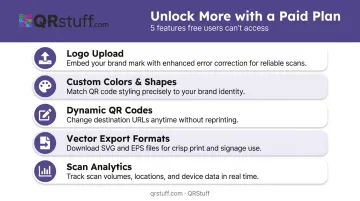
Free plan users are limited to PNG downloads and 10 dynamic codes with a 30-day time limit and 50 monthly scan cap.
Brand Asset Readiness
Before opening the QR editor, have these ready:
- Exact HEX color codes for your brand's foreground and background colors
- High-resolution logo in transparent PNG format — a white-background JPEG will create a visible white square inside the code
- CTA copy for any frame label (e.g., "Scan to View Menu" or "Scan for Exclusive Offer")
QR Code Type Selection
Choose your QR code type before customizing. Common options include:
- URL — works for most marketing campaigns
- vCard — suited for business cards and networking
- PDF — handles product documentation and datasheets
- WiFi — simplifies guest onboarding at venues
Selecting the right type upfront determines how the dynamic destination is managed and what users experience at scan.
How to Create Branded QR Codes in Your Business Account
Each step builds on the previous one. The format you choose at the end determines whether your code holds up in print — so don't skip it.
Step 1: Log In and Choose Your QR Code Type
Log into your QRStuff business account dashboard and select from 40+ QR code types. Choose a dynamic QR code rather than static — this allows you to update the destination URL or content later without generating a new code or reprinting materials.
Step 2: Enter Your Destination Content
Input your destination URL, file, or content. Before moving on:
- Confirm the link is live and mobile-optimized
- Use a clean, direct landing page URL rather than a long redirect chain
- Verify the destination matches what your CTA copy promises
Step 3: Customize Colors and Patterns
Apply your brand's foreground colour to the QR modules using your exact HEX code, with a contrasting background. Two rules apply here without exception:
- Foreground must always be darker than the background — an inverted colour scheme (light modules on dark background) degrades scan reliability
- QRStuff's guidance specifies that dots should be at least 70% darker than the background for reliable scanning
Module shape options in QRStuff include square, round, dot, and connected variants. Corner (eye) shapes can be customized separately for the inner and outer elements. Use these to reinforce brand personality, but always confirm scannability after changes.
Step 4: Embed Your Brand Logo
Upload your transparent PNG logo. QRStuff automatically centers and scales the logo, and raises the error correction level to compensate for covered modules. Key limits to respect:
- Keep logo coverage under 30% of the total code area — beyond this, scan failures increase even with high error correction
- Error correction must be set to H (High, ~30% data redundancy) when a logo is embedded — QRStuff handles this automatically when you upload a logo
- Leave a small white border around the logo edge to separate it from surrounding data modules
Step 5: Add a Frame or CTA, Then Download
Add a branded frame with a short call-to-action. CTAs increase scan rates by telling users what to expect — "Scan to View Menu" performs better than an unlabelled code.
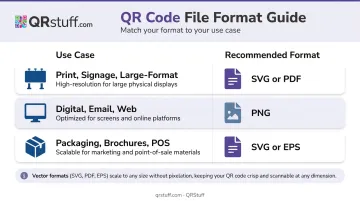
Download in the correct format for your use case:
| Use Case | Recommended Format |
|---|---|
| Print, signage, large-format | SVG or PDF (vector) |
| Digital, email, web | PNG |
| Packaging, brochures, POS | SVG or EPS |
Vector formats scale without pixelation, which keeps module edges crisp at any print size. PNG exports at screen resolution — scaling it up for print produces blurry modules that scanners struggle to read. SVG and PDF access requires a paid QRStuff plan.
Key Design Parameters That Determine Performance
Once created, a branded QR code's real-world performance depends on five interacting variables. Getting one wrong can cause scan failures at scale.
Colour Contrast
Camera-based scanners detect the binary contrast between dark modules and a light background. Insufficient contrast causes intermittent failures in varying lighting conditions.
Honeywell's scanner guidance confirms that black on white provides optimal contrast, and that other colour combinations reduce readability. There is no universal numeric contrast ratio standard specific to QR scanning — the practical rule is: dark modules on a plain light background, tested in real lighting conditions.
Common failure point: Medium blue modules on a navy background, or any two colours with similar luminosity. If you're unsure, run your colour pair through WebAIM's contrast checker as a rough guide, then validate by scanning.
Logo Coverage and Error Correction
The four error correction levels defined by DENSO Wave (the QR code inventor) are:
| Level | Recovery Capacity |
|---|---|
| L (Low) | ~7% of codewords |
| M (Medium) | ~15% |
| Q (Quartile) | ~25% |
| H (High) | ~30% |
H-level is required when embedding a logo. However, H-level's 30% recovery capacity does not mean you're free to cover 30% of the visible code area — it means the error correction mechanism can handle approximately that level of module restoration.
QRStuff's own documentation recommends keeping manual logo coverage closer to 15% for the best reliability buffer, with the platform's automatic placement managing optimal sizing.
Quiet Zone (Margin) Size
The quiet zone is the blank border surrounding the QR pattern. Scanners use this white space to identify where the code begins and ends. DENSO Wave's standard requires a 4-module-wide margin on all sides.
Cropping this margin — which happens frequently when designers bleed a QR code to the edge of a business card or fit it tightly inside a design frame — is one of the most common printing mistakes. The code scans fine on screen but fails in print.
File Format and Print Resolution
Exporting a PNG at screen resolution and scaling it for poster or banner printing breaks the clean module edges that scanners rely on. Common failure point: Blurry module edges or colour fringing when you zoom into a printed code.
Use SVG or PDF for anything printed. For digital use where fixed pixel dimensions are needed, export PNG at the highest resolution the platform supports. Adobe's guidance confirms that SVG remains sharp at any scale, making it the standard for packaging, signage, and POS materials.
When Branded QR Codes Work Best
Branded QR codes deliver maximum value where the code is seen repeatedly, trust matters at first glance, or the material is physically printed and hard to update.
Highest-impact use cases:
- Product packaging: CPG QR code creation grew 88% year-over-year in H1 2023, and branded codes connect consumers to verified product information, reinforcing trust before they even scan
- Event and trade show materials: brand credibility is established at first glance, before the scan happens
- Business cards and print collateral: a color-matched code signals professionalism; a generic black-and-white code does not
- Out-of-home advertising: brand recognition drives scan intent when the code appears in passing
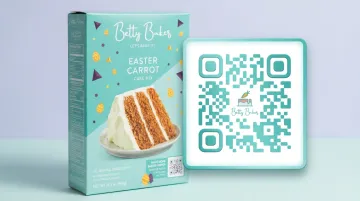
Coca-Cola's "Share a Coke" campaign shows this in practice. On-pack QR codes led to a branded digital hub where consumers could customize packaging, connecting the scan directly to the brand experience.
For businesses running branded codes across multiple locations or campaigns, that complexity adds up fast. QRStuff's Enterprise plan addresses this with centralized dashboard management, role-based team access, bulk generation, and analytics across all touchpoints.
When a plain static code is adequate: internal testing, one-time private content, or temporary codes that won't appear on branded materials.
Common Mistakes and How to Fix Them
Poor Contrast or Inverted Color Scheme
Using brand colors without checking their contrast relationship is the most common design error. Test your color pair with a contrast checker, then scan the finished code on three or more different smartphones in both indoor and outdoor lighting before finalizing.
Oversized or Improperly Formatted Logo
A JPEG logo with a white background creates a white square inside the code instead of a seamless embed. A logo that's too large pushes past the error correction threshold. To fix this:
- Re-export the logo as a transparent PNG
- Re-upload to QRStuff and let the platform's auto-sizing handle placement
- Scan the result to confirm the logo doesn't block any data modules
Skipping the Test-Before-Print Step
A code that looks correct on screen can fail at actual print size or in dim lighting. Always print a sample at the exact deployment size, test under real conditions (dim indoor, bright outdoor, at natural scanning distance), and confirm the destination URL resolves on mobile.
Wrong Export Format for Print
If module edges look blurry or show color fringing, the code was exported as a low-resolution PNG and scaled up. Re-export as SVG or high-resolution PDF from your QRStuff account — vector formats scale to any size without quality loss.
Frequently Asked Questions
How do I get a branded QR code linked to my business account?
Log into your QRStuff business account, create or select a dynamic QR code, and apply branding through the design editor — colors, logo, frame, and CTA. The code is automatically saved to your account dashboard, where you can edit the destination, track scans, and update the design at any time.
Which major brands use branded QR codes?
Coca-Cola, IKEA, Walmart, Amazon, and PepsiCo — all QRStuff customers — use branded QR codes on packaging, in-store displays, and marketing campaigns. Consistent colors and logos across their codes build consumer recognition wherever the code appears.
Do branded QR codes scan as reliably as standard black-and-white ones?
Yes — when designed correctly. Strong color contrast, a logo covering less than 30% of the code area, H-level error correction, and a 4-module quiet zone all work together to give you scan reliability equivalent to a plain code. Deviating from these parameters is what causes failures.
Can I update a branded QR code's destination without reprinting it?
Yes, but only with dynamic QR codes. The visual design stays fixed after printing, but the destination URL or content can be updated any time through the QRStuff dashboard — making reprints unnecessary even when campaigns or product pages change.
How large should my logo be inside a branded QR code?
Keep it well under 30% of the total QR code area — closer to 15% gives you the most reliable buffer. Error correction must be set to H (High) to compensate for covered modules; QRStuff sets this automatically when you upload a logo.
What file format should I download for my branded QR code?
Use SVG or PDF for any print or large-format application — these vector formats scale without pixelation, keeping module edges crisp. Use PNG for digital use cases like websites, email, and social media. SVG, EPS, and PDF formats are available on QRStuff's paid plans.