The concept is simple. The execution is where things go wrong.
A QR code that's too small, too low-contrast, or positioned over a busy visual area will go completely unscanned — and most guides skip the details that actually determine success. According to ON24's webinar benchmark data, interactive CTAs drive 49% more engagement per attendee and 73% more demo bookings compared to passive content. That's the upside when overlays are done right.
This guide covers exactly what you need: how to generate and embed a QR overlay, the design parameters that determine scan success, and the most common mistakes that cause overlays to fail in production.
Key Takeaways
- Generate a dynamic QR code so you can update the destination without touching the overlay file mid-broadcast
- Download it as a high-resolution PNG and add it as an image layer in OBS, StreamYard, or Restream
- Contrast, size, and quiet zone determine whether a code scans — nail all three before going live
- Test from the encoded live preview, not the editor canvas — compression changes everything
- Combine UTM parameters + QR analytics to track exactly how many viewers converted
How to Add QR Code Overlays to Live Broadcasts
Step 1: Generate Your QR Code
Start with the right type of code. Static QR codes encode the destination URL directly into the pattern; once generated, the destination is permanent. Dynamic QR codes use a short redirect URL instead, meaning you can change where the code points through a dashboard without touching the overlay image.
For live broadcasts, dynamic codes are the only practical choice. If your landing page changes, your offer updates, or the stream runs long and you need to swap destinations, a dynamic code lets you do that instantly.
QRStuff supports dynamic QR codes across 40+ data types relevant to broadcast CTAs:
- URLs, social profiles, and event registrations
- Donation links (PayPal, Venmo, Zelle)
- Google Forms and file uploads
Create your code, enter the destination URL, and confirm the page is live and mobile-optimized before downloading.
Download the finished code as a high-resolution PNG. For overlay use, PNG with a transparent background is ideal since it won't add an unwanted white rectangle over your stream layout. SVG works well if your broadcasting software accepts it.
Step 2: Customise the QR Code for On-Screen Visibility
Three design decisions determine whether your code scans from a video stream:
Logo size limit: 30% of the code's total area. Embedding a logo in the centre is fine at that threshold. Set error correction to H (High), which allows up to 30% of the code's surface to be obscured while remaining scannable. QRStuff automatically increases the error correction level when you add a logo. A large logo with low error correction will cause scan failures.
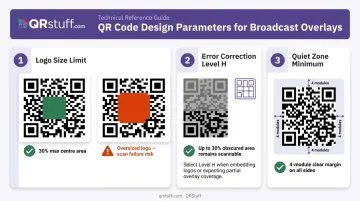
Quiet zone minimum: 4 modules on all sides. The quiet zone (the clear border surrounding the code) must stay intact. Cropping this border even slightly causes scanners to fail at detecting the code's boundaries.
QRStuff's colour customisation tools let you adjust foreground, background, and gradient effects. Logo embedding supports JPG, PNG, and GIF files. Both features are available on paid plans.
Step 3: Add the QR Code to Your Streaming Software as an Overlay Layer
The process differs by platform:
OBS Studio: Add a new Image Source in your scene, import the PNG file, then resize and reposition it using the visual editor. Sources higher in the Sources list appear on top; place the QR layer above your background and lower thirds, not above your camera feed or captions.
StreamYard: Use the built-in QR Code widget under the Widgets section. Paste the destination URL directly; StreamYard handles the display within the platform without needing to upload an image file separately.
Restream Studio: Go to the QR Codes tab, click Add, and choose Standard QR Code or QR Code + image. Restream supports up to 6 QR codes per brand folder, accepts PNG, JPEG, GIF, and WEBP files up to 5MB, and includes Show/Hide controls for toggling the overlay mid-stream.
Streamster: The Overlay Editor includes QR code templates. Upload a custom image or configure appearance using the built-in editor.
Axis cameras with CamOverlay: Upload the PNG to the overlay manager, define screen position, and set display duration. Supported formats: PNG, JPEG, BMP, and SVG.
Position the overlay in a corner or the lower third. It should not overlap faces, captions, or any content viewers need to follow.
Step 4: Test the QR Code Before Going Live
Testing in the editor canvas is not the same as testing the encoded stream. Video compression can degrade fine QR patterns, making a code that scans cleanly in preview unreadable after encoding. Don't skip this step.
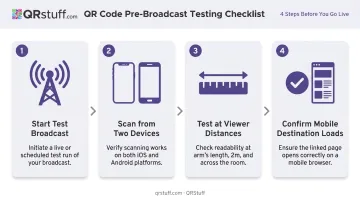
Test from the actual stream preview:
- Start a test broadcast (or use OBS's preview output)
- Scan from at least two different phones (one iPhone, one Android)
- Test from the distances your viewers will realistically be at: arm's length on a phone, two metres from a laptop, across a room from a TV
- Confirm the destination URL loads fully on mobile without redirect errors, paywalled pages, or slow load times
If the code fails to scan from the encoded preview but works in the editor, the most likely culprit is compression degrading the module patterns. Fix this by using a shorter URL (reducing data density) or increasing the overlay size on screen.
QRStuff recommends keeping the QR code on screen for at least 10–15 seconds per display to give viewers time to retrieve their phones and complete the scan.
When Should You Add a QR Code Overlay?
QR overlays aren't universally effective. Context determines whether viewers will reach for their phones — and whether the action you're asking for makes sense in that moment.
High-value use cases:
- Live shopping and product demos — link directly to a purchase page while the item is on screen
- Fundraising streams — link to a donation gateway (QRStuff supports PayPal, Venmo, Zelle, and EPC codes for SEPA transfers)
- Webinars and lead gen — link to a sign-up form, contact page, or resource download
- Affiliate promotions — pair with a UTM-tracked URL so commissions attribute correctly
- Community building — link to a Discord server, newsletter sign-up, or social profile hub
Not every broadcast is the right context, though. These situations tend to produce low scan rates even with a well-placed overlay:
Where overlays underperform:
- Fast-paced gaming streams where viewers track continuous action and don't have spare attention for phone scanning
- Broadcasts where most of the audience is already watching on mobile — scanning requires a second device
- Low-resolution or highly compressed streams where QR patterns degrade below the scan threshold
What You Need Before Adding a QR Code Overlay
Preparation determines whether the overlay works during a live broadcast. Errors found mid-stream often can't be fixed without interrupting the broadcast.
Equipment and Software
- Broadcasting software that supports image or widget overlays: OBS Studio, StreamYard, Restream Studio, Streamster, or a camera-based overlay app. Confirm your version supports custom image layers before the broadcast day.
- Sufficient upload bandwidth. Twitch recommends 4,500 Kbps for 1080p30; YouTube recommends 3,000–6,000 Kbps for 1080p30. QR code legibility degrades at lower bitrates — stay at or above platform recommendations to keep modules crisp.
QR Code and Destination Readiness
- A pre-generated, tested dynamic QR code in high-resolution PNG format
- A confirmed, live destination URL that is mobile-optimized — all QR scanners are on smartphones
- UTM parameters (
utm_source,utm_medium,utm_campaign) appended to the destination URL before generating the code
Define your UTM parameters before you generate the QR code. Changing them after the broadcast is live requires regenerating the redirect destination — not just the QR image — so broadcast-sourced traffic stays isolated in Google Analytics.
QRStuff supports UTM parameter appending directly within its dynamic QR flow, so you can attribute broadcast traffic separately from your other channels without any post-generation rework.
Key Parameters That Affect QR Code Scannability in Live Broadcasts
Unlike a printed QR code, a video overlay adds variables that can break an otherwise valid code: compression, viewer distance, screen brightness, and encoding quality.
QR Code Size on Screen
There's no universally verified pixel minimum for video overlays. ISO/IEC 18004:2024 specifies that module dimensions are user-defined depending on the production method, so what matters is that the code remains scannable after encoding at your target bitrate.
On a 1080p stream, a larger code with lower data density performs more reliably than a smaller, dense one. Short URLs produce fewer modules, making each module larger and easier to scan. Test at actual output resolution before going live.
Contrast and Color Selection
QR scanners detect the contrast between light and dark modules. Low-contrast combinations cause consistent scan failures regardless of code quality. Black on white remains the most reliable. If using brand colors, test with an actual scanner on the encoded stream preview before the broadcast.
Video Encoding and Bitrate
H.264 compression introduces blocking, ringing, and blurring artifacts, all of which can degrade the sharp module edges that QR scanners rely on. The effect is worst at lower bitrates.
Two practical mitigations:
- Use a short redirect URL as your QR destination. Shorter URLs produce simpler, less dense codes with larger individual modules that survive compression better. QRStuff's dynamic codes already use a short redirect URL by design.
- Increase error correction to Level H — larger, more robust modules tolerate degradation better.
QR Code Placement and Quiet Zone
The quiet zone (the clear border around the code) must remain at least 4 modules wide on all sides. Placing a QR code directly against a busy background, animated ticker, or camera feed causes the modules to visually merge with the surroundings.
Fix: place the overlay in a corner with a solid color block behind it. Even a small padded background rectangle significantly improves scan reliability on complex stream layouts.
Common Mistakes and How to Fix Them
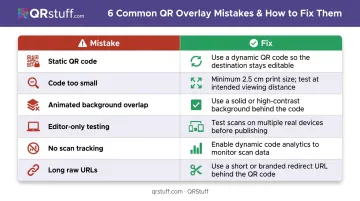
Even well-designed QR overlays fail if the setup has a technical blind spot. These are the most common errors broadcasters make — and the direct fix for each.
| Mistake | Fix |
|---|---|
| Using a static QR code | Switch to dynamic: update the destination from your dashboard without touching the overlay |
| Code too small to scan at viewing distance | Test at actual broadcast resolution on a real device, not the editor preview |
| Placed over animated backgrounds or camera feeds | Add a solid colour block behind the overlay to isolate the modules visually |
| Only testing in the editor, not the encoded stream | Run a scan test from the live preview after encoding begins |
| No tracking on scans | Append UTM parameters to the destination URL and use a QR platform with built-in analytics |
| Long raw URLs creating dense, complex codes | Route through a short redirect first — dynamic QR codes handle this automatically |
Frequently Asked Questions
Can I change the QR code destination while I'm live on stream?
Yes, but only with a dynamic QR code. The overlay image stays the same on screen — you update the destination URL through the QRStuff dashboard, and the redirect changes instantly. Static QR codes have the destination baked into the pattern and cannot be edited after creation.
What size should my QR code overlay be for a 1080p live stream?
There's no single verified pixel standard, but larger is safer. A code with lower data density (using a short redirect URL) produces larger individual modules that survive compression better. Test at your actual encoded bitrate from a real device. The editor preview renders at a larger effective size than what viewers actually see.
Will video compression make my QR code unscannable?
It can. H.264 compression blurs fine module edges, especially at bitrates below platform recommendations. Use short redirect URLs to reduce code complexity, set error correction to Level H, and maintain at least the bitrate your streaming platform recommends for 1080p.
Can viewers scan a QR code shown on a TV screen or large monitor?
Yes, if the code is sized appropriately and the viewer is within a reasonable distance. Contrast and module size matter even more on large displays where upscaling can soften edges. Keep the design high-contrast and avoid complex logos for TV or large-screen use.
Do QR code overlays work the same way in recorded videos as in live streams?
They work the same way in recordings. The key distinction: if you used a static code, the destination is permanently fixed in the archived video. Dynamic codes let you update the destination even after the broadcast is over, so archived content stays relevant.
How do I track how many people scanned my QR code during a broadcast?
Use two methods together: a QR platform with built-in analytics (QRStuff tracks real-time scan counts, device types, geographic data, and time-based insights) and UTM parameters on the destination URL for post-scan behavior in Google Analytics. This gives you both raw scan volume and what viewers did after they landed.