QR codes are already making the jump onto cards: the same survey found them on 36% of printed business cards, with 51% of Gen Z professionals including one. The challenge isn't whether to add a LinkedIn QR code — it's doing it correctly so the code actually scans when printed.
This article covers both methods for creating a LinkedIn QR code, what to consider before printing, and the mistakes that cause codes to fail after 500 cards come back from the printer.
Key Takeaways
- LinkedIn's built-in QR code is free but exports at low resolution — too blurry for print
- For business cards, use a dedicated generator like QRStuff for high-resolution files, custom colors, and logo embedding
- Always use a dynamic QR code for print — you can update the destination URL without reprinting cards
- Minimum print size: roughly 2 cm × 2 cm with a clear quiet zone border on all sides
- Test the printed code on at least two different phones before ordering a full card run
How to Create a LinkedIn QR Code for Your Business Card
Method 1: LinkedIn's Built-In QR Code
LinkedIn's mobile app includes a native QR code for every member. Here's how to find it:
- Open the LinkedIn app and tap the search bar at the top of the homepage
- Tap the QR code icon on the right side of the search field
- Select the My Code tab to display your personal QR code
- Tap Share my code or Save to photos (iOS) / Save to Gallery (Android)
This works well for one thing: showing your phone screen to someone standing next to you at an event so they can scan it immediately.
For business card printing, the native code has real limitations:
- File format: Saves as a low-resolution PNG — LinkedIn's Help documentation doesn't specify exact resolution, but the output is not print-optimized
- No customization: Fixed black-and-white design, no brand colors, no logo
- No analytics: You can't track whether anyone has scanned it
- Static behavior: LinkedIn does not disclose whether the native code is static or dynamic — changing your profile URL may break printed codes
Save the native code for impromptu screen-to-screen sharing. Don't use a screenshot from the app on a printed business card.
Method 2: Creating a Custom LinkedIn QR Code with a QR Code Generator
This is the right approach for print. Here's the full process using QRStuff:
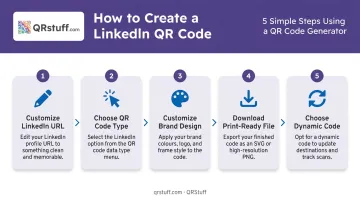
Step 1: Customize your LinkedIn URL first
Before generating anything, clean up your LinkedIn profile URL. On desktop, click Me → View Profile, then look for Edit public profile & URL in the right panel. You can customize the ending to something like linkedin.com/in/yourname.
LinkedIn allows 3–100 characters with no spaces or special characters. A shorter, cleaner URL creates a less dense QR pattern, which means faster, more reliable scanning when printed small.
Step 2: Choose your QR code type
In QRStuff, select the dedicated LinkedIn data type (purpose-built for LinkedIn profile and post sharing) or use the general URL type. Paste your customized profile URL into the destination field.
Step 3: Customize for your brand
QRStuff offers extensive design controls:
- Colors: Set foreground and background using hex codes — dark foreground on light background is essential; QRStuff recommends dots at least 70% darker than the background
- Module shapes: Square, round, dot, and connected variants
- Logo embedding: Upload a PNG or SVG logo (up to 6 MB); the platform auto-centers it and raises error correction — keep logo coverage below 20% of the code area for reliability
- Frames and templates: Add a frame style that fits your card design
Step 4: Download the right file format
Free accounts on QRStuff export 72 DPI PNG only — not suitable for print. Paid plans unlock:
- SVG and EPS (vector — scale to any size without quality loss)
- PDF (print-ready)
- PNG, JPG, TIF at up to 600 DPI
For a business card, download SVG or PDF. If you must use a raster file, export at 300 DPI minimum.
Step 5: Choose dynamic over static
When creating your code, select a dynamic QR code. Dynamic codes use a short redirect URL, so you can update your LinkedIn destination anytime, even after the cards are printed.
QRStuff dynamic codes also provide scan analytics: total scans, unique scans, device type, operating system, geographic location (country and city level), and time of scan. That data tells you whether your networking cards are driving profile views.
Dynamic codes are available on QRStuff's Free Suite (10 codes, 30-day expiration), but non-expiring codes for long-term print use require a paid plan. See QRStuff's pricing page for current plan details.
How to Design Your LinkedIn QR Code for a Business Card
Generating the code is straightforward. Getting it to survive the print process — and actually scan reliably — is where most business cards fall short.
Size and Quiet Zone
QRStuff recommends a minimum print size of 2 cm × 2 cm (0.8" × 0.8") for simple URLs. Smaller than this and the individual modules become too fine for camera apps to reliably decode, especially on lower-quality print stock.
Equally important is the quiet zone: the blank white border surrounding the code. Print standards require a minimum of 4 module-widths of clear space on all sides. Never let card text, design elements, or the card edge encroach on this margin. Removing the quiet zone is one of the most common reasons printed QR codes fail.
Color and Contrast
Size and spacing get the code onto the card. Color contrast determines whether it actually scans. The rule is simple: dark modules on a light background. Avoid:
- White modules on dark backgrounds (reversed contrast)
- Similar-value colors where the difference is subtle
- Placing the code over textured or photographic backgrounds
If you're using brand colors, test them specifically. Colors that look distinct on screen can lose contrast when converted to print.
Placement and Labeling
- Back of the card is the standard choice — it keeps the front clean and professional
- Add a short text prompt below the code: "Scan to connect on LinkedIn" — U.S. Census Bureau research on QR usability found that users unfamiliar with QR codes benefit from explicit instructions, including being told to tap the resulting link
- Keep the code away from folds, rounded corners, and UV-coated areas that can affect scan performance
File Handoff to Your Designer or Printer
How you hand off the file matters as much as the file format itself:
- Send the SVG or PDF as a separate file, not embedded inside the card layout
- Never use a screenshot or low-resolution PNG — it compresses further during layout and may not scan after printing
- Confirm with your printer that the QR code will not be placed under UV coating or laminate
Common Mistakes When Adding a LinkedIn QR Code to Your Business Card
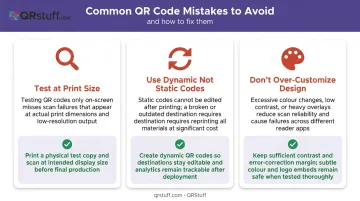
Three problems account for the majority of failed printed QR codes:
Test at final print size, not on screen. Scanning your QR code on a monitor tells you nothing about how it performs at business card scale. Print a single test sheet at final size and scan it with both an iPhone (Camera app) and an Android device before approving the full run — a code that reads cleanly at 5 cm on screen can fail at 2 cm in print.
Use a static code only if nothing will ever change. If you rebrand, change roles, or update your LinkedIn URL after printing, a static code becomes a permanent dead link on every card already distributed. According to Bitly's documentation on QR code editing, a static code cannot be redirected once generated — the only fix is a reprint. Dynamic codes let you update the destination without touching the printed card.
Don't let customization break scan reliability. Brand colors, logo embedding, and custom module shapes are valid design choices — but they have hard limits. Keep logos under 20% of the code area, maintain strong contrast between modules and background, and test any color combinations before committing to a print run.
When Should You Add a LinkedIn QR Code to Your Business Card?
A LinkedIn QR code earns its space on a card when the card is going to people who are likely to look you up. That means:
- High-value contexts: Conferences, trade shows, recruiting conversations, client meetings, consulting pitches, executive networking events
- Roles where profile depth matters: Salespeople, recruiters, real estate agents, consultants, and executives whose LinkedIn profile serves as a living portfolio — recommendations, case studies, and full work history included
In those high-value situations, the follow-through matters. LinkedIn has over 1.3 billion members and makes roughly 18,000 connections per minute — and a QR code that takes someone directly to your profile removes the step where most follow-ups stall: manually typing a URL and hoping they get it right.
It's less essential when your role rarely involves in-person networking, or when your primary audience is in a market where QR scanning habits are less established. In those cases, a printed LinkedIn URL or the LinkedIn logo alone is often sufficient. The QR code should add value, not just fill space.
Frequently Asked Questions
Is it free to create a LinkedIn QR code?
LinkedIn's native QR code in the app is free. Third-party generators like QRStuff offer free tiers for basic static codes, but dynamic QR codes with analytics and no expiration require a paid plan — QRStuff's Lite Suite starts at £4/month.
Where is the QR code on LinkedIn?
Open the LinkedIn mobile app, tap the search bar at the top of the homepage, and tap the QR code icon on the right side of the field. Select My Code to display your personal QR code.
Should I put a LinkedIn QR code on my business card?
Yes, particularly if you network in person regularly. It eliminates manual URL typing, sends recipients directly to your full profile, and makes the card more actionable than a phone number alone.
What is the difference between a static and dynamic LinkedIn QR code?
A static QR code permanently encodes your LinkedIn URL and cannot be changed after creation. A dynamic QR code uses a redirect link that can be updated anytime, making it better suited for printed materials where reprinting is costly.
What size should a LinkedIn QR code be on a business card?
QRStuff recommends a minimum of 2 cm × 2 cm (0.8" × 0.8") for simple URLs. Always print a test copy at the exact final size and scan it with two different phones before ordering your full run.
Can I add a logo or custom colors to my LinkedIn QR code?
Yes — using a QR code generator like QRStuff, you can add brand colors, embed a logo (keep coverage below 20% of the code area), choose module shapes, and apply frame styles. LinkedIn's native QR code doesn't support any of these options.