But generating a code isn't the hard part. The real risks are subtler: using a static code when your website URL isn't finalised, printing at too low a resolution, or skipping the mobile test entirely. Any of these can leave guests staring at a code that goes nowhere — right before your wedding.
This guide walks through the full process: choosing what to link to, generating the code step-by-step, designing it for reliable scanning, and placing it correctly on your stationery suite.
Key Takeaways
- A QR code gives guests instant access to your wedding website, RSVP form, or registry with a single scan
- Use a dynamic QR code so you can update the destination after printing if anything changes
- Download as SVG or 300 DPI PNG, print at minimum 2cm × 2cm, and test on both iPhone and Android before sending
- Best placements: the details card or RSVP insert — keep the main invitation face clean
- Always include the plain-text URL alongside the code as a backup
Why Add a QR Code to Your Wedding Invitation?
A wedding invitation has limited real estate. Venue address, ceremony time, dress code, accommodation suggestions, registry details — cramming all of that onto one card means either a cluttered design or a separate insert for every piece of information. A QR code solves this by pointing guests to a single destination that holds everything.
The RSVP benefit alone makes it worth it. Digital responses arrive instantly, nothing gets lost in the mail, and you won't spend weeks chasing replies from relatives who forgot to send the card back. Couples using digital RSVPs also sidestep international mail delays — a real problem for destination weddings or guests living abroad.
That convenience also translates to savings. Each paper RSVP card and return envelope you cut saves money on both printing and postage. USPS First-Class stamps currently cost $0.73 per letter — multiply that by 150 guests and the return postage alone adds up fast. For eco-conscious couples, dropping the reply card reduces paper waste without sacrificing any functionality.
What to Link Your Wedding QR Code To
Before generating anything, decide what the code's primary job is. One code, one destination. Trying to serve too many purposes at once usually means serving none of them well.
Destination Options to Consider
| Destination | Best For |
|---|---|
| Wedding website | One hub for schedule, directions, dress code, FAQs, and registry |
| RSVP form directly | Collecting responses fast — guests land on the form, no extra navigation |
| Registry page | Supplemental use on a gift card insert |
| Venue map or photo-sharing link | Secondary inserts tied to a single specific action |
The wedding website option is generally the most versatile. If your site is well-structured, it reduces the number of separate inserts in the envelope entirely.
If you do have distinct purposes, that's a clean solution. One code for RSVPs on the reply card, another linking to accommodation details on the information card — each insert handles its own job. Two codes on two different inserts is fine; two codes crammed onto the same card is harder to manage visually.
How to Generate a QR Code for Wedding Invitations
The process takes under five minutes. The more consequential decision is whether to use a static or dynamic code.
- Static codes bake the URL permanently into the pattern. If your wedding website URL changes, or you spot a typo after printing, you're reprinting everything.
- Dynamic codes encode a redirect URL instead. You can swap the destination from your dashboard at any time — no new code, no reprint.
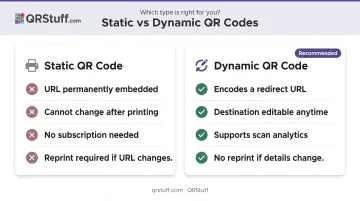
For printed wedding stationery, dynamic codes are the right choice. QRStuff supports dynamic codes with real-time scan analytics, so you can also see exactly how many guests have actually scanned your invitation.
Step 1: Finalize and Test Your Destination URL
Before generating anything, confirm the link is ready:
- Open it on both an iPhone and an Android device
- Check the page loads quickly and displays correctly on mobile
- Make sure your wedding website is published, not sitting in draft or private mode
- Avoid short-lived links or password-protected pages unless guests will be given login details
Step 2: Generate the Code
Go to QRStuff.com, select Website URL as your data type, and paste in your destination link. When prompted, choose dynamic rather than static. The platform generates a redirect URL that gets encoded into the code pattern — this redirect is what makes future edits possible.
Free accounts on QRStuff work for initial testing but include scan limits and code expiry — not ideal for an active invitation campaign. Paid plans remove both restrictions entirely; check the QRStuff pricing page for current tiers.
Step 3: Customise the Design
Apply design choices before downloading:
- Foreground color: dark (black, navy, charcoal) on a white or light background — never inverted
- Logo or monogram: upload a JPG or PNG to sit in the centre of the code; set error correction to Level H (High), which recovers up to 30% of the code surface and compensates for the covered area automatically
- Pattern and frame options: adjust dot shape or add a "Scan Me" frame to match your invitation aesthetic
Step 4: Download the Right File Format
For print use, download as:
- SVG (vector) — scales to any size without quality loss; best for stationer files
- PNG at 300 DPI minimum — suitable for digital design templates
Never use a screen-resolution export (72 DPI) for printed stationery. It will appear blurry on paper.
Step 5: Test Before Sending to Print
Scan the downloaded file using the native camera app on both an iPhone and Android device — not a third-party scanner app, since that's not what most guests will use. Verify the destination loads correctly and the mobile experience is what you intended.
Do this test before submitting files to your stationer — reprinting is expensive, and catching a broken link at proof stage costs nothing.
Design and Placement Tips
Good QR code design for wedding stationery balances visual appeal with reliable scanning. Get the technical basics right first — aesthetics can follow.
Scannability Rules
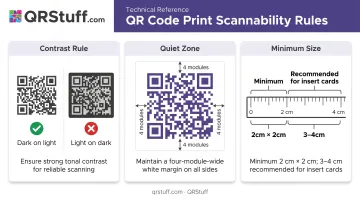
- Contrast first: dark modules on a light background is the most reliable configuration. Light-on-dark inversions cause scanning failures on many devices.
- Quiet zone: leave a clear white margin of at least four modules wide on all four sides of the code — per DENSO WAVE's guidance — so scanners can identify where the code begins and ends
- Minimum size: QRStuff recommends at least 2cm × 2cm for simple URLs on printed materials — go 3–4cm on small insert cards. For welcome signs or table displays, size up further to allow scanning from 30–50cm away.
Adding Context Text
Once scanning is reliable, usability is the next concern. Many guests — particularly older family members — won't instinctively know what to do with a QR code, so add a one-line instruction directly beneath it:
- "Scan to RSVP"
- "Scan to visit our wedding website"
Include the plain-text URL below the instruction as a fallback for guests without a smartphone or who have difficulty scanning.
Placement on the Stationery Suite
| Insert | Recommended Use |
|---|---|
| Details / information card | Most popular placement — keeps the main invitation face clean |
| RSVP card | Ideal when the code links directly to the RSVP form |
| Back of main invitation | Clean option for eco-conscious couples skipping a separate reply card |
| Front of main invitation | Avoid — disrupts the design and can clash with the overall aesthetic |
Avoid placing codes on heavily textured, embossed, or foil-stamped surfaces. These substrates can reduce scan reliability due to reflectance and contrast issues.
Common Mistakes to Avoid
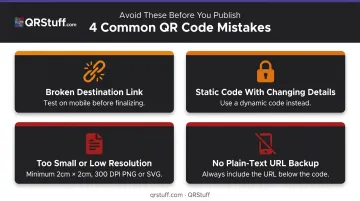
Watch out for these four issues before your invitations go to print:
- Broken or non-mobile-optimized destination: The code scans fine, but the page loads slowly, displays in desktop layout, or returns a 404. Do a full walkthrough on your phone before finalizing the design.
- Static code with details that may still change: If you update your wedding website URL, switch RSVP platforms, or catch a typo after printing, you'll need to reprint everything. Dynamic codes let you update the destination without touching the physical invitation.
- Printing too small or at low resolution: A code smaller than 2 cm × 2 cm is difficult for cameras to register, and a 72 DPI PNG will print blurry. Adobe's QR code best practices confirm that insufficient size and low contrast are the two most common causes of print scanning failures.
- No plain-text URL as backup: Not every guest will scan. Older guests, those without smartphones, and anyone whose camera can't register the code should still be able to access the information. Including the URL costs nothing and removes a frustration point.
Frequently Asked Questions
Should I put a QR code on my wedding invitation?
Yes — it's a practical addition that gives guests instant access to your wedding website or RSVP form without cramming text onto a small card. Include the plain-text URL alongside it as a backup for guests who can't or won't scan.
How do I get a QR code for wedding guests?
QRStuff is a straightforward option — paste your destination URL, choose dynamic if you want to edit the destination after printing, then download the high-resolution file to drop into your invitation design. Most generators follow the same basic flow.
What should I link my wedding QR code to?
The most useful destination is your wedding website, which can hold all event details in one place. If collecting RSVPs is the priority, link directly to the RSVP form. Separate inserts can carry additional codes for the registry or venue map.
What size should a QR code be on a wedding invitation?
Print at a minimum of 2cm × 2cm, though 3–4cm is more reliable on small insert cards. Download as an SVG vector file or a PNG at 300 DPI minimum to ensure the code prints sharply.
Do QR codes on wedding invitations expire?
Static codes don't expire as long as the destination URL stays live. Dynamic codes on paid QRStuff plans don't expire while the subscription is active. Free-tier dynamic codes expire after 30 days — confirm your plan status well before your wedding date.
Can I customise my wedding QR code to match my invitation design?
Yes — QRStuff supports color customisation and logo embedding to match your invitation aesthetic. Keep the pattern dark on a light background, and set error correction to Level H when adding a logo to ensure the code remains scannable.