QR codes offer a low-effort fix. Stick a label on a bin, scan it with your phone camera, and instantly see what's inside — no digging, no guessing. The same logic applies to appliance manuals, maintenance schedules, guest instructions, and emergency contacts.
This guide covers exactly how to build a QR code system for your home: what you need, how to set it up step by step, the best use cases room by room, and the habits that keep it working long-term.
Key Takeaways
- QR codes turn any physical object into a scannable link to detailed digital information
- You need a smartphone, a QR code generator, a printer, and adhesive label sheets to get started
- The highest-value home uses: storage labeling, appliance records, WiFi sharing, maintenance logs, and emergency contacts
- Dynamic QR codes let you update linked content without reprinting — no relabeling required
- Start with one problem area, not the entire house; consistency beats ambition here
When QR Codes Actually Help Around the House
QR codes earn their place in specific situations. They're not a universal organisation tool — they're a retrieval layer for information that doesn't fit on a physical label.
They work best when:
- An item holds a lot of information that changes over time (storage boxes, appliance records)
- Multiple people need the same quick access (WiFi credentials, guest instructions)
- Physical labels run out of space for meaningful detail (maintenance logs, warranty documents)
- Items are accessed infrequently enough that no one can remember what's where
They're unnecessary when:
- The item is self-explanatory and visible every day
- No one in the household will realistically scan it
- The information it would link to already has a simpler access method
This only works if most people in the household have a smartphone and are actually willing to scan rather than just search by memory or habit.
Timing matters as much as setup. Starting during a move, a major declutter, or a new storage configuration makes the process natural — trying to retrofit an entire house in one weekend rarely sticks.
What You Need Before You Start
Four things, each with a specific role:
- Smartphone with a camera — for testing every code before placing labels. iPhones running iOS 11 or later scan natively through the camera app; most modern Android phones do the same
- QR code generator — handles code creation across all use cases. QRStuff supports 40+ content types including WiFi credentials, plain text, URLs, and direct PDF uploads from a single account
- Home printer and label sheets — for producing physical labels. Material choice matters: paper degrades quickly in humid areas like kitchens and bathrooms, while polyester or laminated sheets hold up far longer
Static vs. Dynamic: Decide Before You Start
Your choice here determines whether you can update a code's content later — without touching the physical label.
| Code Type | Best For | Limitation |
|---|---|---|
| Static | WiFi credentials, fixed contents, appliance serial numbers | Can't change the encoded content once printed |
| Dynamic | Pantry inventory, chore schedules, maintenance logs | Requires a paid plan for non-expiring codes |
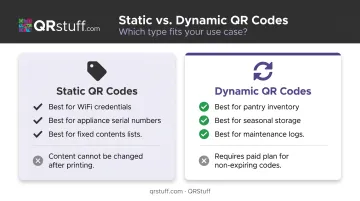
According to Bitly, dynamic QR codes use a modifiable short URL — the physical label stays the same while the destination updates instantly. QRStuff's free plan includes static codes and limited dynamic codes; the Lite Suite (£4/month) provides 50 non-expiring dynamic codes, which covers a typical home setup of 10–20 labels.
How to Set Up a QR Code System for Your Home
The most common mistake is generating codes before deciding what they should do — nail down the structure first, then build.
Step 1: Plan Your Categories and Zones
Before opening any QR tool, divide the home into logical zones and decide what each zone actually needs on demand.
A simple zone map might look like:
- Storage areas (attic, garage, basement) → contents lists, seasonal item photos
- Kitchen → appliance manuals, warranty documents, pantry inventory
- Utility areas (laundry room, home office) → maintenance schedules, service contacts
- Entry/common areas → WiFi access, guest instructions, emergency info
For each tagged item, keep the information simple: location, contents or purpose, last updated date, and any linked document or URL. Overcomplicating what sits behind each code leads to inconsistency — and eventually, abandonment.
Step 2: Generate and Customize Your Codes
Match the QR code type to what it needs to do:
- URL codes → Google Drive folders with appliance manuals, shared household calendars
- WiFi codes → guest network access encoded directly into the label
- Plain text codes → simple contents lists that don't need a linked document
- PDF codes → warranty documents, instruction manuals uploaded directly to the platform
QRStuff allows direct PDF uploads — the platform hosts the file, so no external storage is required. For anything that will change (pantry shelves, seasonal storage, maintenance logs), use dynamic codes so the label never needs reprinting.
You can also color-code by zone — blue labels for kitchen, green for garage — using QRStuff's color and logo customization options. Color differentiation alone can cut scanning time in half when you're moving quickly through a space.
Step 3: Print, Label, and Place
Material choice by location:
- Dry indoor spaces (closets, bookshelves): standard matte adhesive paper
- Kitchens, garages, laundry rooms: waterproof vinyl or film labels (Avery's waterproof label range, for example, resists moisture, scuffing, and up to a year of UV exposure)
- Outdoor storage: weatherproof vinyl with permanent adhesive
Print at a size that scans reliably from a normal arm's length. A roughly 2cm × 2cm minimum works for most simple codes, though complex data may need slightly larger prints. Always preserve the quiet zone (the white border around the code) and test each label before sealing it to a container.
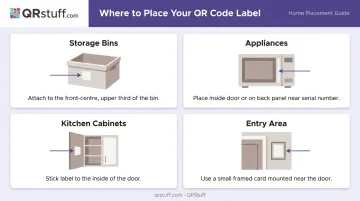
Pick one position per object type and never deviate — inconsistent placement defeats the point of a system:
- Storage bins: front-centre, top third
- Appliances: inside door or back panel near the serial number
- Kitchen cabinets: inside the door
- Entry area: small framed card near the door
Step 4: Maintain the System
Build one rule: when a tagged container's contents change, update the code that same day. With dynamic codes, this takes under a minute. For static codes, keep a running list of which labels need seasonal replacement.
Every three to six months, run a quick audit:
- Scan a sample of codes across each zone
- Confirm linked content is still accurate
- Reprint any faded or damaged labels
Top Ways to Use QR Codes in Your Home
Storage Organization (Attic, Garage, Basement)
Attach a QR code to every storage bin linking to a contents list — a shared Google Doc, a photo album, or a plain text list works fine. When packing seasonal items, scan, update the list, reseal.
This approach is most useful for:
- Holiday décor sorted by type
- Children's clothing organized by size
- Camping or sports gear used twice a year
No more opening six boxes to find the one that has the Christmas lights.
Appliance Records, Manuals, and Warranties
Create one QR code per major appliance linking to a PDF of the manual, the warranty document, and the purchase date. Attach the label inside the appliance door or near the serial number on the back panel.
When something breaks, a single scan surfaces the troubleshooting guide and warranty status — no junk drawer search required. PDFs can be uploaded directly to QRStuff and updated if documentation changes.
WiFi and Guest Access
A WiFi QR code encodes the network name and password directly. Guests scan it with their phone camera and connect in one tap — no typing, no asking. Frame it near the router or place it in a guest room.
Both iPhone and Android support WiFi QR codes natively — the camera recognises the code and prompts a connection. If the password changes, update the dynamic code and the label stays on the wall.
Beyond convenience, QR codes also help protect the home itself — reducing costs and keeping critical information where you need it.
Home Maintenance Schedules and Service Records
Tag high-maintenance areas — HVAC unit, water shutoff valve, circuit breaker panel — with QR codes linking to a maintenance log that tracks service dates, contractor contacts, and next scheduled tasks.
According to Angi's 2024 State of Home Spending report, average emergency repair costs hit $978 in 2024. A maintained schedule reduces the likelihood of small problems becoming expensive ones. This system is also genuinely useful when selling a home or briefing a house sitter.
Emergency Information and Household Contacts
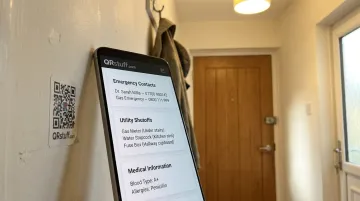
Place a QR code inside the front door or on the fridge linking to a document containing:
- Emergency contacts
- Utility shutoff locations
- Medical information for household members
- The home's address formatted for emergency services
Ready.gov recommends households maintain a family emergency communication plan with vital information accessible to everyone in the home. For households with children, elderly residents, or regular babysitters, this removes critical friction in an emergency.
Password-protect this code through QRStuff so only authorized people can access the sensitive content.
Best Practices for a Home QR Code System That Actually Sticks
Start with one zone. Pick the single most frustrating problem — the garage wall, the kitchen appliance drawer — and build that zone completely before expanding. A finished, functional zone is more convincing to other household members than a half-finished whole-house project.
Involve everyone from the start. Walk each household member through scanning the first few codes, show them where labels will always appear, and agree on how contents lists get updated. A system only one person maintains will eventually fail.
Audit every three to six months. Scan a sample of codes across each zone and confirm the following:
- Linked content is still current and accurate
- Codes from discarded items have been removed
- Damaged labels have been reprinted
The initial setup is straightforward. Keeping up with these periodic checks is what determines whether the system still works a year later.
Frequently Asked Questions
How can I use QR codes to organise my home?
Attach QR codes to storage bins, cabinets, appliances, and key areas — each linking to a contents list, manual, maintenance log, or schedule. Any smartphone camera scans them instantly, so you find what you need without opening a single drawer or box.
What type of QR code is best for home use — static or dynamic?
Static codes suit fixed information like appliance serial numbers or a permanent WiFi credential. Dynamic codes are better for anything updated regularly such as pantry inventories, seasonal storage contents, or maintenance logs, because the label never needs reprinting when the linked content changes.
Do I need a special app to scan QR codes around my home?
No. iPhones running iOS 11 or later and most modern Android phones scan QR codes directly through the native camera app — no additional downloads needed.
How do I print QR code labels for storage bins?
Download the generated QR code in SVG or high-resolution PNG format, then print onto adhesive label sheets using a standard laser or inkjet printer. Use waterproof vinyl labels for garages, kitchens, or anywhere with humidity or moisture ; standard matte paper works fine for dry indoor spaces.
Can I use QR codes to share my WiFi with guests?
Yes. A WiFi QR code encodes the network name and password directly, so guests scan it with their phone camera and connect instantly. If you use a dynamic code, you can update the destination if the password ever changes without reprinting the label.
How many QR codes do I actually need for a typical home?
A practical starting point is 10–20 codes: one per major storage zone, one per key appliance, one for WiFi, and one for emergency info. The system expands naturally as household members experience the benefit and identify new areas worth tagging.