](https://file-host.link/website/qrstuff-qjtbbl/assets/blog-images/9c424688-4cb3-434c-ae0f-85b0887d9ce6/1779815367848976_67ae18d6d9b9402bba345006b47e6002/360.webp)
QR code business cards are designed to eliminate that friction. But the process only works smoothly when you understand what type of QR code you're dealing with, which scanning method to use, and what to do when the automatic save doesn't happen.
This guide walks through the exact steps to import contacts from QR code business cards, covers the HubSpot mobile workflow, and explains what to do when things go wrong.
Key Takeaways
- Scanning with your phone's native camera is fastest — works best when the QR encodes a vCard directly
- vCard QR codes trigger an instant "Save to Contacts" prompt; URL-based codes open a webpage instead
- HubSpot's mobile app supports in-app QR scanning, though it requires a compatible iOS or Android version and vCard-format codes
- QR codes must be at least 2 cm × 2 cm, high-contrast, and glare-free to scan reliably
- Dynamic vCard QR codes let card owners update their contact details anytime — no reprinting needed
How to Import Contacts from a QR Code Business Card
Step 1: Identify the Type of QR Code
Not all QR codes on business cards save contacts the same way. There are two types:
| QR Code Type | What It Encodes | What Happens on Scan |
|---|---|---|
| vCard QR code | Contact data (name, phone, email, etc.) | "Save to Contacts" prompt appears instantly |
| URL-based QR code | A web address | Phone opens a digital business card webpage |
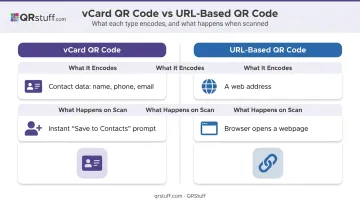
You won't know which type it is until you scan it. If a contact card preview pops up immediately, it's a vCard. If a browser opens, it's URL-based, so look for an "Add to Contacts" button on that page.
Step 2: Open Your Camera or QR Scanner
On iPhone (iOS 11+):
- Open the built-in Camera app
- Point it at the QR code in Photo mode
- Wait for the notification banner to appear at the top of the screen
- Tap the banner to trigger the contact save or open the link
Alternatively, access the Code Scanner through Control Center for a faster, more direct scan.
On Android: Android QR support varies by device and OS version. Your options, depending on your phone:
- Google Camera app — point and tap the banner (available on selected devices; not available in portrait or video modes)
- Quick Settings QR scanner — swipe down and look for a QR tile
- Google Lens — open the Lens app or access it through your camera
- Android 13+ system QR scanner — available directly on supported devices
If your Android camera doesn't recognize QR codes automatically, Google Lens is the most reliable fallback.
Step 3: Scan and Follow the On-Screen Prompt
For a vCard QR code: A contact card preview appears showing the person's name, phone number, email, and other encoded fields. Tap "Add to Contacts" or "Create New Contact" to save directly to your phone's contacts app. No internet connection required — the contact data is decoded entirely on-device.
For a URL-based QR code: Your phone opens a webpage, usually a digital business card landing page. Look for an "Add to Contacts," "Save Contact," or "Download vCard" button. If none exists, you'll need to copy the details manually.
Step 4: Import Directly into HubSpot
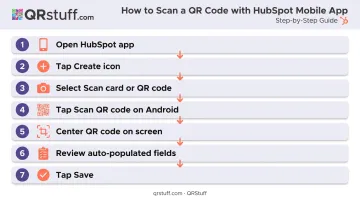
If you want the contact to go straight into your CRM, HubSpot's mobile app has a built-in QR scanning workflow. According to HubSpot's mobile import documentation (updated May 2026):
- Open the HubSpot mobile app
- Tap the create icon
- Select Scan card or QR code
- On Android, tap Scan QR code
- Center the QR code on screen
- Review the auto-populated fields
- Tap Save
What HubSpot auto-populates from a vCard QR scan:
- First name, last name
- Email address
- Phone number
- Job title
- Website
- Street address and postal code (iOS only)
Key requirements: HubSpot's QR scanning feature requires iOS or Android 16 or higher. iPads are not supported. The QR code must be in vCard format — URL-based codes won't auto-populate contact fields.
Step 5: Verify the Imported Data
Before closing the app, open the new contact and check:
- Phone number — international formatting (country codes, extensions) frequently causes parsing errors
- Name fields — some vCards split names incorrectly across first/last fields
- Email — confirm it imported as a full, valid address
- Missing fields — fill in anything that didn't transfer
If the business card uses a dynamic vCard QR code (such as those generated through QRStuff), the card owner can update their details without reprinting. Rescanning the same code will always surface their latest information.
What You Need Before Importing
QR Code Requirements
The physical QR code must meet a few baseline conditions to scan reliably:
- Measures at least 2 cm × 2 cm — Nielsen Norman Group's QR usability guidelines recommend this as the practical minimum for hand-held scanning distance
- Uses dark foreground on a light background — inverted designs (light code on dark) fail most scanners
- Has a clear border of at least four code-unit widths on all sides — printing to the edge breaks scanning
- Sits on a flat, non-reflective surface — laminate glare, folds, and card damage all reduce read rates
- Prints from a vector file (SVG or EPS) — raster images need at least 300 DPI to stay sharp at small sizes
QRStuff applies high error correction automatically when generating codes, which helps recover data from lightly damaged or worn cards.
Device and App Requirements
On the device side, you need:
- A smartphone with a working rear camera
- iOS 11+ for native iPhone scanning; iOS 16+ if using HubSpot's in-app scanner
- Android with Google Camera, Google Lens, or Quick Settings QR support — Android 13 adds a dedicated system scanner
- Your CRM app (HubSpot or equivalent) installed and logged in before the event — fumbling with account setup mid-conversation means missed connections
Common Mistakes When Importing from QR Code Business Cards
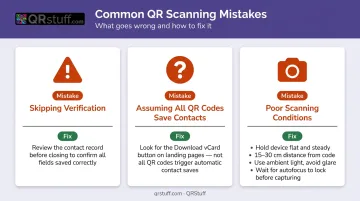
A few missteps can turn a 5-second scan into a frustrating manual re-entry session. Here's what to watch for:
- Skipping verification after the scan — vCard parsing can misformat phone numbers, split names incorrectly, or miss fields entirely. Review the contact record before moving on.
- Assuming every QR code saves a contact — Many QR codes on business cards open a URL. If the landing page has no "Download vCard" button, the import isn't automatic; you'll be copying details manually.
- Scanning in poor conditions — QR scanning requires the camera to detect all four corners of the code cleanly. A few practical fixes:
- Hold the card flat and steady
- Keep the phone 15–30 cm from the card
- Use ambient light from above to avoid glare
- Wait for the camera to auto-focus before tapping
Catching these issues early saves time and keeps your contact list accurate from the start.
Troubleshooting Failed QR Code Imports
Camera doesn't recognise the QR code
Likely cause: Code is too small, low contrast, or QR scanning is disabled in camera settings.
Fix: Increase ambient light, hold steady at 15–30 cm, and check Android camera settings for a QR toggle. Use Google Lens as a fallback.
Scan opens a webpage instead of saving a contact
Likely cause: The QR encodes a URL, not vCard data.
Fix: On the landing page, look for "Add to Contacts," "Save Contact," or "Download vCard." If none exist, copy details manually. If you're the card creator, regenerate using a vCard QR type to encode contact data directly into the code.
Contact fields import incorrectly or are missing
Likely cause: The vCard was generated with formatting errors — missing version declarations, unsupported characters, or phone numbers without proper country codes.
Fix: Edit the contact record manually after import. RFC 6350 (vCard 4.0) requires phone numbers to use the tel: URI scheme with a leading + for international numbers. Codes generated without this format frequently misparse.
Contact doesn't appear in the CRM after import
Likely cause: The app needs a refresh, or the contact was created without an email address.
Fix: Pull down to refresh the contacts list, check import notifications, and add an email address manually if missing — most CRMs use email as the primary deduplication key.
Alternatives to QR Code Contact Importing
When QR scanning isn't an option, three alternatives cover most situations:
Business card OCR scanning
- Best when the card has no QR code or the QR code fails to scan
- Apps like HubSpot's mobile scanner, LinkedIn camera, and CamCard photograph the card and extract text automatically
- Trade-off: accuracy depends on card design; unusual fonts or low contrast require manual correction
Manual entry
- Best for a single high-priority contact where precision matters most
- Gives full control over field structure and data formatting
- Trade-off: slow at scale; typos in phone numbers and emails are common
NFC / tap-to-share
- Best when both parties have compatible devices and the card owner has an NFC-enabled smart card
- Contact transfers instantly with a tap, no camera needed
- Trade-off: requires NFC hardware from the card owner, and device compatibility is inconsistent — no universal Android equivalent to Apple's NameDrop works across all devices
For high-volume capture at events (scanning 50 or more cards), dedicated lead capture tools integrated with your CRM are more practical than any of the three methods above. QR-based vCard scanning remains the fastest zero-hardware option for everyday networking.
Conclusion
Importing contacts from a QR code business card is fast and reliable when the QR encodes vCard data directly, the device camera is working properly, and you follow the right flow for your platform. Most failures trace back to one of two root causes: the QR links to a URL instead of encoding contact data, or scanning conditions (lighting, distance, contrast) prevent the camera from reading the code.
Recipients get better results by knowing their device's QR scanning workflow and having a contacts or CRM app ready before events. Card creators get better results by generating proper vCard QR codes from the start.
QRStuff's vCard generator supports all standard contact fields and lets you choose between static codes (free, permanent) and dynamic codes (editable after printing, with scan analytics). One scan should capture a complete, accurate contact — and the right vCard format is what makes that happen reliably.
Frequently Asked Questions
How do I get details from a QR code?
Open your phone's native camera app and point it at the code. If it encodes vCard data, a contact save prompt appears automatically. If it links to a URL, the details are on the landing page — look for an "Add to Contacts" button to save them.
How do I share my contact info with a QR code?
Generate a vCard QR code using a tool like QRStuff, which encodes your name, phone, email, and other details directly into the code. When someone scans it, their phone instantly prompts them to save your contact without any typing required.
What is a vCard QR code and why does it matter for importing contacts?
A vCard QR code encodes contact information in a standardized format directly inside the QR code itself. This enables one-tap contact saving on any smartphone without requiring an internet connection or a separate app. The contact data lives in the code, not on a server.
Can I import a QR code business card contact without a third-party app?
Yes. iPhones (iOS 11+) and most Android devices — via Google Camera or Google Lens — scan QR codes natively. If the code is a vCard, the contact saves directly to your phone without any additional app.
Why is my QR code business card scan not working?
The most common causes are a code that's too small or low-contrast, insufficient lighting, a glossy laminate causing glare, or QR scanning being disabled in camera settings. Try better lighting, hold the phone steadier, and use Google Lens on Android if the native camera isn't responding.
Do I need to reprint my business cards if my contact information changes?
Only if your card uses a static QR code. Dynamic QR codes — available through platforms like QRStuff — let you update your contact details without reprinting. Anyone who rescans the same code will receive your latest information automatically.