The concept is straightforward. The execution varies more than most people expect. Which method you use, whether you're on Windows 11 or an older system, and how the QR code is configured all determine whether it actually works. Get one detail wrong — like selecting the wrong encryption type — and the code scans fine but never connects.
This guide covers three methods for creating a Wi-Fi QR code (Windows 11, dedicated generators, and mobile), the scenarios where each approach makes sense, what can go wrong, and how to fix it.
Key Takeaways
- A Wi-Fi QR code encodes your network name (SSID), password, and security type — devices connect automatically on scan
- Windows 11 (version 24H2+) includes a native Wi-Fi QR generator; older systems require a third-party tool
- The native OS method suits personal use — businesses needing branded or updatable codes should use a dedicated generator like QRStuff
- Most scan failures trace back to a mismatch between the encoded encryption type and what the router actually uses
- Static QR codes stop working the moment the Wi-Fi password changes — dynamic codes solve this
How to Share Your Wi-Fi Password with a QR Code
The right method depends on your operating system, whether you need a one-time on-screen display or a printed code, and how much control you want over the final result.
Method 1: Using the Windows 11 Built-In QR Code Feature
This feature requires Windows 11 version 24H2 or later. To check your version, press Windows + R, type winver, and hit Enter.
If you're on 24H2+, here's the path:
- Open Settings → Network & internet → Wi-Fi
- Click Manage known networks
- Select the network you want to share
- Click Show next to the Wi-Fi network password
- The QR code appears on screen alongside the password
The QR code is display-only — Microsoft's support documentation doesn't include a native download or print option. To make it reusable, take a screenshot (Windows + Shift + S), crop to just the code, and print from there. Test the printed version before putting it out — screenshot quality varies.
Method 2: Using a Dedicated QR Code Generator
If you're on an older Windows version, macOS, or need a code that's branded, printable at scale, or updatable without reprinting, a dedicated generator gives you more control than any OS-native option.
Dedicated generators like QRStuff include a specific Wi-Fi QR code type that encodes your credentials in the correct WIFI:T:WPA;S:mynetwork;P:mypass;; format, as documented by the ZXing barcode content specification.
Steps:
- Open QRStuff and select the Wi-Fi QR code data type
- Enter your SSID (network name), password, and security type (WPA, WPA2, WEP, or No encryption)
- Set SSID visibility to Hidden if your network doesn't broadcast
- Customize appearance — logo, colors, module shapes — on paid plans
- Download in your preferred format (PNG for digital use; SVG or vector for print)
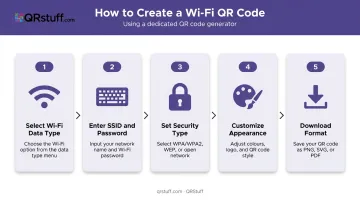
For businesses — hotels, cafes, coworking spaces — this method is worth the extra step. QRStuff lets you frame the code, laminate it, add it to tent cards or menus, and brand it with your logo.
Dynamic QR codes let you update the encoded password through the dashboard without generating a new code or reprinting anything. That matters whenever a password rotation is due. Dynamic Wi-Fi codes also include scan analytics:
- Total scans and unique scans
- Device type breakdown
- Geographic data
- Time-based scan trends
Method 3: Generating a Wi-Fi QR Code on iPhone or Android
Android: Go to Settings → Network & Internet → Wi-Fi, tap the connected network, then tap Share. A QR code appears alongside the password. On Pixel devices, you can also access this via Quick Settings — swipe down, tap Internet, then Share Wi-Fi.
iPhone (iOS 18+): Go to Settings → Wi-Fi, tap the network name, then tap Show Network QR Code. Apple's iPhone User Guide documents this feature for iOS 18 and later.
Both methods display the QR code on screen only. For a reusable printed version, screenshot and print — or use a dedicated generator for better output quality.
When Is a Wi-Fi QR Code the Right Choice?
For a single occasional guest at home, a QR code is overkill. The value scales up once you're dealing with repeat access requests or multiple users.
Here's where it makes the most sense:
Best suited for:
- Hotels and Airbnbs — guests expect instant access; 35% of surveyed adults ranked Wi-Fi as the top hotel technology amenity in a 2024 AHLA report
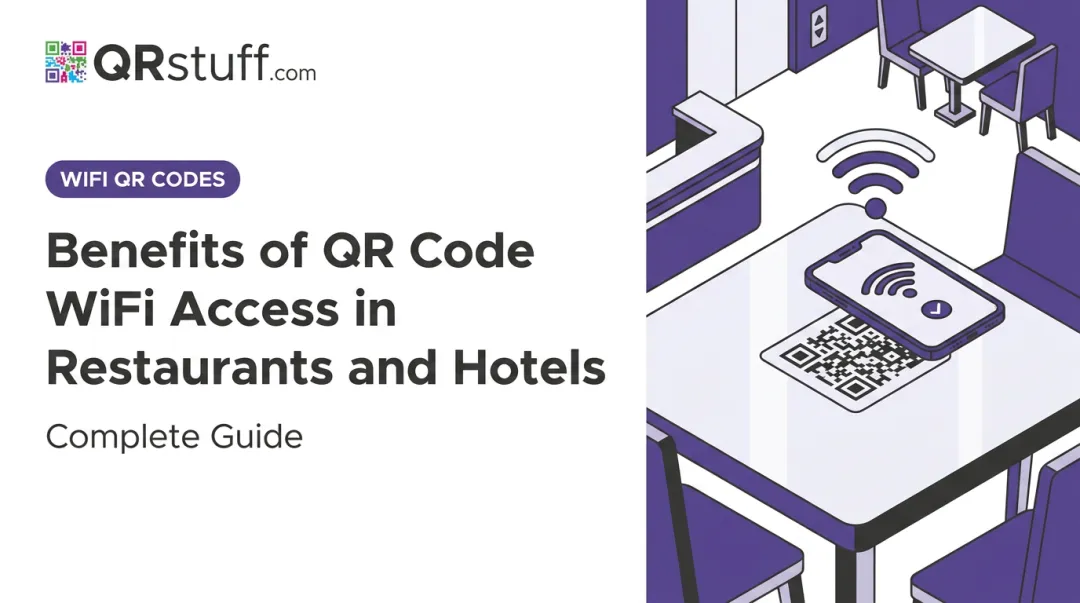
- Cafes and restaurants — a QR code on the table removes a common friction point and reduces staff interruptions
- Offices and coworking spaces — simplifies onboarding for visitors and contractors
- Classrooms and libraries — removes the need for staff to read out credentials repeatedly
- Home users with a dedicated guest or IoT network they share regularly
Less ideal when:
- The code is posted on permanently visible public signage in an unsecured area — anyone who scans it gets the credentials
- The Wi-Fi password changes frequently without a system to update the code — switch to a dynamic QR code to update credentials without reprinting
Key Factors That Affect Wi-Fi QR Code Performance
Security Type Accuracy
This is the most important field to get right. The QR code must encode the exact encryption standard the router uses — if it doesn't match, the code will scan but fail to connect.
| Type | What It Is | Use When |
|---|---|---|
| WEP | Legacy RC4-based encryption; considered insecure | Your router uses WEP (rare) |
| WPA | TKIP-based stopgap protocol; older devices | Your router is set to WPA specifically |
| WPA2 | AES/CCMP; current standard for most networks | Most home and business networks |
| WPA3 | Stronger authentication, blocks password-guessing | Newer routers with WPA3 enabled |
| None | Open network | No password required |
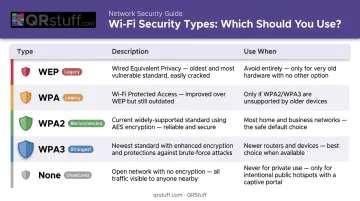
To confirm your router's security type, log into the router admin panel (usually at 192.168.1.1 or 192.168.0.1) and check the wireless security settings. Guessing the wrong type is one of the most common reasons a valid-looking QR code still fails to connect.
QR Code Size and Print Quality
Scanning fails when the code is too small or the print quality is too low. Per QRStuff's guidelines, the practical minimum is 2cm × 2cm (approximately 0.8" × 0.8") for simple use cases — but larger is always better, especially when the code will be scanned from a distance.
Key print considerations:
- Use at least 300 DPI for raster images (PNG); vector formats (SVG, EPS) scale without quality loss
- Avoid reflective surfaces, folds, or low-light placement
- Never crop the quiet zone (the white border) — scanners need it to identify the code
- Higher error correction (Level H, ~30% damage recovery) is worth enabling for laminated or high-use codes
SSID and Password Encoding
Print quality and size get the QR code scanned — but credential encoding determines whether it actually connects. Network names or passwords containing special characters (backslashes, semicolons, colons, double quotes) must be properly escaped with a backslash in the WIFI: payload, per the ZXing encoding specification.
Some generators strip or misformat these characters without warning, producing a code that scans cleanly but sends the wrong credentials. Always test the code on a fresh device before printing.
Common Mistakes When Setting Up Wi-Fi QR Codes
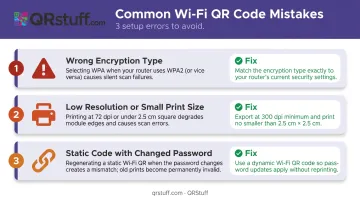
Most Wi-Fi QR code failures trace back to the same three setup errors — all easily avoided once you know what to look for:
Wrong encryption type — Selecting WPA when the router uses WPA2, or leaving the field blank, is the single most common reason a scanned code appears to work but won't connect. Always verify against the router's actual settings.
Printing too small or at low resolution — A code that looks fine on screen may be unreadable in print at 72 DPI or below 2cm. Test a print before laminating or framing anything.
Static code with a changed password — Static codes are permanently tied to the credentials encoded at creation. Change the password and the code is dead. If your network password changes regularly, use a dynamic QR code. QRStuff's dynamic codes let you update the credentials through the dashboard without reprinting or replacing the physical code.
Troubleshooting: Why Your Wi-Fi QR Code Isn't Working
Most Wi-Fi QR code failures trace back to a handful of common causes. Work through these in order — the fix is usually faster than it looks.
QR Code Scans but Device Won't Connect
The encoded encryption type probably doesn't match the router's actual security setting, or the password was mistyped during creation. Re-enter all network credentials carefully, verify the router's security type in the admin panel, then regenerate and test the code before reprinting.
Camera App Won't Read the Code at All
Physical and app-level issues both cause this. Common culprits:
- Code printed too small or at low DPI
- Damage, glare, or placement behind glass
- Camera app that doesn't handle Wi-Fi QR types natively
Test with a dedicated QR scanner app, increase the printed size, and regenerate at a higher error correction level if the problem persists.
Code Works on Some Devices but Not Others
Older Android or iOS versions may not natively handle Wi-Fi QR codes, and some apps only support certain security types. Test across device types before deploying. For older devices, use a QR decoder app to pull the credentials, then connect manually through Wi-Fi settings.
Code Worked Before but Stopped Working
The Wi-Fi password or SSID was changed after the static QR code was created. Regenerate with updated credentials. If this keeps happening, switch to a dynamic QR code — update the encoded data in the platform dashboard and the existing printed code continues to work without reprinting.
Frequently Asked Questions
Can iPhones and Android phones scan Wi-Fi QR codes natively?
Yes. iOS 11+ supports built-in QR code recognition in the Camera app, and modern Android devices can scan Wi-Fi QR codes directly from the default camera. Both prompt the user to join the network automatically after scanning.
Is it safe to share your Wi-Fi password using a QR code?
The QR code is not encrypted — anyone who scans it can read the credentials. The FTC has also warned that public QR codes can be tampered with or replaced by malicious codes. Only share the code with trusted individuals, and don't post it on open public signage.
What happens to the QR code if I change my Wi-Fi password?
Static QR codes stop working immediately — they must be regenerated. Dynamic QR codes allow you to update the encoded credentials in the platform dashboard without creating a new code or reprinting the physical version.
What information is actually encoded inside a Wi-Fi QR code?
A Wi-Fi QR code uses the WIFI: URI format and encodes the SSID (network name), password, encryption type, and optionally a flag for hidden networks. Some generators also support enterprise Wi-Fi fields.
Do I need a special app to scan a Wi-Fi QR code?
No — most modern smartphones handle this natively via the default camera app. On Windows, the Camera app in barcode mode can scan Wi-Fi QR codes. Older devices may need a dedicated QR reader app.
Can I customize the appearance of my Wi-Fi QR code?
Native OS generators (Windows, iOS, Android) produce plain black-and-white codes only. Dedicated generators like QRStuff allow custom colors, logos, shapes, and gradient fills on paid plans, while automatically maintaining scannability by adjusting error correction when a logo is added.