Adding a QR code sounds straightforward, but the outcome depends entirely on what you link it to, how you generate it, and whether you follow basic technical rules. A QR code that's too small, low-contrast, or pointing to the wrong destination adds clutter rather than value.
This guide covers the full process: generating the right QR code, embedding it in Gmail and Outlook, choosing the best destination, and avoiding the mistakes that make most signature QR codes fail.
Key Takeaways
- Generate the QR code image first, then embed it — your email client cannot create one for you
- Dynamic QR codes let you update the destination URL without re-embedding the image in every signature
- Minimum displayed size is 100×100 pixels; export at 500×500px or higher
- Never crop the quiet zone (white border) around the code — removing it breaks scannability
- vCards, scheduling links, and LinkedIn profiles are the highest-value destinations for most professionals
How to Add a QR Code to Your Email Signature
The process has two distinct phases: generating the QR code image, then inserting it into your signature editor. Skipping the first phase — or trying to do both inside the email client — is the most common reason people get stuck.
Step 1: Generate Your QR Code
Navigate to a QR code generator. QRStuff supports 40+ data types including vCard, URL, social media, Calendly scheduling links, and Zoom meeting invites — selecting the right content type produces a better result than defaulting to a plain URL.
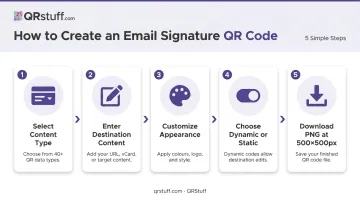
- Select your content type: choose vCard for contact saving, URL for a landing page, or Calendly for booking links
- Enter your destination content: fill in contact fields, paste your URL, or input your scheduling link
- Customize the appearance: add your logo, choose brand colors, and adjust module shapes; QRStuff places logos automatically at the optimal center position and raises error correction to compensate
- Choose dynamic if the destination might change: dynamic codes use a redirect URL, so you can update the destination from the dashboard without touching the embedded image
- Download as PNG at a minimum of 500×500 pixels: this gives you sufficient resolution for email rendering without file bloat
For a single email signature QR code, QRStuff's Lite Suite includes 50 dynamic codes with no expiration — enough for an individual professional.
Step 2: Add the QR Code in Gmail
- Open Gmail → Settings (gear icon) → See All Settings
- Scroll to the Signature section; select an existing signature or create a new one
- Click the Insert Image icon in the signature editor toolbar and upload your PNG file
- Resize to approximately 100–120px wide within the editor so it sits proportionally alongside contact details
- Save changes and send a test email to yourself — scan the code from your phone before deploying
Gmail also has an official QRStuff add-on that lets you access your QR codes directly within the app, removing the need to switch between tools.
Step 3: Add the QR Code in Outlook
- Open Outlook → File → Options → Mail → Signatures
- Select the target signature or create a new one
- Use Insert → Pictures to place the QR code PNG file
- Resize to match the rest of the signature layout (100–120px is a reliable starting point)
- Save and test in both Outlook desktop and Outlook Web App (OWA) — image rendering can differ between the two environments
What to Link Your QR Code To
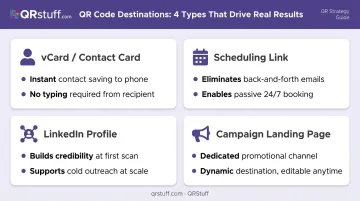
The most common mistake after embedding is linking to a homepage. The destination should complete a specific, mobile-friendly action in one scan. Here are the four most effective options:
vCard / Digital Contact Card
A vCard QR code encodes your name, phone, email, job title, and company — recipients save it to their contacts in a single tap, no typing required. This is the highest-utility destination for most professionals. QRStuff's vCard builder covers all standard fields (name, title, organization, phone, address, website), and choosing a dynamic vCard means you can update contact details anytime without re-embedding anything.
Scheduling Link
According to Calendly's State of Scheduling report, 89% of workers spend up to four hours per week scheduling meetings. A QR code pointing to your Calendly or Google Calendar booking page turns every email into a passive meeting invitation — no back-and-forth required.
LinkedIn Profile
A LinkedIn QR code lets recipients validate your credibility before replying — especially useful in cold outreach and new business contexts where trust is built before the first response.
Campaign Landing Page or Promotional Offer
Every outgoing email becomes a passive promotional channel when the QR code links to an active campaign. Good use cases include:
- Time-sensitive discounts or limited offers
- Gated resources like whitepapers or free trials
- New product launches requiring a dedicated landing page
Dynamic QR codes are essential here — when the campaign ends, update the destination from the dashboard rather than rebuilding every signature.
Design and Size Best Practices
A QR code can look polished and still fail to scan if the underlying specs are off. These guidelines cover the non-negotiables.
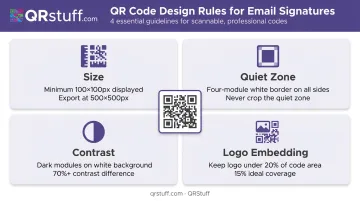
Size Requirements
- Minimum displayed size: 100×100 pixels in the email signature
- Export resolution: 500×500px minimum (QRStuff recommends 300 DPI for PNG exports)
- Below 100px displayed, the code becomes difficult to scan on smaller monitors
Quiet Zone
DENSO WAVE, the inventor of the QR code, specifies that the quiet zone — the white border surrounding the code — must be four modules wide on all sides. Cropping this border is the single most common reason QR codes fail to scan. QRStuff automatically maintains the required quiet zone.
Contrast
Dark modules on a white background is the most reliable combination. Brand colours are fine, but avoid low-contrast pairings (light grey on white, yellow on cream). QRStuff's documentation recommends at least 70% contrast difference between foreground and background.
Logo Embedding
Colour choices handle the background; logos introduce a foreground element that requires its own constraints. Logos can be embedded in the centre of the code without breaking functionality:
- QRStuff recommends keeping logos under 20% of the code area, with 15% as the ideal target
- The platform automatically raises the error correction level when you upload a logo
- DENSO WAVE's error correction documentation confirms Level H can restore approximately 30% of codewords, which is why keeping logos under 20% coverage preserves a reliable safety margin
File Format and Placement
- Use PNG, not JPEG — PNG preserves clean edges; JPEG compression introduces artifacts that can interfere with scanning
- Avoid transparent backgrounds — some email clients render them against dark themes, making the code unreadable
- Position the code to the right of or below your contact details, not above your name — recipients should read your identity first
- Add a short label: "Scan to save contact" or "Scan to book a call" removes guesswork
Common Mistakes to Avoid
These five mistakes account for most failed or underperforming email signature QR codes — and all are easy to prevent.
Static code for a changing destination. If the linked page, campaign, or contact details change, a static code becomes broken or misdirected. Use dynamic codes for any destination subject to revision. QRStuff's Free Suite includes 10 dynamic codes (30-day expiry); paid tiers start at 50 codes with no expiration.
Exporting at low resolution. A QR code downloaded as a 72 DPI PNG looks blurry when email clients scale it. Export at 500×500px or higher. According to Litmus' 2026 email client market share data, Apple Mail accounts for 45.5% of opens, Gmail for 23.5%, and Outlook for 5.7% — all three handle images differently, so consistent export resolution matters across all three.
No pre-deployment testing. A code that scans in Gmail desktop may not render in Outlook or Apple Mail due to image-blocking settings. Send test emails to at least three environments and scan from both iOS and Android before rolling out to your full signature.
Oversized code dimensions. A code spanning 300px wide overwhelms the signature and looks unprofessional. Keep it proportional — 100–120px sits cleanly alongside a standard contact block.
No call-to-action label. A short label directly below the code tells recipients exactly what to expect and boosts scan rates. Without it, most people won't bother scanning.
When a QR Code Makes Sense in Your Signature
QR codes in email signatures deliver the most value in specific contexts:
High-value use cases:
- Sales development reps and account managers sending 10–40+ outbound emails daily
- Recruiters sharing contact details with candidates across multiple platforms
- Executives and consultants whose recipients frequently save contact information
- Anyone promoting time-sensitive campaigns or booking-heavy workflows
Lower-value contexts:
- Internal team emails where recipients already have your contact details
- High-volume transactional support emails where the entire recipient base reads email on mobile (scanning a screen with the same device is awkward)
- Situations where the recipient list is stable and relationship is already established
For organizations managing signatures across dozens or hundreds of employees, each person's QR code should encode that individual's contact data — a detail that matters most when deploying at scale. QRStuff's bulk generation workflow handles this by letting you upload per-user vCard data via a spreadsheet, so each recipient gets a code tied to the right person's information.
Frequently Asked Questions
How do I make my email signature clickable?
Clickable elements are created by hyperlinking text or images in the signature editor. In Gmail, select the text or image and use the link icon; in Outlook, right-click and choose Hyperlink. A QR code itself isn't clickable — it functions as a scannable link for recipients viewing the email on a separate mobile device.
What size should a QR code be in an email signature?
The minimum displayed size is 100×100 pixels, with the source image exported at 500×500px or higher. Below 100px displayed, the code becomes unreliable to scan, particularly on smaller monitors or at lower screen resolutions.
Should I use a static or dynamic QR code in my email signature?
Use dynamic codes — you can update the destination URL from your dashboard without regenerating the image or rebuilding signatures. Static codes are only appropriate when the destination is permanent and will never change.
Can recipients scan a QR code directly from a computer screen?
Yes. Modern iPhone and Android camera apps scan QR codes displayed on monitors without any additional app — just open the Camera app, point it at the screen, and tap the notification that appears.
What can I link a QR code in my email signature to?
The most effective destinations are a vCard for instant contact saving, a Calendly or booking page, a LinkedIn profile, or a campaign landing page. Whatever you choose, it should be mobile-optimized.
Will a QR code in my email signature work across all email clients?
QR codes embedded as images display in Gmail, Outlook, and Apple Mail, but some clients block external images by default. Embedding the image inline rather than hosting it externally reduces blocking risk — always test in your target clients before deploying to your full signature.