Research from Adobe shows that people are 69% more likely to contact a business when its card includes a QR code. But that lift only materialises when the code links to something worth scanning. Getting the destination, design, and deployment right is what separates a networking asset from a wasted opportunity.
This guide covers the full setup — code type selection, customization, placement, and tracking — so your QR code does actual work at your next conference, client meeting, or event.
Key Takeaways
- Use a dynamic QR code (vCard, LinkedIn, or multi-link) matched to your specific networking goal — not a generic static code
- Customize with your logo, brand colors, and a frame CTA before any print run
- Deploy intentionally — each placement (badge, card, slide, email signature) has its own size and contrast requirements
- Track total vs. unique scans to identify high-intent contacts worth prioritizing for follow-up
- Update your destination any time — role change, new event, different portfolio — without reprinting
When QR Codes Actually Work for Networking
QR codes deliver real value when information needs to move fast — no typing, no fumbling, no follow-up email to remember. The right contexts:
- In-person conferences and trade shows — exchange details mid-conversation without fumbling for a pen
- Networking mixers and happy hours — meet multiple people quickly without running out of cards
- Presentations and webinars — convert audience members into connections at the moment of peak interest
- Email signatures — a passive, always-on channel that reaches every recipient automatically
The failure cases are just as telling. A QR code that links to a desktop-optimized homepage with no clear next step loses the person within seconds. Google's mobile speed research shows 53% of mobile users abandon a site that takes more than 3 seconds to load — and your networking destination is almost always scanned on a phone.
QR codes are also less effective when:
- There's no call-to-action telling the scanner what to expect
- The code is physically awkward to scan (too small on a lanyard, or on a slide with no dwell time)
- The destination isn't mobile-optimized
Each of those gaps gives a warm lead a reason to bounce — address them before your next event, not after.
What to Decide Before You Generate Anything
Three decisions shape everything downstream — get them right before you touch a generator.
1. The Destination
What do you want the scan to do?
| Goal | Best Code Type |
|---|---|
| Save your contact details instantly | vCard QR code |
| Drive profile views and showcase credentials | LinkedIn or URL QR code |
| Share website, LinkedIn, and calendar in one place | Multi-link QR code |
| Deliver a portfolio or PDF | URL QR code (mobile-optimized) |
Choosing the wrong type creates dead-end experiences. Linking a networking code to your company's homepage instead of a mobile contact page is one of the most common errors — and it shows up immediately in your scan data as drop-off.
2. Static vs. Dynamic
Static codes encode the destination permanently. They can't be updated, and they provide zero scan analytics. Useful for one-off, never-changing applications — not for professional networking.
Dynamic codes use a redirect URL. You can change the destination any time without reprinting, and every scan gets tracked. For networking, dynamic codes are the right call — and the reason comes down to shelf life.
The U.S. Bureau of Labor Statistics reports median employee tenure at 3.9 years — meaning your contact details, job title, or LinkedIn URL will change. A static code printed on 500 business cards becomes inaccurate the moment any of that shifts.
3. Print and Placement Context
Know where the code will appear before you design it. A code that looks sharp on a business card may be illegible on a projected slide. Size, contrast, and quiet zone requirements differ by medium — more on this in the deployment section.
How to Set Up and Deploy Your Networking QR Code
Choose the Right Code Type
QRStuff organizes its networking QR code types in a dedicated section of the platform:
- vCard QR codes encode your contact details so recipients can save them directly to their phone's address book with a single scan — no manual entry
- LinkedIn QR codes take a pasted profile URL and create a scannable code that drives directly to your profile, increasing visits and professional visibility
- Multiple Links QR / Social Link Pages consolidates your LinkedIn, website, calendar booking link (such as Calendly), and any other relevant URLs into one landing page — one code covers everything
Professionals attending varied events get the most flexibility from the multi-link format. Executives prioritizing a clean, single-action experience will find vCard or LinkedIn codes more focused.
Create and Customize
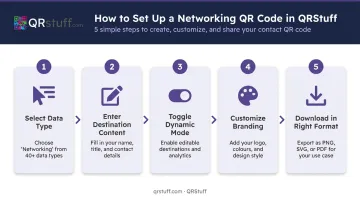
Once you've selected your code type in QRStuff, the setup sequence is straightforward:
- Select your data type from the Networking category (vCard, LinkedIn, or Multiple Links)
- Enter your destination content — contact fields for vCard, profile URL for LinkedIn, or multiple URLs for the multi-link format
- Toggle to dynamic mode so the destination can be updated without reprinting
- Customize for your brand — upload a logo or initials for the center (up to 30% of the code surface), apply your brand color palette or gradient, and add a frame-based CTA like "Scan to Connect." Confirm the quiet zone is intact before exporting.
- Download in the right format — SVG for anything going to print (vector scales without quality loss), PNG for digital use. Both formats are available across all QRStuff subscription tiers.
One non-negotiable: maintain high contrast between the code and its background. Dark modules on a light background is the reliable standard. Peer-reviewed research confirms that QR readability depends directly on contrast and print resolution — a stylish low-contrast code that fails to scan in dim conference lighting is worse than no code at all.
Deploy Across Your Touchpoints
Placement decisions matter as much as design. Each context has different requirements:
- Business cards — place on the back with a short prompt; standard card size accommodates a readable code comfortably
- Event lanyards and badges — size it large enough to scan from arm's length; GS1 specifies a minimum 4-module quiet zone on each side, and more data encoded means a larger physical code required
- Email signatures — keep it compact and on-brand, linking to a mobile-optimized page; this functions as a passive networking channel reaching every recipient
- Presentation slides — dedicate the final slide to the QR code with a large, visible CTA; give the audience 15–20 seconds to scan before advancing
The most common deployment mistake: using the same image file across every context. A code exported for a business card will be too small on a projected slide. Resize and re-test for each medium.
Track Scans and Follow Up
Most professionals generate a code and stop there. The scan data it produces is what turns networking into something you can actually measure and improve.
QRStuff's real-time analytics dashboard tracks:
- Total and unique scans — distinguishes overall reach from distinct individuals
- Geographic data — country and city-level breakdowns
- Device type — iOS vs. Android, mobile vs. desktop
- Time and date of each scan — daily, weekly, and custom date range views
- Scan velocity — hourly tracking to identify activity spikes
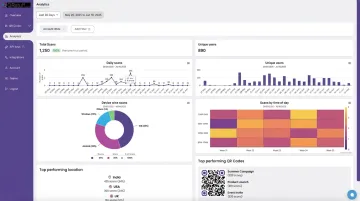
The total vs. unique scan distinction is particularly useful for follow-up prioritization. If someone scans your code at an event and again two days later from a different location, that's a signal worth acting on — prioritize outreach to those contacts.
Use event-level data to evaluate which conferences or formats produce real engagement versus passive exposure. If one event generates 40 scans and another generates 4, that's objective input for where to invest your networking time next year.
Where Professionals Deploy Networking QR Codes
A few industries where this is most active:
- Real estate — QR codes on business cards, for-sale signs, and open-house flyers for instant profile sharing; the National Association of REALTORS notes that 66% of agents embrace new technology specifically to save time
- Sales and marketing — conference lead capture replacing manual badge scanning
- Consulting and professional services — PDF portfolio or case study delivery via QR at client meetings
- Executive networking — LinkedIn QR codes on premium cards for a clean, single-tap connection
QR codes also solve a problem that physical cards never could: connecting people in virtual spaces. A code shared via screen share during a virtual event, or embedded in a virtual background, lets attendees scan and connect instantly — no typing URLs, no manual searching, no follow-up friction.
Best Practices Worth Following
- Always use dynamic codes for networking — a static code on printed materials becomes a liability the moment your role, URL, or contact details change
- Pair every code with a verbal CTA — saying "I have a QR code on my badge that links straight to my LinkedIn" dramatically increases scan rates compared to passively displaying the code
- Test under realistic conditions — scan your code under dim lighting, on glossy card stock, and at the actual distance it will be used. If it fails in a suboptimal environment, it will fail when it matters most
- Treat the data as a feedback loop — compare event-by-event scan performance, adjust your CTA text or destination page based on what the numbers show, and refine your approach before the next event
Teams networking across multiple events can use QRStuff's Full Suite or Enterprise tiers, which include multiple seats, bulk code generation, and analytics exports. Solo professionals typically find the Lite Suite — with 50 dynamic codes and dashboard analytics — more than enough.
Frequently Asked Questions
What is a QR code for business networking?
A networking QR code is a scannable image that instantly directs someone to your contact information, LinkedIn profile, portfolio, or scheduling page. It replaces manual data entry and enables instant digital-first connections at events, in meetings, or via email.
Should I use a static or dynamic QR code for professional networking?
Dynamic QR codes are always the better choice. They let you update the linked destination without reprinting, and they provide scan analytics — total scans, unique scans, location, and device data — that tell you which events and placements actually generated engagement.
What should my networking QR code link to?
The right destination depends on your goal:
- vCard — instant contact saving to the scanner's phone
- LinkedIn profile — professional context and connection request
- Multi-link page — a hub covering multiple resources in one scan
- Calendar link — direct meeting booking without back-and-forth
Most professionals get the most mileage from the multi-link format.
How do I get people to actually scan my QR code at events?
A clear call-to-action is the primary driver. Frame text helps, but verbally directing people works better: tell them exactly what they'll get ("scan to save my contact") and give them a reason to do it. Pairing a verbal prompt with a specific value proposition outperforms passive display alone.
Can I use the same QR code across different networking events?
With a dynamic code, yes — you can keep the same printed code and update the destination before each event. However, creating a separate code per event lets you track which events generate the most scans independently, which is useful for evaluating ROI across your networking calendar.
How do I know if my networking QR code is actually working?
Dynamic QR platforms like QRStuff provide scan analytics including total scans, unique scans, device type, and geographic data. Use those numbers to compare performance across events — then double down on the placements and calls-to-action that actually convert.