This guide walks through the complete process, from content preparation to post-launch maintenance, for museum staff who have the curatorial knowledge but need a clear technical roadmap.
Key Takeaways
- QR audioguides link printed codes to browser-based audio or multimedia—no app download required
- Host all content at a stable, public URL before generating any QR codes
- Always use dynamic QR codes so destination URLs can be updated without reprinting signage
- Print codes at minimum 2cm × 2cm and include a brief call-to-action beside each one
- Test every code on Android and iOS under gallery lighting before opening day
What You Need Before Creating Your Museum Audioguide
Before generating a single QR code, get three areas in order: your content, your hosting setup, and your physical installation plan.
Content Readiness
Each exhibit stop needs:
- A recorded audio track (and/or video), edited and approved
- A transcript or captions—required for accessibility compliance under WCAG 2.1 Level AA (the DOJ's 2024 Title II rule extends this to state and local government web content)
- Multilingual versions, if your audience is multilingual
- Final copy—content changes after codes are generated create broken-link risk
Technical Readiness
Your content must live at a URL that:
- Is publicly accessible without login or account creation
- Loads quickly on mobile data (Google reports 53% of mobile visits are abandoned if a page takes longer than 3 seconds to load)
- Requires no app download to access
- Works on both iOS and Android browsers
Common hosting approaches include:
- Uploading MP3s directly to a museum webpage
- Building a landing page with an embedded audio player
- Using a Progressive Web App (PWA) for multilingual delivery at scale
Physical Readiness
- Map every exhibit stop and assign each a unique identifier (Stop 01, Stop 02, etc.)
- Decide where signage will sit relative to artwork and existing labels
- Confirm your print vendor and timeline before generating final codes
How to Create a QR Code-Activated Museum Audioguide
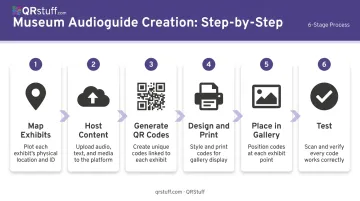
The process follows six stages: map exhibits → host content → generate QR codes → design and print → place in gallery → test. Each stage depends on the one before it. Getting the sequence right prevents the most common failure point — printing codes before content has a stable URL.
Step 1: Map Your Exhibit Stops and Content Structure
Start by listing every exhibit that will have an audioguide stop. Assign each a unique identifier—Stop 01, Stop 02—and use this labeling consistently across your audio files, hosting folders, and QR code dashboard.
For each stop, decide on the content format:
- Standalone MP3 — simplest to produce and host
- Webpage with embedded audio player — allows transcripts, images, and multilingual tabs
- PWA — best for complex multilingual delivery; requires more build time
This decision determines hosting complexity. A 15-stop guide using standalone MP3s can be hosted on a basic museum webpage. A 40-stop multilingual guide likely needs a dedicated landing page structure or a third-party audio guide platform.
Step 2: Host Your Audio Content at a Stable URL
Each stop's content must have a permanent, dedicated URL before any QR code is generated. Changing URLs after printing means reprinting—or relying on dynamic codes (covered in Step 3).
Audio file performance matters. Keep files compressed and optimised for mobile delivery. Large uncompressed files cause buffering on mobile data. Research on mobile load times consistently shows that delays above 3 seconds cause more than half of visitors to abandon the page entirely.
Key requirements for hosted content:
- No login walls or account prompts
- No app installation required
- Mobile-responsive layout
- Fast load on cellular data, not just WiFi
Once your content is hosted and URLs are confirmed stable, you're ready to generate codes. QRStuff supports direct MP3 and M4A file uploads via its File data type, which auto-generates a hosted playback page — useful for smaller installations that don't need a custom-built interface. For more control over presentation, a URL QR code pointing to a custom webpage or PWA works equally well.
Step 3: Generate Dynamic QR Codes for Each Exhibit Stop
Museums & Galleries of NSW explicitly notes that dynamic QR codes allow linked content or URLs to be changed without regenerating or reprinting the physical code. For any institution where exhibits rotate, content gets revised, or links occasionally break, static codes create a costly reprint cycle — dynamic codes eliminate that entirely.
With QRStuff, the generation process for a multi-stop audioguide looks like this:
- Create one dynamic QR code per exhibit stop, linking each to its hosted content URL.
- Label each code using QRStuff's tagging and project organization tools — for example, "Stop 01 – Ancient Egypt" or "Stop 02 – Roman Gallery."
- Select your plan based on stop count. The Full Suite (250 dynamic codes at £15/month) suits most 20–50 stop deployments; the Lite Suite (50 codes at £4/month) covers smaller installations.
- Apply custom styling — add museum brand colors and logo. QRStuff recommends dots be at least 70% darker than the background to maintain reliable scanning.
If content needs updating after codes are printed, QRStuff's dashboard lets you edit the destination URL instantly without touching the physical signage.
Step 4: Design and Print QR Code Signage
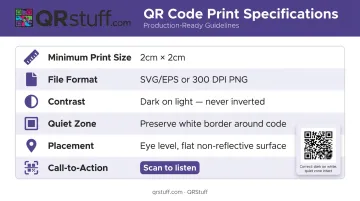
Follow these specifications for reliable scanning in gallery environments:
| Element | Recommendation |
|---|---|
| Minimum print size | 2cm × 2cm for simple URLs |
| File format | SVG or EPS for signage; 300 DPI minimum for PNG |
| Contrast | Dark code on light background; never invert |
| Quiet zone | Never crop the white border surrounding the code |
| Placement | Eye level, flat non-reflective surface |
| Call-to-action | "Scan to listen" or "Scan with your phone camera" |
Custom colors and logos can be applied without compromising scannability, provided contrast ratios are maintained. Branded QR codes also signal to visitors that the code is official museum content—not third-party advertising.
How to Test and Validate Your Audioguide Before Launch
Before opening day, run a full visitor-journey simulation with actual staff — not just a quick desk check. The goal is to catch every failure point before a visitor does:
- Scan every code on at least one Android device and one iPhone
- Confirm audio loads within a few seconds on cellular data (not just gallery WiFi)
- Verify multilingual options work if applicable
- Check that each code leads to the correct exhibit stop—transposition errors are common when generating codes in bulk
Test in the Physical Gallery
Walk the actual exhibition space and check:
- Whether lighting creates glare on printed codes
- Whether dark or patterned backgrounds reduce contrast (a white backing panel may be needed)
- Optimal scanning distance from the posted position
Establish a Maintenance Schedule
Verify all codes resolve correctly:
- Before each new exhibition opens
- After any URL or hosting changes
- At regular intervals (monthly works for most institutions)
A broken QR code beside an exhibit is the most visible failure point in any digital interpretation program. Dynamic codes reduce this risk: when a destination URL changes, you update it in the dashboard rather than reprinting and re-mounting the label.
Common Museum Audioguide QR Code Problems and How to Fix Them
Most audioguide QR code problems fall into three categories: audio that won't load, codes that lead nowhere, and visitors who never scan at all. Here's how to diagnose and fix each one.
QR Code Scans But Audio Won't Load
Problem: Visitor scans successfully, but the audio player stalls or doesn't appear. This usually means audio files are too large for mobile data speeds, or the hosting page isn't mobile-optimized.
Fix:
- Compress audio files and confirm the hosting page renders correctly on mobile
- Test on both WiFi and cellular data before launch
- If using QRStuff's direct file upload, the platform handles the playback page automatically
QR Code Leads to a Dead Link or Error Page
Problem: The code scans but lands on a 404 or broken URL. This typically happens when a static QR code was generated before content was finalized, or a URL changed after printing.
Fix: Dynamic QR codes prevent this from becoming a permanent problem. Update the destination URL in QRStuff's dashboard and the printed code immediately resolves to the new content. For static codes, physical reprinting is the only option.
Visitors Aren't Scanning the Codes
Problem: Low engagement despite visible QR codes at exhibit stops. Visitors may not know an audioguide exists, or signage doesn't make the next step obvious.
Fix:
- Add a brief instruction beside every code: "Scan with your phone camera to hear the story"
- Brief front-of-house staff to mention the audioguide at entry
- Place an orientation sign near the museum entrance showing how the guide works and how many stops it includes
Pro Tips for a Better Museum QR Audioguide Experience
Start with an entrance QR code. One introductory code near the entry point—explaining what the audioguide covers, how many stops there are, and roughly how long a full tour takes—lets visitors opt in consciously rather than discovering the feature mid-exhibit.
Keep audio tracks concise. Visitor attention at individual exhibits is short. Focused, layered narration respects visitor pacing and reduces buffering time on slower connections.
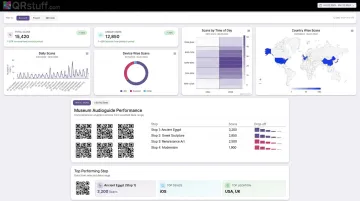
Use scan analytics to improve over time. Tracking which exhibit stops get the most scans—and which get skipped—tells you where signage needs work, where content could be stronger, and which pieces genuinely hold visitor attention. QRStuff's dashboard surfaces the data you need at a glance:
- Per-code scan counts across every exhibit stop
- Geographic and device breakdowns for visitor demographics
- Time-based engagement patterns throughout the day
- Scan drop-off points that flag weak signage or content gaps
A 2018 Journal of Museum Education case study found that QR analytics combined with visitor questionnaires can evaluate and improve exhibit engagement. This data becomes especially useful when planning future exhibitions or rotating content.
Frequently Asked Questions
How do museum audio guides work with QR code activation?
Each exhibit has a printed QR code that visitors scan with their phone camera. This opens a webpage or audio player directly in the browser—no app required—delivering narration, video, or text related to that specific exhibit stop.
How are QR codes used in museum audio guide technology?
QR codes serve as the physical trigger connecting printed exhibit labels to digital content. Dynamic QR codes let museums update audio or linked content at any time in their dashboard without reprinting the physical codes.
How do QR codes aid accessibility in a museum?
The same QR code can link to audio in multiple languages, include transcripts for hearing-impaired visitors, and provide captions aligned with WCAG 2.1 standards. Visitors use their own device, removing dependency on shared rental hardware.
Are museum audio guides worth it?
Yes. Museums using QR-based audioguides consistently report higher visitor engagement with exhibit content and reduced overhead compared to renting physical devices. Because content lives in the browser, updates are instant and operational costs stay low after the initial setup.
Do visitors need to download an app to use a QR code museum audioguide?
No. iPhones running iOS 11 or later and Android devices running Android 8.0 or later scan QR codes natively through the built-in camera app. The audioguide opens directly in the mobile browser—no installation needed.
Can I update my museum audioguide content without reprinting QR codes?
Yes. Update the destination URL in QRStuff's dashboard and the printed code immediately redirects to the new content—whether you're adding a language or refreshing exhibit narration. No reprinting required.