Here's the thing: whether you can fix this without reprinting depends entirely on one decision you made before printing — the type of QR code you used.
This guide explains exactly how QR code editing works, walks through the step-by-step process for codes that can be updated, and covers your options when you're stuck with a code that can't.
Key Takeaways
- Only dynamic QR codes can be edited after printing — static codes cannot
- Editing means updating the redirect destination inside your platform dashboard, not changing the printed image
- Destination URL, linked content, and tracking parameters can all be changed without reprinting
- Visual design changes (colours, logo, dot pattern) require a reprint — the printed image itself doesn't change
- If you're stuck with a static code, two workarounds exist, though each comes with trade-offs
Can You Actually Edit a QR Code After Printing?
The printed code is a fixed image — a matrix of dots encoding specific data. Once it's on paper or packaging, the ink doesn't change. So the real question isn't about editing the physical image; it's about what that image actually encodes.
Static QR Codes: Permanently Fused
A static QR code encodes the final destination URL directly into the dot pattern. The printed image is the data. Change the destination, and you'd need a completely different dot pattern — meaning a completely different code. There's no way around this at the printed-image level — a new destination requires a new code.
Dynamic QR Codes: Redirect Without Reprinting
Dynamic QR codes work differently. Instead of encoding your final URL, they encode a short intermediary link managed by your QR code platform. That link redirects to wherever you've configured it to point.
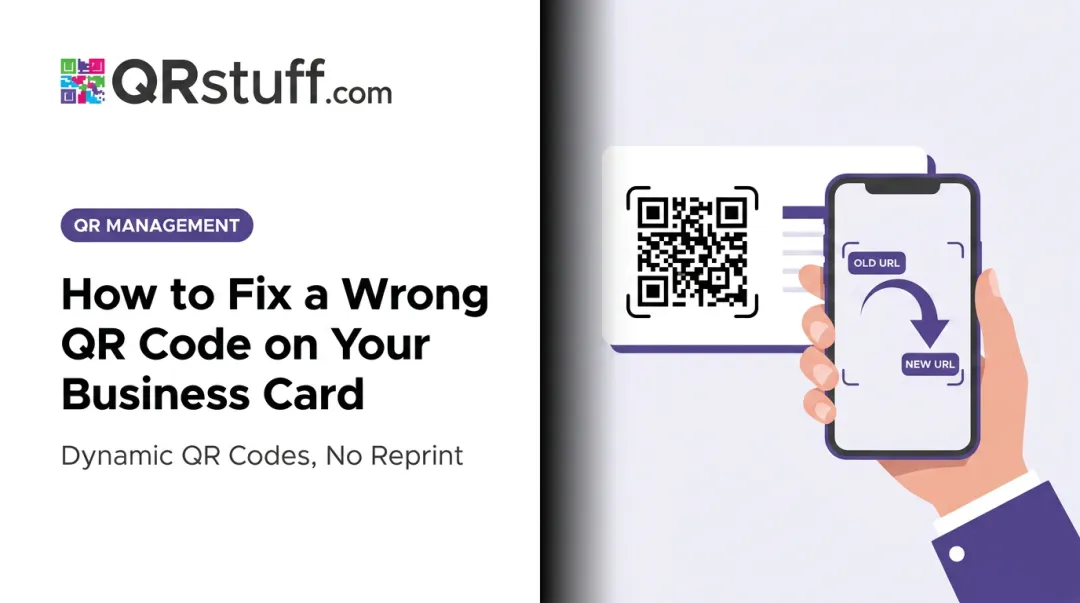
When you "edit" a dynamic QR code, you're updating the redirect destination inside your platform account — the printed image stays exactly as-is. Anyone who scans that same physical code from that point forward lands on the new destination.
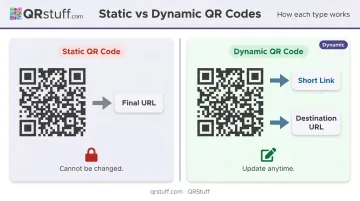
To confirm which type you're working with, check for these indicators:
- Dynamic codes are tied to a platform account and show scan analytics
- Static codes are standalone image files — no account, no analytics, no editability
The scale of print-based QR usage makes this distinction matter. According to the National Restaurant Association's 2024 technology report, 59% of full-service restaurant customers would access a menu by scanning a QR code would access a menu by scanning a QR code. And a 2025 GS1 US survey found that 66% of U.S. adults would scan a QR code on food packaging for product information. When codes are embedded in distributed print materials at that scale, editability isn't a convenience — it's a business necessity.
How to Edit a QR Code After Printing: Step-by-Step
This process applies exclusively to dynamic QR codes — and you'll need access to the platform account where the code was originally created. In QRStuff, log in to your dashboard and you can update any dynamic code immediately.
Step 1: Log In and Navigate to Your QR Codes
Log in to your QRStuff account. From the left sidebar, click QR CODES to see all codes organized by project. If you're managing multiple codes across several campaigns, use campaign tags to filter and locate the right one quickly.
Step 2: Identify the Correct Code
Before making any changes:
- Verify the destination URL shown matches what you expect
- Confirm the creation date aligns with the print run you're updating
- Check whether the code is active or paused
QRStuff supports campaign tagging, so if you've labelled your codes consistently (e.g., "Summer Menu – Location A – 2025"), finding the right one takes seconds.
Step 3: Update the Destination URL
Click the arrow to the left of the code to expand its management options. From there, you can edit the URL or content destination.
- Clear the existing URL
- Enter the new destination (updated landing page, revised menu, new product page)
- Save the change
The update applies immediately. Every scan of that printed code from this point forward goes to the new destination. Dynamic QR codes can be edited as many times as needed.
Step 4: Test Before Assuming It's Live
Testing takes two minutes and prevents a costly silent failure.
- Physically scan the printed code (or a digital copy of it) using an iPhone
- Scan again using an Android device
- Confirm the correct destination loads and the page renders properly on mobile
- Check that no redirect errors or 404 pages appear
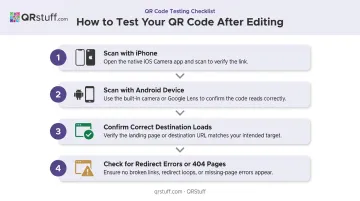
An undetected redirect failure can silently route hundreds of scans to a dead page — damaging campaign performance and user trust.
What Can — and Can't — Be Edited on a Printed QR Code
The short answer: you can change where a dynamic QR code points, but not the code itself. Knowing that distinction upfront saves reprinting costs and avoids broken campaigns.
What You CAN Edit (Without Reprinting)
| What to Change | Details |
|---|---|
| Destination URL | Redirect the code to any new webpage, landing page, or updated content |
| Linked content | If the code points to a platform-hosted page, update text, images, files, or contact details |
| Tracking parameters | UTM parameters and analytics settings can be modified mid-campaign |
| Code status | Pause, reactivate, or set scan limits without reprinting |
QRStuff supports 40+ dynamic code types — URL, file upload, social media, WiFi, vCard, and more. The destination or content behind any of these can be updated without touching the physical code.
What You CANNOT Edit (Without Reprinting)
- Visual design: Colours, logo placement, dot pattern, and frame style are baked into the printed image. Any design change produces a new code that must be reprinted.
- The short URL slug: This is the critical one people get wrong.
The printed code encodes a specific short URL slug — the unique identifier in the intermediary link. Changing the redirect destination is safe. Changing the slug itself creates a new link, which means the printed code no longer points to anything valid.
Never modify the short URL slug after a code has been printed. Every printed copy becomes unscannable the moment you do.
Common Mistakes When Editing QR Codes
1. Using a static code and expecting it to be editable
Free, one-time QR code generators almost always produce static codes. There's no account, no dashboard, no redirect to update. If you can't log in and find the code listed, it's static. Avoid this by using a dynamic QR code platform with account management from the start.
2. Changing the short URL slug instead of the destination
Editing the slug generates a new QR code entirely — every printed version of the old code stops working immediately. This is far more damaging than most people expect. Only ever update the destination the code points to, not the identifier encoded in it.
3. Skipping the post-edit scan test
A redirect update may save instantly, but failure can still occur from:
- A misconfigured destination URL
- A broken or unpublished landing page
- A mobile-unfriendly redirect
Test on both iOS and Android before considering the edit complete.
4. Editing the wrong QR code
In accounts with many codes, selecting the wrong one and saving a new destination breaks an active campaign with no warning. Set up consistent naming conventions — QRStuff's campaign tags make this straightforward — so you can confirm the right code before saving.
What to Do If You Have a Static QR Code
Many people discover their code is static only when they try to update it and find no editable settings. The code was generated by a free tool with no account attached, which means the destination is permanently locked into the printed image.
Two workarounds exist:
Workaround 1: Cover and Replace
Generate a new dynamic QR code pointing to the correct destination, then apply a printed sticker or label over the old code on physical materials. QRStuff's Free plan includes 10 dynamic codes to get started. This works well for product boxes, binders, signage, or any surface where a label can be cleanly applied.
Workaround 2: Control the Destination
If the static code points to a webpage you own, you don't need to change the code — change what's at the URL. Update the page content directly, or set up a server-side redirect from that URL to the new destination. The printed code keeps working; it just lands somewhere updated.
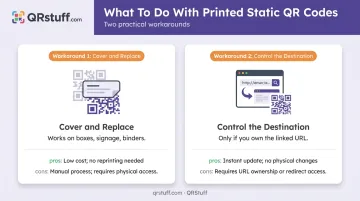
If the static code points to a third-party page, a social profile you don't own, or a URL you can't modify, this option isn't available.
For all future print campaigns: start with dynamic QR codes. They let you update destinations, track scans in real time, and avoid reprints — and QRStuff's dynamic codes are available on every plan tier, including Free.
Frequently Asked Questions
Can I update an existing QR code?
Yes, but only if it was created as a dynamic QR code. Log in to your QR code platform, find the code, and update the destination URL. Static QR codes cannot be updated; they require a new code and a reprint.
Can I edit a static QR code after printing?
No. The destination URL is permanently encoded into the dot pattern of a static code. Your only options are to reprint with a new dynamic code, or update the webpage at the existing destination if it's a URL you control.
Do I need to reprint my materials after editing a dynamic QR code's destination?
No reprinting needed. The same printed code continues to work and automatically redirects all future scans to the new destination the moment you save the change.
What happens to my scan data when I update a QR code's destination?
Historical scan data is preserved. All past scans remain tied to the same dynamic QR code, so your analytics timeline stays intact even after a redirect change.
Can I change a QR code's design after printing without reprinting?
No. Design elements — colors, logo, frame style, dot pattern — are part of the physical image. Only the destination and content behind the code can be changed without reprinting; any visual update requires a new printed asset.