A QR code changes that equation. It turns the brochure into a doorway — from a printed page to a booking form, a product video, a full catalogue, or a direct contact card. The problem is that most marketers treat QR codes as an afterthought. They drop one onto the design without a clear destination, skip testing, and use static codes that can't be tracked or updated.
This guide covers the full process: what to prepare before generating your code, how to design and place it correctly, and how to measure results once brochures are in circulation.
Key Takeaways
- Use dynamic QR codes on brochures — destinations stay editable and every scan is tracked after printing
- Match the code type to a specific goal: URL, PDF, video, vCard, or feedback form
- Minimum print size is 2cm × 2cm; export in SVG or 300+ DPI PNG for clean print output
- Always pair your code with a benefit-specific CTA — "Scan to book your free consultation" converts better than "Scan here"
- Test the printed proof on both iOS and Android before approving the full print run
When to Use QR Codes on Brochures (and When Not To)
QR codes earn their place on a brochure when the print format genuinely can't carry everything the audience needs. Common scenarios where they add real value:
- The brochure has limited space but the offer requires detail (pricing tables, spec sheets, full service lists)
- The campaign needs engagement tracking to measure distribution ROI
- The destination content — a video, booking form, virtual tour, or downloadable PDF — simply can't exist on paper
That said, not every brochure benefits from one.
Where They Underperform
Nielsen Norman Group's QR code usability research is direct on this: if someone has fewer than 15 seconds to engage, a short memorable URL serves better than a QR code. Quick-pickup formats — street handouts, conference bags stuffed with collateral — rarely generate scans because recipients don't pause to use them.
The most common misuse patterns:
- No mobile-optimized destination — every brochure scan happens on a smartphone; a desktop-formatted page wastes the conversion
- No CTA — a bare QR code with no explanatory text around it gets ignored
- Static code on mass-distributed print — if the destination URL needs to change and the code is static, the entire print run becomes obsolete
QR codes on brochures work best in dwell-time environments: waiting rooms, trade show booths, welcome packs, open days, and take-home prospectuses. In these settings, recipients are already engaged — which is when scan rates are highest.
What You Need Before Adding a QR Code to Your Brochure
Getting these three things right before you generate a single code can save you a costly reprint.
1. A Defined Goal and a Working Destination URL
The QR code is only as useful as what it points to. Before generating anything, confirm:
- The destination URL is live and correct
- The page is fully mobile-optimized (not just "mobile-friendly")
- The content matches what the CTA on the brochure promises
- The page loads quickly on both iOS and Android
2. A QR Code Generator That Supports Dynamic Codes and Analytics
A basic free tool that generates a static image is fine for simple one-off uses. For brochures — where reprinting is costly and campaign measurement matters — you need a platform that offers dynamic codes, custom branding, and scan analytics.
QRStuff provides dynamic codes you can update after printing, real-time scan tracking with device and geographic breakdowns, and brand customization including logo upload, custom colors, and module shapes. It's also GDPR and SOC2 compliant — relevant if you're distributing print materials across multiple markets or collecting scan data at scale.
3. A Confirmed Pre-Print Checklist
According to eMarketer, brochures, business cards, and print advertising are among the top QR touchpoints — meaning every scan is a mobile session. A slow or broken destination page wastes that contact entirely, turning a motivated scan into a bounce.
Before sending artwork to print, run through this final check:
- Scan the code on both iOS and Android
- Confirm the destination loads in under 3 seconds
- Verify the page layout displays correctly on a small screen
- Test that any forms, buttons, or CTAs on the landing page work as expected
How to Add a QR Code to Your Brochure (Step-by-Step)
Effective implementation follows a defined sequence. Skipping the testing step in particular is the most common cause of wasted print runs.
Choose the Right QR Code Type for Your Brochure Goal
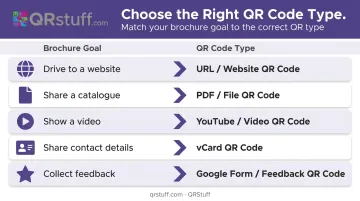
Match the code type to what the brochure is actually trying to achieve:
| Goal | QR Code Type |
|---|---|
| Drive traffic to a landing page or offer | URL QR code |
| Share a detailed document or catalogue | PDF QR code |
| Show a product demo or testimonial | Video QR code |
| Share contact details in B2B contexts | vCard QR code |
| Collect post-event or post-service feedback | Feedback/Form QR code |
Static vs. dynamic — always choose dynamic for print. Static codes permanently embed the destination URL into the code itself. If that URL ever changes, the code is broken and the brochure is useless. Dynamic codes encode a redirect URL instead; the destination can be updated at any time from your dashboard without touching the printed code. They also capture scan analytics; static codes provide none.
On QRStuff, dynamic codes are available from the Lite Suite tier upward, with unlimited scans and no expiration on paid plans.
Design the QR Code for Print
Technical requirements that affect whether the code actually scans in the real world:
- Minimum size: 2cm × 2cm for standard brochures scanned at arm's length; 2.5–4cm is more reliable across varied lighting conditions
- Quiet zone: Maintain a clear border of at least 4 modules on all four sides — no text, graphics, or fold lines inside this zone
- Contrast: Keep strong contrast between the dark modules and the background; avoid light-on-light or gradient backgrounds behind the code
- Export format: SVG or EPS for production print; high-resolution PNG at 300+ DPI if vector isn't available. JPG degrades at print resolution and should be avoided
On brand customization: QRStuff allows logo embedding, custom module shapes, and brand color application. When adding a logo, set error correction to H (High, 30% damage recovery) — this maintains scannability even when the logo covers part of the code area. According to DENSO WAVE, the four error correction levels are L (7%), M (15%), Q (25%), and H (30%).
Position and Place the Code in Your Brochure Layout
Placement follows the content, not the other way around:
- Single-panel brochure: Place the QR code in the lower third, after the primary message has been delivered
- Tri-fold or multi-page brochure: Place relevant codes at the end of each section they support — don't cluster all codes on one panel
- Never place a code in a fold crease or cropped near the edge without a full quiet zone
The CTA text beside the code matters as much as the code itself. Action-led, benefit-specific copy outperforms generic instructions:
- ✅ "Scan to book your free consultation"
- ✅ "Scan to download the full product guide"
- ❌ "Scan here"
- ❌ "Scan me"
Test Before Sending to Print
Print a proof at the intended size. Then:
- Scan under realistic lighting — including lower-light environments like waiting rooms or indoor event spaces
- Test on both iOS and Android — Apple confirmed native QR recognition from iOS 11 onward; most modern Android devices support built-in scanning via camera or Google Lens
- Verify the destination loads correctly and quickly on mobile
- Check the finish — glossy or metallic paper creates glare that can reduce scannability; test the actual paper stock, not just a standard office print
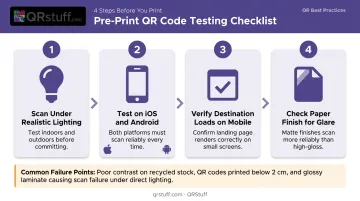
Common failure points: quiet zone clipped near a bleed edge, destination page not yet live, code too small on the final printed size.
Track Performance After Distribution
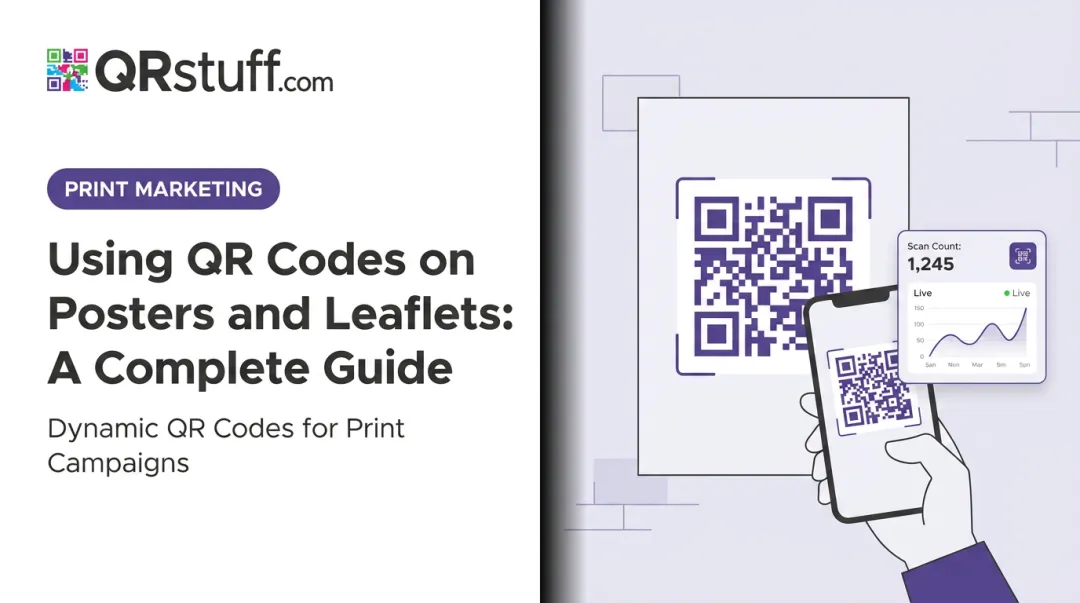
QRStuff's analytics dashboard provides real-time scan data including:
- Total and unique scan counts: distinguishing new audience from repeat engagement
- Device breakdowns: iOS vs. Android, mobile vs. desktop
- Geographic data: country and city level
- Time-based insights: daily, weekly, and custom date range views with hourly scan velocity
This data tells you where and when engagement happens, which is useful for optimizing future distribution strategy and identifying which venues or events are actually driving action.
For conversion tracking beyond scan volume, add UTM parameters to the destination URL before generating the code (utm_source=brochure, utm_medium=print, utm_campaign=campaign-name). Google's Campaign URL Builder handles this in under a minute.
The tagged URL sits behind the QR code, so all scan-to-session journeys appear in Google Analytics alongside other channels.
If a destination page underperforms, dynamic codes allow you to redirect to a better-performing page mid-campaign without reprinting a single brochure.
Where Brochure QR Codes Work Best
Dwell-time environments consistently outperform quick-pickup contexts. The sectors where brochure QR codes deliver the strongest results:
Healthcare waiting rooms connect patients to appointment booking, pre-visit forms, or condition-specific resources. A 2024 peer-reviewed study confirmed QR codes in health service waiting rooms are an effective channel for delivering web-based health information — patients have time, and the context makes scanning feel natural.
Trade show and B2B sales brochures work well because recipients take materials home. Demo request forms, contact vCards, and spec sheet downloads all get multiple scan opportunities long after the booth conversation ends.
Hospitality welcome packs handle what printed guides can't update: Wi-Fi credentials, rotating room service menus, local event listings, and checkout flows. Hotels like those in the Marriott portfolio use in-room QR codes precisely because the destination can change without reprinting a single card.
Education prospectuses pair well with virtual campus tours and application portals. The University of Toledo used campus-wide QR code stickers to power a virtual tour experience — a format that scales equally well in a printed prospectus.
Real estate brochures live or die by their destination. A code linking to a 3D walkthrough converts differently than one pointing to a general listings page. Floor plans, neighborhood data, and direct booking links for viewings all outperform generic homepages.
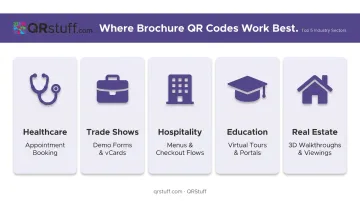
What these contexts share: the reader has a reason to pause, the destination delivers something print can't replicate, and the action (scanning) costs less effort than the payoff. If your brochure use case checks those three boxes, a QR code will pull its weight.
Best Practices for Using QR Codes on Brochures Effectively
Follow these rules consistently and your brochure QR codes will drive measurable results rather than become forgotten design elements.
- Limit each brochure panel to one QR code — multiple codes split attention. For multi-destination needs, link to a single hub page instead
- Confirm the destination is live before approving print — a page that isn't ready yet is one of the most preventable campaign failures
- Tag every QR destination with UTM parameters (source, medium, campaign) so brochure-driven conversions show up cleanly in your analytics
- For recurring campaigns, save your QR code configuration and reuse the same dynamic code each season — redirect it to updated content without reprinting
- After each run, check scan data to see which destination types and CTA copy performed best, then carry those learnings into the next campaign
Frequently Asked Questions
How do I scan a QR code from a brochure?
Most modern smartphones scan QR codes through the native camera app: open it, point it at the code, and tap the notification. iPhones (iOS 11+) and most Android devices handle this natively via Google Lens, though older Android phones may need a dedicated scanner app.
What security risks should I be aware of when using QR codes on brochures?
Always link to a secure HTTPS page and print your branded domain near the code so recipients know what to expect before scanning. For sensitive destinations, QRStuff supports password-protected QR codes that add an extra layer of verification.
What size should a QR code be on a brochure?
Print industry guidance recommends a minimum of 2cm × 2cm for standard brochures scanned at arm's length, with 2.5–4cm being more practical for consistent scanning in varied lighting. Always maintain the quiet zone, a clear border of at least 4 modules, on all four sides of the code.
Should I use a static or dynamic QR code on my brochure?
Dynamic QR codes are the right choice for any printed brochure. They let you update the destination URL after printing and provide real-time scan analytics — neither of which static codes support. For any campaign where measurement or flexibility matters, dynamic is the only practical option.
Where should I place a QR code on a brochure?
Place it after the primary message has been delivered, typically in the lower third of a single-panel brochure, or at the end of each relevant section in a multi-fold format. Never place a QR code in a fold crease, near a bleed edge without a quiet zone, or before the reader has understood what they're being asked to scan.
Can I change the QR code destination after my brochures are printed?
Yes — if you used a dynamic QR code. The printed code image stays the same; only the redirect destination changes. On QRStuff, this is done directly from your dashboard and takes effect immediately, with no reprinting required. This is one of the most practical reasons to use dynamic codes on any large or ongoing print run.