The process sounds straightforward, but the results vary depending on which QR code format you use, what information you encode, and whether your code is built to last or breaks the moment your phone number changes.
This guide covers exactly how to create a vCard QR code from your iPhone browser, what to put in it, how to share it, and which decisions actually matter.
Key Takeaways
- A vCard QR code encodes your contact details so recipients can save you directly to their Contacts — no web page required
- Use a browser-based QR generator like QRStuff — no app download required on your iPhone
- Static codes are free but fixed; dynamic codes let you update your info later without regenerating the image
- Always test the code with your iPhone camera before sharing it with anyone
- Keep your encoded fields to the essentials — more data increases QR complexity
How to Create a Digital Business Card QR Code on iPhone (Step-by-Step)
You don't need a dedicated app. A browser-based QR generator that supports the vCard format handles everything directly from your iPhone in a few minutes.
Step 1: Open QRStuff in Your iPhone Browser
Open Safari or Chrome and go to QRStuff.com. The platform runs entirely in the browser — no download required.
From the QR code generator, look for the vCard or Digital Business Card content type. QRStuff offers both as distinct options within its 40+ data types.
The vCard option encodes structured contact data that smartphones recognize and can import directly into Contacts when scanned.
Tip: After loading the site, tap the Share button in Safari → "Add to Home Screen" to create a shortcut that works like an app.
Step 2: Enter Your Contact Information
Fill in the contact fields you want recipients to receive. QRStuff's vCard generator supports:
- First and last name, name prefix/suffix
- Job title and organisation
- Phone number, mobile number, fax number
- Email address and website URL
- Full postal address (street, city, state, country, postcode)
- Notes field
Keep fields to what recipients actually need — unnecessary data bloats the code and reduces scan reliability on smaller screens.
Step 3: Customise the QR Code Design
QRStuff's styling tools (available on paid plans) let you:
- Change module and eye shapes
- Apply custom colors or gradients using a color picker
- Upload a logo or text to the center
- Use an image as the foreground or background
Strong contrast between foreground and background is non-negotiable. GS1's barcode verification guidelines define a symbol contrast of 70% or higher as the top grade — anything under 20% receives a failing grade. Dark code on a light background is the safest approach. All changes preview in real time on the right side of the screen.
Step 4: Choose Static or Dynamic, Then Generate
| Static | Dynamic | |
|---|---|---|
| Cost | Free | Paid plan required |
| Editable later | No | Yes |
| Scan analytics | No | Yes |
| Best for | Fixed contact details | Professionals whose details change |
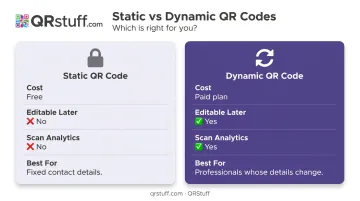
According to BLS data from January 2024, median employee tenure is 3.9 years overall and 2.7 years for workers aged 25–34. If your title, number, or employer is likely to change, a dynamic code is worth it. The QR image stays the same even after you update the underlying contact details.
Once you've made that call, tap Generate and review the live preview before downloading.
Step 5: Download and Save to Your iPhone
QRStuff supports both PNG and SVG formats:
- SVG — vector format, scales without pixelation, ideal for printing on cards or badges
- PNG — raster format, use at minimum 300 DPI, suitable for digital sharing
Save the file to your Camera Roll or Files app. For fast access during networking events, add the image to a pinned Notes document or your Lock Screen widget.
Step 6: Test Before You Share
Open your iPhone's native Camera app, point it at the QR code, and confirm the contact preview populates correctly. Then test on an Android device if you have one nearby — your recipients won't all be on iPhone.
Apple's built-in QR detection has been available since iOS 11, so any modern iPhone handles this natively. Android compatibility varies by device, but Google's ML Kit parses structured contact information from QR codes across most Android devices.
What to Put on Your Digital Business Card QR Code
The vCard format (defined by IETF RFC 2426 for version 3.0) requires three mandatory fields: VERSION, FN (your formatted full name), and N (last and first name components). Everything else is optional — but what you choose to include shapes how useful the card actually is.
Essential Fields
These four fields cover most follow-up scenarios:
- Full name — the minimum required field
- Primary phone number — most common method for immediate follow-up
- Professional email — essential for B2B context
- Website URL — gives recipients somewhere to go before reaching out
- Job title and company name — critical context after busy events where recipients may have met dozens of people
Optional Fields Worth Adding
- LinkedIn URL — high priority for B2B professionals; add it as a website URL if your generator doesn't have a dedicated social field
- Mobile number — useful if you want to separate work and mobile lines
- Physical address — include only if your work is location-based (retail, real estate, clinics)
What to Leave Out
- Personal home address
- Personal mobile if this card is for professional use only
- Fields you wouldn't put on a printed business card
Keep it to 6–8 fields maximum. Each additional field increases QR code density, which raises the chance of scan failures in poor lighting or on low-resolution cameras.
How to Share Your Digital Business Card QR Code from iPhone
In-Person
The simplest method: open the QR code image from your Camera Roll, go full screen, and turn up brightness. The other person scans with their camera — done.
For faster access in busy environments:
- Add the QR image as your iPhone Lock Screen wallpaper or widget
- Save it to a pinned Note for one-tap access
- Keep it as the first image in a dedicated Photos album
Remote and Digital
The QR image is a standard file — shareable anywhere images work:
- Email signature — paste it as an inline image below your name
- LinkedIn featured section — upload it as an image post
- Presentation slides — add it to your closing slide
- WhatsApp or iMessage — send the image directly
If you created a dynamic QR code on QRStuff, the underlying redirect URL can also be shared as a direct link for anyone who'd rather tap a link than scan.
Static vs. Dynamic QR Codes for Business Cards
This decision matters more than most people realize — especially if you plan to print the code anywhere.
Static QR codes encode your contact data directly and permanently into the pattern. They're free to create on QRStuff (no account needed), never expire, and work offline. The catch: change your email or phone number, and every printed or distributed copy of that code becomes outdated. You'd need to regenerate and redistribute.
Dynamic QR codes work differently. The QR pattern stores a short redirect URL, not your actual contact data. The redirect points to your contact details — and you can update those details anytime from the QRStuff dashboard without changing the QR image itself. QRStuff's dynamic codes also provide analytics: total scans, unique scans, device type (iOS vs. Android), geographic location at country and city level, and time-based data with daily and weekly views.
Which to choose:
- Creating a one-time card with stable details → static (free, no account required)
- Professional use where details may change, or you want to track engagement → dynamic (starts at £4/month on QRStuff's Lite Suite with no expiration)
The digital business card market is projected to grow from $350M in 2024 to over $1B by 2034, according to Market.us. Dynamic codes are the practical choice for that long haul — update your details once in the dashboard, and every scan from every card you've ever shared pulls the current version.
Common Mistakes to Avoid
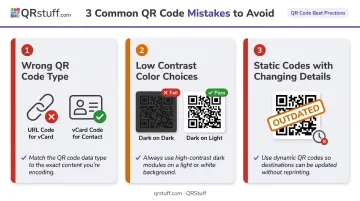
Three mistakes trip up most first-time users:
- Wrong QR code type: A URL code opens a web page; a vCard code imports a contact. They look identical as images, but the recipient experience is completely different. Always select vCard or Digital Business Card as the content type — not URL.
- Low-contrast color choices: Matching a light logo color to a pale background, or using a dark-on-dark combination, creates codes that consistently fail to scan. Test every customized code before distributing it.
- Static codes with changing details: The QR image doesn't update when your contact information does. Anyone holding the old code gets outdated information — which is the core case for dynamic codes, where you edit the destination and the code stays valid.
Frequently Asked Questions
How do I add a business card to my iPhone contacts?
Scan a vCard QR code with your iPhone's native Camera app — it will prompt you to add the contact directly to your Contacts app, no third-party app needed. On iOS 17 and later, you can also use NameDrop by holding two iPhones near each other to exchange contact information.
How do I create a QR code to add a contact on an iPhone?
Open your iPhone browser, go to QRStuff.com, select the vCard content type, enter your contact details, and download the generated QR code image. When someone scans it, their phone prompts them to save the contact.
Can I share my digital business card QR code without an app?
No app is required for either party. You share the image from your Camera Roll or Photos app, and recipients scan it with their phone's native camera. The contact details open automatically in their Contacts app.
What is a vCard QR code and how does it work?
A vCard QR code encodes contact information in the vCard format (an IETF-defined standard for digital contact exchange). When scanned, the phone recognizes the data structure and prompts the user to save it as a contact, unlike a URL QR code which only opens a web page.
Can I update my digital business card QR code without reprinting it?
Only dynamic QR codes allow this. The QR image stays the same, but the contact data it points to can be edited from the QRStuff dashboard at any time — no reprinting required.
Do people need an iPhone to scan my digital business card QR code?
No. vCard QR codes work across platforms. Android devices, iPhones, and most modern smartphones can scan the code with their native camera and save the contact without any specific app.