That said, "get a LinkedIn QR code" actually means two different things depending on what you need. LinkedIn's native feature lives inside the mobile app and works great for on-the-spot sharing. But if you're printing business cards, managing a Company Page, or want to know how many people actually scanned your code, you'll need a custom QR code from a generator.
This guide covers both methods step by step, where to deploy your QR code for maximum effect, a practical comparison of your options, and the mistakes that cause codes to fail in the field.
Key Takeaways
- LinkedIn's mobile app has a built-in QR code — find it directly in the search bar (iOS and Android)
- The native feature works for personal profiles only; Company Pages need a third-party generator
- Custom QR codes add design flexibility, scan analytics, and editable destination URLs — no reprinting needed
- High-impact placements: business cards, email signatures, event badges, and resumes
- Always test on multiple devices before printing; check size, contrast, and link accuracy
How to Get Your LinkedIn Profile QR Code
There are two routes: LinkedIn's native app feature (fastest, zero extra tools) or a QR code generator (more control, custom design, analytics). Which one you need depends on what you're trying to do.
Method 1: Using LinkedIn's Built-In QR Code (Mobile App)
LinkedIn's built-in QR code is accessible from the mobile app on both iOS and Android. There is no equivalent feature on LinkedIn's desktop site — if you're on a browser, skip to Method 2.
iOS steps:
- Open the LinkedIn app and tap the search bar at the top
- Tap the QR code icon on the right side of the search bar
- Tap the "My Code" tab to view your personal QR code
- Choose your distribution method:
- "Share my code" — sends via SMS, email, AirDrop, or any messaging app
- "Save to photos" — saves to your camera roll for printing or embedding
When saving, LinkedIn gives you the option to save the code only or save it with your profile photo.
Android steps:
- Open the LinkedIn app and tap the search bar
- Tap the QR code icon at the top right
- Tap the "MY CODE" tab
- Tap "SAVE TO GALLERY" to save to your photo library
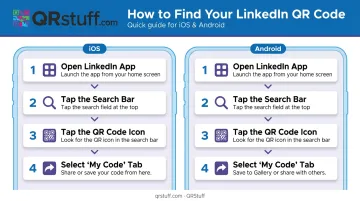
Direct sharing via message or email on Android may vary depending on your app version — saving to gallery and sharing from there is the reliable fallback.
Scanning someone else's code: Tap the QR icon, switch to the "Scan" tab, and point your camera at their code. You can also tap "Scan from photos" (iOS) or "ADD CODE FROM GALLERY" (Android) to scan a saved image.
Important: LinkedIn's native QR code can only be scanned from within the LinkedIn app. If you need a code that works with any smartphone camera, use Method 2.
Method 2: Create a Custom LinkedIn QR Code Using a QR Generator
Use this method when you need a QR code for a LinkedIn Company Page, want a branded design, or need scan tracking and analytics.
Steps using QRStuff:
- Copy your LinkedIn profile URL (or Company Page URL) from your browser
- Go to QRStuff and select the LinkedIn data type from the available options — this is purpose-built for LinkedIn profiles and posts, not a generic URL field
- Paste your LinkedIn URL into the designated field
- Customize the design: add your headshot or company logo, adjust colors to match your brand
- Download in PNG (for digital use or standard printing) or SVG (for scalable, high-resolution print work)
On dynamic vs. static codes: When creating your code, choose the dynamic option if you want to update the destination URL later without reprinting, or if you want scan data. QRStuff's dynamic codes track total scans, unique scans, device type (iOS vs. Android), geographic location (country and city level), and scan time.
Dynamic functionality is available from the Lite plan (£4/month) upward; free-tier dynamic codes expire after 30 days.
Where to Use Your LinkedIn QR Code
Your LinkedIn QR code only works when people can see and scan it — so placement matters as much as having the code itself.
Business Cards
The back of a business card is the most common placement. A few non-negotiable rules:
- Export at high resolution (PNG at 300 DPI minimum, or SVG for vector scaling)
- Minimum size: 0.8 inches (20mm) square — Adobe's QR code guidance confirms codes smaller than 2×2cm often fail to scan reliably at close range
- Keep a clear quiet zone (white border) around all edges — DENSO Wave's QR specification requires a four-module wide margin on all sides
- Add a one-line label: "Scan to connect on LinkedIn"
Email Signatures and Digital Outreach
Embed the QR code as a small image in your email signature, and hyperlink it to your LinkedIn profile URL as a fallback. Also include the short text URL alongside it — some email clients block images, and a recipient who can't see your code still needs a way to connect.
Events, Conferences, and Name Badges
At events, put your code where attendees naturally look:
- Your name badge
- Your phone's lock screen or home screen
- The closing slide of any presentation you give
A verbal prompt helps: "Feel free to scan my LinkedIn code" reduces hesitation and increases scan rates.
Resumes and Portfolios
A QR code in the header or footer of a printed resume gives recruiters instant access to your full LinkedIn profile. At career fairs or in-person interviews, this saves recruiters the step of searching for you — just keep it no larger than a postage stamp so it doesn't crowd the layout.
LinkedIn's Built-In QR Code vs. Creating a Custom One
Here's an honest comparison to help you pick the right tool.
| Feature | LinkedIn Built-In | Custom (e.g., QRStuff) |
|---|---|---|
| Personal profile QR | ✅ | ✅ |
| Company Page QR | ❌ | ✅ |
| Works on desktop | ❌ | ✅ |
| Scan analytics | ❌ | ✅ |
| Custom design/logo | ❌ | ✅ |
| Update URL without reprinting | Not confirmed | ✅ (dynamic codes) |
| Scannable without LinkedIn app | Not confirmed | ✅ |
| Cost | Free | Free tier available; paid from £4/month |
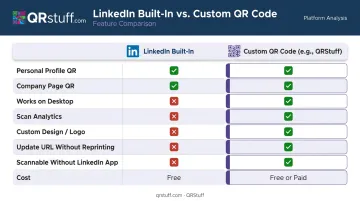
LinkedIn's built-in code is fastest for in-person, on-the-spot sharing. Open the app, show the code, done. No setup required.
Custom QR codes are the better choice for anything printed or distributed at scale. QRStuff's analytics capture total and unique scans, device type, geographic location down to city level, and time-based patterns — all viewable in a dashboard and exportable as Excel or PDF.
For professionals deploying QR codes on business cards or event materials, that data tells you which placements are actually driving connections.
The other key advantage: dynamic codes let you update the destination URL without reprinting. If your LinkedIn profile URL changes, or you want to redirect the code to a different page entirely, update the redirect once in your dashboard and every printed code already in circulation follows automatically.
The recommendation: Use LinkedIn's built-in code for quick face-to-face networking. Use a custom dynamic QR code for anything printed, for Company Pages, or when you want to measure performance.
Common Mistakes to Avoid With Your LinkedIn QR Code
A few avoidable mistakes account for most LinkedIn QR code failures in the field.
Printing too small
Codes smaller than 0.8 inches on business cards frequently fail to scan, especially on older devices or in poor lighting. Print at minimum 0.8–1 inch square for cards. For badges or signage, add about one inch of edge length per 10 feet of viewing distance.
Not testing across devices
Test on at least two or three different smartphones using both the native camera app and a dedicated QR scanner. A code that scans perfectly on your iPhone may fail on an Android device due to contrast issues or compression from resizing.
QRStuff's built-in preview and testing workflow steps through this systematically — testing at actual print size, from multiple angles, and in different lighting conditions.
Using a static code when your URL might change
According to QR Code Generator's support documentation, static QR codes cannot be edited after creation. LinkedIn also notes that profile custom URLs can be changed up to five times within six months. If your URL changes and you've printed static codes, every printed code becomes a dead end. Dynamic codes eliminate this risk entirely.
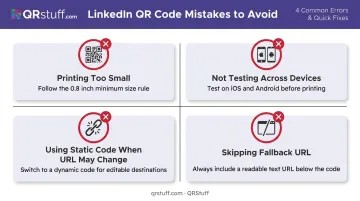
Skipping the fallback URL
Always pair your QR code with a short, readable URL — for example, linkedin.com/in/yourname — in any print or email context. People who won't or can't scan still need a path to connect.
Frequently Asked Questions
Can I access my LinkedIn QR code on a desktop computer?
LinkedIn's built-in QR code is only available through the mobile app (iOS and Android). There is no native QR feature on the desktop site. To generate a LinkedIn QR code from a desktop, use a third-party generator like QRStuff.
Does my LinkedIn QR code expire?
LinkedIn's native QR code has no published expiration date. For custom codes: static codes are permanent, while dynamic codes on QRStuff's free tier expire after 30 days. Paid plans (Lite and above) have no expiration.
Can I create a QR code for a LinkedIn Company Page?
LinkedIn does not offer a built-in QR code for Company Pages. Copy your Company Page URL and use a third-party generator — QRStuff includes a dedicated LinkedIn data type that works for both personal profiles and Company Page URLs.
Does someone need the LinkedIn app to scan my QR code?
LinkedIn's native QR code must be scanned from within the LinkedIn app. A custom QR code created via a generator can be scanned with any smartphone camera or QR scanning app, opening the LinkedIn profile in a browser — no app required.
What size should my LinkedIn QR code be on a business card?
Minimum 0.8 inches (20mm) square, with a clear white quiet zone on all edges. Black on white is the most reliable color combination. For anything smaller, scan failure rates increase significantly on older or budget devices.
What's the difference between a static and dynamic LinkedIn QR code?
A static code permanently encodes your LinkedIn URL and cannot be changed after creation. A dynamic code stores a redirect you can update anytime from your dashboard without reprinting. Dynamic codes also record scan data including volume, device type, location, and timing, which makes them practical for tracking networking ROI over time.