A QR code on your resume bridges that gap. It turns a static one-page document into a gateway — one scan connects recruiters to your portfolio, LinkedIn, video intro, or full professional profile. Done well, it's a small addition that adds real depth.
This guide covers why QR codes belong on resumes, what to link them to, how to create and place one, and what pitfalls to avoid.
Key Takeaways
- A resume QR code gives recruiters instant access to your portfolio, LinkedIn, or video introduction with one scan
- Dynamic QR codes let you update the destination after printing, so your resume stays current without reprinting
- Best placement: near your contact information at the top of the resume
- For digital submissions, use a hyperlinked URL instead — ATS software treats QR codes as images and ignores them
- Always test your QR code on a printed copy before sending
Why Add a QR Code to Your Resume?
It Extends Your Story Beyond One Page
Resumes are constrained by space. A QR code sidesteps that constraint by linking directly to your extended professional presence — a full portfolio, published articles, a project showcase, or a personal website — without cluttering the page.
This matters most for candidates whose work is hard to summarize in bullet points: designers, developers, writers, and marketers all benefit from giving recruiters somewhere to go deeper.
It Signals Digital Fluency
For roles in tech, marketing, design, or communications, a QR code on a resume demonstrates comfort with digital tools directly — not through a claim on the page, but through the action of using one. For employers actively screening for digital awareness, that's evidence that speaks for itself.
It Protects Candidates With Common Names
70% of employers use social networking sites to research candidates, according to CareerBuilder. If your name is common, that search may lead somewhere unhelpful. A QR code sends recruiters directly to your verified, controlled professional presence — no guesswork involved.
It Turns Applications Into Measurable Data
Static resumes give you no feedback. Dynamic QR codes change that — instead of sending an application into the void, you get confirmation of engagement.
QRStuff's dynamic QR code dashboard tracks:
- Total and unique scans — so you know whether someone scanned once or returned
- Scan time and date — pinpointing exactly when interest occurred
- Device type and operating system — iOS, Android, mobile, or desktop
- Geographic location — at both country and city level
If your resume goes out to 20 employers and you see three scans on a Tuesday afternoon, you know which applications are generating genuine interest — and when. That turns passive job searching into something you can act on.
The dashboard updates in real time, and Slack integration means you get notified the moment a recruiter scans your code.
What to Link Your Resume QR Code To
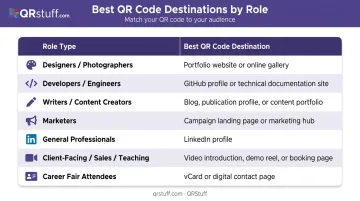
The right destination depends entirely on your industry and role. There's no universal answer, but there are clear patterns:
| Role Type | Best Destination |
|---|---|
| Designers, photographers, illustrators | Visual portfolio (Behance, personal site) |
| Developers, engineers | GitHub or project showcase |
| Writers, content creators | Personal website or published samples |
| Marketers | Campaign case studies or a results-focused landing page |
| General professionals | Polished LinkedIn profile |
| Client-facing, sales, teaching roles | Short video introduction (60–90 seconds) |
| Career fairs, recruiting events | vCard QR code |
The Video Introduction Option
A short video pitch lets recruiters hear your voice, gauge your confidence, and assess how you communicate — none of which a resume conveys. A 2022 BBC Worklife report citing a LinkedIn survey found 79% of hiring managers considered video more important for vetting candidates. This works best for roles in sales, teaching, consulting, or client services — anywhere presence and communication are part of the job.
The vCard Option for Networking Events
At career fairs or recruiting events, a vCard QR code is particularly useful. When scanned, it automatically saves your contact details to the recruiter's phone — no manual entry, no lost business cards. QRStuff's vCard type supports name, job title, organisation, phone, email, website, and address fields, all saving seamlessly to a smartphone's address book in a single scan.
One Important Warning
Whatever you link to must be polished and current. These destinations will hurt more than help:
- An unfinished portfolio with placeholder pages or missing work
- A social profile with unprofessional posts visible to the public
- A broken or expired link that leads nowhere
Treat the destination with the same attention you gave the resume. If it's not ready, leave the QR code off until it is.
How to Create and Add a QR Code to Your Resume
Choosing a QR Code Generator
Look for a platform that supports the content type you need and offers dynamic QR codes — so you can update the destination after your resume has already been distributed.
QRStuff supports 40+ QR code types including URL, vCard, PDF, LinkedIn profile, video link, and personal website. For resume use cases, all six of those types are available on paid plans, with no code expiration.
The Free plan does include dynamic codes, but they expire after 30 days — workable for short-term testing, not ideal for an active job search.
Static vs. dynamic — why it matters for resumes:
- Static codes lock the destination permanently — no edits after the code is created
- Dynamic codes redirect through a changeable URL, so you can update the destination any time without reprinting your resume
Dynamic codes are the right call for any job search lasting more than a few weeks. QRStuff has maintained 99.968% uptime since 2008, so reliability during an active search isn't a concern.
Generating, Customizing, and Downloading the Code
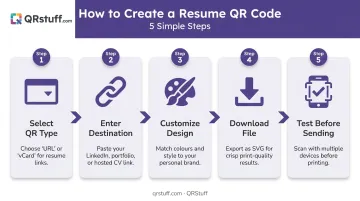
Follow these steps once you've chosen your platform:
- Select your QR code type — URL for a portfolio, vCard for networking, LinkedIn for professional profiles, video for a pitch
- Enter your destination — the URL, contact details, or content you want to link to
- Customize the design — adjust colors, dot patterns, corner shapes, and embed a logo if desired (a logo can safely cover up to 30% of the code surface without affecting scannability). Keep colors high-contrast and consistent with your resume's visual style
- Download in the right format — SVG is the best choice for print since it's vector-based and scales without quality loss. High-resolution PNG (up to 600dpi) also works; free accounts are limited to 72dpi PNG, which can appear soft when printed
- Size it correctly — use a minimum of 2 cm × 2 cm (roughly 0.8 × 0.8 in) to remain reliably scannable when printed, and maintain a clear margin around the code
Adding the Code to Your Resume Document
Once your code is downloaded, open your resume in Word, Google Docs, or Canva and use Insert > Image to place it in your chosen section. Resize proportionally — don't stretch or distort. Add a short caption beneath it, such as "Scan to view my portfolio", so the recruiter knows what to expect.
Before you send anything: print a physical copy and scan the QR code with at least two different devices. Confirm it leads to the correct destination, that the linked content loads quickly, and that it looks professional on whatever screen opens first.
Where to Place a QR Code on Your Resume
Primary Placement: Contact Section
The contact block at the top of your resume is where recruiters look first. Placing the QR code here positions it as an extension of your professional identity, signaling that your broader online presence is worth exploring. It appears in context, early in the review — before the recruiter has moved on.
Alternative Placement: Footer
If you're applying through online portals where ATS software processes the file, the footer is a safer option. Indeed's ATS guidance notes that applicant tracking systems struggle with images, graphics, and text in non-standard locations. Placing the QR code in the footer reduces the risk of parsing errors while still keeping it visible to the recruiter reviewing it.
Contextual Placement
If your QR code links to a specific project rather than a general portfolio, place it adjacent to that experience entry. A developer, for example, might add a small code next to a standout project — linking directly to a live demo or GitHub repo rather than a general portfolio page.
Quick reference: which placement fits your situation
| Situation | Recommended Placement |
|---|---|
| Standard application, printed resume | Contact section (top) |
| ATS-heavy online portal submission | Footer |
| Code links to one specific project | Adjacent to that experience entry |
Resume QR Code Best Practices and Pitfalls
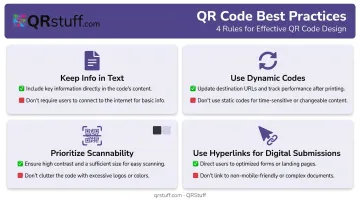
Done right, a resume QR code is seamless. Done wrong, it either fails to scan or creates ATS problems that cost you the interview. These four rules cover the most common pitfalls:
- Keep all information in text form. ATS software ignores images entirely — a QR code is treated as a graphic, not parsed data. Your contact details, job history, education, and skills must exist as readable text regardless of what the code links to.
- Use a dynamic code. If your portfolio URL changes or your LinkedIn handle updates mid-search, a dynamic code lets you redirect the destination without reprinting anything.
- Don't sacrifice scannability for style. Low-contrast colors — light grey on white, for example — and codes printed too small are the two most common reasons resume QR codes fail. Test at the exact print size before finalising.
- For digital submissions, use a hyperlink instead. When applying through an online portal, the recruiter is already on a screen. A hyperlinked URL in your contact section is cleaner, clickable, and ATS-compatible — a QR code adds nothing there.
Frequently Asked Questions
Is it okay to put a QR code on a resume?
Yes. Adding a QR code is acceptable and increasingly common, particularly in tech, marketing, and creative fields. It signals digital awareness and gives recruiters direct access to supplementary content. Use it intentionally, link to something polished, and test it before sending.
What should I avoid putting on my resume?
Leave off irrelevant personal details, unprofessional social media links, and outdated information. Applied to QR codes specifically: never link to a half-finished portfolio, a personal social account with unprofessional content, or a page unrelated to the role. The destination reflects directly on your candidacy.
Where should I place the QR code on my resume?
Near your contact information at the top is the most effective placement for printed resumes. For digital submissions through ATS portals, the footer reduces parsing risk while remaining visible to human reviewers. Either way, include a short caption explaining where the code leads.
Will a QR code on my resume confuse an ATS?
ATS software parses resumes as plain text and ignores images, so a QR code is treated as a graphic and simply skipped. It won't cause a rejection, but it won't communicate anything to the system either. Keep all critical information in text form.
What should my resume QR code link to?
Link to whatever best demonstrates your work: a portfolio for creatives, a LinkedIn profile for general professionals, a short video for client-facing roles, or a vCard for networking events. The destination should be polished, mobile-friendly, and current. Recruiters will judge it the same way they judge the resume itself.
Should my resume QR code be static or dynamic?
Dynamic. Dynamic codes let you update the destination after printing without reprinting, and they provide scan analytics so you know when your resume was reviewed. Static codes are fine only if the destination URL will never change.