None of this is unusual. It's just what happens when scheduling information lives on paper.
QR codes fix this without requiring any technical background. One scannable code on a syllabus or classroom door gives every student instant access to the current schedule — and when anything changes, you update the linked page once. Every previously distributed code redirects automatically.
This guide covers the full process: what you need before you start, how to create and deploy codes, the most valuable use cases, and how to handle the problems that actually come up in practice.
Key Takeaways
- Dynamic QR codes let you update the linked schedule at any time — no reprinting required
- The entire setup takes under 15 minutes per code, with no coding or design skills needed
- Place codes on syllabi, classroom doors, ID card inserts, and welcome emails
- Test every code on both iOS and Android before distributing to students
- Always include the direct URL as a text backup alongside any printed code
What You Need Before Getting Started
Before generating a single code, the schedule content must already exist in a digital, mobile-accessible format. Three formats work reliably:
- A mobile-optimized webpage — Google Sites, your school's LMS, or any page that loads cleanly on a phone
- A shared Google Calendar — ideal for ongoing class schedules with recurring events
- A cloud-hosted PDF — acceptable, but web pages load faster on cellular connections
Web pages are preferable because students scanning a code in a hallway are rarely on Wi-Fi.
Prerequisites Checklist
Before creating the code, confirm you have:
- A stable, finalized URL for the schedule content
- Access to a QR code generator that supports dynamic codes
- A printer capable of producing codes at minimum 2cm × 2cm for reliable scanning
- A plan for students without smartphones (shared tablets, library computers, or the direct URL printed as text backup)
- Optionally: school logo and brand colors for code customization
One rule that will break the whole setup: if the destination page requires a login or has restricted sharing permissions, students will hit an access error every time they scan. The page must be publicly accessible — or shared with the correct audience — before the QR code goes live.
QRStuff's paid plans include dynamic QR codes with unlimited URL updates, custom branding options (logo, colors, module shapes), and scan analytics — all useful for educational deployments. The Lite Suite is the minimum practical tier for non-expiring dynamic codes.
How to Set Up QR Codes for Classroom Scheduling: Step-by-Step
The setup follows a specific sequence. The two most common mistakes are generating a code before the destination page is finalized, and skipping the testing step before distribution.
Step 1: Choose Your Schedule Format and Finalize the URL
Navigate to the finished schedule page and copy the URL directly from your browser. If the page isn't in its final state yet, wait — especially if you're creating static codes, where the URL is permanently encoded.
Static vs. dynamic — the scheduling-specific decision:
| Code Type | Best For | Limitation |
|---|---|---|
| Static | One-time events, documents that will never change | URL cannot be edited after creation |
| Dynamic | Semester schedules, room assignments, any content that may update | Requires active paid subscription |
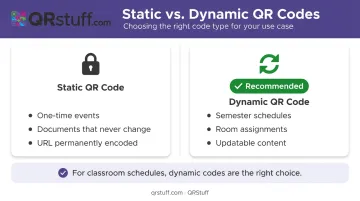
For classroom schedules, dynamic codes are the right choice. Universities like UIC permit schedule changes through the tenth day of the semester, and most institutions allow drops and adds during the first week. A static code printed on 30 syllabi becomes a problem the moment a room changes.
With QRStuff's dynamic codes, you can update the destination URL unlimited times throughout your subscription, with no reprinting or redistributing required.
Step 2: Create and Customize Your QR Code
- Paste the URL into your QR code generator
- Select dynamic code as the type
- Generate the base code
- Customize with your school's colors and logo so students recognize it as official
- Add a short label beneath the code — something like "Scan for Class Schedule"
Context text measurably improves scan rates: students know exactly what they're scanning before they commit.
Download in SVG or high-resolution PNG format. SVG scales to any size without quality loss — the same file works on both a wallet-sized ID card insert and a hallway poster.
QRStuff's customization features (logo upload, color and gradient options, module shapes) are available from the Lite Suite tier upward, including on the Free Suite with basic options.
Step 3: Test Before Deploying
Scan the final code using:
- At least two devices (one iOS, one Android)
- Both the native camera app and a dedicated scanner app
- A cellular connection, not just Wi-Fi
Confirm the destination page loads within 3–5 seconds and that the schedule is fully readable on a small screen without zooming or horizontal scrolling.
Skipping this step is the leading cause of Day 1 adoption failures. A broken code on a syllabus or classroom door undermines student trust immediately, and some students won't try again.
Once testing confirms everything works, you're ready to decide where the code will do the most good.
Step 4: Place Codes Strategically
High-value placement locations, in order of impact:
- Printed syllabi: reaches every enrolled student on day one
- Classroom doors, laminated at eye level: visible even when the room is locked
- Welcome emails and student handbooks: embed as an image with the direct URL as a text backup
- Student ID card inserts or lanyards: a practical carry option for university students
- High-traffic areas: cafeteria noticeboards, library entrances, hallway bulletin boards
Every placement should include the short label text and the direct URL printed as a text backup.
Classroom Scheduling Use Cases: Where QR Codes Make the Biggest Difference
Course Timetables and Semester Schedules
One dynamic QR code on the syllabus links to the full semester schedule — room numbers, class times, instructor contact details. When a room changes or a session is rescheduled, update the destination page once. Every syllabus already in circulation automatically reflects the new information.
Room Changes and Last-Minute Updates
Post a QR code on the original classroom door that redirects to a real-time Google Doc listing the day's changes. Students arriving at the wrong room get the correct location instantly — no PA announcements or manual sign posting required. Particularly useful during exam weeks when spaces are frequently reassigned.
Attendance and Check-In
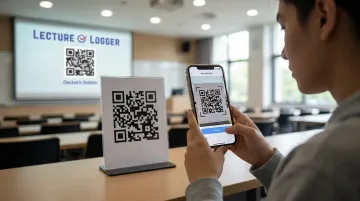
Link a QR code to a Google Form for timestamped attendance logging. Students scan and self-report; the teacher gets a digital record without manual roll call. A Carleton University study found QR-based attendance achieved roughly 5.3 seconds per person and tracked approximately 113 students in 10 minutes — a notable improvement over paper roll call, which becomes impractical beyond 50 students.
Multi-Section and Departmental Scheduling
Instead of a single master schedule, create separate QR codes per section, grade level, or department. Each code links to a section-specific page — for example:
- By section: Individual class pages with instructor info and room assignments
- By grade level: Grade-specific timetables updated each term
- By department: Shared schedules for labs, electives, or rotating classes
QRStuff's bulk generation — up to 500 codes per batch on the Full Suite — handles this at scale, so large departments don't need to create each code by hand.
Common Integration Problems and How to Fix Them
Issue 1: Broken Link After a Schedule Change
Students scan and hit a 404 error or land on last semester's schedule. The culprit is almost always a static QR code — the destination URL is permanently baked in and can't be changed after printing.
To fix it:
- Switch to dynamic QR codes for all schedule content going forward
- For already-distributed static codes, set up a redirect at the original URL pointing to the updated page
- If reprinting is feasible, replace static codes with dynamic ones now
Issue 2: Students Cannot Scan the Code
Scans fail entirely, or only some devices read the code. Three causes cover most cases: the code is printed below 2cm × 2cm, contrast is too low, or QR scanning isn't enabled on the student's camera app.
Reprint at a larger size using high-contrast black modules on a white background. Dynamsoft's scan-failure research recommends the foreground be at least 40% darker than the background. Run a quick 2-minute tutorial at the start of term to walk students through enabling QR scanning on iOS and Android. Always print the direct URL as plain text beside the code as a fallback.
Issue 3: Schedule Page Doesn't Display Correctly on Mobile
Students scan successfully but the page is hard to read — text too small, columns overflowing the screen, or a login prompt blocks access. This happens when the schedule was built as a desktop document (a Word table or multi-column spreadsheet) and linked without any mobile formatting.
Before linking, convert to a mobile-friendly format:
- A Google Sites page
- A simplified Google Doc with single-column layout
- A mobile-optimized PDF
Test the final layout on a phone at arm's length before deploying.
Pro Tips for Long-Term Success
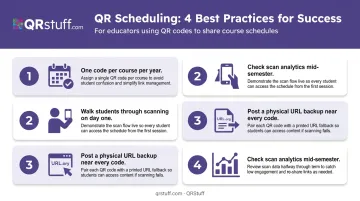
Apply these four practices from day one to keep your QR scheduling system running smoothly all year.
Use one dynamic code per course for the full academic year. Update the linked page each semester rather than generating new codes. Students return to the same code automatically — it becomes a habit, not a novelty.
Walk students through scanning on day one. A primary-school QR classroom study found 42% of students needed help with their first scan. The process becomes natural quickly, but don't assume everyone already knows how.
Post a physical backup near every code. A printed card with the next class time, room number, and direct URL covers dead zones, older devices, and students who prefer typing a link. No one should lose access to schedule information because of a device limitation.
Check scan analytics mid-semester, not just at launch. QRStuff's dashboard tracks volume by date, device type, and location. A sharp drop usually means the code is no longer visible — check whether door cards have been removed or syllabi have been discarded.
Frequently Asked Questions
Can I get QR codes for free?
Free static QR codes are available from most generators. For classroom scheduling, a paid dynamic plan is strongly recommended — free tiers typically expire after 30 days, making them impractical for semester-long use. QRStuff's Lite Suite is the minimum tier for non-expiring dynamic codes.
Should I use a static or dynamic QR code for class schedules?
Dynamic codes are the right choice for schedules. They allow you to update the destination URL after printing, which matters when room assignments, times, or instructors change during the semester. Static codes are only appropriate for one-time events or documents guaranteed never to change.
How do I update a QR code when my class schedule changes?
Log into your QR code platform, edit the destination URL to point to the updated schedule page, and save. The printed code redirects immediately — no reprinting required. QRStuff supports unlimited URL updates on all paid plans.
Where should I place QR codes so students actually use them?
The highest-engagement placements are printed syllabi, laminated on classroom doors at eye level, in welcome emails, and on student ID card inserts. Always include a short "Scan for Schedule" label — context text significantly improves scan rates.
What if some students don't have a smartphone?
Always print the direct URL as text next to the QR code. Make sure the schedule is also accessible via the school's student portal or LMS, with shared tablets and library computers as fallbacks for students without personal devices.
Can I create QR codes for multiple classes or sections at once?
Yes. Bulk QR code generation lets you create multiple codes simultaneously, each linking to a section-specific schedule page. On QRStuff, bulk generation is available from the Full Suite tier, supporting up to 500 codes per batch.