A QR code on your invoice removes those steps entirely. One scan takes the customer directly to a payment page, digital invoice copy, or bank transfer details.
The catch: a QR code that's too small won't scan. A static code linked to an expired payment URL becomes permanently broken. A code with no call-to-action gets ignored. This guide covers the right QR code type for invoices, a clear four-step process to add one, and the parameters that separate a QR code that gets used from one that doesn't.
Key Takeaways
- QR codes on invoices eliminate manual URL entry, connecting customers directly to payment with less friction.
- Use a dynamic QR code, not static — so you can update the destination without reprinting.
- Minimum print size: 2 cm × 2 cm with a quiet zone of at least four modules around the code.
- Always add a label like "Scan to Pay" near the code; it removes guesswork and increases scans.
- Test on both Android and iOS before sending any invoice.
What Type of QR Code Should You Put on an Invoice?
The right type depends on what action you want your customer to take. There are four main options.
Payment Link QR Code
The most effective for getting paid faster. The QR code links directly to a payment portal where the invoice amount and invoice number are pre-populated — customers scan and pay in seconds.
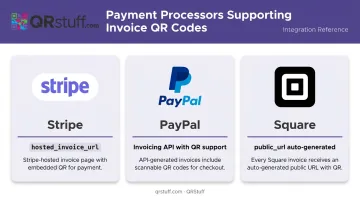
This works best with payment processors that generate unique URLs per invoice. Each gives you a ready-made link to encode:
- Stripe — Hosted Invoice Page assigns every invoice a unique
hosted_invoice_url - PayPal — Invoicing API supports QR payment options
- Square — adds a
public_urlto published invoices automatically
Invoice URL QR Code
Links to a digital copy of the invoice itself rather than a payment page. Useful when customers want to review itemised details before paying, or when they need the invoice for their own records. Best suited for businesses using invoicing software with shareable invoice URLs.
Bank Transfer / ACH Details QR Code
Encodes payment credentials — account number, routing number, or IBAN — as a text string so customers can retrieve banking details without manual transcription. Common in B2B invoicing where wire transfers are standard.
European businesses should use an EPC QR code instead. It follows the European Payments Council standard for SEPA Credit Transfers and pre-fills all transaction fields in the customer's banking app. QRStuff supports EPC QR code generation with fields for BIC, IBAN, amount, and remittance information including invoice numbers.
US businesses using ACH or free-text bank details can use a plain text QR code — though it's worth noting the security trade-off: the data is embedded directly in the code and readable by any QR scanner.
Custom URL QR Code
Some businesses use the QR code slot to link to a feedback form, loyalty programme sign-up, or additional service page. Never make customers hunt for how to pay — only use this option when payment instructions are already prominent on the invoice.
How to Add a QR Code to Your Invoice
The same four-step workflow applies whether you're using invoicing software, a design tool like Canva, or editing a PDF directly.
Step 1: Prepare Your Destination URL or Payment Information
Before generating anything, confirm what the QR code will encode:
- Verify the payment link is live and the correct amount is pre-filled
- Confirm the invoice URL is publicly accessible (not gated behind a login)
- Double-check any bank transfer details — IBAN, routing numbers, account numbers — for accuracy
One critical check: open the destination URL on a mobile browser. Since customers scan from a phone, a non-responsive page will cause payment abandonment before the transaction completes.
Step 2: Generate the QR Code
Use a QR code generator that supports dynamic codes. With QRStuff, you select your QR code type (URL, payment, EPC, or plain text), enter your destination data, and choose between static and dynamic output.
Dynamic codes are the better choice for invoices. They let you update the destination URL from your dashboard without touching the printed or distributed invoice — useful if your payment processor changes or a link expires. QRStuff offers dynamic codes on all paid tiers, starting from 50 codes on the Lite Suite.
For businesses sending high invoice volumes, the Full Suite includes batch generation of up to 500 codes per run. The Enterprise tier removes batch limits and adds API access for generating a unique QR code per invoice at scale.
Download format by use case:
- SVG for printed invoices — vector-based, stays crisp at any print size
- PNG for digital invoices distributed as PDFs
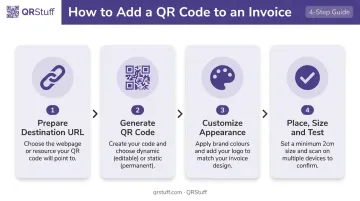
Step 3: Customize the QR Code for Professional Appearance
A plain black-and-white QR code works fine technically, but a branded one looks intentional rather than bolted on. QRStuff's styling options (available on paid plans) let you:
- Apply brand colors to modules and finder patterns
- Embed a logo in the center of the code
- Choose module and eye shapes to match your visual identity
- Add a custom background color to tie the code into your invoice template
Two non-negotiable rules when customizing:
- Keep sufficient contrast — dark modules on a light background. Color inversion (light modules on dark) is the leading cause of scan failure on lighter-colored invoice templates.
- Add a call-to-action directly beside or below the QR code on the invoice layout. "Scan to Pay" or "Scan for Invoice Details" removes all ambiguity about what scanning does — and it's the simplest way to improve scan rates.
When you add a logo, QRStuff automatically raises the error correction level so the code remains scannable. A logo can safely cover up to 30% of the code surface without affecting reliability.
Step 4: Place, Size, and Test the QR Code
Placement:
- Printed invoices: bottom-right corner or footer works well
- Digital invoices: near the payment amount line, where the customer's attention is already focused
Size requirements:
- Print: minimum 2 cm × 2 cm (0.8 in × 0.8 in)
- Digital PDF: minimum 150 × 150 pixels
- Quiet zone: at least four modules of white space around the code on all sides — DENSO WAVE's QR code guidance specifies this margin as a hard requirement, not a suggestion
Testing before you send:
QRStuff shows a visual preview during the design process. Before distribution, go further:
- Scan with an iPhone (iOS 11+ supports native QR scanning through the Camera app)
- Scan with an Android device (Android 12+ supports QR scanning via Quick Settings)
- Confirm the destination loads correctly, the payment amount is accurate, and the page completes without errors on a phone screen
Key Parameters That Determine Scan Success
Generating the QR code is only part of the equation. These four variables determine whether customers actually use it.
Size and Quiet Zone
The QR code spec is module-based — physical print size depends on data density, print quality, and scan distance. For invoice use: 2 cm × 2 cm is the practical minimum for standard A4 or letter-size invoices scanned at arm's length.
The quiet zone matters just as much. Content from the surrounding invoice — borders, text, logos — placed too close to the code interferes with the scanner's ability to identify the code boundary. Leave four modules of clear white margin on every side.
Static vs. Dynamic QR Code
| Static | Dynamic | |
|---|---|---|
| Destination editable after printing | ✗ | ✓ |
| Scan analytics | ✗ | ✓ |
| Works if payment link expires | ✗ | ✓ (update destination) |
| Best for invoices | No | Yes |
For recurring invoices, businesses using multiple payment processors, or any situation where the payment URL could change, static codes create a risk you can't fix after the fact. Once distributed, there's no updating them — you'd need to reissue every affected invoice.
Destination Page Load Speed
The payment page loads on a mobile connection. Google's data shows 53% of mobile site visits are abandoned if load time exceeds 3 seconds. A Deloitte/Google study found bounce probability increases by 32% when mobile page load time rises from 1 second to 3 seconds.
A slow or desktop-only payment page turns a scan into a dead end — keep load time under 3 seconds and test on mobile before distributing any invoice.
Error Correction Level
QR codes have four error correction levels per DENSO WAVE's specification:
- L — restores ~7% of damaged codewords
- M — restores ~15%
- Q — restores ~25%
- H — restores ~30%
Higher correction levels keep the code scannable through logo overlays or minor print damage, but they produce a denser pattern that needs adequate physical size to read reliably. QRStuff handles this tradeoff automatically: embed a logo and the platform adjusts the correction level to compensate.
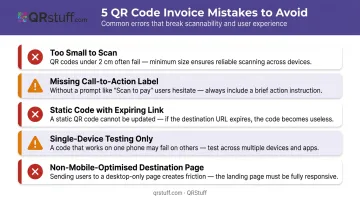
Common Mistakes When Adding QR Codes to Invoices
Most QR code invoice problems trace back to the same handful of avoidable errors. Here's what to watch for before you send a single invoice:
- Printing the code under 1.5 cm forces phone cameras to struggle with focus — always verify actual print dimensions, not just the digital file size.
- Leaving off a label like "Scan to Pay" creates doubt; customers can't tell if the code leads to a payment page or something else entirely.
- Using a static code tied to a payment link that can expire or change means every affected invoice becomes permanently broken — the only fix is reissuing them.
- Testing on only one device misses real-world variation; an older Android with different camera firmware may not scan what your iPhone reads cleanly.
- Linking to a page that isn't mobile-optimized makes the payment experience harder than a paper check — confirm the destination renders correctly on a 5–6 inch screen.
Frequently Asked Questions
Can you put a QR code on an invoice?
Yes — any invoice, printed or digital PDF, can include a QR code. It typically links to a payment portal, a digital invoice copy, or encoded bank transfer details, giving customers a direct path to pay without manual URL entry.
What is a QR invoice?
A QR invoice is a standard invoice that includes a scannable QR code. In some countries — Portugal, India, and Saudi Arabia among them — QR codes on invoices are legally mandated and must contain specific tax and transaction data such as VAT numbers, invoice totals, and digital signatures.
What should a QR code on an invoice link to?
A payment portal with pre-populated invoice details is the most effective destination — customers arrive ready to pay with no manual entry. Alternatives include a digital invoice copy or encoded bank transfer details, depending on your payment processor and how your customers typically pay.
Should I use a static or dynamic QR code on my invoice?
Dynamic. Dynamic QR codes let you update the destination URL after printing — essential when payment links expire, processors change, or invoice URLs shift. Static codes become permanently broken the moment the destination changes.
How big should a QR code be on an invoice?
The practical minimum for printed invoices is 2 cm × 2 cm (0.8 in × 0.8 in). Equally important: include at least four modules of white space (the quiet zone) around the code on all sides, or surrounding invoice content will interfere with scanning.
Do customers need a special app to scan an invoice QR code?
No. iOS 11+ scans QR codes through the native Camera app, and Android 12+ supports scanning via Quick Settings — with most older Android devices handling it through the built-in camera as well. No third-party app needed.