Introduction
Paper intake forms create real problems — clipboards get passed between patients, staff manually re-enter handwritten data, and registration errors cost healthcare organizations up to $96 per duplicate record, with industry-wide inefficiencies from missing information estimated at more than $8 billion annually.
QR codes offer a practical fix: a patient scans a code, opens your intake form on their phone, and submits before they even sit down. No clipboards, no manual re-entry, no transcription errors.
Getting it right takes more than just generating a code. The QR code type, form configuration, and placement location all determine adoption — and getting any one of them wrong means patients skip it entirely. This guide covers how to choose the right code type, set up your form for mobile, and deploy it where patients will actually scan it.
Key Takeaways
- Use a dynamic QR code so you can update the form URL anytime without reprinting signage
- The form must be mobile-optimised, require no app download, and work on both iOS and Android
- Deploy at multiple touchpoints: entrance signage, appointment reminders, and waiting areas
- Set error correction to Level H so printed codes stay scannable with up to 30% damage
- Use scan analytics to identify drop-off points and improve form completion rates
What You Need Before Generating a QR Code for Patient Intake Forms
Getting this right upfront saves rework later. Two things need to be in place before you generate anything: your digital form and your compliance checklist.
Your Digital Intake Form
The form must exist as a shareable URL . Platforms like Google Forms, JotForm, Typeform, or your EHR's patient portal all work — the critical requirement is that the form opens in a mobile browser without requiring an app download or a login patients don't already have.
Before generating the QR code, confirm the form includes:
- Patient demographics (name, date of birth, address, contact details)
- Insurance information and policy numbers
- Medical history and current medications
- Known allergies
- Emergency contact
- Consent to treatment
Missing fields mean updating the form later. That's easier with a dynamic QR code, but still disruptive if patients have already started filling out an outdated version.
Compliance and Security Checklist
The QR code itself does not store patient data. Compliance obligations attach to the form, the platform hosting it, and how submitted data is stored and transmitted.
Key things to verify:
- Does the form platform support HIPAA-aligned data handling? A business associate agreement (BAA) may be required
- Is data encrypted in transit and at rest?
- Does the QR code generator meet third-party security standards? Look for SOC2 and GDPR compliance, which matter when the generator platform handles redirect URLs and scan data
QRStuff, for example, holds both SOC2 and GDPR compliance certifications — a practical baseline when evaluating generator platforms for healthcare use.
Note: A QR code is not inherently HIPAA compliant or non-compliant. What matters is the end-to-end workflow — form platform, data storage, access controls, and vendor agreements. Consult a compliance advisor before going live with PHI-linked intake systems.
How to Generate a QR Code for Patient Intake Forms
Step 1: Get Your Patient Intake Form URL
Open your digital intake form and copy the public or shareable link. Then test it: paste the URL into a mobile browser (not a desktop) and confirm patients can reach, complete, and submit the form without hitting a login wall.
If the form uses email verification or pre-authentication, run through the entire patient flow on both an iPhone and an Android device before proceeding. A form that works on desktop but blocks mobile users will result in immediate abandonment.
Step 2: Select the Right QR Code Type
Navigate to QRStuff and select the "URL" data type — this is the correct type for linking to an online form. Paste your intake form URL into the destination field.
Choose a dynamic QR code, not a static one. Here's why this matters operationally:
| Feature | Static QR Code | Dynamic QR Code |
|---|---|---|
| URL can be updated later | ❌ No | ✅ Yes |
| Scan analytics available | ❌ No | ✅ Yes |
| Requires reprinting if form changes | ✅ Always | ❌ Never |
| Best for intake forms | ❌ No | ✅ Yes |
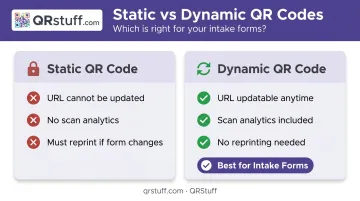
Dynamic QR codes store a redirect URL in QRStuff's dashboard. If your intake form URL changes due to a platform migration, rebuilt form, or EHR switch, you update the destination once and the same printed code keeps working.
For active patient intake workflows, the Lite Suite (50 dynamic codes, no expiration while subscribed) or Full Suite (250 dynamic codes, unlimited scans) are the practical choices. Free tier users get 10 dynamic codes, but with a 30-day expiration and 50-scan monthly limit — workable for testing, not for daily clinic use.
Step 3: Customize the QR Code for a Healthcare Setting
Two settings make the biggest difference in a clinical environment:
- Error correction level: Set this to Level H. According to DENSO Wave, Level H allows up to 30% of the code to be damaged and still scan correctly — critical for codes printed on matte paper, handled frequently, or laminated near high-traffic areas.
- Branding: Add your clinic's logo and brand colors. QRStuff supports logo uploads on paid tiers, automatically scales the logo, and adjusts error correction to keep the code scannable. A recognizable, branded code increases patient trust and scan rates compared to a generic black-and-white square.
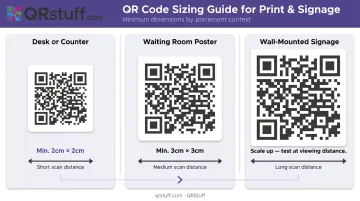
For sizing:
- Desk or counter signage: minimum 2 cm × 2 cm
- Waiting room poster (viewed from arm's length): minimum 3 cm × 3 cm
- Wall-mounted signage (viewed from greater distance): scale up proportionally and test at the actual viewing distance
Step 4: Test, Download, and Deploy
Before printing anything:
- Scan the code with an iPhone using the native Camera app
- Scan again with an Android device using the built-in camera
- Confirm the form loads, all fields are accessible, and the submit button is reachable without scrolling issues
- Complete a test submission end-to-end
Download the QR code in SVG or PNG format at a minimum of 300 DPI for print materials. QRStuff supports both — SVG is preferable for larger signage since it scales without pixelation.
Keep a record of which QR code links to which form version. This becomes important when the form is updated and you need to verify the redirect is pointing to the right destination.
When and Where to Deploy Your Patient Intake QR Code
Where you place your QR code determines whether patients actually use it. The right location catches patients when they have a moment to scan — the wrong one just means staff are still handing out tablets at the front desk.
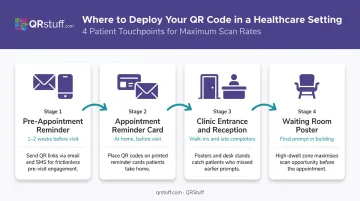
Most Effective Deployment Locations
- Pre-appointment SMS and email reminders — Send the form link 1–2 weeks before the visit. A 2024 electronic intake study found completion times ranged from 2 to 45 minutes, so earlier delivery gives patients time to finish without rushing
- Clinic entrance and reception counter — Catches walk-ins and patients who didn't complete the form beforehand
- Waiting room posters — Reinforces the prompt for patients already in the building; use large format with clear instructional text ("Scan to complete your intake form")
- Appointment reminder cards — Reaching patients at home before the visit, where they have more time and privacy
Creating Separate Codes Per Location
Rather than one QR code deployed everywhere, generate a unique dynamic QR code for each placement. QRStuff's analytics then show exactly which location drives the most scans — waiting room poster versus appointment card versus entrance signage — so you can invest in what works.
When QR Codes Alone Aren't Enough
Smartphone ownership among adults 65 and older has grown steadily, but a meaningful share of older patients still don't own one or aren't comfortable scanning codes. That gap needs a fallback. Keep a tablet at the desk or a paper form available for patients who don't have a smartphone or aren't comfortable with QR codes. Very complex multi-page consent forms are also better sent as a pre-appointment email link rather than expected to be completed in a waiting room.
Common Mistakes and How to Fix Them
Three Mistakes to Avoid
- Static QR code — locks the practice into a permanent URL; any form change requires reprinting across every physical location
- Skipping mobile testing — broken layouts, inaccessible fields, and keyboards that hide the submit button are common; test on real devices before going live
- Low-contrast or undersized printing — poor contrast or a code printed too small will fail under variable waiting room lighting; always use a dark code on a white background at adequate print size
Troubleshooting Quick Reference
| Problem | Likely Cause | Fix |
|---|---|---|
| QR code won't scan | Too small, low resolution, or poor contrast | Reprint at larger size, use high-res export (SVG or 300 DPI PNG), ensure dark code on white background |
| Form doesn't load after scanning | URL changed, form taken offline, or login required | Update destination URL in QRStuff dashboard (dynamic codes only); verify form is publicly accessible on mobile |
| Patients scan but don't complete the form | Form too long, not mobile-optimized, or unclear instructions | Add instructional label near the code; shorten the form; confirm progress is saved automatically |
Frequently Asked Questions
Do patients need to download an app to scan a QR code for an intake form?
No. Modern iPhones (iOS 11 and later) scan QR codes natively through the built-in Camera app. Most Android devices with a current camera app also scan without any separate download. This makes QR-based intake accessible to the vast majority of patients without any setup.
Can I update the patient intake form without reprinting the QR code?
Yes — but only if you used a dynamic QR code. With a dynamic code in QRStuff, you update the destination URL in the dashboard and the same printed code immediately redirects to the new form. Static QR codes encode the URL permanently and cannot be changed.
Are QR codes for patient intake forms HIPAA compliant?
The QR code symbol itself does not store patient data, so it is not the source of the compliance obligation. Compliance depends on the form platform, how submitted data is stored and transmitted, and whether vendor agreements are in place. Verify that your form platform and QR code generator both meet applicable security standards, and consult a compliance advisor for HIPAA-specific guidance.
What type of QR code should I use for a patient intake form?
Use a dynamic URL QR code. It links directly to the form and allows you to update the destination URL without reprinting — unlike static QR codes, which are permanent. In QRStuff, select "URL" as the data type and choose the dynamic option during setup.
How large should a patient intake QR code be for a clinic waiting room poster?
A minimum of 3 cm × 3 cm for codes scanned at arm's length. For wall-mounted posters viewed from a greater distance, scale the code up and test scannability at the actual viewing distance before finalizing the print. Always preserve the quiet zone — the clear border around the code — as reducing it degrades scan reliability.
Can I track how many patients have scanned the intake form QR code?
Yes. Dynamic QR codes in QRStuff provide real-time analytics including total scans, unique scans, device type, geographic location, and time-based data. For multi-location practices, create a separate dynamic code for each placement to compare scan rates by location and see exactly where patients are engaging.