A payment QR code solves this directly. Instead of hoping viewers remember to find your link later, you put the payment action on screen — scannable with any phone, no app required.
Many creators know QR codes exist but stall on the setup: which platform to link, which code type to generate, where to place it in the video. This guide covers exactly that, start to finish.
Key Takeaways
- A YouTube payment QR code links your video directly to a payment page, such as PayPal, Stripe, Patreon, or Buy Me a Coffee.
- You need a shareable payment URL and a QR code generator before you start.
- Use dynamic QR codes so you can update the destination later without re-uploading or reprinting the code.
- Keep the code on screen for at least 5–10 seconds and pair it with a spoken prompt so viewers have time to scan.
- Track scans through your QR generator's analytics — scan volume, location, and device data show which videos are driving payments.
When to Use a QR Code for YouTube Payments
QR codes aren't useful in every video context. They perform best in specific conditions.
Where they work well:
- TV viewers who can't tap a description link — the QR code is their only path to payment
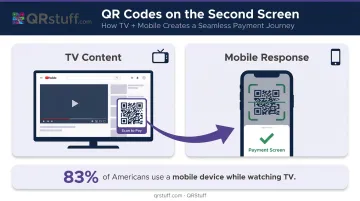
- Multi-screen viewers watching TV while holding a phone (83% of Americans use a mobile device while watching TV, per CTV research)
- Tutorial and demo videos where a viewer wants to buy the product shown before the video ends
- Limited-time offers that require immediate action rather than a later click
- Live-stream replays and webinar recordings where the creator can't drop links in real time
Not every video format is a good fit, though.
Where they underperform:
- Fast-moving talking-head videos with no natural pause — viewers can't scan what won't hold still long enough to read
- Codes pointing to a general homepage or login wall instead of a direct checkout screen
- Videos where the on-screen code has no verbal instruction to prompt scanning
The TV-plus-phone pairing makes the strongest case for payment QR codes in YouTube content. If your channel analytics show significant TV watch time (filterable in YouTube's Advanced Mode by Device Type), an on-screen QR code becomes the primary payment mechanism for that audience segment — not a nice-to-have.
What You Need Before You Start
Three things, no more:
| Requirement | Why it matters |
|---|---|
| A payment platform account | PayPal.me, Cash App ($cashtag), Stripe Payment Link, Buy Me a Coffee, Patreon, or Shopify — this generates the URL your QR code will encode |
| A direct, shareable payment URL | Must land on a payment or checkout screen, not a general profile or login page |
| A QR code generator with dynamic code support | Dynamic codes let you swap the destination URL later without regenerating the image |
Each platform above generates a clean, direct payment URL. Cash App creates cash.app/$yourcashtag automatically. Stripe Payment Links are reusable hosted checkout pages that support 40+ payment methods. Buy Me a Coffee specifically documents QR codes as a sharing method for creators — making it a natural fit for YouTube use.
On the generator side, a free-tier account often restricts dynamic codes to short expiration windows and low monthly scan limits. Platforms like QRStuff offer dynamic code functionality starting from entry-level paid plans, with scan analytics, editable destinations, and no code expiration included.
How to Create and Use a YouTube Payment QR Code
Follow this sequence. The most common failure point is skipping the scan test before publishing.
Step 1: Get Your Payment URL
Log into your payment platform and locate the shareable link:
- PayPal: paypal.com/paypalme/ → choose your custom link
- Cash App: Settings → your $cashtag URL generates automatically
- Stripe: Stripe Dashboard → Payment Links → Create Link
- Buy Me a Coffee / Patreon: your creator profile URL works, but a direct support link is cleaner
Paste the URL into a browser tab and confirm it loads a payment screen without requiring a login first. If the link requires authentication before showing a payment option, find the public-facing version or generate a new one.
Step 2: Generate the QR Code
In QRStuff (or your preferred generator):
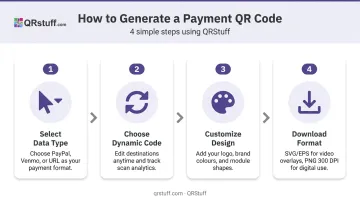
- Select the data type — QRStuff offers dedicated PayPal and Venmo payment types where you can enter your payment email and an optional amount. For Stripe, Shopify, Buy Me a Coffee, or Patreon, use the standard URL data type and paste your payment link directly.
- Choose dynamic QR code over static — dynamic codes route through a redirect server, which is what enables destination edits and scan tracking later.
- Customize the design: upload your logo, apply brand colors, and adjust module and eye shapes. QRStuff includes gradient options and real-time preview. (Styling features require a paid subscription.)
- Download in SVG or EPS for video overlays and print; use a high-resolution PNG (minimum 300 DPI) for digital-only use. Vector formats scale without pixelation at any display size.
Step 3: Add the QR Code to Your Video
On-screen overlay (primary placement):
- Import the QR code image into your video editor as a static overlay
- Position it in the lower third — far enough from edge graphics and captions to remain fully visible
- Hold it on screen for at least 5–10 seconds
- Pair it with a verbal call-to-action: "Scan that code on screen now to grab the course at launch price" works; a silent code displayed for two seconds does not
For TV viewers specifically: YouTube's native QR Shopping feature applies only to creators in the YouTube Partner Programme enrolled in the Shopping affiliate programme across 12 eligible countries. A custom payment QR code works independently, for any creator, on any plan, at any time.
Secondary placements:
- Video description — paste the direct payment URL as a clickable link (note: Shorts descriptions do not support clickable URLs per YouTube's link policy)
- Pinned comment — useful for desktop and mobile viewers who prefer clicking
- Thumbnail — for tip-jar or donation use cases where the CTA is the core message of the video
Step 4: Test Before Publishing
From a mobile device:
- Open the native camera app (no separate scanner app needed on modern iOS or Android)
- Point it at the QR code as it appears in your video preview
- Confirm the destination URL loads correctly
- Complete a test payment or verify the checkout screen renders cleanly on mobile
If the code doesn't scan reliably at the size shown in your video, increase the on-screen dimensions. QRStuff recommends a minimum of 2cm × 2cm at scanning distance — scale up for TV or large-display contexts.
Step 5: Monitor Scans After Publishing
QRStuff's analytics dashboard for dynamic codes reports:
- Total and unique scans
- Device type (mobile vs. desktop, iOS vs. Android)
- Geographic data (country and city level)
- Scan time and date
- Referring website or app (for digitally-shared codes)
Data is available in real time, in both table and graph format, with Excel and PDF export options.
Cross-reference scan data with your payment platform's transaction records. If scans are high but payments are low, the issue is usually the landing page — either it requires a login before payment, loads slowly on mobile, or presents too many steps before checkout.
Step 6: Update or Retire the Code
When a payment link expires, you migrate platforms, or a campaign ends:
- Log into your QRStuff dashboard
- Locate the dynamic code and update the destination URL
- Save — the redirect updates immediately
The printed or embedded QR code image stays identical. No re-upload to YouTube, no reprint of physical materials. This is the core reason dynamic codes are worth the paid plan over static codes for any ongoing creator or business use.
Best Practices for YouTube Payment QR Codes
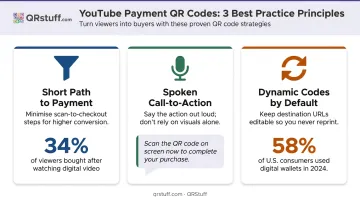
Three principles consistently separate high-converting payment QR codes from ones that get ignored:
- Short path to payment. Every extra step — a login prompt, an upsell page, a redirect — reduces completion. Research from a Google-commissioned BCG study found that 34% of viewers bought a specific item after watching digital video, but only when the path to purchase was direct. Your destination URL should hit a payment screen in as few taps as possible.
- Spoken call-to-action. A QR code displayed without verbal context gets ignored. Tell viewers exactly what happens when they scan — "Scan the code in the bottom right to download the template for free" converts far better than silent placement.
- Dynamic codes by default. 58% of U.S. consumers used digital wallet options in 2024 — mobile payment behavior is already established. What changes is your campaign: a Stripe link expires, you switch processors, a limited offer ends. Dynamic codes absorb all of that without reprinting or resharing.
Beyond those core principles, a few operational checks will save you from avoidable errors:
- Test the full scan-to-payment flow from both iOS and Android before publishing
- Keep QR code contrast high — dark code on a light background, or a white border if overlaid on dark video
- For high-value campaigns, check scan data 24–48 hours after publishing to catch any redirect errors early
- Never link to a URL that requires viewer login before the payment screen appears
Frequently Asked Questions
How do you scan a QR code shown in a YouTube video?
Open your phone's native camera app, point it at the QR code on screen, and tap the notification link that appears. No separate scanner app is needed on most modern iPhones or Android devices. For TV viewing, simply hold your phone up to the TV screen while the code is displayed.
How do I pay my YouTube account?
YouTube account payments — for Premium subscriptions or channel memberships — are managed through YouTube Settings > Purchases & Memberships or via Google Play billing. These are separate from creator-generated payment QR codes, which point to external platforms like PayPal or Stripe.
How do I update my YouTube TV payment method?
Go to youtube.com/paid_memberships or your Google Account payment settings to swap credit cards or update billing information for YouTube TV. This is unrelated to custom creator QR codes.
What payment platforms work best with YouTube QR codes?
PayPal.me, Cash App, Stripe Payment Links, Patreon, and Buy Me a Coffee all generate clean, shareable URLs that encode easily into QR codes. Any platform producing a public-facing checkout URL — one that loads without requiring viewer login — works.
Can you add a QR code directly inside a YouTube video?
QR codes are added as visual overlays during video editing, before upload. YouTube has no native post-upload QR insertion tool outside of its Shopping programme for eligible creators. The code is baked into the video file itself.
Are payment QR codes in YouTube videos safe to scan?
Only scan codes from creators you trust. Before tapping, check the URL preview — legitimate platforms show recognisable domains (paypal.com, cash.app, stripe.com), and the FTC advises inspecting for misspellings or substituted characters. QRStuff uses transparent redirect URLs so the destination is visible before you tap through.