The good news: whether you need to fix it depends entirely on what went wrong and what type of QR code you used. Some errors take minutes to resolve without touching a single card. Others require a reprint. This guide walks through how to diagnose the problem, apply the right fix, and make sure it never happens again.
Key Takeaways
- QR code errors on business cards typically stem from a wrong URL, bad encoded content, or poor print quality
- Dynamic QR codes let you fix a wrong destination instantly from your platform dashboard — no reprinting required
- Static QR codes require either a QR sticker overlay on remaining cards or a targeted reprint
- Always test the physical printed card on multiple devices before distributing — it catches nearly every error
- For future print runs, use dynamic QR codes so any destination change takes seconds, not a reprint
Common Reasons a Business Card QR Code Goes Wrong
Most QR code errors on business cards follow predictable patterns. Identifying the right cause before attempting any fix saves time and avoids repeating the same mistake.
Three root cause categories cover nearly every failure:
Wrong or broken destination — The encoded URL contains a typo, points to a page that has moved, or links to a domain that no longer exists. Cards printed months before a website migration or job change are especially vulnerable.
Incorrect content type — The code was generated with the wrong data entirely: a vCard with an outdated phone number, a link to a personal portfolio instead of a company page, or a plain URL where a vCard was intended.
Unscannable print — The destination is correct, but the code can't be read due to physical issues. These include:
- Printed below 2 x 2 cm, the recommended minimum size for close-range scanning
- Exported as a low-resolution JPEG instead of SVG or high-resolution PNG
- Insufficient contrast between the code and background
- Missing quiet zone — the clear border that DENSO WAVE specifies as four modules wide on all sides
- Design elements overlapping the code pattern
Knowing which category applies determines which fix to use — and whether reprinting is even necessary.
How to Diagnose the Exact Problem
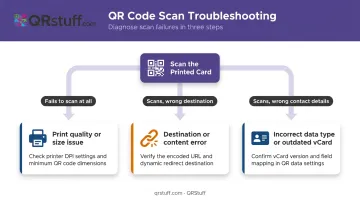
Step 1: Scan the printed card
Use at least two different smartphones — one iOS, one Android — and test with both the native camera app and a dedicated QR reader app. Note exactly what happens:
- Fails to scan at all → likely a print quality or size issue
- Scans but goes to the wrong place → destination or content error
- Scans but displays wrong contact details → incorrect data type or outdated vCard content
Step 2: Determine static or dynamic
If the code scans but lands in the wrong place, log into the platform you used to generate it. If there's an edit option for the destination, you have a dynamic code and can update it without reprinting. If no edit option exists, it's static — fixing it requires physical intervention.
In QRStuff, the distinction is visible at the creation stage: dynamic codes are created with the "Enable Analytics" and "Update Later" options enabled, both labelled explicitly as (dynamic only). If you used QRStuff and aren't sure which type you generated, check your dashboard — dynamic codes appear in the managed QR codes section with analytics data attached.
Step 3: Isolate print quality issues
If Step 1 showed a complete scan failure, test the code on-screen from the original digital file. If the digital version scans cleanly but the printed card doesn't, the problem is physical — size, resolution, contrast, or a cropped quiet zone — not the encoded data.
Hold the card at roughly 20–30 cm and test under different lighting: indoor fluorescent, daylight, and low light. Glare on glossy or metallic card finishes is a common culprit that's easy to miss indoors.
How to Fix a Wrong QR Code on Your Business Card
The right fix depends on the error type and whether you're working with a static or dynamic code.
If the QR Code Is Dynamic and the Destination Is Wrong
Log into your QR code platform dashboard and update the destination URL. The physical QR code pattern on the card does not change; only the redirect destination changes server-side.
In QRStuff, dynamic codes use a short redirect URL: when scanned, the platform records the event and forwards the user to your updated destination. This fix takes minutes, requires zero reprinting, and applies to every card already in circulation — not just the ones still in your drawer. That's the core advantage of dynamic codes for printed materials.
If the QR Code Is Static and the Destination or Content Is Wrong
A static code cannot be edited after creation. Your options for cards still in hand:
- QR sticker overlay — Generate a corrected QR code, print it on small adhesive labels sized to cover the existing code, and apply to remaining unissued cards. The sticker must be flat, fully opaque, and cover the old code completely including its quiet zone. VistaPrint sells custom QR code stickers for this exact use case, though they note the application surface must be clean, smooth, and dry.
- Targeted reprint — For cards already distributed, a sticker isn't an option. Reach out to recipients directly if the context warrants it, or plan a reprint of the next batch using a dynamic code.
If the QR Code Won't Scan Due to Print Quality
The data may be correct, but the code is physically failing. Fix the file first, then reprint:
- Re-export as SVG or high-resolution PNG (minimum 300 DPI) — Instantprint recommends vector formats like SVG, AI, or EPS for print clarity; QRStuff supports SVG and EPS downloads for this purpose
- Confirm the printed size is at least 2 x 2 cm for simple URLs
- Verify the quiet zone (clear white border) is intact and not cropped by the card layout
- Check contrast — a dark code on a white or light background is the baseline; avoid light-on-light combinations and reflective finishes
Apply a sticker overlay as an interim fix for cards already printed, then reprint the corrected batch.
If the Destination URL Has Since Changed or Broken
Unlike a generation error, this means the code was correct when printed but the destination has since moved.
- If you own the destination domain: set up a 301 redirect from the old URL to the new page
- If you used a dynamic QR code: update the redirect destination in your platform dashboard — takes minutes
- If neither option is available: sticker overlay on remaining stock, dynamic code on the next reprint
Test and Validate Before Redistributing
After any fix, scan the corrected code on at least three devices under varied lighting conditions:
- Indoor fluorescent — the most common scanning environment for business cards
- Natural daylight — tests contrast and reflective surfaces
- Low light — reveals whether contrast and module size hold up
For sticker overlays, test the physical sticker on actual card stock at arm's length to confirm it's fully opaque and reads cleanly. Don't redistribute until the fix is confirmed across all conditions.
Should You Fix the QR Code or Reprint?
Three factors determine the right call: how many cards are already distributed, whether a sticker overlay works on your card's finish, and the ongoing cost of leaving the error in circulation.
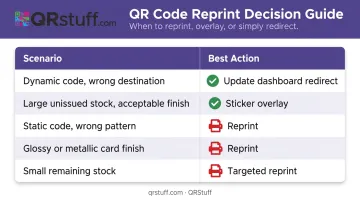
| Scenario | Best Action |
|---|---|
| Dynamic code, wrong destination | Update redirect in dashboard — no reprint needed |
| Large unissued stock, acceptable card finish | Sticker overlay (verify flatness, contrast, adhesion) |
| Static code, wrong pattern or content type | Reprint — sticker won't fix wrong encoded data |
| Glossy, metallic, or embossed card finish | Reprint — sticker adhesion and glare risk is high |
| Small remaining stock, high-value card design | Targeted reprint of affected quantity only |
Glossy and metallic finishes create a specific scanning problem worth understanding. Glare from reflective surfaces can prevent cameras from reading a QR code even when the code itself is technically correct — a sticker on a foil card typically makes scanning harder, not easier, if the sticker material adds its own glare layer.
How to Prevent QR Code Errors on Future Business Cards
Use Dynamic QR Codes by Default
This is the most important structural change. With a dynamic code, a wrong destination, a job change, or a URL update never requires reprinting — you update the redirect in your dashboard and every card already in circulation immediately points to the correct place.
QRStuff's dynamic QR codes include real-time scan tracking (scan count, device type, location, time of scan), so you can confirm the code is reaching the right destination after cards are distributed.
All QRStuff subscription tiers include dynamic codes: the Free Suite provides 10 dynamic codes (with a 30-day expiration), while paid tiers start at the Lite Suite with 50 permanent dynamic codes and no expiration.
Always Test the Physical Card Before the Full Run
Generate the final QR code, embed it in the card design at print resolution, send a proof to the printer, and physically scan the proof on multiple devices before approving the full batch. This single step eliminates the vast majority of business card QR code problems, yet it's skipped in most cases where errors occur.
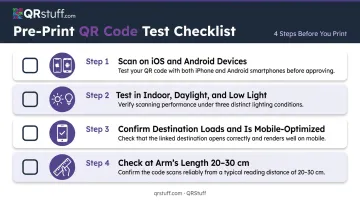
Test checklist before approving print:
- Scan on iOS (native Camera app) and Android (native Camera app + Google Lens)
- Test in indoor light, daylight, and low light
- Confirm the destination loads fully and is mobile-optimized
- Check the code at arm's length (20–30 cm), not up close
Getting the physical test right covers scanning behavior — the file format and sizing choices made before print are what determine whether the code is scannable in the first place.
Use the Correct File Format and Size
- Export as SVG or EPS for professional printing; use PNG only at 300 DPI minimum
- Confirm printed size is at least 2 x 2 cm for simple URLs; go larger for dense data like vCards
- Never crop the quiet zone in the card layout — brief your designer on this before the file goes to print
- Avoid placing the code on glossy, metallic, or textured areas of the card
Frequently Asked Questions
How can I fix a wrong QR code on a business card?
The fix depends on whether the code is static or dynamic. Dynamic codes can be corrected by updating the destination URL in your platform dashboard — no reprinting required. Static codes require either a corrected QR sticker overlay on remaining unissued cards or a reprint of the batch.
Can a QR code fit on a business card?
Yes, a QR code fits comfortably on a standard business card. The recommended minimum is 2 x 2 cm for simple URLs, typically placed on the card's back to keep the front uncluttered. For denser data like vCards, slightly larger is preferable to maintain reliable scannability.
Can I update a QR code on a business card without reprinting?
Only if the code was created as a dynamic code. Dynamic codes use a short redirect URL that can be changed in the platform dashboard at any time. Static codes have the destination permanently encoded into the pattern and cannot be edited after creation.
What is the difference between a static and a dynamic QR code?
A static QR code permanently encodes its destination into the pattern; once created, it cannot be changed. A dynamic QR code encodes a short redirect URL that can be updated at any time from your platform dashboard. For printed materials like business cards, dynamic codes are the practical choice.
How do I know if my business card QR code is working correctly?
Scan the final printed card (not just the digital file) on at least two different smartphones — using both the native camera app and a dedicated QR reader — and confirm the correct destination loads fully. Do this before distributing cards, not after.
What should I do if my business card QR code leads to the wrong website?
If the code is dynamic, log into your platform dashboard and update the redirect URL — the change takes effect immediately without reprinting. If the code is static, apply a corrected QR sticker overlay to unissued cards and reprint using a dynamic code to avoid repeating the problem.