According to BrightLocal's 2025 Local Consumer Review Survey, 96% of consumers are willing to write reviews — the gap isn't motivation, it's friction. A QR code eliminates that friction by taking someone from a physical moment (finishing their meal) to a posted review in two taps.
But not all QR code implementations work equally well. Where you place the code, how it's designed, and whether it links to the right destination are what separate restaurants that collect dozens of reviews a month from those that collect none.
This guide walks through exactly how to set up, place, and optimise review QR codes — and what most restaurants get wrong.
Key Takeaways
- A review QR code bypasses the search step and sends customers directly to the star-rating screen
- Place codes on table tents and receipts for dine-in guests; use takeout bags and delivery inserts to reach off-premise customers
- Dynamic QR codes let you update the destination URL without reprinting, so link changes never require new materials
- One scan should land customers on the review form, not your homepage or general Maps listing
- Tag each code by placement in your analytics dashboard to identify which spots drive the most scans
How to Set Up a Review QR Code for Your Restaurant
Step 1: Get Your Direct Review Link
The most common mistake restaurants make starts here — linking to a Google Maps listing page instead of the actual review prompt.
For Google: Log into your Google Business Profile, click "Read Reviews," then select "Get more reviews." Google generates a direct shareable link that drops customers straight onto the star-rating screen. Google's own guidance confirms this is the correct method for requesting reviews.
For other platforms:
- TripAdvisor: Use TripAdvisor's Review Express tool to generate a direct review invitation link
- Yelp: Note that Yelp explicitly prohibits businesses from asking customers to write reviews — their policy covers direct solicitation regardless of method, so proceed with caution on that platform
For most restaurants, Google should be the primary target — it has the highest local search impact and the most straightforward review collection process.
Step 2: Create the QR Code
Once you have your direct review link, you need to decide between a static or dynamic QR code — and this choice matters more than most restaurant owners realize.
| Static QR Code | Dynamic QR Code | |
|---|---|---|
| Destination editable after printing | ✗ No | ✓ Yes |
| Scan tracking/analytics | ✗ No | ✓ Yes |
| Works if review URL changes | ✗ No | ✓ Yes |
| Cost | Usually free | Requires paid plan |
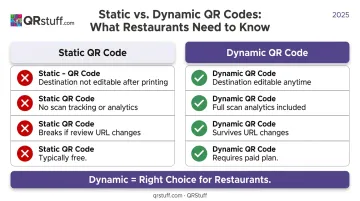
Dynamic is the right choice for restaurants. If Google updates your review URL or you decide to test a different platform, a static code printed on 500 table tents becomes instantly useless. Dynamic codes use a short redirect URL — the printed code never changes, but you can update the destination anytime from your dashboard.
QRStuff supports dynamic URL-type QR codes with real-time scan tracking and URL editing after printing. For review collection specifically, you can either use the dedicated Google Review QR code type (which auto-generates the correct link from your business name) or enter your direct review URL manually. Dynamic codes are available starting with the Lite Suite plan ($5/month).
Step 3: Customise the Design
A plain black-and-white QR code on a table tent rarely stands out from everything else competing for attention.
Nielsen Norman Group recommends clearly labelling what a QR code does and ensuring it deep-links directly to the relevant action. That means your code needs both a visual identity and a clear CTA.
Design recommendations:
- Add your restaurant's logo to the centre of the code
- Apply your brand colours (available on paid QRStuff plans)
- Include a short CTA directly beneath the code — "Enjoyed your meal? Scan to leave us a Google review" outperforms a generic "Scan me"
- Maintain high contrast between the code and its background — dark modules on a light background, never the reverse
Sizing by placement:
| Placement | Minimum Size |
|---|---|
| Table tents / receipts | 2cm × 2cm (close range) |
| Window / door signage | Add 1cm per 10cm of scan distance |
| Takeout bag stickers | 2.5cm × 2.5cm recommended |
NN/g's sizing rule: for every 10cm of expected scanning distance, add 1cm to the code's dimensions. A window code scanned from 50cm away should be at least 7cm × 7cm.
For professional printing, export as SVG or EPS (vector formats scale without pixelation). For receipts and inserts, high-resolution PNG at 300 DPI minimum is sufficient.
Step 4: Test Before You Print
Testing is non-negotiable. A broken link or a code that resolves to the wrong page means every customer who scans leaves without reviewing. You won't know it's happening until your review count stalls.
Before printing anything, verify:
- Scan on both iOS and Android using native camera apps
- Confirm the destination lands directly on the review form — not your homepage, not your Maps listing
- Check that no login or additional navigation is required
- Test from the same distance and lighting conditions as the intended placement
- Try it with a QR scanner app as a secondary test
QRStuff's platform includes a built-in preview function so you can visually inspect the code before downloading. Still, always print a single test copy at actual size before committing to a full run.
Step 5: Print and Deploy
Choose your output format based on the placement:
- Table tents and window decals: Professional printing using SVG/EPS files for clean edges at any size
- Receipts and bill inserts: High-res PNG works fine; consider a rubber stamp or sticker if you can't reprint receipt rolls
- Takeout bags and packaging: Sticker labels printed in bulk are the most cost-effective approach
Keep a record of which QR code URL corresponds to which placement. In QRStuff, you can assign campaign tags to each code (e.g., "Table Tent," "Receipt," "Takeout Bag") so your analytics dashboard shows performance by location rather than lumping all scans together.
Where to Place Review QR Codes in Your Restaurant
Placement is what most restaurants get wrong. The same QR code will perform very differently depending on when and where a customer encounters it.
Table Tents and Tabletop Displays
Tabletop placement catches customers at the highest point of satisfaction — right after finishing a meal. Position the QR code on a table tent card with a human-sounding prompt: "Enjoyed your meal? Let others know" lands better than the flat "Leave a review."
Place it where it's visible without being intrusive — near the condiments or alongside the bill presenter works well. Takeout customers need a separate approach (more on that below).
Receipts and Payment Inserts
Printing or stamping a QR code on the receipt reaches customers at the exact moment they're wrapping up their experience. Pairing it with a brief handwritten-style note — even pre-printed — makes it feel less transactional: "Thanks for visiting. We'd love to hear what you thought."
The built-in advantage here is simple: the customer is already holding the receipt.
Takeout and Delivery Packaging
Nearly 75% of all US restaurant traffic now occurs off-premise — takeout, delivery, or drive-thru. That's a massive review opportunity most restaurants ignore.
A sticker on the takeout bag reading "How was your order? Scan to review us" reaches customers after they've eaten and formed their final impression. Keep the sticker simple and the CTA visible from the top of the bag.
Window and Door Signage
Exit signage creates a low-pressure, self-initiated review moment. Customers who choose to scan on their way out are already in a positive mindset — they're not being prompted by a server, they're choosing to engage.
It also runs entirely without staff involvement, which matters in high-turnover service environments.
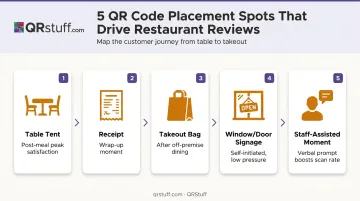
Staff-Assisted Moments
A verbal mention from a server or host measurably increases scan rates. A line like "There's a quick scan on your receipt if you'd like to share your experience" is all it takes. The code handles the rest — staff are just making sure customers notice it.
Key Factors That Affect How Many Reviews Your QR Codes Generate
Two restaurants can use identical QR codes and see completely different results. These variables determine which side of that equation you land on.
CTA Clarity
The text around your QR code is doing more work than the code itself. Vague prompts like "Scan me" tell customers nothing about what they're about to do or why they should bother.
Specific, outcome-framed prompts perform consistently better:
- ❌ "Scan me"
- ❌ "Leave a review"
- ✅ "Loved your meal? Leave us a Google review and help others find us"
- ✅ "Enjoyed your visit? 30 seconds to review us goes a long way"
NN/g's QR code guidelines specifically recommend telling users what a code does and where it leads — this directly applies to review CTAs.
Timing of the Request
The window between finishing a meal and leaving the restaurant is your best opportunity. Emotion is fresh, the experience is still vivid, and the customer hasn't moved on to other things. Receipt-based and table tent QR codes intercept customers at that moment.
Follow-up emails sent days later still work, but compete against a much colder emotional state. Research shows 64% of diners focus on reviews less than a month old — meaning recent reviews carry more weight, which makes capturing them at the moment of peak experience especially valuable.
Platform Choice
Google should be your primary platform. 81% of US consumers use Google to evaluate local businesses, and Google reviews carry the most weight for local search visibility. Your QR code must link directly to the review prompt — not your Maps listing, not your website.
For restaurants wanting multi-platform coverage, create separate tagged QR codes for each platform, or use QRStuff's Multi URL functionality to build a single landing page where customers choose their preferred platform. The latter adds one step but can capture more reviews overall.
Scan Tracking and Optimization
Placement guesswork costs you reviews. Dynamic QR codes with analytics show you exactly which spots generate scans — so you can act on real data instead of assumptions.
QRStuff's analytics dashboard tracks scans by device (iOS vs. Android), location, and time of day. Using campaign tags — "Table Tent," "Receipt," "Exit Sign" — lets you compare performance by placement directly in the dashboard. If your receipt codes are outperforming table tents three-to-one, that's where your next print run should focus.
Common Mistakes Restaurants Make With Review QR Codes
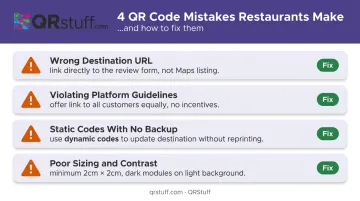
A few avoidable errors can quietly kill your scan rates — or worse, get your listing flagged. Here are the four most common ones:
Wrong destination URL. Sending customers to your Google Maps listing instead of the direct review form adds two or three extra taps. Most people won't navigate further. Test the exact URL before printing anything.
Violating platform guidelines. Google explicitly prohibits offering discounts in exchange for reviews and showing the review link only to customers who had a good experience (review gating). TripAdvisor removed over 1.3 million fake and paid reviews in 2022 alone. Offer the link to all customers equally — no conditions, no rewards.
Static codes with no backup plan. If your review URL changes or you switch platforms, printed codes on table tents and packaging become useless overnight. Dynamic codes fix this: the printed code stays the same, and you update the destination from your dashboard.
Poor sizing and contrast. A QR code that's too small, poorly lit, or low-contrast won't scan reliably. Use a minimum of 2cm × 2cm for close-range placements and scale up for anything scanned from more than 30cm away. Dark modules on a light, uncluttered background scan best.
Frequently Asked Questions
How do I increase Google reviews for my restaurant?
Get your direct review link from Google Business Profile ("Get more reviews"), deliver it via QR code at the moment customers are most satisfied (table tents, receipts), and have staff mention it briefly. The goal is reducing steps between a happy customer and a submitted review.
What do QR codes in restaurants lead to?
Restaurant QR codes can link to menus, payment pages, loyalty programs, or social media. When used specifically for reviews, they should link directly to the platform's review submission form — not a general profile or homepage — to avoid any unnecessary navigation.
Can I use one QR code to collect reviews on multiple platforms?
Yes. Create separate tagged QR codes for each platform (Google, TripAdvisor), or link a single dynamic code to a landing page where customers choose their preferred platform. The latter adds one tap but captures reviews across multiple sites.
How do I find my direct Google review link?
In Google Search, find your Business Profile, click "Read Reviews," then select "Get more reviews." Copy the generated link — this drops customers directly onto the star-rating screen when scanned.
Where should I put a QR code for restaurant reviews?
Table tents and receipts work best for dine-in customers, catching them at peak satisfaction. Takeout bags and delivery inserts reach off-premise diners after they've eaten and formed their final opinion.
Do QR codes for reviews actually work?
Yes, when set up correctly. The code must link directly to the review form (not a general listing), pair with a clear CTA, sit at the right placement touchpoint, and be large enough to scan easily. 59% of full-service diners are comfortable using QR codes in restaurants, so the behavior is increasingly natural.