The concept is simple. The execution has a few moving parts that, if ignored, result in guests who scan and land nowhere — or never scan at all.
This guide covers every decision: choosing your RSVP destination, generating and customising your code, placing it correctly on the card, and confirming it actually works before printing a full run.
Key Takeaways
- Dynamic QR codes are the safer choice for printed cards — you can update the destination URL without reprinting.
- Minimum print size is 0.8 × 0.8 inches; always use dark code on a light background.
- Every card needs a plain-text URL backup and a printed RSVP deadline — not just the QR code.
- Test the physically printed code on multiple devices before approving the full print run.
- QRStuff's scan analytics show response rates by device, location, and time — so you know exactly who's engaged before replies come in.
How to Create an RSVP Card with QR Code
Step 1: Set Up Your RSVP Destination
Before generating anything, decide where the QR code will send guests. Common options:
- Wedding website RSVP page — keeps everything in one place for guests
- Google Forms — free, quick to set up, mobile-responsive by default
- RSVPify — purpose-built for event RSVPs, with built-in guest management
- Typeform — clean mobile experience, forms are designed to be mobile-friendly by default
Two things to confirm before moving on:
- The page works on mobile. Guests will scan and complete the form on their phones. Test it yourself on a small screen first.
- The URL is stable. RSVPify allows event URLs to be updated in Event Settings, and Typeform allows forms to be closed to new respondents — either action after printing breaks a static QR code. Use a URL you control, or use a dynamic QR code (covered in Step 2).
Step 2: Generate the QR Code
Go to a QR code generator, select the URL data type, paste your destination link, and generate the code.
Static vs. dynamic — which to use for printed cards?
| Type | How it works | Can you change the destination after printing? |
|---|---|---|
| Static | URL is permanently encoded in the pattern | No |
| Dynamic | Uses a short redirect URL | Yes |
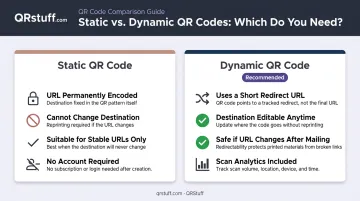
For printed RSVP cards, dynamic is the better choice. If your destination URL changes after cards are mailed: a platform restructures its URLs, you switch RSVP tools, or you spot a typo in the link. A dynamic code lets you redirect scans to the correct page without reprinting anything.
QRStuff offers dynamic QR codes on paid plans, with editable destination URLs you can update any time through your dashboard. The free plan includes 10 dynamic codes, but they expire after 30 days — too short for most event timelines.
QRStuff also provides scan analytics for dynamic codes, including total scans, device types, and geographic data. This lets you monitor how many guests have engaged digitally before your RSVP deadline.
Step 3: Customise and Download the QR Code File
Customisation is optional, but a code that matches your invitation palette integrates naturally with the rest of the design.
What you can safely adjust:
- Foreground and background colours (maintain strong contrast — more on this below)
- Module and eye shapes
- A centered logo (QRStuff automatically increases error correction when a logo is added, keeping the code scannable with a logo covering up to 30% of the surface)
File format for print:
Download in SVG or EPS (vector format). Adobe confirms that SVG files are resolution-independent and scale without quality loss — essential for print. PNG can pixelate if enlarged. If only PNG is available, export at a minimum of 1,000 × 1,000 pixels. Never use a screenshot.
QRStuff supports SVG, EPS, and PDF vector downloads alongside PNG, and recommends vector formats specifically for professional printing.
Step 4: Place the QR Code on Your Card Design
Open your design in Canva, Adobe Illustrator, or your preferred tool and place the QR code file.
Placement rules:
- Put it on the front face of the card, not the back — guests rarely flip RSVP cards over
- Position it in the bottom third or a corner so it doesn't compete visually with event details
- Leave at least 0.25 inches of blank space on all four sides (the quiet zone) — DENSO WAVE, the QR code inventor, specifies a four-module wide margin at all sides is required for reliable scanning
Supporting text to include around the code:
- One-line instruction: "Scan with your phone camera to RSVP"
- RSVP deadline: "Kindly reply by [Date]"
- Plain-text URL backup: "Or visit yourwebsite.com/rsvp"
Step 5: Test Before Printing
This is the step most people skip. It's also the one that matters most.
- Print a physical test copy at 100% scale (not "fit to page")
- Test with at least three devices — an iPhone, a current Android, and an older Android
- Scan from 12–18 inches away in normal indoor lighting
- All three should load in under 3 seconds
- Complete the RSVP form on a mobile device to confirm the end-to-end journey works
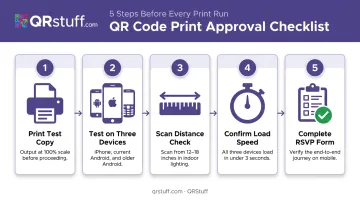
Adobe recommends testing QR codes with different devices and in various lighting conditions before printing. A code that looks fine in a PDF proof can fail when printed due to resolution loss or colour shift.
What to Put on an RSVP Card with a QR Code
The QR code is one element. Everything printed around it determines whether guests actually respond.
Every QR code RSVP card needs these five elements:
- Place the QR code prominently on the front, sized large enough to scan easily
- Scan instruction — "Scan with your phone camera to RSVP" removes ambiguity. No app needed on modern iPhones or Android devices
- RSVP deadline — print it in clear, readable text: "Kindly reply by [Date]." Guests who don't scan still need to see this
- Plain-text URL backup — print the destination URL in small text below the code: "Or visit yourwebsite.com/rsvp." This covers guests whose phones won't scan or who prefer typing
- Optional contact fallback — for events with mixed age groups, add a phone number or email: "Unable to scan? Contact [Name] at [number/email]." This catches responses from guests who can't scan
Design Tips for Your QR Code RSVP Card
Getting the details right ensures guests can scan your QR code without friction. Here's what to focus on.
Size
According to Nielsen Norman Group's 2024 QR usability guidance, the official minimum is 1 cm × 1 cm, but at least 2 cm × 2 cm (0.8 × 0.8 inches) is recommended for reliable scanning. For a standard 4 × 5.5 inch RSVP card, aim for 1 inch square. Smaller than 0.8 inches increases failure risk noticeably on older devices.
Contrast and Color
What works:
- Black on white — the most universally reliable combination
- Dark navy, charcoal, or forest green on cream
- Dots should be at least 70% darker than the background (QRStuff's recommended threshold)
What to avoid:
- Pale gold on cream or any low-contrast pairing
- Code placed over a patterned background
- Inverted colors (white code on dark background): per NN/g, this can reduce compatibility with older scanning technology
If you're uncertain about a color combination, test the physical print before committing — on-screen colors often print differently.
Placement
Front face, bottom third or corner. Keep it off patterned sections of the card, away from folds, and surrounded by white space. The quiet zone is not decorative — it's functional. With size, contrast, and placement dialed in, your QR code will be ready to scan from the first guest who picks up the card.
Common Mistakes When Making a QR Code RSVP Card
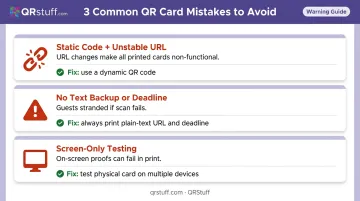
These three mistakes account for most failed QR code RSVP rollouts — and all of them are avoidable before a single card goes to print.
Static code tied to an unstable URL If the destination URL changes after printing, every card becomes non-functional with no fix except reprinting. Use a URL you own and control, or use a dynamic QR code that can be redirected at any time without touching the printed card.
No text backup or response deadline A QR code without a plain-text URL leaves guests stranded if scanning fails. Always include both the URL and a response deadline in print so guests have a fallback if the code doesn't work.
Testing on-screen only A proof that scans perfectly on your monitor can fail once printed due to resolution loss or colour rendering differences. Always test the physical card across multiple devices before approving full quantities.
Troubleshooting QR Code RSVP Problems
QR code won't scan after printing
Likely causes: code is too small (under 0.8 inches), insufficient contrast, missing quiet zone, or low-resolution image file. Request the SVG/EPS vector file and reprint at a larger size with adequate white space on all sides.
Guests scan but land on a broken or wrong page
Likely cause: the destination URL changed after the QR code was generated. If you used a dynamic QR code on QRStuff, update the destination URL through your dashboard — no reprint needed. If you used a static code, set up a redirect from a domain you control to route guests to the correct page.
Low scan response rate despite correct printing
Guests may not recognize the QR code as an RSVP prompt, or older guests may be unfamiliar with scanning. Add a clear one-line instruction on the card and confirm the plain-text URL is visible. For guests known to be less comfortable with technology, follow up with a direct call before the deadline.
Most of these issues are preventable at the setup stage — choosing a dynamic QR code and testing it on multiple devices before printing catches the majority of problems before they reach your guests.
Frequently Asked Questions
What should I put on an RSVP card with a QR code?
Include the QR code, a one-line scan instruction ("Scan with your phone camera to RSVP"), the RSVP deadline, the plain-text URL as a backup, and — for mixed audiences — a phone number or email for guests who cannot scan.
Do guests need an app to scan a QR code on an RSVP card?
No. iPhones running iOS 11 and later scan QR codes directly through the built-in Camera app. Most current Android devices do the same through their native camera or Google Lens — no additional app required.
Should I use a static or dynamic QR code for my RSVP card?
Dynamic. If your destination URL changes after cards are printed (for any reason) a dynamic code lets you update the redirect without reprinting. Static codes are permanently fixed to the original URL.
What size should the QR code be on an RSVP card?
Minimum 0.8 × 0.8 inches (2 cm × 2 cm) for reliable scanning. For a standard 4 × 5.5 inch RSVP card, 1 inch square is the recommended target. Anything smaller risks failure on older devices.
Can I track how many guests have scanned my QR code RSVP card?
Yes, with a dynamic QR code. QRStuff's analytics dashboard shows total scans, unique scans, device types, geographic data, and time-based breakdowns — so you know exactly where guest responses stand before your deadline.
What if the QR code gets wet or damaged in the mail?
This is exactly why the plain-text URL is non-negotiable. If the printed code is unreadable, guests can still navigate to the RSVP page manually. Always print both.