The QR code login method is fast, but it trips people up more than it should. Expired codes, blank screens, and scan failures are the three most common friction points, and they all have straightforward fixes once you know what causes them.
This guide covers exactly how the WhatsApp Web QR code works, the step-by-step login process for Android and iPhone, how to troubleshoot when things go wrong, and how to keep your account secure after you're logged in. WhatsApp now has more than 3 billion monthly active users, so getting Web access right matters.
Key Takeaways
- Go to web.whatsapp.com in any browser, then scan the QR code with your phone to link your account
- The QR code expires if not scanned quickly. Hit the circular refresh icon and scan again right away.
- Android: three-dot menu → Linked Devices → Link a Device
- iPhone: Settings → Linked Devices → Link a Device
- Once linked, WhatsApp Web stays active even if your phone screen is off — but keep it connected for uninterrupted access
- Always log out from shared computers — closing the tab is not the same as logging out
What Is the WhatsApp Web QR Code and When Should You Use It?
WhatsApp Web lets you message from any desktop browser without installing a separate app. The QR code at web.whatsapp.com is a session-specific authentication token — it connects your mobile account to the browser and refreshes automatically if you leave it unscanned too long.
When it makes sense to use it
WhatsApp Web is well-suited to:
- Typing longer messages faster on a full keyboard
- Drag-and-drop file and photo sharing
- Keeping chats visible while working on a desktop
- Multi-window workflows where you want messaging alongside other apps
It won't replace the mobile app, though — it doesn't support push notifications or background syncing on a secondary mobile device.
One common source of confusion
That limitation points to a broader confusion worth clearing up: the WhatsApp Web QR code and WhatsApp Business QR codes serve entirely different purposes. The Web login code authenticates a browser session — it links your account to a computer. WhatsApp Business QR codes, on the other hand, let customers initiate conversations with a business and can include a pre-filled message. You'll find them on flyers, websites, and product packaging — not on any login screen.
What You Need Before Scanning
Most WhatsApp Web login failures trace back to one of a handful of setup gaps. Run through this checklist before you scan.
Device and app requirements:
- A smartphone with WhatsApp installed and updated to the latest version
- A computer running Windows, Linux, or macOS
- A supported browser: Chrome 85+, Edge 85+, Firefox 115+, Safari 15.2+, or Opera 85+
- An active internet connection on both devices during the initial scan
A note on cookies: WhatsApp uses cookies to run WhatsApp Web, and parts of the service won't work if cookies are disabled. Make sure cookies are enabled in your browser settings before you start.
Three soft blockers to check first:
- Corporate or university Wi-Fi — managed networks can block or restrict WhatsApp Web traffic. If you're on one, switching to a mobile hotspot is the simplest workaround.
- Outdated browsers — WhatsApp Web is not supported on Internet Explorer or other legacy browsers.
- Browser extensions — Ad blockers and script blockers can prevent the QR code from loading. Try disabling extensions or opening the page in incognito mode first.
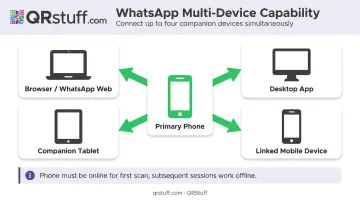
Multi-device note: Once your setup checks out, keep in mind that WhatsApp lets you link up to four devices to one account. After the initial scan, the browser session stays active even when your phone goes offline — but your phone needs to be online for that first scan to complete.
How to Log In to WhatsApp Web Using the QR Code
The login process has four steps, and order matters. Have your phone ready before opening the WhatsApp Web page — the QR code starts its countdown the moment it loads.
Step 1: Open WhatsApp Web in your browser
Go to web.whatsapp.com in a supported browser. A black-and-white QR code appears on the left side of the screen.
If the code doesn't appear within a few seconds:
- Hard refresh the page: Ctrl+Shift+R on Windows, Cmd+Shift+R on Mac
- Disable browser extensions and try again
- Switch to incognito mode or a different browser
Step 2: Access Linked Devices on your phone
Android: Tap the three-dot menu in the top-right corner of WhatsApp → select Linked Devices → tap Link a Device. WhatsApp may prompt you to verify your identity before the camera opens.
iPhone: Tap Settings in the bottom navigation bar → select Linked Devices → tap Link a Device.
Step 3: Scan the QR code
Point your phone camera at the QR code on screen. Keep the entire code within the frame and hold the phone steady — the scan completes in 1–2 seconds once properly aligned.
Increase your computer screen's brightness if the scan isn't registering. Getting closer to the screen also helps if alignment feels off.
Step 4: After the scan
The browser immediately transitions to your WhatsApp chat interface. On your phone, the linked computer will appear under Linked Devices. From there:
- Chats and media sync automatically
- Browser notifications activate for new messages
- The session stays active until you log out or browser cookies are cleared
Troubleshooting Common QR Code Issues
Most WhatsApp Web problems fall into a small set of categories, each with a clear fix.
QR code not scanning
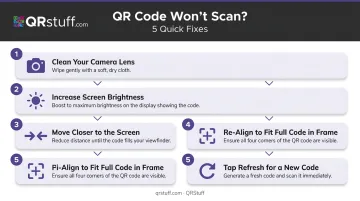
Work through these in order:
- Clean your phone's camera lens
- Increase screen brightness on the computer
- Move closer to the screen
- Re-align the phone so the entire code fits within the scanning frame
- Click the circular refresh icon to generate a new code and try again immediately
QR code not appearing in the browser
This is almost always a browser configuration issue:
- Disable extensions one by one, especially ad blockers and script blockers
- Confirm cookies are enabled in browser settings
- Try loading the page in incognito or private browsing mode
- Switching browsers entirely — from Chrome to Firefox, for example — often resolves it instantly
"Phone not connected" message or sync failure
The most common causes are the phone losing internet connectivity mid-session, or a stale browser cache. Fix steps:
- Confirm your phone has an active data or Wi-Fi connection
- Clear the browser cache
- Refresh the WhatsApp Web page and re-scan
Corporate or public Wi-Fi blocking access
Unlike the issues above, this is a network-level restriction that browser settings can't fix. Your options:
- Switch to a mobile hotspot or a different Wi-Fi network
- Ask your network administrator to allow traffic to
web.whatsapp.comor.whatsapp.net
Removing linked devices
To audit or remove active sessions: open WhatsApp on your phone → go to Linked Devices → tap any session → select Log Out. Do this immediately if you see any device you don't recognize.
Best Practices for Staying Safe on WhatsApp Web
Logging out correctly
Closing a browser tab is not the same as logging out. If you close the tab without logging out, the session remains active and accessible to anyone who reopens that browser. Always use the three-dot menu inside WhatsApp Web to log out properly — especially on shared or borrowed computers.
WhatsApp confirms you can also disconnect sessions remotely from your phone via Linked Devices → tap the session → Log Out.
Auditing linked devices regularly
Check your Linked Devices list every few weeks. Remove anything you don't recognise immediately. Wired has reported on "GhostPairing" attacks where users are deceived into linking an attacker's browser to their account — keeping this list clean is your first line of defence.
Enable two-step verification for an added layer of protection: WhatsApp → Account → Two-step verification → Turn on, then set a six-digit PIN.
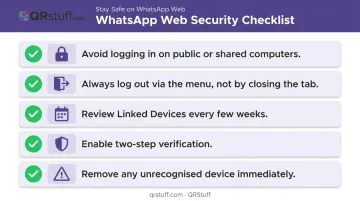
Quick security checklist:
- Never log in on a public or shared computer if you can avoid it
- Always log out via the menu — don't just close the tab
- Review Linked Devices every few weeks
- Enable two-step verification
- Remove any unrecognised device immediately
A separate use case: businesses using WhatsApp QR codes for customers
The WhatsApp Web QR code is strictly for your own browser login. Once your session is secure, though, it's worth knowing there's a separate QR code type built for customer-facing use entirely.
Businesses looking to let customers initiate WhatsApp conversations — via a flyer, product packaging, or website — need a different kind of code. QRStuff offers a dedicated WhatsApp QR code data type that links directly to a WhatsApp chat, with an optional pre-filled message. Dynamic codes (available from the Lite Suite at £4/month) go further:
- Update the destination number or message without reprinting
- Track scans by time, location, and device
- Redirect customers to a different chat if your contact details change
Conclusion
Getting WhatsApp Web to work reliably comes down to preparation and sequence: phone ready, browser configured, both devices connected, and the scan completed before the code refreshes. Follow those steps and most login problems won't come up at all.
Treat logging out and reviewing Linked Devices as routine hygiene rather than occasional tasks. A few seconds after each session on an unfamiliar computer is a much easier fix than dealing with a compromised account.
Frequently Asked Questions
How do I log in to WhatsApp Web using the QR code?
Go to web.whatsapp.com on your computer, then open WhatsApp on your phone. Navigate to Linked Devices — three-dot menu on Android, Settings tab on iPhone — tap "Link a Device," and scan the on-screen code. The browser loads your chats immediately after scanning.
Where is my WhatsApp Web QR code?
The QR code appears automatically on the left side of the screen when you visit web.whatsapp.com in a supported browser. If it doesn't appear, try a hard refresh (Ctrl+Shift+R / Cmd+Shift+R), disable browser extensions, or switch to incognito mode.
Can I use WhatsApp Web without my phone?
Yes, once the device is linked via multi-device mode, WhatsApp Web continues working even when your phone is offline or switched off. However, your phone must be online during the initial QR scan.
Why does my WhatsApp Web QR code keep expiring before I can scan it?
The code refreshes automatically as a security measure. Have your phone camera open on the "Link a Device" screen before you load WhatsApp Web, then scan immediately. If the code resets, click the circular refresh icon and scan the new code immediately.
How long does a WhatsApp Web session stay active?
Sessions don't have a fixed time limit and remain active until you log out manually or clear your browser cookies. WhatsApp automatically disconnects linked devices after 30 days of inactivity, or if the primary phone is unused for more than 14 days.
Is it safe to use WhatsApp Web on a public computer?
Avoid public computers if you can. If you must, always log out via the WhatsApp Web menu after use — never just close the tab. Check your Linked Devices on your phone afterward to confirm the session ended completely.