The concept is simple, but results vary depending on which form tool you use, whether you choose a static or dynamic QR code, how the code is designed, and where it's physically placed. Get those variables right and you'll have a frictionless registration system that scales from 10 attendees to 1,000 without printing a single extra sheet.
This guide covers everything: who should use QR code sign-up sheets, what you need before starting, a step-by-step setup using QRStuff, the key factors that determine whether people actually scan and complete your form, and the mistakes that cause most setups to fail.
Key Takeaways
- A QR code sign-up sheet links a scannable code to an online form — attendees register directly from their smartphones, no pen required
- Google Forms paired with a QR code generator is all you need to get started; free tools handle basic setups
- Dynamic QR codes let you update the linked form after printing, making them ideal for recurring events
- Print size, contrast, placement, and form length directly affect scan and completion rates
- QR code sign-up sheets work across events, classrooms, real estate open houses, healthcare check-ins, and corporate visitor logs
How to Make a QR Code Sign-Up Sheet
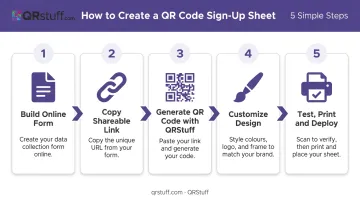
Step 1: Build Your Online Sign-Up Form
Open your form builder and start from scratch or use a template. Google Forms is the most practical free option — it connects directly to Google Sheets, so every submission is timestamped and logged automatically.
Keep fields to the minimum:
- Full name and email address (always required)
- Company or organization (optional, B2B events)
- Session or class section (multi-track events)
- Visit purpose or consent checkbox (healthcare, corporate)
Under form settings, enable email collection and link responses to a Google Sheet. Also confirm the form is accessible to people outside your organization — if attendees use personal Gmail accounts and your form is restricted to internal users, no one gets through.
Typeform's response-rate research found that forms with more than six questions drop below 50% completion. Keep it short.
Step 2: Copy the Form's Shareable Link
Publish the form and copy the respondent link — not the editor URL, which requires login access and will block every attendee.
Paste the link into an incognito browser window and verify it opens without prompting a sign-in. Submit a test response and confirm the entry appears in the linked spreadsheet before you go anywhere near a QR generator.
Step 3: Generate Your QR Code with QRStuff
- Go to QRStuff and select the Website URL data type
- Paste your form's shareable link into the content field
- Choose static (free, permanent) or dynamic (paid, editable destination with scan analytics)
- Download in PNG for standard prints or SVG/EPS for large-format signage — vector formats scale without pixelation
QRStuff supports 40+ QR code types and works with any form platform that produces a public URL: Google Forms, Typeform, JotForm, Microsoft Forms, and others. For Google Forms specifically, QRStuff offers a dedicated G-Form type that streamlines the connection.
Static vs. dynamic at a glance:
| Feature | Static (Free) | Dynamic (Paid) |
|---|---|---|
| Edit destination URL | ✗ | ✓ |
| Scan analytics | ✗ | ✓ |
| Expires | Never | Never (paid plans) |
| Best for | One-time events | Recurring programs |
Step 4: Customize the QR Code Design
Design choices directly affect scan rates. A high-contrast code with a clear call-to-action gets more completions than a generic black-and-white square.
- Use a dark foreground on a light background — black on white delivers roughly 21:1 contrast and works on every camera app. Avoid light codes on dark backgrounds, which cause failures on older camera software
- Upload your event or organization logo to the center. QRStuff automatically applies high error correction to keep the code scannable, but keep logo coverage below 30% of the code area
- Add a call-to-action label beneath the code ("Scan to Sign Up" or "Scan to Check In") — attendees scan more readily when the purpose is obvious
Step 5: Test, Print, and Deploy
Before printing:
- Test on at least one iPhone and one Android device
- Confirm the form loads correctly on mobile and fields display without horizontal scrolling
- Verify your earlier test response logged correctly — if not, recheck sharing permissions before printing
Print sizing:
- Tabletop cards or A5 signage: minimum 2 inches × 2 inches
- Lobby stands, banners, or wall displays: 8–10 inches minimum
- Always export in SVG or EPS for anything larger than a standard sheet — PNG degrades at scale
Deployment locations that work:
- Entrance signage and registration tables
- Presentation slides (opening slide)
- Pre-event email invitations
- Printed event programmes
If venue Wi-Fi is unreliable, note that in the signage or provide a mobile hotspot. A form that won't load kills completion rates regardless of how good the QR code is.
When Should You Use a QR Code Sign-Up Sheet?
QR code sign-up sheets deliver the most value when you need clean digital records and plan to follow up with attendees. Bitly's 2025 QR trends report found that 49% of marketers use QR codes specifically for event information or sign-ups — events are the strongest validated use case.
Best-fit scenarios:
- Event and conference registrations
- Classroom and training session attendance
- Real estate open houses (lead capture)
- Healthcare visitor and patient check-in logs
- Corporate employee or visitor sign-ins
- Volunteer and workshop enrollment
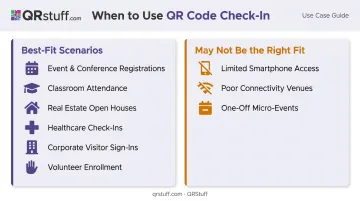
Where it may not be the right fit:
- Audiences with limited smartphone access or low digital literacy (keep a paper backup)
- Venues with consistently poor connectivity and no hotspot option
- One-off micro-events where a simple paper list creates no downstream data problem
When the use case does fit, scalability is a real benefit. A single QR code sign-up sheet handles 10 or 1,000 attendees without any additional materials — that makes the initial setup worthwhile for any event you run more than once.
Key Factors That Affect Your QR Code Sign-Up Sheet
The same setup can produce very different results depending on a handful of variables.
Static vs. Dynamic QR Code Type
Static codes are free and permanent but cannot be changed after printing. If your form URL changes — new event, updated fields, different platform — the code becomes useless and everything gets reprinted.
Dynamic QR codes (available on QRStuff's paid plans) solve this. You update the destination URL from the dashboard and the printed code continues working. They also capture scan analytics:
- Total scans and unique scans
- Device type (iOS vs. Android)
- Geographic location by city and country
- Time-of-scan data
For recurring programs, that data tells you which locations and time slots drive the most sign-ups.
Form Length and Field Count
Each additional field reduces the likelihood someone completes the form. Typeform's data puts average form completion at 47%, dropping below 50% for forms with more than six questions. On a sign-up sheet, you rarely need more than three to four fields. Capture only what you'll actually use.
Print Size and Contrast
Nielsen Norman Group recommends a minimum of 2 cm × 2 cm for printed QR codes. QRStuff's own documentation aligns with this, specifying at least 0.8″ × 0.8″ for simple URLs, with larger sizes required as scanning distance increases.
Low contrast and undersized codes in dim venue lighting cause most scan failures. Dark code on a light background is the only safe default.
Placement and Visibility
The code performs best where attendees already pause: entry points, registration tables, the first slide of a presentation. Mount it at eye level or just below for standing attendees. A "Scan to Sign Up" label directly beneath the code removes the guesswork that stops people from scanning.
Common Mistakes to Avoid
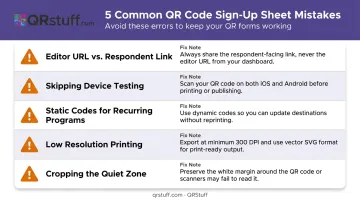
- Editor URL vs. respondent link: Copy the participant-facing link, not the editor URL — which requires login access. Test it in an incognito window before encoding
- Skipping device testing: Camera differences between iOS and Android, mobile data speed, and form access restrictions only reveal themselves during real-device tests — do them before you print
- Static codes for recurring programs: One URL change makes all printed materials useless. Use dynamic QR codes whenever the form or event destination might change
- Low resolution or undersized printing: Export in SVG format for anything larger than a desktop printout, and confirm the code scans cleanly at its final display size before placing your print order
- Cropping the quiet zone: The white border around the code is required for scanners to locate its boundary. Never crop it, even slightly
Frequently Asked Questions
Do people need a special app to scan a QR code sign-up sheet?
No additional app is needed. iPhones running iOS 11 and later scan QR codes natively through the default Camera app. Android devices support scanning through the camera app, Google Lens, or Quick Settings — no third-party app required for most modern phones.
Can I edit the form or destination after printing the QR code?
It depends on the QR code type. Static codes lock in the destination permanently — once printed, they cannot be changed. Dynamic QR codes allow you to update the linked URL at any time from the QRStuff dashboard without reprinting the physical code.
What is the difference between a QR code sign-up sheet and a sign-in sheet?
Sign-up sheets capture new registrations or enrollments, typically before or at the start of an event. Sign-in sheets record attendance check-ins for ongoing programs. Both use the same QR-code-to-form setup. The only difference is what the form asks for, not how it works.
What form tools work with a QR code sign-up sheet?
Any form builder that produces a publicly shareable URL works. Google Forms, Typeform, JotForm, and Microsoft Forms are the most common. Google Forms is free and connects automatically to Google Sheets for response logging, so responses populate a spreadsheet instantly without any extra setup.
How large should I print the QR code for a sign-up sheet?
A minimum of 2 inches × 2 inches for desk or tabletop use. Scale up to 8–10 inches for lobby stands and wall displays. Always export in SVG or EPS format for large-format prints to avoid pixelation — PNG degrades at larger sizes.
What happens to sign-up data collected through the QR code form?
Responses are stored in the form platform's connected spreadsheet (typically Google Sheets) in real time with automatic timestamps. Data can be exported, filtered, or connected to email marketing and CRM tools for follow-up campaigns.