LinkedIn's built-in QR code feature solves this. With 1.2 billion members on the platform (according to Microsoft's 2025 Annual Report), the network is only as valuable as the connections you actually make — and the QR code is the fastest way to make them count in person.
This guide covers the exact steps for finding and using your LinkedIn QR code on iOS and Android, how to share it across physical and digital channels, and what to do when LinkedIn's native feature doesn't go far enough (like generating a QR code for a company page).
Key Takeaways
- LinkedIn's QR code lives in the mobile app — tap the Search bar, then the QR icon
- Scanning someone's code takes you straight to their profile — no searching required
- Download your code and add it to business cards, name badges, or presentation slides
- Company pages have no built-in QR code; use a third-party generator like QRStuff to create one
- Send the connection request immediately after scanning — don't defer it
When to Use a LinkedIn QR Code
The QR code earns its place in specific situations. Not every scenario calls for it, and knowing when it works best saves you fumbling with your phone at the wrong moment.
Best use cases:
- Networking events and professional conferences
- Job fairs and recruiting booths
- Trade show floor conversations
- Pre-event meetups where you're meeting multiple people quickly
- Any setting where typing names would be slow or error-prone
When you're meeting five people in twenty minutes, manual profile searches are a liability. One misspelling and you've connected with the wrong person — or no one. The QR code removes that variable entirely.
That said, it doesn't work in every environment. A few situations where it falls short:
- Poor lighting that makes scanning difficult
- No internet connection to load the profile after scanning
- Attendees using older devices without a rear camera
Your short LinkedIn URL (linkedin.com/in/yourname) on a business card covers these edge cases. Keep both options ready so a dead battery or dim room never costs you a connection.
What You Need Before Getting Started
For LinkedIn's built-in QR code:
- A LinkedIn account with a completed profile
- The LinkedIn mobile app installed and updated on iOS or Android
- Camera permissions enabled on your device
The QR feature is mobile-only — LinkedIn's desktop site doesn't include it.
For a custom LinkedIn QR code (company pages, printed materials, or branded codes):
- Your LinkedIn profile URL or company page URL copied from a browser
- Access to a QR code generator like QRStuff, which has a built-in LinkedIn QR code option that makes setup straightforward
How to Use Your LinkedIn QR Code
The workflow has three parts: finding your own code, scanning someone else's, and saving or sharing the code for use beyond the app. Skipping the follow-up step is where most people lose the connection entirely.
Finding Your Own QR Code
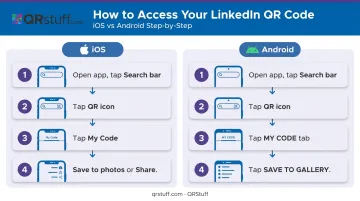
On iOS:
- Open the LinkedIn app and tap the Search bar at the top of the homepage
- Tap the QR code icon on the right side of the search bar
- Tap My code to view your unique QR code
- Choose Share my code (via message, email, or other apps) or Save to photos
On Android:
- Open the LinkedIn app and tap the Search bar
- Tap the QR code icon
- Tap the MY CODE tab
- Tap SAVE TO GALLERY to download the image
Scanning Someone Else's QR Code
On both iOS and Android, the path is the same: open the LinkedIn app → tap the QR icon in the Search bar → tap the Scan tab (iOS) or SCAN tab (Android) → enable camera access if prompted → hold your device above their code.
Once scanned, you're taken directly to their profile. No searching, no typos.
Scanning from a saved photo:
- iOS: tap Scan from photos
- Android: tap ADD CODE FROM GALLERY
This is useful when someone shares their QR code image over WhatsApp or email before an event.
Saving and Sharing Your Code
Once saved to your photo gallery, your QR code image can be:
- Added to a business card design
- Printed on a conference name badge
- Shared via any messaging app before or during an event
On iOS, tapping Share my code lets you choose whether to share the code alone or with your profile photo — handy for virtual introductions where context matters.
Creating a QR Code for a LinkedIn Company Page
LinkedIn doesn't provide a built-in QR code for company pages — only personal profiles have this native feature. A third-party QR code generator fills that gap. Copy your company page URL from a desktop browser, then paste it into a tool like QRStuff, which has a dedicated LinkedIn data type field that accepts both personal profile URLs and company page URLs.
- Select the LinkedIn data type in QRStuff's generator
- Paste your company page URL
- Customize the design — add your logo, adjust colors to match brand guidelines
- Download in a print-ready format (SVG or high-resolution PNG at 300 DPI minimum)
One practical advantage of using QRStuff's dynamic QR codes here: if your company rebrands or changes its page URL, you can update the destination without reprinting any physical materials. The QR code image stays the same; only the destination changes.
After the Scan: Sending the Connection Request
Scanning someone's QR code opens their LinkedIn profile — but it doesn't automatically connect you. Tap Connect on their profile and add a short personalised note while the conversation is still fresh.
HBR research on professional follow-up finds that failing to follow up is one of the most common ways networking opportunities get lost. The fix is simple:
- Send the request immediately — while you're still in the conversation
- Add a note referencing where you met or what you discussed
- Don't defer it — connections made "later" rarely happen
Where to Share Your LinkedIn QR Code
Physical Materials
- Business cards: Place the QR code on the back. Keep it at least 0.8 inches × 0.8 inches (2 cm × 2 cm) to ensure reliable scanning on print materials
- Name badges and lanyards: Print the code directly on the badge insert — no separate card needed
- Conference materials: Any printed handout you distribute at a booth or session
A few print rules apply across all of these:
- Use black on white — it's the most reliable contrast combination
- Preserve the white border (the quiet zone) around the code; cropping it breaks scannability
- Test a scan before sending anything to print
Digital Channels
The same code works just as well in digital formats, where people can scan directly from a screen:
- Presentation slides: Lower-right corner of your final slide with a short label like "Scan to connect on LinkedIn"
- Email signatures: A small QR code image alongside your name and title
- Pre-event messages: Share your saved QR code image via LinkedIn DM or WhatsApp before meeting someone in person
Digital Documents and Web Presence
- Personal website or portfolio
- PDF resume (for recruiters reviewing applications digitally)
- Marketing materials for events where you want visitors to follow your company page
Best Practices for Your LinkedIn QR Code
Before you start scanning — or getting scanned — a few habits separate people who build real connections from those who collect ghost profiles.
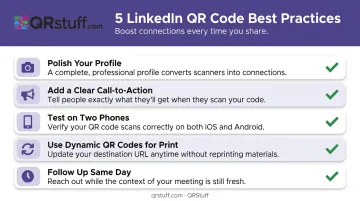
- Polish your profile first. Your QR code sends people straight to your LinkedIn page. A blurry photo or blank headline undercuts whatever impression you made in person. LinkedIn's Talent Blog reports that profiles with a photo are 14x more likely to be viewed — update your photo, headline, and summary before sharing.
- Add a clear call-to-action. Don't assume people know what to do when they see a QR code. Label printed materials with "Scan to connect on LinkedIn." When showing your phone screen, say it out loud: "Want to scan my LinkedIn?" The explicit ask increases follow-through.
- Test on two phones before you print. Scan your QR code on at least two different devices before finalizing any printed material. Confirm the destination loads correctly, the contrast is sufficient, and the code is large enough to read.
- Use dynamic QR codes for anything printed. LinkedIn lets you change your custom profile URL up to five times in six months. If your URL changes after you've printed 500 business cards with a static code, those cards become useless. Dynamic QR codes from QRStuff let you update the destination without reprinting — and track scans so you know exactly where and when your code was used.
- Follow up the same day. The value of a QR code exchange drops fast once you leave the event. Send your connection request within hours, reference your conversation in the message, and let that be the start of an actual professional relationship.
Frequently Asked Questions
How do I get my QR code for my LinkedIn profile?
Open the LinkedIn mobile app, tap the Search bar, then tap the QR icon on the right side. Tap My code (iOS) or MY CODE (Android) to view your unique code. No external tool or special settings required — LinkedIn generates it automatically for every member.
Is a LinkedIn QR code free?
LinkedIn's built-in QR code is available to all members through the free mobile app. Third-party tools like QRStuff offer both free and paid options for custom or branded codes, with paid plans adding dynamic functionality and scan analytics.
Can I use my LinkedIn QR code without the app?
The built-in QR code is only accessible through the LinkedIn mobile app — it's not available on the desktop site. However, if you save your code image to your phone or computer first, you can share it from anywhere without needing the app open.
How do I scan a LinkedIn QR code from a saved photo?
In the LinkedIn app's Scan tab, look for Scan from photos on iOS or ADD CODE FROM GALLERY on Android. This lets you scan a QR code image someone sent you digitally, rather than scanning in person.
Can I create a QR code for a LinkedIn company page?
LinkedIn doesn't offer a built-in QR code for company pages. Copy the company page URL from your browser and use a third-party generator — QRStuff has a dedicated LinkedIn data type field that accepts company page URLs. The resulting code works the same as a personal profile QR code.
Do LinkedIn QR codes expire?
LinkedIn's built-in QR codes remain valid as long as the account is active. One caveat: changing your custom profile URL can break an existing code. Dynamic QR codes from a tool like QRStuff avoid this problem entirely, since you can update the destination URL without reprinting the code.