Introduction
Local healthcare search has never been more competitive. According to Tebra's 2025 patient survey, 79% of patients read reviews before choosing a provider, and 56% start that search on Google. With 53% refusing to consider anyone rated below four stars, your Google review profile is effectively your first impression.
Most practices know they need more reviews. Patient satisfaction usually isn't the issue. The friction is. A patient leaves a great appointment, life resumes, and the multi-step process of finding your Google Business Profile and navigating to the review form never happens.
QR codes remove that friction. This guide covers exactly how healthcare providers are deploying Google review QR codes, where to place them for maximum uptake, and how to set everything up correctly from the start.
Key Takeaways
- Google reviews directly influence local search ranking and new patient acquisition
- A QR code takes patients straight to the review submission form in one scan
- Create a dynamic QR code using a dedicated Google Review code type, not a generic URL shortener
- Place codes at checkout, in exam rooms, on discharge papers, and in follow-up texts
- Use dynamic codes to update destinations and track scan performance — no reprinting needed
Why Google Reviews Are a Growth Lever for Healthcare Providers
The Trust Math Is Different in Healthcare
In retail, a bad review costs a sale. In healthcare, reviews shape decisions people genuinely stress over. Reputation.com's research found that 80% of consumers expect to see at least five reviews before trusting a provider, and 72% won't choose a doctor rated below four stars.
A practice with 8 reviews and a 4.2 rating is competing directly against one with 200 reviews and a 4.6. Volume matters as much as quality — and both are within a practice's control.
Reviews and Local Search Ranking
Google confirms that review count and review score are direct factors in local search ranking. Practices with more high-quality reviews appear more often in the Google Local Pack — the top three results that dominate the first screen of any local healthcare search.
That placement matters because the Local Pack captures the majority of new patient clicks — most searches never scroll past it.
The Friction Problem
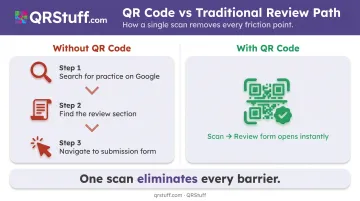
Most patients who leave satisfied intend to write a review. The barrier is the number of steps involved:
- Finding the practice's Google listing
- Locating the review section
- Navigating to the submission form
That's enough friction that most people drop off before they start. A QR code removes every step except writing the review — one scan and the star rating prompt is already open.
What You Need Before Setting Up Your Google Review QR Code
Three things to have ready before you generate anything:
1. A claimed and verified Google Business Profile (GBP) Verification gives you ownership of your profile and is required to manage it, respond to reviews, and access the review link. Without it, there's no page to send patients to. Verify through the GBP dashboard via postcard, phone, or video — Google offers different options depending on your business type.
2. Your Google review link Inside your GBP dashboard, go to Read Reviews → Get more reviews → Copy link. This URL drops users directly into the review submission window, not your profile homepage. That distinction matters — linking to the homepage adds back the friction you're trying to remove.
3. A QR code generator that supports dynamic codes Dynamic codes use a short redirect URL instead of embedding the destination directly into the pattern. If your Google review link ever changes, update it in the dashboard and the printed code stays valid — no reprinting needed.
QRStuff offers a dedicated Google Review QR code type (not just a standard URL field), which automatically generates the correct review link when you enter your practice name or address. Paid tiers start at $4/month for the Lite Suite, which includes 50 dynamic codes with basic analytics.
One thing you don't need to worry about: HIPAA compliance for the QR code itself. A Google review QR code is a public marketing touchpoint. It doesn't transmit, store, or access protected health information. The HIPAA concern arises only when responding to reviews — more on that in the FAQ.
How to Create and Deploy a Google Review QR Code
The setup takes under 15 minutes. Where practices lose time is skipping the testing step — resulting in signage that links to a profile homepage instead of the review form.
Generating the QR Code
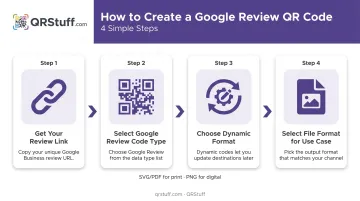
- Get your review link — In your GBP dashboard, go to Read Reviews → Get more reviews → Copy
- Select the right code type — In QRStuff, choose the dedicated Google Review type rather than a generic URL. Enter your practice name or address and the platform generates the correct review link automatically
- Choose dynamic, not static — Dynamic codes allow post-print edits and unlock scan analytics
- Select your file format — SVG or PDF for printed signage (vector formats scale without quality loss); PNG for digital use like emails and SMS. QRStuff's paid plans include high-resolution exports up to 600dpi suitable for professional print
Minimum print size: QRStuff recommends at least 2cm × 2cm for simple URLs. For clinic signage at normal reading distance, 1.5–2 inches is a practical target that scans reliably across phone models.
Designing the Signage
A QR code on its own generates almost no action. The code needs context:
- Clear call-to-action: "Scan to share your experience on Google" — specific, not generic
- A friendly framing line: Something like "Your feedback helps other patients find great care" reduces the transactional feel
- Visual recognition cue: The Google logo or star-rating icon immediately signals what the scan is for
QRStuff's paid plans (Lite Suite and above) support full customization: practice logo, brand colors, custom shapes, and frames.
Adding your logo to the center of the code signals legitimacy. A plain black-and-white square with no context can seem ambiguous to patients unfamiliar with QR codes.
Testing Before Printing
Once the design is finalized, test on both iOS and Android before printing a single copy. Confirm the scan opens the review submission form directly — not your GBP homepage. Print a small test batch first, then verify scan performance at the actual placement distance and lighting conditions of your waiting room.
Monitoring Scan Performance
QRStuff's dynamic code dashboard tracks:
- Total and unique scans (daily, weekly, custom date ranges)
- Device type and operating system (iOS vs. Android)
- Geographic location (country and city level)
- Scan time and date
Create one QR code per placement location and use campaign tags to label them (e.g., "Checkout Counter," "Exam Room 2," "Discharge Packet"). The dashboard lets you compare performance across placements without reprinting.
Cross-reference weekly scan volume against new Google review submissions. High scans with low review conversions mean patients are reaching the form but leaving before submitting. If that pattern appears, adjust your CTA copy or reposition the signage.
Where to Place Google Review QR Codes in a Healthcare Setting
Timing matters as much as location. The highest-converting moment is right after a positive experience — before patients re-enter daily life and the goodwill fades. Each placement below targets a specific window in that journey.
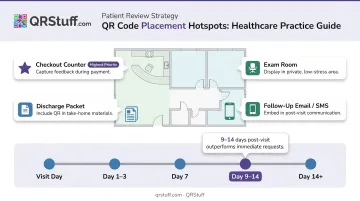
At the Checkout or Front Desk
The single most effective placement in most practices. Patients are stationary, the visit is fresh, and a review request fits naturally into wrapping up. A table tent or counter sign works well. Pair it with a brief verbal prompt from staff — "Feel free to scan that if you'd like to share your feedback" — and scan rates improve noticeably.
In the Exam Room
A small framed card gives patients something to look at during the wait before or after the provider enters. Works best when exam room dwell time hits 10+ minutes — patients are already on their phones.
On After-Care and Discharge Materials
Printed after-care instructions and discharge summaries travel home with the patient. A QR code on these documents — with a one-line invitation beside it — reaches patients when they're following your instructions and thinking about their care. That's a high-intent moment.
In Email and Text Follow-Ups
Post-visit emails and SMS messages extend the review window to 24–48 hours after the appointment, capturing patients who didn't scan on-site. Embed the QR code as an image in email; patients can scan their screen. For SMS, include the direct review link alongside the code image.
On timing: Near Media research found that review requests sent 9–14 days after a visit outperformed immediate requests. For practices with longer after-care periods, delaying the follow-up until care is complete can produce stronger results.
Best Practices for Getting More Patient Reviews with QR Codes
Don't incentivize reviews. Google explicitly prohibits discounts, gifts, or any reward in exchange for a review. In healthcare, doing so also creates the appearance of purchasing reputation. Frame every ask as an invitation for honest feedback.
The QR code works best alongside a human moment. Train staff to mention it naturally at checkout: "We'd love to hear how your visit went — there's a code on the counter if you'd like to leave a review." That brief verbal prompt increases scan rates without feeling like a sales pitch.
Respond to every review. Tebra's data shows 70% of patients said a practice's response to a negative review improved their opinion of that provider. Responding also signals to prospective patients that your practice pays attention. Keep responses HIPAA-compliant: never confirm or reference any specific visit, diagnosis, or treatment details.
Assign one dynamic code per placement. In QRStuff, label each code with a campaign tag tied to its physical location — front desk, exam room, checkout counter. The analytics dashboard shows exactly which placements are converting and which need repositioning, all without reprinting.
Returning patients stop seeing signage they've passed dozens of times. Rotate placement, update the design, or swap in a new call-to-action every few months. Dynamic codes mean the destination URL stays the same — only the printed material changes.
Frequently Asked Questions
How can a QR code boost my Google reviews?
A QR code removes the main barrier: finding your Google Business Profile and navigating to the review form. One scan takes the patient directly to the submission prompt, dramatically increasing the chance they complete a review before leaving your practice.
Where should I place a Google review QR code in my clinic?
Checkout counters and front desks are the highest-performing placements because patients are stationary and the visit is still top of mind. Exam rooms, discharge packets, and follow-up emails extend your reach to patients who didn't scan on-site.
Is it against Google's policy to ask patients for reviews using a QR code?
No. Google explicitly supports QR codes as a review request tool. What's prohibited is incentivizing reviews with discounts, gifts, or anything of value. The ask must always be for voluntary, honest feedback.
Do I need a dynamic or static QR code for Google reviews?
Dynamic codes are strongly preferred. They let you update the destination URL without reprinting signage, and they provide scan analytics so you can measure which placements are driving patient engagement. Static codes offer neither capability.
What should the signage around my Google review QR code say?
Your signage should include:
- A clear CTA: "Scan to share your experience on Google"
- A brief, friendly line framing feedback as appreciated rather than obligatory
- The Google logo or star icon for immediate visual recognition
Avoid anything that implies a reward for leaving a review.
Can I use QR codes for Google reviews in a HIPAA-compliant way?
Yes — a Google review QR code is a public marketing touchpoint that doesn't transmit, store, or access protected health information, so no HIPAA concern applies to the code itself. The risk arises when responding to reviews: never confirm someone is a patient or reference any visit details, even if the reviewer mentioned them first.