A QR code solves this cleanly. Anyone with a smartphone points their camera at the code and gets a direct prompt to join. No phone number required, no manual search, no back-and-forth.
This guide covers both paths: the native WhatsApp method (fastest, built-in, zero cost) and the third-party route using a tool like QRStuff (branded, trackable, better for print). You'll also find what to prepare before starting, the factors that affect real-world performance, common mistakes, and when a QR code isn't actually the right tool.
Key Takeaways
- WhatsApp's built-in QR code takes under a minute to generate, though you'll need group admin access to do it
- Any admin can reset the native invite link at any time, which instantly breaks every QR code tied to it
- Dynamic QR codes (via a third-party generator) let you update the destination link without reprinting materials
- For campaigns and events, a branded, trackable QR code gives you far more control than WhatsApp's native option
How to Create a WhatsApp Group QR Code
There are two routes. The built-in WhatsApp method is faster and free. The third-party method takes a few extra minutes but gives you custom branding, scan analytics, and the ability to update the destination link after printing.
Method 1: Using WhatsApp's Built-In Feature
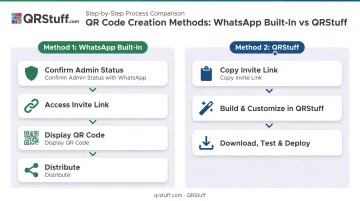
Step 1 — Confirm your admin status. Open your WhatsApp group and check that you're listed as an admin. Note: in groups with fewer than 33 members, regular members may also see invite link options unless an admin has restricted this under Group Permissions.
Step 2 — Access the invite link. Tap the group name at the top to open Group Info. Scroll to the Participants section and select "Invite to Group via Link."
Step 3 — Display the QR code. From the options shown — Send link via WhatsApp, Copy link, Share link, QR code, Reset link — tap "QR Code." You'll see a scannable code you can share directly via social media or email.
Step 4 — Distribute carefully. Anyone who scans the code gets a prompt to join via WhatsApp. Share it only with your intended audience — there's no approval gate unless you've enabled "Approve new members" in Group Permissions.
Method 2: Using QRStuff (Third-Party Generator)
Step 1 — Get your invite link. Follow Method 1 above until you've reached the "Invite to Group via Link" screen. Tap "Copy link" to save the URL to your clipboard.
Step 2 — Build the QR code in QRStuff. Go to QRStuff and select the WhatsApp QR code type from the data type list. Paste your group invite link, then configure your design: custom colors, logo, frame, and call-to-action text to match your brand.
Pick the code type that fits your deployment:
- Static — permanent link, no tracking, works on free plans
- Dynamic — editable destination URL, full scan analytics, ideal for print campaigns where you may need to redirect later
Step 3 — Download, test, and deploy. Download in PNG for digital use or SVG/PDF for high-resolution print (paid tiers). Scan the code with a real device before distributing — this one step catches most deployment errors. With a dynamic code, you can update the destination URL later without touching the printed material.
Key Factors That Affect How Well Your QR Code Works
Generating the code is the easy part. These variables determine whether it actually performs once distributed.
QR Code Expiry and Link Revocation
WhatsApp's invite link doesn't expire on a timer — but any group admin can reset it at any time. When that happens, WhatsApp confirms that users scanning the old link will see: "You can't join the group or community because the invite link was reset."
Every printed QR code pointing to that link becomes a dead end immediately.
The fix for print deployments: Use a dynamic QR code. Tools like QRStuff redirect scans through an editable short URL — so when the WhatsApp invite link changes, you update the destination in the dashboard and the printed code keeps working. No reprinting required.
Static vs. Dynamic: Which Should You Use?
| Static QR Code | Dynamic QR Code | |
|---|---|---|
| Destination editable after print? | No | Yes |
| Scan analytics | None | Full (device, location, time) |
| Works if invite link resets? | No — dead end | Yes — update destination URL |
| Best for | One-time digital sharing | Print, events, ongoing campaigns |
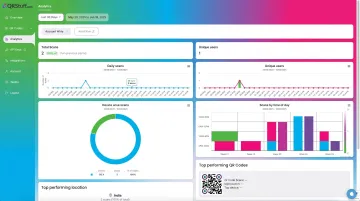
QRStuff's dynamic codes include real-time scan tracking: total scans, unique scans, device type (iOS/Android), geographic data down to city level, and time-based patterns. If you're printing the code on anything physical — a flyer, poster, or sign — dynamic is the only option that survives a link reset.
Print Size and Contrast
No universal minimum size applies to all QR codes — the right size depends on the number of data modules in the code, the printer's resolution, and how far away scanners will be. Two practical rules that hold up:
- Keep a clear 4-module quiet zone (white border) on all sides — codes printed edge-to-edge fail to scan
- Maintain high contrast between the dark modules and background; ISO/IEC 15415 grading rates Grade A contrast at 70%+ reflectance difference — avoid placing a dark code on a coloured background
For large-format print (banners, posters), download SVG or EPS from QRStuff — vector formats scale without quality loss, which raster PNG cannot.
Privacy and Admin Approval
Before distributing publicly, decide whether new members should join instantly or require admin approval first.
To enable approval: open the group → tap the group name → Group permissions → Approve new members. With this on, users see "Request to join" rather than instant entry — giving you a check on who actually gets in.
What You Need Before Getting Started
- Admin access — only group admins can access the invite link. If you're not an admin, ask the current admin to promote you or generate the code for you
- An existing group — invite links only work on existing groups. Create yours via New Group in WhatsApp before proceeding
- For the third-party route — the copied invite link from WhatsApp, and a QRStuff account (the Free Suite covers occasional use; the Full Suite at £15/month adds 250 dynamic codes, no expiry, and full analytics)
Common Mistakes and How to Fix Them
Distribution and Print Mistakes
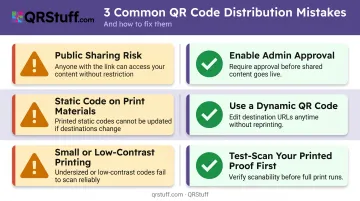
- Sharing QR codes publicly — on open social media or public websites — means anyone who finds the link can join. The Verge reported in 2020 that Google indexed WhatsApp group invite links. Enable admin approval if you're distributing widely.
- Printing a static QR code on physical materials means one admin reset breaks every flyer, banner, and receipt in circulation. Dynamic codes are built to prevent this.
- Printing too small or with low contrast is a common oversight — a code that looks fine on screen can fail entirely on a laminated card or banner. Always test-scan a printed proof before full production.
Troubleshooting Quick Reference
| Problem | Likely Cause | Fix |
|---|---|---|
| "This link has expired" or "Invalid link" | Invite link was reset after QR code distributed | Generate new invite link; update destination URL if using dynamic code |
| QR code opens browser, not WhatsApp | WhatsApp not installed on scanning device | Advise users WhatsApp must be installed; verify link format |
| Code won't scan at all | Too small, low resolution, or low contrast | Reprint larger with high contrast; test scan before redistributing |
Alternatives to WhatsApp Group QR Codes
The QR code isn't always the right tool. Three alternatives worth knowing:
- Direct invite link — copy the group link and share via SMS, email, or social DM; works well for digital outreach where recipients can tap a hyperlink, but impractical for print and carries the same link-revocation risk as QR codes
- Manual contact adding — admins add members directly from saved contacts; best for small, high-trust groups where you need to verify each person's identity, but WhatsApp groups cap at 1,024 members and manual adding becomes impractical beyond a few dozen people
- WhatsApp Channels — one-way broadcast to followers; followers cannot reply directly but can react or vote in polls; the right choice when you need to reach a large audience with announcements and don't need member-to-member interaction
Frequently Asked Questions
How do I scan a QR code to join a WhatsApp group?
Open your phone's native camera (works on iPhone and most Android devices) or use WhatsApp's in-app QR scanner, point it at the code, and tap the prompt to join. No separate scanning app needed on modern devices — WhatsApp must be installed for the join prompt to work.
How do I get the QR code for a WhatsApp group?
Group admins access it via Group Info → Invite to Group via Link → QR Code. The code can be shared directly from that screen or screenshotted. In groups under 33 members, regular members may see this option unless the admin has restricted it.
How long does a WhatsApp group QR code last?
The native QR code has no automatic expiry timer, but it becomes invalid the moment any admin resets the invite link. A dynamic QR code from a third-party tool like QRStuff lets you point the code to a new invite link without the physical code expiring.
Can I customize a WhatsApp group QR code with my brand logo and colors?
WhatsApp's native code offers no design options. QRStuff supports full customization across all plan tiers, including the free plan: add a logo, custom colors, gradients, frames, and call-to-action text.
What should I do if someone unauthorised joins my WhatsApp group via the QR code?
Remove the member from Group Info immediately, then reset the invite link to invalidate the existing QR code. If using a dynamic code, update the destination URL in your dashboard and share the updated link only with your intended members.