According to Pew Research Center, 95% of U.S. teens ages 13–17 have or have access to a smartphone, meaning the infrastructure for QR-based classroom navigation is already in students' pockets. Google Classroom itself — used by more than 150 million teachers and students globally — doesn't generate QR codes natively, so you'll need an external tool.
This guide covers the exact steps to create a Google Classroom QR code, which content types work best, what to avoid, and how to fix common problems when they come up.
Key Takeaways
- Google Classroom has no built-in QR generator — copy your class or assignment link and paste it into QRStuff to create a scannable code in under two minutes
- Any Google Classroom URL — class invite, assignment, form, Drive folder, or Meet link — can be turned into a working QR code
- Static QR codes are free but cannot be updated after printing; dynamic codes let you change the destination without reprinting
- Deploy codes on printed handouts, slides, bulletin boards, or syllabuses
- Paid dynamic plans include scan tracking — total scans, device types, and time-based data — so you can see how students engage
How to Generate QR Codes for Google Classroom
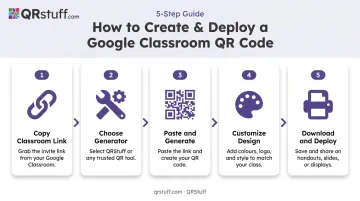
Step 1: Get the Google Classroom Link
Navigate to the specific content you want students to reach:
- Class invitation link : Class Settings → Invite Link
- Assignment link : right-click the assignment and select "Copy link"
- Google Form : open the form, click Send, and copy the responder link
- Google Drive folder : right-click the folder → Share → copy the link
- Google Meet : create the meeting and copy the meeting link
Before generating anything, check the sharing permissions. A class invitation link requires students to be enrolled. A Google Form or Drive folder typically needs to be set to "Anyone with the link can view."
Without that setting, students hit an access error after scanning — which looks like a broken QR code but is actually a permissions problem.
Step 2: Choose Your QR Code Generator
Open QRStuff (or a similar external tool). Google Classroom does not generate QR codes natively, so this step is unavoidable.
The main decision is static vs. dynamic:
| Static | Dynamic | |
|---|---|---|
| Cost | Free | Paid plan |
| Destination editable? | No | Yes |
| Scan tracking | No | Yes |
| Expires? | Never | Active subscription required |
| Best for | Permanent content | Assignments that change each term |
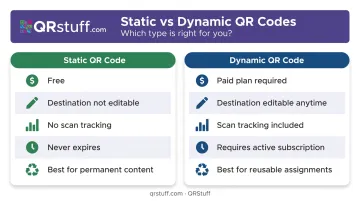
If you're printing a one-time worksheet that links to a permanent resource, static is fine. If you're reusing the same bulletin board QR code each semester and swapping out the linked assignment, dynamic is worth the upgrade. QRStuff's Lite Suite unlocks 50 dynamic codes with editable destinations — check the pricing page for current rates.
Step 3: Paste the Link and Generate
- Select "URL" as the data type in the generator
- Paste your copied Google Classroom link into the input field
- Click generate
Before downloading, preview the code and test-scan it on a real device. QRStuff shows a live preview as you build, but always do a physical scan test (ideally on both an iPhone and an Android) to confirm it resolves to the correct page. Catching errors before printing saves wasted paper and reprinting time.
Step 4: Customize the Design (Optional)
QRStuff allows customization of colors, module shapes, logo overlays, and gradient effects. Adding your school logo or class colors makes codes immediately recognizable on busy handouts.
A few safety rules to keep in mind:
- Keep the QR code dots at least 70% darker than the background
- Limit any logo overlay to no more than 15% of the total code area (QR codes have up to 30% error correction built in, and a large logo eats into that buffer)
- Never obscure the three corner squares
- Avoid light-on-dark color schemes : some older scanners struggle with inverted contrast
Customization features are available to paid subscribers. After any design changes, test-scan again before finalizing.
Step 5: Download and Deploy
Download in PNG or SVG format. Avoid low-resolution JPEGs — pixelation at print size causes scan failures.
For standard classroom printing, a 300 DPI PNG works well. For anything larger than a standard sheet of paper (banners, posters), use SVG or EPS, which scale without quality loss.
Print size matters too: the code should be at least 2cm × 2cm (roughly 0.8" × 0.8") for reliable scanning. Smaller than that and smartphone cameras start struggling.
Deployment options:
- Printed on worksheets or handouts
- Embedded in Google Slides or a classroom presentation
- Posted on a physical bulletin board
- Added to a syllabus or student planner
Types of Google Classroom Content You Can Turn Into QR Codes
Any URL that Google Classroom generates can become a QR code. Here's what that looks like in practice:
| Content Type | What It Links To | Practical Use |
|---|---|---|
| Class invitation link | Join page for the class | Bulletin board QR for new student onboarding |
| Assignment link | Specific assignment in Classroom | Printed worksheet → corresponding digital task |
| Google Form | Responder view of the form | Exit ticket or quiz linked from a handout |
| Google Drive folder | Shared resource folder | Reference materials accessible via poster |
| Google Meet link | Video meeting | QR in a slide for quick virtual session access |
If the linked content requires a Google account login or class enrollment, students will see a sign-in prompt after scanning. That's expected — the QR code is functioning correctly and simply leading to gated content.
Why Teachers Use QR Codes in Google Classroom
The core problem is friction. Long Google Classroom URLs with 60+ random characters are easy to mistype, especially for younger students. The University of Pittsburgh Teaching Center notes that QR codes "negate the need for students to manually type URLs" — a real time-saver when you're redirecting an entire class at once.
Three scenarios where QR codes genuinely save time:
- Physical-to-digital transitions — A printed science worksheet with a QR code linking directly to the corresponding Google Form quiz. No searching through Classroom, no wrong assignment opened.
- Gallery walks and scavenger hunts — Stations around the room each have a QR code pointing to a different resource, video, or question. Students self-navigate without teacher intervention at each stop.
- Parent and visitor access — A QR code on a back-to-school handout linking to a shared Google Drive folder of class resources, without requiring parents to navigate Google Classroom directly.
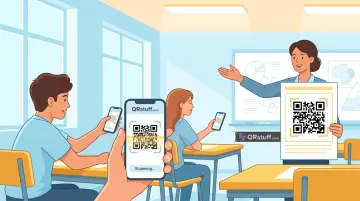
EDUCAUSE lists additional applications including attendance workflows, formative assessment links, and collaborative document access. Each use case comes back to the same principle: fewer steps between students and content means more time spent learning.
Common Mistakes to Avoid
Skipping the Test Scan
Always scan the code on a real device before printing. Wrong URLs, broken links, and permission errors are easy to catch at this stage and expensive to discover after distributing a full class set of handouts.
Using Static Codes for Content That Changes
If you update the linked assignment or Google Form after printing static QR codes, every printed copy becomes useless. Dynamic QR codes let you update the destination URL from your QRStuff dashboard without reprinting — making them the better option for any content you reuse across terms.
Ignoring Permissions
A QR code is only as useful as the link it carries. A Drive file set to "Private" will show an access denied error to anyone who scans it. Before deploying, verify:
- Drive files/folders: set to "Anyone with the link can view"
- Google Forms: published and set to accept responses
- Classroom assignments: students must be enrolled before the link works for them
Troubleshooting: When Your QR Code Isn't Working
QR Code Scans but Students Get "Access Denied"
Cause: The linked resource isn't shared correctly, or requires a school Google account login.
Fix: Check sharing settings on the linked file. For Drive resources, set to "Anyone with the link can view." For Classroom assignments, confirm students are enrolled. If students are using personal Google accounts rather than school accounts, access will be blocked regardless.
QR Code Won't Scan at All
Cause: Code is too small, low resolution, or insufficient contrast.
Fix: Run through this checklist:
- Print at a minimum of 2cm × 2cm
- Re-download in PNG (300 DPI minimum) or SVG format
- Use a dark code on a white background with no border clipping
- Never crop the quiet zone (the white margin surrounding the code)
QR Code Points to the Wrong Page or an Old Assignment
Cause: Static QR code with an outdated or archived destination.
Fix: Generate a new QR code with the updated link. Instead, use a dynamic QR code — you can update the destination URL through the QRStuff dashboard without reprinting anything.
Students on Chromebooks Can't Scan a Physical Code
Cause: Chromebooks added native QR scanning in ChromeOS 89 (released March 2021), but the workflow isn't intuitive and isn't available on older versions.
Fix: Open the Camera app → select Scan → QR Code. Alternatively, distribute QR codes digitally by embedding them in a Google Slides presentation or Classroom document, so students click through directly. Always include a clickable URL as backup in Chromebook-heavy classrooms.
Frequently Asked Questions
Is there a QR code generator for Google Classroom?
Google Classroom does not have a built-in QR code generator. To create one, copy any Google Classroom URL and paste it into an external tool like QRStuff. Select "URL" as the data type, generate, and download. The process takes under two minutes.
Can students scan QR codes on Chromebooks?
Chromebooks running ChromeOS 89 or later can scan QR codes using the Camera app (Camera → Scan → QR Code). For older devices or physical printed codes, smartphones are more reliable. As a backup, always include a clickable URL alongside any QR code in digital documents.
What types of Google Classroom content can I link with a QR code?
Any URL Google Classroom generates works: class invitation links, assignment links, Google Forms, Google Drive folder links, and Google Meet links. If the content requires a Google login or class enrollment, students will be prompted to sign in after scanning.
Are QR codes for Google Classroom free to create?
Static QR codes are free with most generators, including QRStuff's Free Suite. Dynamic QR codes, which allow editable destinations and scan tracking, require a paid plan. QRStuff's Lite Suite includes 50 dynamic codes with no expiration — check QRStuff.com for current pricing.
Do Google Classroom QR codes expire?
Static QR codes don't expire on their own, but the link they point to can become inaccessible if a class is archived or an assignment is deleted. Dynamic QR codes require an active subscription to keep redirecting. On QRStuff paid plans, codes remain active as long as the subscription is current.
Can I track how many students scanned my QR code?
Yes, but only with dynamic QR codes on a paid plan. QRStuff's analytics dashboard shows total scans, unique scans, device type (iOS vs. Android), geographic data, and time-based activity — including hourly breakdowns.