A 2025 patient-experience study found real-time in-person surveys achieved a 50.1% response rate compared to just 3.14% for mailed surveys during the same period — and in-person scores were consistently higher across every measured dimension. The gap isn't subtle.
QR codes close that timing gap. One scan takes a customer directly from their experience to your feedback form — no URL typing, no searching, no friction. This guide walks through exactly how to set up, place, and optimise a QR code feedback system that works in real operating conditions.
Key Takeaways
- QR codes remove friction between a completed experience and a submitted response — customers scan and answer in under a minute
- Before launching, confirm you have a mobile-optimized survey, a dynamic QR code generator, and a clear placement plan
- Always choose dynamic QR codes — they let you update the survey destination without reprinting a single piece of material
- Best placements are at natural end-points: receipts, table tents, product packaging, exit signage
- Track scan volume and form completion rates separately; a large gap between the two pinpoints exactly where respondents drop off
When QR Code Feedback Actually Works
QR codes for feedback perform best when the customer is still physically or emotionally inside the experience — at a restaurant table, near a store exit, holding a just-opened package. That window closes fast. Once someone leaves, the willingness to respond drops sharply.
The right environments for QR feedback collection:
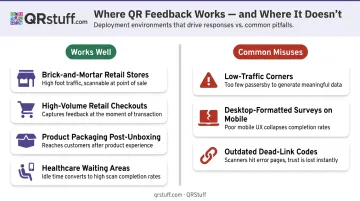
- Brick-and-mortar businesses where staff can't manually collect responses at scale
- High-volume settings — retail checkouts, event venues, airport lounges — that need passive, continuous data capture
- Product packaging at the post-unboxing moment, when the customer is engaged and stationary
- Healthcare and service waiting areas, where people are already idle and on their phones
Where QR feedback is often misused:
- Codes placed in low-traffic corners with no context or call to action
- Links pointing to desktop-formatted surveys that are awkward on a phone screen
- Outdated codes left in place after the destination URL changed — resulting in dead scans and frustrated customers
U.S. smartphone users scanning QR codes grew from 83.4 million in 2022 to a projected 99.5 million in 2025. Scanning behavior is no longer a barrier. The question is whether your setup captures that momentum effectively.
What You Need Before Getting Started
Three prerequisites, in order of dependency:
1. A mobile-optimized feedback form This is what the QR code points to. A form that loads poorly on mobile — small text, horizontal scrolling, broken submit buttons — will kill completion rates regardless of how well-placed your code is. Good options include Google Forms (free, straightforward to share), Typeform (conversational mobile flow), or a dedicated feedback platform for more advanced reporting needs.
2. A QR code generator that supports dynamic codes Static QR codes permanently encode the destination URL into the code pattern itself. Change the survey URL and the printed code becomes useless; you'd need to reprint everything. Dynamic codes redirect through an intermediary URL, so you can update the destination from your dashboard anytime. QRStuff's dynamic codes include scan analytics and editable destinations on paid plans — check the pricing page for current plan details.
3. A clear plan for placement and format Decide where the code will appear before you generate it. A code going on a receipt needs a high-resolution PNG at a specific print size. A code for a presentation slide needs SVG or EPS to stay crisp at any display size. Getting the format right before creation avoids reprinting.
How to Set Up a Feedback QR Code Step by Step
The order matters here. Skipping ahead (generating a code before confirming the form works on mobile, or printing before testing) is the most common reason feedback campaigns underperform even with good placement.
Choose Your Feedback Format First
Before creating any code, decide what you're measuring:
- CSAT (Customer Satisfaction Score) — single-question rating, fast to complete
- NPS (Net Promoter Score) — 0–10 likelihood-to-recommend scale
- Star rating + open comment — quick rating with optional elaboration
- Multi-question survey — more depth, but requires careful length management
Keep surveys short by design. Kantar research found surveys over 25 minutes lose more than three times as many respondents as those under five minutes, and mobile completion takes roughly twice as long as desktop.
A QR-accessed mobile survey should aim for under five questions and under three minutes of completion time.
Create and Customize Your QR Code
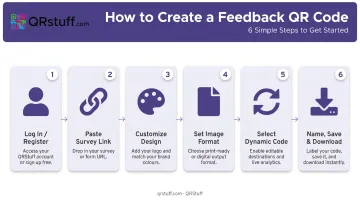
Once your form URL is confirmed and mobile-tested, head to QRStuff and follow this sequence:
- Log in or register at qrstuff.com and select the URL QR code type
- Paste your survey link — include the full
https://prefix or the generator won't accept it - Customize the design — upload your logo (JPG/PNG/GIF up to 6MB), apply brand colours using the picker, and select module shapes; styling features are available on Lite and above plans
- Set image format — choose SVG or EPS for print materials, PNG for digital use; select at least 300 DPI for raster exports
- Select dynamic on the final setup screen — this is a one-time decision; static codes cannot be converted to dynamic later
- Name and save to a project folder, then download
Design constraints that matter for reliability:
- Foreground dots must be at least 70% darker than the background
- Embedded logos should not exceed 15% of the total code area
- The three corner squares must never be obscured
- Maintain a white border of 2–3 data-square widths around any embedded image
Test Before You Print or Deploy
Scan the code from multiple devices — both iOS and Android, using the native camera app — before committing to a print run. Confirm:
- The correct survey opens (not an old version or error page)
- The form is properly formatted on a small screen
- The submit button works and the confirmation message appears
QRStuff recommends a minimum size of 2cm × 2cm for close-range scanning, and follows a 10:1 distance-to-size ratio: a code scanned from 3 metres away needs to be at least 30cm wide. For table tents or receipts, 2–4cm works. For event slides or exit signage, size up significantly.
Track and Analyse Results
After launch, watch two numbers — not one. QRStuff's analytics dashboard captures:
- Total and unique scan counts
- Scan time and date (identifying peak engagement windows)
- Device type and operating system
- Geographic data at country and city level
Your survey platform separately tracks form completions. A high scan count paired with low completions points to a survey problem: too long, poor mobile layout, or a broken submit button. Low scan counts, on the other hand, point to a placement or call-to-action problem. Read together, both numbers show you exactly where to intervene.
Data can be exported as CSV for integration with other reporting tools.
Where to Place Feedback QR Codes for Maximum Impact
The highest-performing placements share one trait: they appear at the natural end of the customer interaction, while the experience is still fresh. That's when customers are most willing to respond — and most likely to give honest, specific answers.
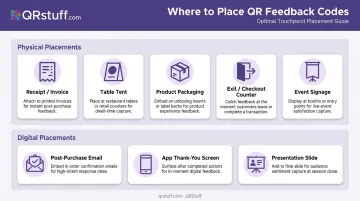
High-Impact Physical Placements
| Location | Best For |
|---|---|
| Receipts and invoices | Retail, restaurants, service businesses |
| Table tents and menu inserts | Hospitality, cafes, food service |
| Product packaging | E-commerce, CPG brands, post-unboxing |
| Near exit doors / checkout counters | Retail stores, healthcare waiting rooms |
| Event signage | Conferences, trade shows, pop-up venues |
Digital Placements
QR codes also work in digital touchpoints:
- Post-purchase email confirmation pages — embed as an image with alt text
- Thank-you screens in apps — displayed immediately after transaction completion
- Event presentation slides — shown at the end of a session
For screen-based placements, always include a short typed URL alongside the QR code — some users can't scan directly from a screen. The same logic applies to physical placement: codes work best where people are already stationary. Waiting for a bill, standing near an exit, or unpacking a delivery are all natural moments. Anywhere that requires someone to awkwardly hold their phone up for more than a few seconds will hurt response rates.
Best Practices for Higher Response Rates
A QR code alone doesn't generate feedback. These specifics do.
Write a CTA That Sets Expectations
"Scan to share your feedback" is too vague. "Scan to tell us how we did — takes 30 seconds" sets expectations and removes hesitation.
The U.S. Census Bureau's 2024 QR usability study found that 95% of respondents were "very comfortable" using QR codes, with an average scan time of just 12.4 seconds. The barrier isn't the technology — it's the CTA.
Design the Survey for Mobile Completion
Most respondents will complete the survey on their phones, so design for thumbs, not keyboards. A few quick wins:
- Use rating scales and multiple-choice questions instead of open text fields
- Include a progress bar so respondents know how far along they are
- Cap the survey at five questions or fewer
QRStuff's dashboard lets you redirect the same printed code to different survey versions — useful for testing a new CTA, comparing two form structures, or rotating between seasonal campaigns. No reprinting required.
Maintain and Monitor Deployed Codes
Physical codes in public-facing environments can become damaged, faded, or — less commonly but genuinely — covered by fraudulent codes. Scan each deployed code monthly to confirm it still resolves correctly.
Small incentives — a discount code or prize draw entry — can meaningfully increase response rates. A 2023 Cochrane review found response odds nearly doubled with monetary incentives (OR 1.88) for electronic questionnaires.
One important distinction: incentivizing responses on public review platforms like Google violates their terms of service. That restriction applies to public reviews only — private feedback surveys are fair game.
Frequently Asked Questions
What is a QR code for customer feedback?
A feedback QR code is a scannable code that takes a customer directly to a feedback form or survey when pointed at with a smartphone camera. It removes the need to type URLs or search for forms, making it practical to collect responses right at the point of experience.
How do customers scan a QR code to leave feedback?
Most modern smartphones — iOS and Android — can scan QR codes through the native camera app. Customers open their camera, point it at the code, and tap the notification link that appears. No separate app is needed on current devices.
Should I use a static or dynamic QR code for my feedback surveys?
Use dynamic. Dynamic codes let you update the destination URL at any time from your dashboard — so if you swap surveys, fix a broken link, or launch a new campaign, the printed code stays the same. Static codes permanently lock the URL at creation.
Where is the best place to put a feedback QR code?
Place codes at the natural end of a customer interaction: receipts, table tents, product packaging, checkout counters, or event signage. These are the moments when a customer has just finished an experience and feedback is most top of mind.
How do I track how many people responded through my QR code?
Tracking works at two levels. QRStuff shows scan data — volume, device type, and location. Your survey platform shows form completions. The gap between the two reveals exactly where customers are dropping off.
Can I change my survey without reprinting the QR code?
Yes, with a dynamic QR code. Update the destination URL in your QRStuff dashboard and the redirect goes live immediately — no reprinting required.