QR codes solve all three of those limitations — but only when they're implemented correctly. Forrester's review of 125+ QR codes on physical materials found that most failures come down to poor execution: no clear call-to-action, generic destinations, or broken links. The technology itself isn't the problem.
This guide covers when QR codes actually belong on print materials, how to create and size them properly, and what separates a code that gets scanned from one that gets ignored.
Key Takeaways
- QR codes on print work when they lead to a specific action (booking form, product page, video, menu) not a generic homepage
- Dynamic QR codes are essential for print runs; they let you update the destination without reprinting
- Size, contrast, and a clear quiet zone (white border) are non-negotiable for reliable scanning
- Always add a short CTA label so people know what they're scanning before they scan it
- Test on both iOS and Android before sending files to print
When QR Codes Actually Belong on Print Materials
A QR code adds value when print alone can't deliver the next step. If the destination is meaningful and the audience has a phone in hand, a QR code earns its space. If neither condition is met, it's clutter.
Here's where that line sits in practice — and where it gets crossed.
Where They Work Well
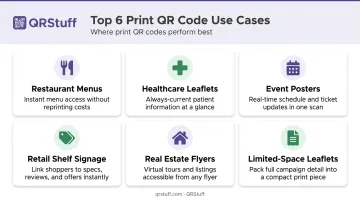
These print formats have strong evidence behind them:
- Restaurant table cards and menus — Half of full-service operators added QR-code digital menus after March 2020, reaching 54% adoption in fine dining
- Healthcare waiting room leaflets — A PubMed-indexed study of 330 patients found over 80% were willing or able to scan QR codes on patient information materials
- Event posters in high foot-traffic areas — Registrations, ticket links, and event schedules are natural fits
- Retail shelf signage — Product demos, reviews, and mobile checkout
- Real estate flyers — Virtual tours, floor plans, and agent contact cards
- Limited-space leaflets — When the content you need to convey doesn't fit on the page
Where They're Commonly Misused
- Linking to a generic homepage instead of a specific, relevant destination
- Printing on transit ads viewed from moving vehicles (no time or ability to scan)
- Adding a QR code without any label explaining what the scan delivers
- Using static codes on large print runs where the destination might change
The failure mode is almost always the same: the code gets placed, but the value of scanning is never communicated. Readers see a square pattern and nothing that tells them why it's worth pointing a camera at it.
What You Need Before Adding a QR Code to Your Print Material
Confirm these three things before you start designing.
1. A stable destination URL or content A URL that breaks or changes after printing permanently kills the code — unless you're using a dynamic QR code (more on that below). Confirm the destination is live and will stay live for the duration of the print run.
2. A QR code generator that supports dynamic codes Dynamic codes encode a short redirect URL rather than the final destination. That means you can update where the code points after printing, without touching the physical material. QRStuff, for example, supports 40+ content types including URL, vCard, PDF, Google Maps, video, and event registration, so you can match the code to your specific use case.
3. A print-ready file format
- SVG or EPS for professional printing (vector, scales without quality loss)
- PNG at 300 DPI minimum for home or short-run printing
- Avoid JPG: lossy compression degrades the code's modules and causes scan failures
How to Add a QR Code to Your Poster or Leaflet
Most sizing and contrast errors happen when the QR code is generated last, after layout decisions are already locked. Work through this sequence instead.
Step 1: Choose Your Content Type
Decide what action the scan should trigger before generating anything. Common options for print:
| Content Type | Best For |
|---|---|
| URL | Event pages, landing pages, product pages |
| Menus, brochures, instruction sheets | |
| vCard | Business cards, real estate flyers |
| Video | Product demos, how-to content |
| Google Maps | Location-based signage, event venues |
| Form | Registrations, patient intake, surveys |
The content type affects how the code renders at different sizes, so this decision comes first.
Step 2: Generate and Customize the Code
Choose dynamic over static for any print material. Static codes permanently encode the destination — if the URL changes or breaks, the printed code is dead. Dynamic codes encode a short redirect that you control. QRStuff's dynamic codes let you update the destination at any time, and the physical code remains unchanged.
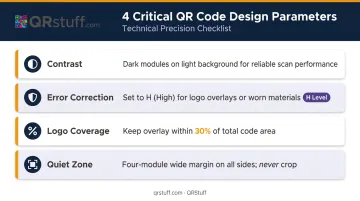
For customization, these parameters directly affect whether the code scans reliably:
- Contrast — Dark modules on a light background is the most reliable combination. Low-contrast pairings (gray on white, dark teal on navy) frequently fail in varied lighting
- Error correction — Set to H (High) if adding a logo or if the material will experience physical wear. Level H allows approximately 30% of the code to be restored if damaged. QRStuff automatically raises error correction when a logo is embedded
- Logo coverage — Keep logo overlays within roughly 30% of the code area to maintain scannability
- Quiet zone — DENSO WAVE's specification requires a four-module wide margin on all sides. Never crop this border
QRStuff's design options include module shapes, finder pattern styles, color gradients, and logo embedding, giving you enough flexibility to build a branded code without sacrificing scan reliability.
Step 3: Download in the Correct Format and Embed
Use SVG or EPS for professional print files. These vector formats scale to any size without pixelation — essential for posters, banners, or any large-format material. PNG at 300 DPI works for smaller runs.
Minimum sizing guidelines for placement:
- Leaflets and close-range materials: approximately 1 inch × 1 inch
- Wall posters: larger, scaled to expected scanning distance
- Roadside banners or large-format signage: substantially larger — scanning distance determines the required size. A code scanned from 10 feet needs to be significantly bigger than one held in hand
Step 4: Test Before Sending to Print
Skipping this step is how print jobs fail. Scan the embedded QR code from the actual design file — or a printed test copy — using both iOS and Android devices.
Common pre-print failures to check for:
- Destination URL not yet live
- Code too small after being placed in the layout
- Low-contrast color pairing that only becomes apparent on paper
- Wrong content type generating an unexpected result
QRStuff's platform includes a preview feature showing the code exactly as it will appear, but physical testing at actual print size is still the only reliable confirmation.
Where QR Codes on Print Materials Work Best
Placement on the Physical Material
Where you put the code on the page matters almost as much as what the code links to:
- Posters — Place near the bottom, adjacent to the call-to-action. Codes buried mid-content compete with surrounding information and get ignored.
- Leaflets — Use the back panel or inside panel near a strong headline. Placement within body copy tends to get overlooked.
- Table cards and menus — Position front and center, with a clear label. The context already signals intent to the reader.
Context-Specific Considerations
| Format | Key Consideration |
|---|---|
| Restaurant table cards | Ordering and review links; context removes all friction |
| Event posters | Registration links; time-sensitive — dynamic codes essential |
| Retail shelf signage | Product detail and demo links; avoid broken destinations |
| Real estate flyers | Virtual tour links; agents need codes that stay current |
| Healthcare leaflets | Patient forms and resources; password protection available for sensitive content |
These distinctions matter most when you're running campaigns across multiple locations or formats. Create separate QR codes per location or material — blended scan data makes it impossible to tell which placement is actually driving results.
Best Practices for Getting Results from Your Print QR Codes
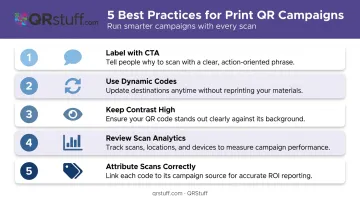
Five practices consistently separate high-performing print QR campaigns from ones that get ignored:
Label every code with a CTA. "Scan to book your free consultation" outperforms an unlabelled code because it removes ambiguity and gives people a reason to act. Consumers need to know what happens after they scan — without that, most won't bother.
Use dynamic codes for any meaningful print run. If the campaign changes, the offer expires, or the destination needs updating, a dynamic code lets you redirect without reprinting. This matters most for large-format posters, bulk leaflets, or anything in the thousands. QRStuff's dynamic codes support destination updates at any time while the physical code stays identical.
Keep contrast high. Blending the code into the background to look subtle usually means reducing contrast — and low-contrast codes fail in real-world lighting. Unlike a design studio, a bus stop or retail aisle offers no controlled conditions.
Review scan analytics after launch. Zero scans in the first two weeks is a signal: wrong placement, unclear CTA, broken destination, or the audience had no incentive. QRStuff's analytics dashboard for dynamic codes reports total scans, unique scans, device type (iOS/Android), geographic location at country and city level, and time of scan.
Attribute scans correctly across campaigns. Generate separate QR codes per material, location, or campaign and use campaign tagging in your dashboard. Mixed attribution across multiple placements makes it impossible to tell which poster drove results.
Frequently Asked Questions
Do QR codes work on posters?
Yes, QR codes work reliably on posters when sized correctly, printed with sufficient contrast, and linked to a live destination. The most common reason they fail is execution: wrong size, poor contrast, or a destination that wasn't live when the material went out.
How do you display references on a poster?
A QR code is one of the most space-efficient options. Save your reference list to a shareable document or web page, encode that URL as a QR code, and place it on the poster. Viewers get full access to source material without the poster becoming cluttered with citations.
What size should a QR code be on a poster or leaflet?
For close-range materials like leaflets held in hand, 2.5 cm × 2.5 cm is the recommended minimum. For wall posters in public spaces, size should scale with expected scanning distance — a code scanned from 3 metres needs to be significantly larger than one scanned at arm's length.
Can I update a QR code on a printed poster without reprinting?
Only dynamic QR codes support this. The physical code stays the same, but the URL it redirects to can be changed at any time through the QR code platform. This is why dynamic codes are essential for any print campaign you can't afford to reprint.
What should I link my QR code to on a leaflet?
Match the destination to the leaflet's intent — a booking form, product page, video demo, downloadable PDF, or contact card. Linking to a generic homepage is the most common reason QR codes on leaflets underperform.
How do I track who scans my QR code on a poster?
Scan tracking requires a dynamic QR code from a platform that provides analytics. QRStuff's analytics reports total scans, unique scans, device type, geographic location (country and city), and time of scan — giving you the same performance visibility from a printed poster that you'd get from a paid digital ad.