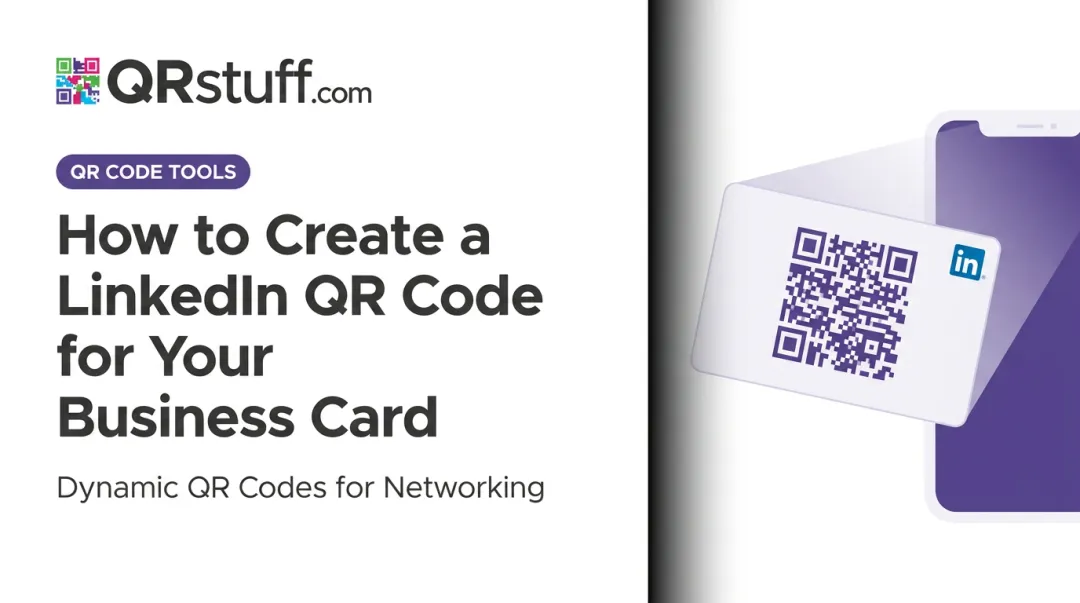
The execution, though, matters more than people expect. Using the wrong image, skipping a quiet zone, or printing on the wrong card finish can make a QR code completely non-functional — and you won't discover that until after the cards are already printed. This guide covers the exact steps to generate a print-ready LinkedIn QR code, place it correctly on your card, avoid the most common mistakes, and make sure your profile is worth landing on.
Key Takeaways
- Customise your LinkedIn URL before generating any QR code — the URL is what the code will point to
- LinkedIn's in-app QR code is fine for phone-to-phone sharing, but is not print quality
- Use a dedicated generator like QRStuff to export SVG or 300 DPI PNG files suitable for print
- Make the QR code at least 0.8 inches square on a standard card, with quiet zone intact
- Matte and soft-touch card finishes scan more reliably than high-gloss surfaces
- Optimise your LinkedIn profile before sending to print — every scan lands there first
How to Add a LinkedIn QR Code to Your Business Card
Step 1: Customize Your LinkedIn Profile URL First
LinkedIn's default profile URLs contain random alphanumeric strings that are unprintable and impossible to remember. Before you generate any QR code, replace it with a clean handle.
How to set your custom URL:
- Go to your LinkedIn profile on desktop
- Click Me → View Profile
- On the right panel, click Edit public profile & URL
- Click the edit icon under "Edit your custom URL"
- Set your handle — something like
linkedin.com/in/firstname-lastname - Click Save
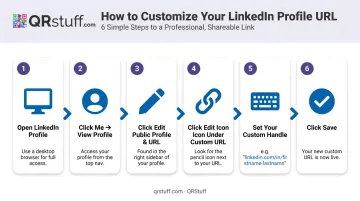
A few rules from LinkedIn's own Help documentation: the custom part must be 3–100 letters or numbers, no spaces or special characters, and you can change it up to 5 times within any 6-month period. Availability is first-come, first-served.
Lock this URL down before you proceed. It's the destination your QR code will point to, and changing it after printing leaves every card in circulation pointing to nothing.
Step 2: Choose Your QR Code Generation Method
For print, not all QR code sources are created equal. LinkedIn's native code works fine for in-person phone sharing, but falls short the moment it hits a printing press.
LinkedIn's native in-app QR code:
- Found by tapping the QR icon in the search bar of the LinkedIn mobile app
- Can be saved to your camera roll on iOS and Android
- Works well for phone-to-phone sharing at events
- LinkedIn's Help documentation does not specify output resolution, DPI, or vector format (treat it as screen-resolution only and not suitable for printing on physical cards)
A dedicated QR code generator (recommended for print):
QRStuff has a dedicated LinkedIn QR code type (not a generic URL field) specifically built for LinkedIn profiles and posts. The workflow: select the LinkedIn data type, paste your profile URL, customize the design, and download.
For print-quality output, QRStuff supports:
- SVG and EPS vector formats — scalable to any size without quality loss
- PNG/JPG/TIF at up to 600 DPI for raster exports
- Free accounts: 72 DPI PNG only (not suitable for business card printing)
- Lite Suite (£4/month): unlocks high-resolution and vector exports, plus 50 dynamic codes with no expiration
Dynamic QR codes let you update the destination URL after printing without reprinting a single card.
Step 3: Generate and Export the QR Code at Print Quality
Technical requirements for print:
| Variable | Requirement |
|---|---|
| File format | SVG or EPS (preferred); PNG at 300 DPI minimum |
| Minimum size on card | 0.8 inches × 0.8 inches (1 inch preferred when space allows) |
| Quiet zone | White border of at least 4 modules on all sides (built into QRStuff exports automatically) |
| URL complexity | Use your shortened custom LinkedIn URL to reduce code density |
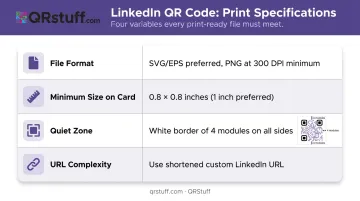
QRStuff automatically includes the quiet zone in exported files, so you don't need to add it manually in your design software. The critical rule: never crop it. The quiet zone is what allows phone cameras to distinguish the code from surrounding design elements.
Step 4: Place the QR Code in Your Card Design
On a standard 3.5 × 2 inch card, the QR code competes for space with your name, title, phone, email, and logo. Two approaches work:
Back of the card : The most reliable placement. Keeps the front clean and gives the QR code room to breathe. Pair it with a short call-to-action like "Scan to connect on LinkedIn" so recipients know what will happen.
Front contact block : Only viable if there's genuine white space available. Use the official LinkedIn "in" logo icon alongside or below the QR code for instant recognition.
Keep the QR code inside the card's safe area . MOO's standard safe area is 3.34 × 1.84 inches; UPrinting's is 3.25 × 1.75 inches. Never place the QR code in the bleed zone.
Step 5: Test Before Sending to Print
Testing on screen is not enough. Print a proof at the actual card size and scan it under different conditions:
- Bright indoor lighting
- Dim lighting (like a conference venue or restaurant)
- Outdoor light
- At least three different phones, including an older model
If your card uses a dark background, the QR code needs a white bounding box around it . Dark modules on a dark background will not scan, even if the code itself is technically correct.
Key Design Considerations That Affect Scan Success
Getting the QR code generated is the easy part. These variables determine whether it actually scans in someone's hand at a networking event.
Card Finish and Substrate
High-gloss, UV-coated, and foil-finished cards introduce light reflection that confuses phone cameras during scanning. Dynamsoft's barcode scanning research identifies lighting and reflection as primary real-world scan failure causes.
- Best for scanning: Matte, soft-touch, and uncoated finishes
- Acceptable workaround: Print the front glossy and leave the back uncoated — place the QR code on the back
- Avoid entirely: Spot UV or foil lamination directly over the QR code area
Color and Contrast
Dark modules on a light background is the gold standard. Inversion (light code on dark background) is risky and requires thorough testing.
Heavily customized QR codes with embedded logos reduce scanning reliability — the QR error correction system restores damaged codewords, not logo coverage. If you're adding a logo or brand colors through QRStuff's customization options, order a small test batch before committing to a full print run.
Dynamic vs. Static QR Codes
| Static | Dynamic | |
|---|---|---|
| How it works | URL encoded directly in the pattern | Routes through a short redirect URL |
| Updateable after print? | No | Yes — change destination in dashboard |
| Scan analytics | None | Full: scans, device type, location, time |
| Best for | Personal cards with stable LinkedIn URL | Sales teams, campaigns, event networking |
| Dependency | None | Requires active QRStuff subscription |
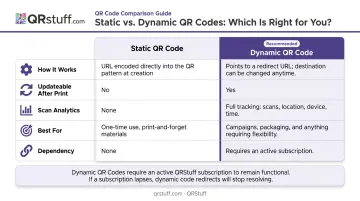
QRStuff's dynamic LinkedIn QR codes track total scans, unique scans, device type (iOS vs Android), scan time and date, and geographic location down to city level. All data is available in a real-time dashboard, exportable as CSV or PDF. This is particularly useful for professionals distributing cards at multiple events who want to know which interactions are driving profile visits.
Dynamic codes do rely on QRStuff's redirect servers, so if a subscription lapses, codes expire after 30 days. Static codes, by contrast, are permanent.
Before You Print: Get Your LinkedIn Profile Ready
The QR code gets someone to your profile. What happens next depends entirely on what they find there.
A profile that's half-complete, missing a photo, or has a generic headline does more damage than no QR code at all — it signals that the card holder doesn't take their professional presence seriously.
Pre-print profile checklist:
- Use a professional headshot where your face fills the frame — not a cropped group photo
- Write a headline that describes the value you offer, not just your job title
- Complete your About section (a blank About reads as unfinished)
- Add at least three recent Experience entries with roles and descriptions
- Skills — listed and relevant to your work
- Include a custom background banner, which is the first thing visitors see
- Custom URL confirmed — double-check it matches exactly what you've used in your QR code
Once cards are printed, the URL is locked. If it changes, every card in circulation points to a broken destination — so confirm your custom URL before sending anything to print. Keep in mind that all of these profile elements load within seconds of a scan; that's how long you have to make an impression.
Common Mistakes When Adding LinkedIn QR Codes to Business Cards
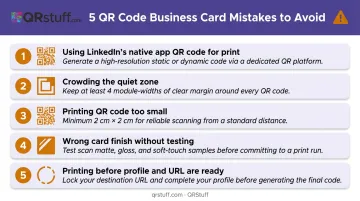
Most LinkedIn QR code failures on business cards come down to five avoidable mistakes:
Using LinkedIn's native app QR code for print. The saved image is screen resolution only — blurry or pixelated at business card scale. Generate a print-ready 300 DPI file, or ideally an SVG, from a dedicated QR code tool.
Crowding the quiet zone. Text, borders, or design elements overlapping the white margin around the QR code cause consistent scan failures that don't show up on screen — only after printing.
Printing the QR code too small. Use at least 0.8 inches square on a standard card. Older smartphone cameras struggle below this threshold. A shortened custom LinkedIn URL produces a simpler, more scannable code at small sizes.
Wrong card finish without testing. Glossy and UV-coated surfaces cause glare-related scan failures. If you want a premium finish, place the QR code on an uncoated back surface and proof it before ordering.
Printing before your profile and URL are ready. Cards pointing to an incomplete profile or outdated URL waste every connection they generate. Finalize both before going to print.
Other Ways to Display Your LinkedIn on a Business Card
A QR code isn't the only option, and in some situations — older audiences, minimal card designs, or cultural contexts where QR scanning isn't second nature — alternatives work better or should be used alongside it.
Printed Custom URL
Printing linkedin.com/in/yourname directly in the contact block requires no scanning step and works on every card type. The trade-off is that it requires the recipient to type it manually, which reduces follow-through. Position it below your email address in the contact info section.
LinkedIn Icon + URL Combination
The official LinkedIn "in" logo alongside a shortened URL provides instant visual recognition without requiring the reader to interpret text context. To stay compliant with LinkedIn's brand standards:
- Keep the icon at a minimum of 0.25 inches tall in print
- Use only the official brand asset from LinkedIn's downloads page
- Don't alter its proportions or colors
This approach is compact and professional, making it a strong fit for cards with limited space.
Pairing a QR code with a printed URL covers both scenarios: someone who scans on the spot and someone who revisits the card later. Both reach the same profile, and neither has an excuse not to connect.
Frequently Asked Questions
How do I get a LinkedIn QR code for my business card?
Two methods exist: LinkedIn's mobile app (tap the QR icon in the search bar to save your profile code) works for in-person phone sharing, but for printed cards use a dedicated generator like QRStuff's LinkedIn QR tool — it exports at 300 DPI or in SVG format for print-ready results.
How should I display my LinkedIn URL on a business card?
First, customize your LinkedIn URL to remove the default random characters — aim for linkedin.com/in/yourname. Then place it in the contact block alongside the official LinkedIn icon. Pairing the URL with a QR code gives recipients both options: scan directly or type manually.
What size should a LinkedIn QR code be on a business card?
On a standard 3.5 × 2 inch card, use at least 0.8 inches square — 1 inch is safer when layout permits. QR Code Generator's business card guidance supports the 2 × 2 cm (0.8 × 0.8 inch) minimum. Include the white quiet zone border on all sides and never crop it.
Should I use LinkedIn's built-in QR code or a third-party generator for my business card?
LinkedIn's in-app code is only suitable for screen sharing. For printed cards, use a dedicated generator like QRStuff — it exports at up to 600 DPI, supports SVG and EPS vector formats, and offers dynamic QR codes that can be updated after printing without reprinting the cards.
Does card finish affect whether my LinkedIn QR code scans properly?
Yes. High-gloss and UV-coated finishes create glare that interferes with phone cameras. Matte, soft-touch, and uncoated finishes produce the most reliable results. If you want a glossy front, place the QR code on an uncoated back side.
Can I update my LinkedIn QR code after the business cards are printed?
Static QR codes cannot be changed after printing. Dynamic QR codes — available through QRStuff's Lite Suite and above — use a redirect URL you can update through your dashboard, so if your LinkedIn URL changes or you want to point the code elsewhere, the printed cards keep working without a reprint.