Most implementation failures aren't technical — they're procedural. Restaurants print a code, stick it on the table, and wonder why guests aren't using it. The actual work happens before the code is ever generated: choosing the right platform, understanding QR code formats, planning placement, and preparing staff.
This guide covers everything in order: what you need before you start, the exact five-step setup sequence, the four variables that most affect performance, and the mistakes that consistently derail rollouts.
Key Takeaways
- QR ordering requires two components together: a dynamic QR code and a mobile-optimized ordering platform — neither works alone
- Dynamic codes let you update your menu URL anytime without reprinting physical materials
- Code size, contrast, and placement directly determine whether guests will scan — or won't
- Always train staff and keep printed menu fallbacks on hand — guests over 60 often need both
- Per-table scan analytics reveal underperforming locations so you can fix them over time
What You Need Before Setting Up QR Code Ordering
Before generating a single QR code, you need three things in place: a working digital menu or ordering platform, a dynamic QR code generator, and print-ready physical materials. Gaps in any of these show up immediately on the guest's phone.
Digital Menu or Online Ordering Platform
Choose your platform level based on what you actually need:
| Platform Type | Function | Best For |
|---|---|---|
| PDF menu / menu link | Browsing only | Cafes, low-complexity menus |
| Full ordering platform with POS integration | Browse, order, and pay end-to-end | Full-service dining, high volume |
Before generating any QR codes, confirm your platform:
- Opens in a mobile browser (no app download required)
- Loads reliably on 4G/LTE, not just your restaurant's Wi-Fi
- Works on both iOS and Android native camera apps
Toast notes that mobile ordering doesn't function during internet outages — which means connectivity planning isn't optional.
QR Code Generator and Print Materials
You need a dynamic QR code generator — one that lets you update the destination URL after printing, without replacing the physical code at every table.
When evaluating platforms, confirm support for:
- Real-time scan tracking per code
- Per-table unique code generation
- Branded customization (logo, colors, shapes)
- Bulk export in print-ready formats (SVG, PDF, EPS)
For a restaurant with 30–50 tables, look for a plan that supports at least 250 dynamic codes with bulk generation. QRStuff's Full Suite, for example, lets you upload a spreadsheet of table numbers and download a ZIP of unique, print-ready codes — useful when you need to deploy across an entire floor at once.
Common physical formats include table tents, sticker inserts, and laminated cards. Minimum print size for reliable table scanning: 4 × 4 cm (roughly 1.5 inches square).
How to Set Up QR Code Ordering in Your Restaurant
This is a sequential process. Skipping or reordering steps causes integration failures, misrouted orders, or broken scan flows. These problems are far harder to untangle after launch than before it.
Step 1: Configure Your Digital Menu and Ordering Platform
Build your digital menu with mobile-first principles. Guests have no server to ask for clarification, so the menu has to answer questions on its own:
- Logical category structure (appetizers, mains, drinks — keep items easy to find)
- Clear item descriptions with allergen callouts
- High-resolution food images (low-res images make items look unappetizing)
- Accurate, current pricing
If you're using a full ordering platform with POS integration, configure table numbers as order identifiers. Each QR code should pass a table number parameter to your POS so kitchen tickets route correctly. Confirm this routing in your POS dashboard before generating any codes.
Step 2: Generate and Customize Your QR Codes
Generate one unique dynamic QR code per table, plus separate codes for the entrance, pickup counter, and bar area if applicable. Per-table unique codes enable table-specific order routing and give you scan analytics broken down by location.
QRStuff lets you customize the visual design:
- Add your logo to the center of the code (safely covering up to 30% of the surface)
- Apply brand-consistent colors and gradients
- Modify module and corner shapes
- Add a call-to-action frame such as "Scan to Order"
The platform automatically increases error correction when a logo is applied, maintaining scannability. Use error correction level H (30%) for any code with a logo or heavy customization.
Step 3: Test the Full Scan-to-Order Flow Before Going Live
Test every single code on both iOS and Android using native camera apps — no third-party scanner. Simulate the complete guest journey:
- Scan the code
- Browse the menu
- Customize and add items
- Place the order
- Confirm it routes to the correct kitchen station or POS ticket
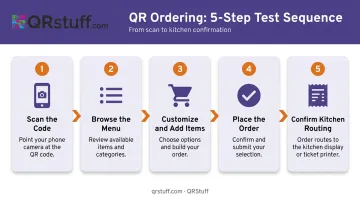
Then test under real-world conditions: low lighting, mobile data (not Wi-Fi), and on glare-prone surfaces. Document any codes that fail and regenerate or reposition them before launch.
Step 4: Print and Place QR Codes Strategically
Print codes at a minimum of 4 × 4 cm for table tents. For wall or door signage, scale up proportionally — a general rule is to add 1 cm to code size for every 10 cm of expected scanning distance.
Placement rules that directly affect scan rates:
- Center of table or leading edge — visible immediately when guests sit down
- At seated eye level, not elevated
- No obstructions, glare sources, or competing visual clutter nearby
- Never on dark surfaces, which kill contrast and prevent scanning
- Never inside a folded menu guests won't open immediately
Laminate all materials. Spills and repeated handling degrade unprotected codes quickly.
Step 5: Train Staff and Execute a Soft Launch
Front-of-house staff need to know:
- How to demonstrate the scan to a guest who's hesitant
- What to say when a guest's phone won't scan
- When to offer a physical menu without making guests feel judged
- How to handle orders that don't appear in the POS
Role-play friction scenarios before launch day, then soft-launch on two or three tables for one to two shifts. Gather feedback, resolve any routing or usability issues, and roll out fully. Always keep printed menu fallbacks available on request.
Key Parameters That Affect QR Code Ordering Performance
Even restaurants that follow setup steps correctly see inconsistent results. These four variables control whether guests actually complete the ordering flow.
Static vs. Dynamic QR Code Format
The code format you choose determines how much control you keep after printing.
| Static Codes | Dynamic Codes | |
|---|---|---|
| Destination | Permanently encoded | Editable from dashboard |
| Menu updates | Reprint all codes | Update URL once, no reprint |
| Analytics | None | Per-scan data included |
| Best for | One-time use | Active restaurant menus |
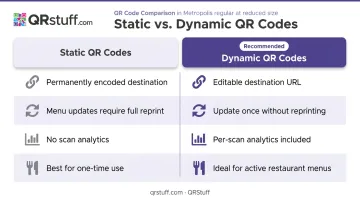
For any restaurant that updates menus seasonally, switches platforms, or runs promotional campaigns, dynamic codes are the only practical choice.
QR Code Visual Design and Size
Customization improves scan confidence — but overdoing it breaks scanning entirely.
Watch for these failure points:
- Altering or distorting the three finder pattern corners (the square brackets at the corners) breaks scanning
- Overlapping dark colors that reduce contrast with the background
- Printing below 2 × 2 cm for table use
- Cropping the quiet zone (the white border around the code)
A Journal of Business Research study found that visual design complexity affects scan intention: high complexity reduces scan attempts among casual users. A logo centered in the code with consistent brand colors is enough — anything beyond that risks scanner failures and lower adoption.
Placement, Visibility, and Context
Nielsen Norman Group advises placing QR codes where users naturally look and using specific wording that tells them what will happen when they scan. A code buried on the back of a folded tent, or positioned near a candle creating glare, is invisible to most guests.
Effective placement checklist:
- Visible within 3 seconds of a guest being seated
- No glare from candles, windows, or overhead lighting
- Printed CTA ("Scan here to order") directly beneath or beside the code
- One code per table — not multiple, which creates confusion
Per-table scan analytics from your QR platform will show which table zones underperform. That data tells you where to adjust placement, improve signage, or have staff prompt guests more consistently.
Mobile Menu Loading Speed
Google's mobile speed research found that 53% of mobile site visits are abandoned if a page takes longer than 3 seconds to load. A slow menu is the last-mile failure point — everything else in the setup can be perfect, and a sluggish loading experience still kills adoption.
To prevent this:
- Compress all food images before uploading
- Use a CDN-hosted menu or ordering platform
- Test load speed on a mobile data connection, not restaurant Wi-Fi
- Aim for under 2 seconds on 4G
Common Mistakes When Implementing QR Code Ordering
Using static QR codes. When you switch platforms, restructure your website, or run a seasonal promotion, static codes break instantly. Every table requires physical replacement. Dynamic codes solve this: update the destination once in your dashboard, and all printed codes redirect automatically.
Skipping a pre-launch test run. Order misfires and payment failures discovered during a busy dinner service create staff scrambles and lost revenue. A 30-minute pre-launch test catches everything.
Eliminating physical menu options. US Foods surveyed 1,003 Americans and found 89% prefer physical menus over QR codes, and 95% believe restaurants should always offer in-person menus. Forcing digital-only ordering causes friction and negative sentiment. A hybrid approach is both operationally and experientially better.
Ignoring scan analytics after launch. QR codes require ongoing attention after launch. Scan data reveals broken codes, underperforming table zones, and peak-hour connectivity drops. Restaurants that review this data monthly can fix adoption problems before they become permanent habits.
When QR Code Ordering Works Best (and When It Doesn't)
QR ordering delivers strong results in specific contexts — applying it without matching it to your service model reduces its effectiveness.
Where it excels:
- High-volume casual dining, cafes, bars, and breweries where speed and staff efficiency are priorities
- Outdoor patios and food halls where server access is limited
- Quick-service venues focused on throughput
- Takeout and pickup counters
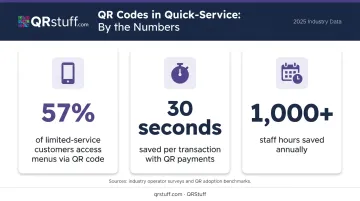
The numbers back this up. The National Restaurant Association found that 57% of limited-service customers would access menus via QR code, and First Watch reported that QR-code payments saved an average of 30 seconds per transaction, totaling more than 1,000 hours saved annually.
That said, QR ordering isn't a universal fit. Where it underperforms or needs a lighter touch:
- Fine dining, where personalized server interaction is a core brand differentiator
- Venues with poor in-house Wi-Fi and weak mobile data coverage
- Establishments with a predominantly older guest demographic — 65% of consumers over 60 are uncomfortable using QR codes in restaurants
In those settings, keep QR codes available as one option among several — a staff-assisted fallback or printed menu goes a long way toward serving guests who prefer it.
Frequently Asked Questions
Do customers need to download an app to scan a QR code and order?
No. Modern iPhones (iOS 11+) and Android devices (8.0+) scan QR codes through their native camera apps. The menu or ordering page opens directly in the phone's browser — no app download required. This is one reason QR ordering adoption rates exceed app-based approaches.
What is the difference between a static and dynamic QR code for a restaurant menu?
Static codes permanently encode a URL and cannot be changed after printing. Dynamic codes redirect through an editable short URL, meaning the destination (menu page, ordering platform, or promotional link) can be updated anytime without replacing the physical code.
How do I update my restaurant menu without reprinting my QR codes?
This is exactly what dynamic codes solve. Log into your QR code platform's dashboard, update the destination URL, and all existing printed codes automatically redirect to the new page. No physical replacement needed.
How many QR codes does my restaurant need?
One unique code per table, plus separate codes for the entrance, takeout counter, and bar. Per-table unique codes enable table-specific order routing and let scan analytics show which locations have low engagement.
What should I do if a customer can't scan the QR code?
The three most common causes: the code is too small or damaged, glare is blocking camera focus, or the guest isn't holding the camera steady for 1–2 seconds. Always have printed menus available as a fallback — don't make guests feel stuck.
Does QR code ordering replace servers entirely?
No. QR ordering handles the transactional side : menu browsing, order placement, and payment. Servers shift from order-takers to hospitality roles. Most restaurants find this improves guest satisfaction, since staff can focus on the experience rather than logistics.