QR codes on smartphones solve the access problem directly. A driver points their phone at a code affixed to the vehicle, a digital inspection form opens instantly, and a completed, timestamped record is submitted before they leave the lot — no printing, no manual data entry, no chasing down paperwork.
This guide covers the full setup process step by step: what you need before you start, how to generate and deploy QR codes across a fleet, what variables actually determine whether the system holds up under a DOT audit, and the mistakes that cause the whole workflow to fail before it gets off the ground.
Key Takeaways
- Affix a unique QR code to each vehicle; drivers scan it, the correct form loads instantly, and the completed record is submitted in minutes
- Dynamic QR codes are essential — update the linked form URL anytime without replacing labels on every vehicle
- Setup needs just three components: a mobile-optimized inspection form, a QR code pointing to it, and a smartphone camera
- For FMCSA-regulated fleets, electronic DVIRs are explicitly authorised under 49 CFR 396.11, with a three-month retention requirement
- Batch QR code generation handles large fleets, so you can generate codes for every vehicle at once rather than one at a time
How to Complete Vehicle Inspections with QR Codes on a Smartphone
Step 1: Create Your Digital Inspection Form and Link It to a URL
Build or select a digital inspection form that produces a stable, shareable URL. Options include web-based form tools (Google Forms, Typeform), fleet management software with form modules, or dedicated inspection apps.
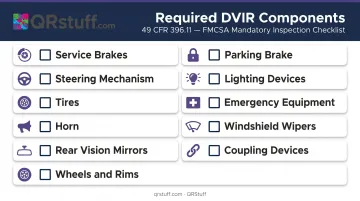
For FMCSA-regulated commercial vehicles, the form must cover all 11 DVIR components required under 49 CFR 396.11:
| Required Component | Required Component |
|---|---|
| Service brakes (incl. trailer connections) | Horn |
| Parking brake | Windshield wipers |
| Steering mechanism | Rear vision mirrors |
| Lighting devices and reflectors | Coupling devices |
| Tires | Wheels and rims |
| Emergency equipment | — |
For non-regulated fleets, use an internal safety checklist appropriate to the vehicle type. The key principle is that each vehicle class gets its own tailored form — applying a passenger car checklist to a commercial truck creates real compliance gaps.
Before generating any QR codes, load the form URL on an actual smartphone browser and confirm it renders correctly on a small screen.
Step 2: Generate a Unique QR Code for Each Vehicle
Each vehicle needs its own QR code pointing to a form instance pre-loaded with that vehicle's asset ID. A single shared link means drivers must enter the vehicle ID manually — which defeats the purpose.
Static vs. dynamic — choose carefully:
- Static QR codes permanently encode the URL. If your form URL ever changes, every printed label becomes a dead link overnight.
- Dynamic QR codes contain a short redirect URL. You can update the destination at any time without touching the physical label.
For fleet use, dynamic codes are the only practical choice. QRStuff's dynamic URL QR codes let you edit the destination URL after printing, track scan events with timestamps and location data, and enable or disable individual codes from the dashboard — all without reprinting a single label.
Batch generation eliminates manual code creation for large fleets. QRStuff's Full Suite supports batches of up to 500 codes per run using an Excel file where each row contains a unique destination URL.
The Enterprise tier removes that cap entirely and includes API access for programmatic generation — useful if vehicle records already live in a fleet management system. Completed batches arrive as a ZIP file with individual image files in PNG, SVG, and EPS formats.
Step 3: Print and Affix QR Codes to Each Vehicle
Two things kill QR labels on fleet vehicles: wrong material and poor placement.
Label material:
- Use outdoor-rated industrial vinyl or polyester stock — not office paper or standard label sheets
- Match material specs to your operating environment: UV exposure, temperature extremes, chemical or fuel contact
- Avery Dennison's durable polyester grades list operating ranges down to -40°F, relevant for vehicles in cold climates or wash-down environments
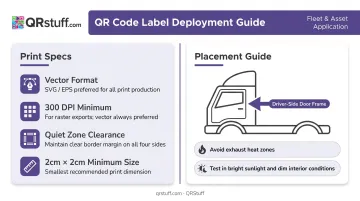
Print specs:
- Export codes in SVG or EPS format for print — vector files scale without pixelation
- For raster formats, use 300 DPI minimum
- Maintain a clear quiet zone (the blank border around the code) — crowding logos or text against the code edge causes scan failures
- QRStuff recommends a minimum of 2cm × 2cm for simple URL codes; larger codes scan more reliably at distance
Placement:
- Pick one consistent location across the entire fleet — driver-side door frame, dashboard, or sun visor are common choices
- Avoid exterior panels near exhaust heat, high-abrasion zones, or areas that collect road grime
- Test every printed code with a smartphone in varying conditions (bright sunlight, dim cab interior) before full deployment
Step 4: Scan the QR Code and Open the Inspection Form
With labels affixed and tested, drivers are ready to use them. Modern iOS and Android smartphones scan QR codes through the native camera app — no additional app required. The driver opens the camera, points it at the code, and taps the link that appears on screen.
Confirm these device-specific settings before rollout:
- iPhone/iPad: Built-in Camera app or Code Scanner handles QR scanning natively
- Android 13+: Dedicated QR scanner accessible from Quick Settings
- Pixel devices: Requires "Camera scan suggestions" to be enabled in camera settings
The form should open with the vehicle ID pre-populated. If drivers are manually entering asset information, the setup isn't fully configured yet.
Conditions that degrade scan reliability:
- Label surface damaged, scratched, or obscured by grime
- Direct glare from bright sunlight on a glossy label
- Camera lens dirty or cracked
Step 5: Complete the Inspection and Submit the Digital Record
The driver works through the checklist on-screen: tapping pass/fail for each item, adding notes where needed, and photographing any defects. Pass/fail-only forms create audit problems. Photo documentation of defects is what survives scrutiny during a review.
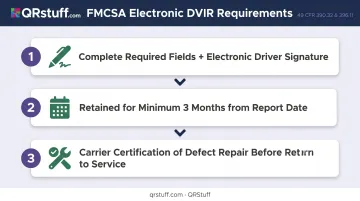
On submission, the record is timestamped and stored digitally. For FMCSA compliance, the electronic record must:
- Capture all required DVIR fields and driver signature (electronic signatures satisfy 49 CFR 390.32 requirements)
- Be retrievable and accurately reproducible for a minimum of three months from the report date
- Include carrier certification that listed defects were repaired before the vehicle returns to service
Beyond compliance, QRStuff's scan analytics log each scan event with timestamp, device type, and city-level location — giving you an additional layer of evidence that a specific vehicle was accessed at a specific time and place, exportable as CSV for audit records.
What You Need Before Your First QR Code Vehicle Inspection
Getting the setup right from the start matters. A misconfigured form or a damaged label on day one erodes driver confidence fast — and that confidence is hard to rebuild.
Equipment and System Requirements
- A smartphone running a current iOS or Android version with a working camera
- Stable mobile data or Wi-Fi to load cloud-hosted forms
- For vehicles operating in low-connectivity areas: an inspection app with offline capability that syncs on reconnection
Inspection Form and QR Code Setup
- Mobile-optimised digital form with a stable, persistent URL
- One dynamic QR code per vehicle, each pre-linked to the correct form instance
- Industrial-grade label material rated for outdoor and vehicle use
With equipment and forms in place, the final step is making sure both drivers and administrators know how the system works before the first inspection goes live.
Operational Readiness
- Brief drivers on QR code placement on each vehicle and the fallback process if a scan fails
- Give fleet administrators backend access to review submissions, flag defects, and pull records by vehicle ID and date
When QR Code Vehicle Inspections Work Best
QR-based inspections deliver clear value in specific contexts. They don't suit every operation.
Strong fit:
- Commercial truck and van fleets requiring regular DOT-compliant pre-trip and post-trip DVIRs
- Rental or car-share fleets where vehicles cycle between users and condition documentation matters
- Construction or field service fleets where equipment is shared across crews and accountability is hard to enforce manually
- Small fleets: FMCSA data shows 90.2% of active motor carriers operate 10 or fewer power units — QR smartphone workflows are practical at this scale without requiring specialized hardware
Less effective:
- Solo owner-operators where a simple checklist app is faster to implement
- Operations in remote areas with no mobile connectivity and no offline-capable app
- Fleets where vehicles frequently change asset IDs without a dynamic QR code system in place (though dynamic codes largely resolve this)
Matching the approach to your fleet's actual size and workflow is what separates a smooth rollout from an overcomplicated one.
Common Mistakes and How to Fix Them
Most QR-based inspection rollouts fail for the same handful of reasons. Here's what to watch for:
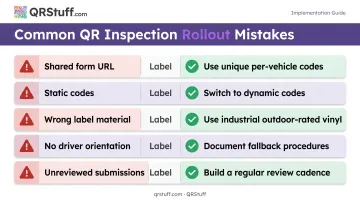
Shared form URL across all vehicles. Every vehicle needs a unique QR code pointing to a pre-populated form instance. A single shared link reintroduces manual vehicle ID entry — the exact problem you're trying to solve.
Static codes with no fallback for URL changes. Platform migrations and form tool updates turn static QR codes into dead links. Dynamic codes let you update the destination without reprinting a single label.
Wrong label material. Labels on exterior panels, near exhaust components, or in wash-down zones degrade fast. Use industrial outdoor-rated vinyl or polyester, laminated if possible.
No driver orientation. A single damaged label creates a compliance gap if drivers don't have a fallback. Before rollout, document what to do when a scan fails — whether that's a printed backup URL, a supervisor notification, or both.
Submitting records no one reviews. Digital records only have compliance value if someone monitors them. A 22.98% vehicle out-of-service rate across nearly 2 million FMCSA inspections in 2024 shows what happens when defect data isn't acted on. Build a review cadence into the process from day one.
Frequently Asked Questions
Do drivers need a special app to scan vehicle inspection QR codes?
No. Current iOS and Android devices scan QR codes through the built-in camera app — no separate download needed. The exception is if your inspection form lives inside a specific fleet management app, in which case drivers will need that app installed.
Should I use static or dynamic QR codes for vehicle inspections?
Dynamic codes are the right choice for most fleets. They let you update the linked form URL without replacing the physical label — which matters when forms are revised, platforms change, or a vehicle is reassigned to a different inspection type.
What should a vehicle inspection QR code link to?
A mobile-optimized digital inspection form that pre-populates the vehicle's asset ID and produces a timestamped, retrievable submission record. The form should prompt for defect photos, not just pass/fail responses.
Can QR code vehicle inspections satisfy DOT or FMCSA DVIR requirements?
Yes. Electronic DVIRs are explicitly authorized under 49 CFR 396.11 (per 49 CFR 390.32), provided the record captures all required fields, includes a valid electronic driver signature, and is retained for at least three months. Verify your inspection platform meets these requirements before relying on it for compliance.
What happens if a QR code label gets damaged and won't scan?
Every fleet should have a documented fallback: a printed backup URL, a shared form link accessible by vehicle ID, or a manual entry option. A damaged label shouldn't result in a missed inspection — it should trigger a defined procedure.
How do I manage QR codes across a large fleet without creating them one by one?
Batch QR code generation handles this at scale. QRStuff's Full Suite, for example, supports batches of up to 500 codes from an Excel upload, with each row carrying a unique destination URL. The Enterprise tier removes the batch size limit and adds API access for integration with existing fleet management systems.